React useLocalStorage Hook: Persist State in React JSX Apps
Hey there, amazing coders! If you have wanted to build a React app where user data magically sticks around, you are in the right place. Today, we’re diving deep into creating a custom React useLocalStorage Hook. This powerful hook will help you persist state across browser sessions. Imagine building apps that remember user preferences! It’s super cool and surprisingly simple to implement.
What We Are Building: A Smart, Persistent Input
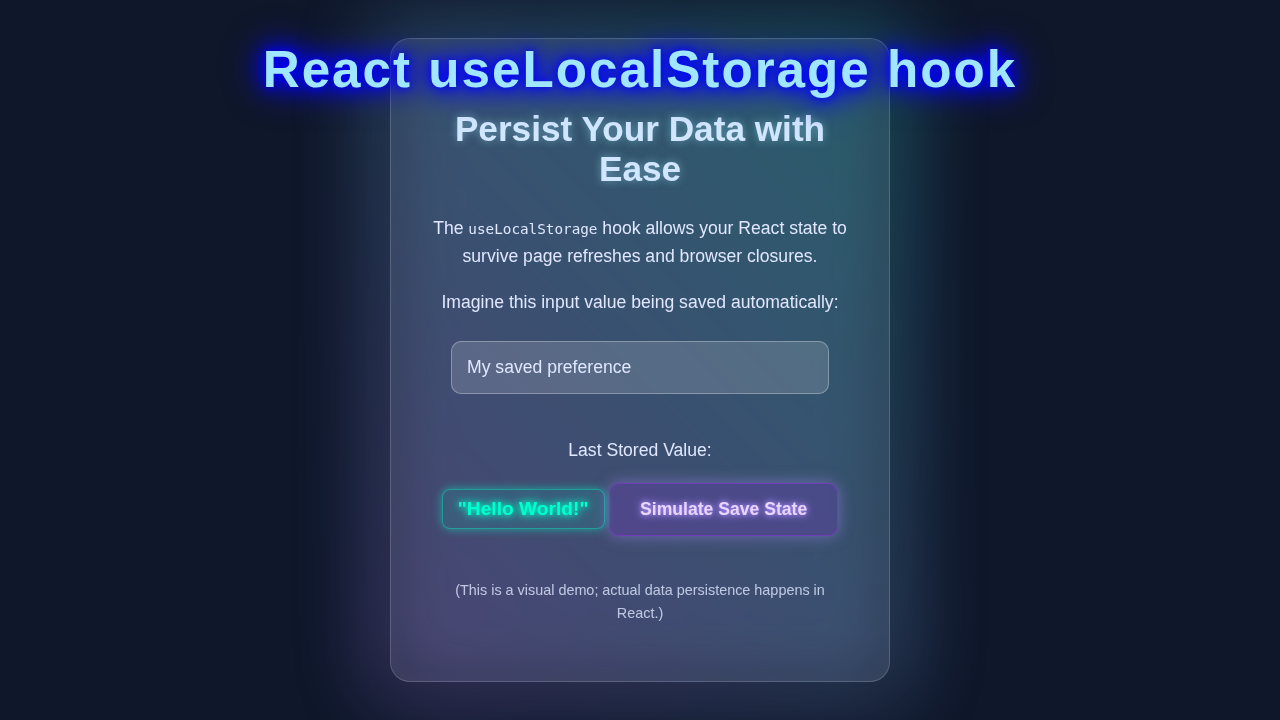
We are going to build a small, but mighty, React application. It features a simple input field. The amazing part? Whatever you type into this field will persist! Close your browser tab, then open it again. Your text will still be there. This happens thanks to our custom useLocalStorage hook. It’s like magic, but it’s just clever coding. This technique is perfect for remembering form data or user settings.
HTML Structure: Our React Component Shell
First, let’s lay out the basic structure for our React component. We’ll keep it super simple. This main App component will host our special input. It’s just a div holding a text input and a paragraph to display the value.
CSS Styling: Making It Look Good
We want our persistent input to look clean and user-friendly. These styles are minimal but effective. They will make our app easy to interact with. You can always tweak these later to match your own brand!
index.css
/* Basic Reset & Global Styles */
body {
  margin: 0;
  font-family: Arial, Helvetica, sans-serif; /* Safe fonts */
  -webkit-font-smoothing: antialiased;
  -moz-osx-font-smoothing: grayscale;
  background-color: #f0f2f5; /* Light background for default */
  color: #333;
  transition: background-color 0.3s ease, color 0.3s ease; /* Smooth transition for dark mode */
  min-height: 100vh;
  display: flex;
  justify-content: center;
  align-items: flex-start; /* Align items to start, allow content to flow naturally */
  padding: 20px;
  box-sizing: border-box;
  overflow-x: hidden; /* Prevent horizontal scrollbars */
}

/* Dark mode styles for body */
body.dark-mode {
  background-color: #1a202c; /* Dark background */
  color: #e2e8f0; /* Light text in dark mode */
}

.container {
  max-width: 800px;
  width: 100%;
  padding: 20px;
  background-color: #ffffff; /* White card background */
  border-radius: 12px;
  box-shadow: 0 4px 12px rgba(0, 0, 0, 0.1);
  box-sizing: border-box;
  text-align: center;
  margin-top: 40px; /* Space from top for better visual appeal */
}

/* Dark mode styles for container */
body.dark-mode .container {
  background-color: #2d3748; /* Darker card background */
  box-shadow: 0 4px 12px rgba(0, 0, 0, 0.3);
}

h1 {
  color: #3182ce; /* A nice blue */
  margin-bottom: 30px;
  font-size: 2.2em;
}

/* Dark mode styles for H1 */
body.dark-mode h1 {
  color: #90cdf4; /* Lighter blue for dark mode */
}

.demo-card {
  background-color: #f8f9fa;
  border: 1px solid #e2e8f0;
  border-radius: 8px;
  padding: 20px;
  margin-bottom: 25px;
  text-align: left;
}

/* Dark mode styles for demo cards */
body.dark-mode .demo-card {
  background-color: #4a5568;
  border-color: #2d3748;
}

h2 {
  color: #2c5282;
  margin-top: 0;
  margin-bottom: 15px;
  font-size: 1.6em;
}

/* Dark mode styles for H2 */
body.dark-mode h2 {
  color: #a0aec0;
}

.input-field {
  width: calc(100% - 20px); /* Adjust for padding */
  padding: 10px;
  margin-bottom: 15px;
  border: 1px solid #cbd5e0;
  border-radius: 6px;
  font-size: 1em;
  box-sizing: border-box;
  background-color: #fff;
  color: #333;
}

/* Dark mode styles for input fields */
body.dark-mode .input-field {
  background-color: #2d3748;
  border-color: #4a5568;
  color: #e2e8f0;
}

.action-button {
  background-color: #4299e1;
  color: white;
  padding: 10px 18px;
  border: none;
  border-radius: 6px;
  cursor: pointer;
  font-size: 1em;
  margin-right: 10px;
  transition: background-color 0.2s ease;
}

.action-button:hover {
  background-color: #3182ce;
}

/* Dark mode styles for buttons */
body.dark-mode .action-button {
  background-color: #63b3ed;
}

body.dark-mode .action-button:hover {
  background-color: #4299e1;
}

p {
  margin-bottom: 8px;
  line-height: 1.5;
}

.highlight-value {
  font-weight: bold;
  color: #007bff; /* A distinct color for values */
}

/* Dark mode styles for highlighted values */
body.dark-mode .highlight-value {
  color: #90cdf4;
}

.note {
  font-size: 0.9em;
  color: #6a737d;
  margin-top: 15px;
  border-left: 3px solid #63b3ed; /* Accent border */
  padding-left: 10px;
}

/* Dark mode styles for notes */
body.dark-mode .note {
  color: #a0aec0;
  border-left-color: #4299e1;
}

.footer-note {
  font-size: 0.85em;
  color: #718096;
  margin-top: 30px;
  padding-top: 15px;
  border-top: 1px dashed #e2e8f0;
}

/* Dark mode styles for footer notes */
body.dark-mode .footer-note {
  color: #a0aec0;
  border-top-color: #4a5568;
}
JavaScript: Crafting Our Custom React useLocalStorage Hook
Here’s the cool part! We’re building our very own custom hook. This JavaScript code will handle all the logic for saving and retrieving data. It connects React’s state management directly with your browser’s local storage. This is where the persistence magic happens. Get ready to write some super useful code!
useLocalStorage.js
import { useState, useEffect, useCallback } from 'react';

/**
 * A custom React hook to persist state in the browser's localStorage.
 * It provides a similar API to `useState` but automatically stores and retrieves
 * the value from localStorage.
 *
 * @param {string} key The key under which to store the value in localStorage.
 * @param {any} initialValue The initial value to use if no value is found in localStorage.
 * @returns {[any, Function]} A tuple containing the stored value and a setter function.
 */
function useLocalStorage(key, initialValue) {
  // State to store our value
  // Pass a function to useState so localStorage is only called once per component mount
  const [storedValue, setStoredValue] = useState(() => {
    if (typeof window === 'undefined') {
      // Return initial value if not in a browser environment (e.g., during SSR)
      return initialValue;
    }
    try {
      // Get from local storage by key
      const item = window.localStorage.getItem(key);
      // Parse stored json or if none return initialValue
      return item ? JSON.parse(item) : initialValue;
    } catch (error) {
      // If error, return initialValue (e.g., if localStorage is full or corrupted JSON)
      console.error(`Error reading localStorage key "${key}":`, error);
      return initialValue;
    }
  });

  // useCallback memoizes the setter function to prevent unnecessary re-renders
  // and ensures `useEffect`'s dependencies are stable.
  const setValue = useCallback((value) => {
    try {
      // Allow value to be a function so we have the same API as useState
      const valueToStore = value instanceof Function ? value(storedValue) : value;
      // Save state
      setStoredValue(valueToStore);
      // Save to local storage only if in a browser environment
      if (typeof window !== 'undefined') {
        window.localStorage.setItem(key, JSON.stringify(valueToStore));
      }
    } catch (error) {
      // A more advanced implementation would handle the error case better.
      console.error(`Error writing to localStorage key "${key}":`, error);
    }
  }, [key, storedValue]); // `storedValue` is a dependency to allow functional updates (`prev => ...`)

  // Optional: Add a listener for 'storage' events to sync state across tabs/windows.
  // This ensures that if another tab modifies the same localStorage key, this tab's state updates.
  useEffect(() => {
    if (typeof window === 'undefined') {
      return;
    }

    const handleStorageChange = (event) => {
      if (event.key === key) {
        if (event.newValue !== null) {
          try {
            setStoredValue(JSON.parse(event.newValue));
          } catch (error) {
            console.error(`Error parsing storage event for key "${key}":`, error);
          }
        } else { // Handle item removal (newValue is null when item is removed)
          setStoredValue(initialValue);
        }
      }
    };

    window.addEventListener('storage', handleStorageChange);
    return () => {
      window.removeEventListener('storage', handleStorageChange);
    };
  }, [key, initialValue]); // `initialValue` is a dependency to correctly reset if the key is cleared externally

  return [storedValue, setValue];
}

export default useLocalStorage;
App.jsx
import React, { useState } from 'react';
import useLocalStorage from './useLocalStorage';
import './index.css'; // Import global styles

/**
 * Main application component demonstrating the useLocalStorage hook.
 */
function App() {
  // Example 1: Storing a simple string (e.g., user's name)
  const [name, setName] = useLocalStorage('userName', 'Guest');

  // Example 2: Storing an object (e.g., user's settings)
  const [settings, setSettings] = useLocalStorage('userSettings', { theme: 'dark', notifications: true });

  // Example 3: Storing a boolean (e.g., dark mode preference)
  const [darkMode, setDarkMode] = useLocalStorage('darkModeEnabled', false);

  // Handler for name input change
  const handleNameChange = (event) => {
    setName(event.target.value);
  };

  // Handler to toggle notifications within the settings object
  const toggleNotifications = () => {
    setSettings(prevSettings => ({
      ...prevSettings,
      notifications: !prevSettings.notifications
    }));
  };

  // Handler to toggle dark mode boolean
  const toggleDarkMode = () => {
    setDarkMode(prevMode => !prevMode);
  };

  // Effect to apply dark mode class to the body element
  React.useEffect(() => {
    document.body.classList.toggle('dark-mode', darkMode);
  }, [darkMode]); // Rerun whenever darkMode state changes

  return (
    <div className="container">
      <h1>React useLocalStorage Hook Demo</h1>

      <section className="demo-card">
        <h2>1. User Name (String)</h2>
        <input
          type="text"
          value={name}
          onChange={handleNameChange}
          placeholder="Enter your name"
          className="input-field"
        />
        <p>Current Name: <span className="highlight-value">{name}</span></p>
        <p className="note">Try refreshing the page or closing/reopening the browser tab. Your name will persist!</p>
      </section>

      <section className="demo-card">
        <h2>2. User Settings (Object)</h2>
        <button onClick={toggleNotifications} className="action-button">
          {settings.notifications ? 'Disable Notifications' : 'Enable Notifications'}
        </button>
        <p>Notifications: <span className="highlight-value">{settings.notifications ? 'Enabled' : 'Disabled'}</span></p>
        <p>Theme: <span className="highlight-value">{settings.theme}</span> (Hardcoded for this demo)</p>
        <p className="note">This object will be saved as JSON in localStorage. Values like 'theme' also persist.</p>
      </section>

      <section className="demo-card">
        <h2>3. Dark Mode (Boolean)</h2>
        <button onClick={toggleDarkMode} className="action-button">
          {darkMode ? 'Switch to Light Mode' : 'Switch to Dark Mode'}
        </button>
        <p>Dark Mode: <span className="highlight-value">{darkMode ? 'Active' : 'Inactive'}</span></p>
        <p className="note">This boolean state also persists across sessions. Notice the body background change!</p>
      </section>

      <footer className="footer-note">
        Open DevTools (F12) > Application > Local Storage to see the values!
      </footer>
    </div>
  );
}

export default App;
index.js
import React from 'react';
import ReactDOM from 'react-dom/client';
import App from './App';
import './index.css'; // Ensure global styles are imported here too

// Create a root for React rendering
const root = ReactDOM.createRoot(document.getElementById('root'));

// Render the main App component into the root
root.render(
  <React.StrictMode>
    <App />
  </React.StrictMode>
);
Why a Custom Hook? Encapsulating Logic for Reusability
You might be asking, “Why bother with a custom hook?” That’s a great question! Custom hooks in React are incredibly powerful. They let you extract component logic into reusable functions. Our useLocalStorage hook perfectly demonstrates this. Instead of writing the localStorage logic in every component, we write it once. Then, we just import and use it. This makes our code cleaner and much more maintainable. It follows the “Don’t Repeat Yourself” (DRY) principle. You can easily share this hook across different parts of your application. Or even use it in entirely new projects! It’s an essential skill for any intermediate React developer. Building custom hooks truly elevates your coding game.
How It All Works Together: The Persistence Powerhouse
Let me explain what’s happening here. We combine React’s powerful state system with the browser’s local storage. This creates a seamless user experience. Your data truly sticks around now. We’ll look at each piece of the puzzle.
Understanding localStorage
First, what is localStorage? It’s a simple key-value store built right into your web browser. You can save strings there. These strings persist even if the user closes their browser. It’s perfect for small pieces of data. Think user preferences, authentication tokens, or form drafts. You can learn more about this web API on MDN Web Docs. However, remember it only stores strings. We will handle JSON serialization.
Our useLocalStorage Hook: The Brains Behind the Persistence
This is the core of our project, the React useLocalStorage Hook. It takes two essential arguments. First, a key, which is a string. This key is how we identify and store our data in local storage. Think of it like a label. Second, an initialValue. This is the value our state will start with if nothing is found in local storage. If you have previously saved data, this initial value gets ignored.
Inside our hook, we leverage React’s built-in hooks. We use useState to manage the actual state within our component. It gives us a state variable and a function to update it. This is standard React practice. But here’s the clever part: we initialize useState with a function. This function tries to read from localStorage first. It looks for the data associated with our key. If it finds something, it parses it from JSON. Otherwise, it uses our provided initialValue. This smart initialization prevents an unnecessary re-render. It also ensures data loads instantly on component mount.
Next, we employ the useEffect hook. This is crucial for synchronizing our React state with localStorage. Whenever our `value` (the state managed by `useState`) changes, this effect runs. It then saves the new value to `localStorage` using the specified `key`. We serialize the value to a JSON string first, using JSON.stringify(). This lets us store complex data types like objects or arrays. Remember, localStorage only stores strings! This `useEffect` dependency array includes `[key, value]`. This ensures the effect re-runs if either the storage key changes or our state value updates. It keeps everything perfectly in sync.
Pro Tip: Always wrap your
localStorageoperations in atry...catchblock. This guards against potential errors. Users might have their browser configured to block local storage access, or the storage might be full.
When retrieving data, we use JSON.parse(). This converts the stored JSON string back into its original JavaScript type. This process is how we ensure data integrity. It lets us work with real JavaScript objects. If you want to see another example of state persistence with local storage, check out our React Todo Local Storage App Tutorial – JSX & Hooks. It uses similar concepts and will solidify your understanding!
Integrating the Hook into Our App Component
Our main App component is quite straightforward, thanks to our custom hook! First, we import useLocalStorage. Then, we simply call it at the top level of our functional component: const [value, setValue] = useLocalStorage('my-persistent-input', '');. Notice how familiar this syntax looks? It’s exactly like using React’s built-in useState hook. We pass a unique key, 'my-persistent-input', and an empty string as the initial value. This call instantly gives us the current persistent state (value) and a function to update it (setValue).
We then connect these directly to our input field. The input’s value prop is set to our value state. Its onChange handler calls our setValue function. This updates the state whenever the user types. Every single keystroke updates our component state. Consequently, it triggers the useEffect inside our useLocalStorage hook. This effect then saves the latest text to local storage. It’s a beautiful, reactive loop. This makes our input instantly persistent. Consider how this elegant approach might simplify state management in a more complex React Todo App Tutorial: Build with Functional Components & Hooks where many items need persistence.
Friendly Reminder: Custom hooks are reusable! You can drop this
useLocalStoragehook into any React project. It provides persistent state with minimal effort. Share your creations!
Tips to Customise It: Make It Your Own!
You’ve built an amazing foundation! Here are some ideas to take your new persistent state hook further:
- Default Values: Enhance the hook to accept a function for its initial value. This allows for more complex initial state calculations. It runs only once.
- Error Handling: Implement more robust error handling. What happens if local storage is full? Or if the data is corrupt? You could show a user notification.
- Session Storage Version: Create a
useSessionStoragehook. This would persist state only for the current browser session. It clears when the tab closes. - Throttling/Debouncing: If you are saving very frequently updated data, consider debouncing the local storage writes. This prevents performance issues. It makes your app feel snappier. This concept is similar to what we explored in our React Debounced Search Input with Hooks tutorial. For more ideas on web performance, check out CSS-Tricks!
Experiment with these ideas. Make this hook truly fit your project needs. The possibilities are endless!
Conclusion: You Are a Persistence Pro!
You did it! You just built your very own custom React useLocalStorage Hook. You now have the power to create React applications that remember user data. This is a huge step in building more robust and user-friendly web experiences. You truly made your app smarter. Feel proud of this accomplishment. Go ahead, share your persistent apps with the world. Keep building, keep learning, and keep coding like the pro you are! What will you build next?