Hey there, fellow coder! If you’ve ever wanted to build a dynamic JavaScript Product Filter but felt a bit lost, you are absolutely in the right spot. Today, we are going to craft an awesome product filtering and search user interface. You will learn to use vanilla JavaScript and the Fetch API. This means no big libraries, just pure web magic. Get ready to make some truly interactive web experiences! It’s super practical and fun.
What We Are Building: A JavaScript Product Filter Powerhouse!
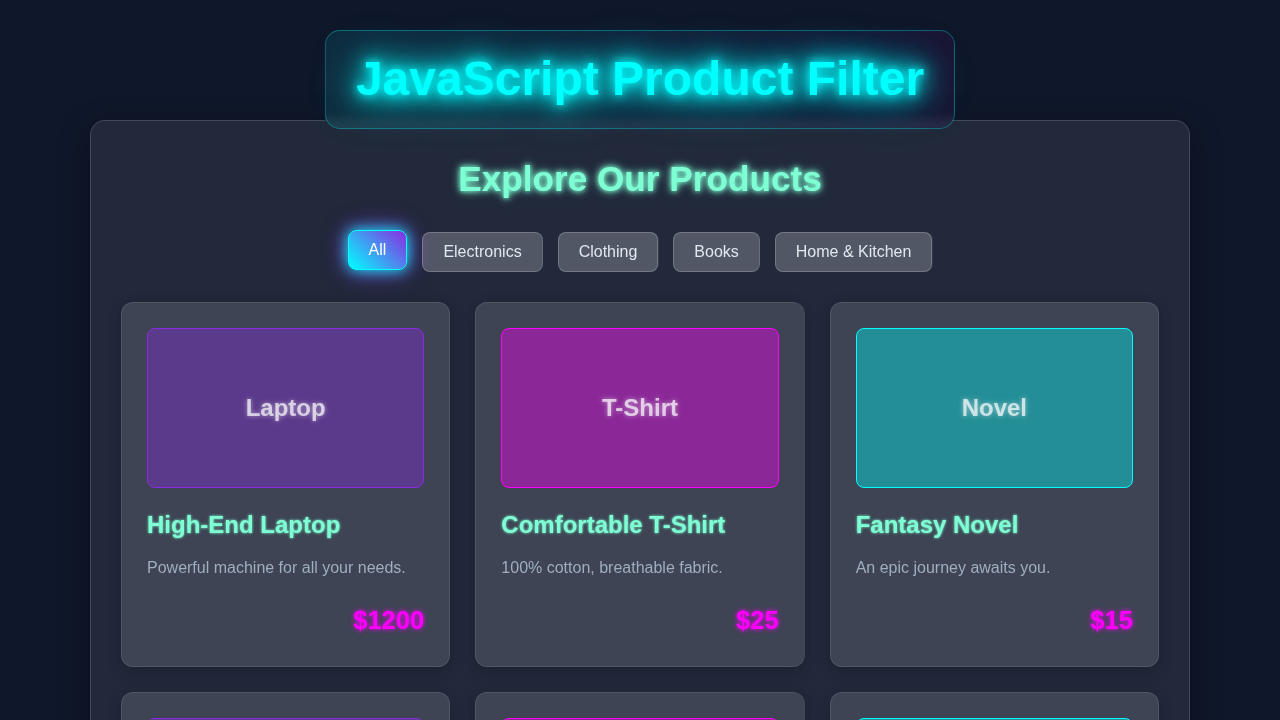
We are going to build a super useful JavaScript Product Filter application. Imagine an online store with hundreds of items. Users need to find products quickly and easily. Our app will let them filter items by category, or even search by name. It will be responsive and look great on any device. This kind of functionality is essential for modern web applications. It makes user experiences smooth and engaging. You will feel so proud showing this off to your friends or in your portfolio! This project truly showcases your front-end skills.
HTML Structure: The Foundation of Our UI
First, we need the HTML. This sets up the basic layout for our entire application. We will create a main container for our product list. We also need dedicated sections for our filter controls and the search bar. This structure is clean, semantic, and easy to follow. It provides a solid base for our styles and functionality. We’re thinking ahead for great user interaction.
index.html
<!DOCTYPE html>
<html lang="en">
<head>
    <meta charset="UTF-8">
    <meta name="viewport" content="width=device-width, initial-scale=1.0">
    <title>JavaScript Product Filter</title>
    <link rel="stylesheet" href="styles.css">
</head>
<body>
    <div class="product-filter-container">
        <h1>Our Products</h1>
        <div class="filter-buttons">
            <button class="filter-btn active" data-filter="all">All</button>
            <button class="filter-btn" data-filter="electronics">Electronics</button>
            <button class="filter-btn" data-filter="clothing">Clothing</button>
            <button class="filter-btn" data-filter="books">Books</button>
            <button class="filter-btn" data-filter="home">Home & Kitchen</button>
        </div>

        <div class="product-grid">
            <!-- Example Product Cards -->
            <div class="product-card" data-category="electronics">
                <img src="https://via.placeholder.com/150/0f172a/e2e8f0?text=Laptop" alt="Laptop">
                <h3>High-End Laptop</h3>
                <p>Powerful machine for all your needs.</p>
                <span class="price">$1200</span>
            </div>
            <div class="product-card" data-category="clothing">
                <img src="https://via.placeholder.com/150/0f172a/e2e8f0?text=T-Shirt" alt="T-Shirt">
                <h3>Comfortable T-Shirt</h3>
                <p>100% cotton, breathable fabric.</p>
                <span class="price">$25</span>
            </div>
            <div class="product-card" data-category="books">
                <img src="https://via.placeholder.com/150/0f172a/e2e8f0?text=Novel" alt="Novel">
                <h3>Fantasy Novel</h3>
                <p>An epic journey awaits you.</p>
                <span class="price">$15</span>
            </div>
            <div class="product-card" data-category="electronics">
                <img src="https://via.placeholder.com/150/0f172a/e2e8f0?text=Smartphone" alt="Smartphone">
                <h3>Latest Smartphone</h3>
                <p>Capture memories with ease.</p>
                <span class="price">$800</span>
            </div>
            <div class="product-card" data-category="clothing">
                <img src="https://via.placeholder.com/150/0f172a/e2e8f0?text=Jeans" alt="Jeans">
                <h3>Stylish Jeans</h3>
                <p>Durable denim for everyday wear.</p>
                <span class="price">$60</span>
            </div>
            <div class="product-card" data-category="home">
                <img src="https://via.placeholder.com/150/0f172a/e2e8f0?text=Coffee+Maker" alt="Coffee Maker">
                <h3>Automatic Coffee Maker</h3>
                <p>Start your day with perfect brew.</p>
                <span class="price">$90</span>
            </div>
             <div class="product-card" data-category="books">
                <img src="https://via.placeholder.com/150/0f172a/e2e8f0?text=Cookbook" alt="Cookbook">
                <h3>Gourmet Cookbook</h3>
                <p>Recipes for every occasion.</p>
                <span class="price">$30</span>
            </div>
            <div class="product-card" data-category="electronics">
                <img src="https://via.placeholder.com/150/0f172a/e2e8f0?text=Headphones" alt="Headphones">
                <h3>Noise-Cancelling Headphones</h3>
                <p>Immersive audio experience.</p>
                <span class="price">$150</span>
            </div>
            <div class="product-card" data-category="home">
                <img src="https://via.placeholder.com/150/0f172a/e2e8f0?text=Lamp" alt="Lamp">
                <h3>Modern Desk Lamp</h3>
                <p>Illuminate your workspace.</p>
                <span class="price">$45</span>
            </div>
        </div>
    </div>
    <script src="script.js"></script>
</body>
</html>
CSS Styling: Making Our Filter Look Fantastic
Next up, CSS! We will add beautiful styles to make everything look polished and modern. The product filter buttons, the search input, and each individual product card will all get some love. You’ll see how simple CSS techniques can create a professional and inviting feel. We want our UI to be intuitive and visually appealing. Good design keeps users engaged.
styles.css
/* Basic Reset & Box Sizing */
*, *::before, *::after {
    box-sizing: border-box;
    margin: 0;
    padding: 0;
}

body {
    font-family: Arial, Helvetica, sans-serif;
    background-color: #f4f7f6; /* Light background for the tutorial version */
    color: #333;
    line-height: 1.6;
    display: flex;
    justify-content: center;
    align-items: flex-start; /* Align to top for scrolling if content is large */
    min-height: 100vh;
    padding: 20px; /* Add some padding around the container */
}

.product-filter-container {
    background-color: #ffffff;
    border-radius: 10px;
    box-shadow: 0 4px 20px rgba(0, 0, 0, 0.1);
    padding: 30px;
    max-width: 1200px;
    width: 100%;
    text-align: center;
    overflow: hidden; /* Ensure no overflow inside the container */
}

h1 {
    color: #2c3e50;
    margin-bottom: 25px;
    font-size: 2.2em;
}

.filter-buttons {
    margin-bottom: 30px;
    display: flex;
    flex-wrap: wrap; /* Allow buttons to wrap on smaller screens */
    justify-content: center;
    gap: 10px;
}

.filter-btn {
    background-color: #e0e0e0;
    color: #555;
    border: none;
    padding: 10px 20px;
    border-radius: 5px;
    cursor: pointer;
    font-size: 1em;
    transition: background-color 0.3s ease, color 0.3s ease, transform 0.2s ease;
    -webkit-appearance: none; /* For consistent styling across browsers */
    -moz-appearance: none;
    appearance: none;
    user-select: none; /* Prevent text selection */
}

.filter-btn:hover {
    background-color: #d0d0d0;
    transform: translateY(-2px);
}

.filter-btn.active {
    background-color: #007bff; /* Primary active color */
    color: #ffffff;
    box-shadow: 0 2px 8px rgba(0, 123, 255, 0.4);
    transform: translateY(-1px);
}

.filter-btn.active:hover {
    background-color: #0069d9;
}


.product-grid {
    display: grid;
    grid-template-columns: repeat(auto-fill, minmax(250px, 1fr)); /* Responsive grid */
    gap: 25px;
    justify-content: center;
    align-items: stretch;
}

.product-card {
    background-color: #f9f9f9;
    border: 1px solid #eee;
    border-radius: 8px;
    padding: 20px;
    text-align: left;
    display: flex;
    flex-direction: column;
    justify-content: space-between;
    align-items: flex-start;
    box-shadow: 0 2px 10px rgba(0, 0, 0, 0.05);
    transition: transform 0.3s ease, opacity 0.3s ease, box-shadow 0.3s ease;
    opacity: 1; /* Default visible state */
    transform: translateY(0);
}

.product-card.hidden {
    opacity: 0;
    height: 0; /* Collapse hidden items */
    margin: 0;
    padding: 0;
    overflow: hidden; /* Hide content of collapsed items */
    border: none;
    transition: all 0.4s ease-out; /* Smooth transition for hiding */
}

.product-card img {
    max-width: 100%;
    height: auto;
    border-radius: 5px;
    margin-bottom: 15px;
    display: block; /* Remove extra space below image */
}

.product-card h3 {
    font-size: 1.3em;
    color: #333;
    margin-bottom: 8px;
}

.product-card p {
    font-size: 0.95em;
    color: #666;
    margin-bottom: 15px;
    flex-grow: 1; /* Allow paragraph to take available space */
}

.product-card .price {
    font-size: 1.4em;
    font-weight: bold;
    color: #007bff;
    align-self: flex-end; /* Align price to the bottom right */
}

/* Responsive adjustments */
@media (max-width: 768px) {
    .product-filter-container {
        padding: 20px;
    }
    h1 {
        font-size: 1.8em;
    }
    .filter-btn {
        padding: 8px 15px;
        font-size: 0.9em;
    }
    .product-grid {
        grid-template-columns: repeat(auto-fill, minmax(200px, 1fr));
        gap: 20px;
    }
}

@media (max-width: 480px) {
    body {
        padding: 15px;
    }
    .product-filter-container {
        padding: 15px;
    }
    h1 {
        font-size: 1.6em;
    }
    .filter-buttons {
        gap: 8px;
    }
    .filter-btn {
        width: 100%; /* Full width buttons on very small screens */
        padding: 10px;
    }
    .product-grid {
        grid-template-columns: 1fr; /* Single column on smallest screens */
        gap: 15px;
    }
}
JavaScript: Bringing Our Product Filter to Life
Now for the exciting part: JavaScript! This is where all the interactivity and dynamic magic happens. We will use JavaScript to fetch product data from an external source. Then, we will handle all user input from the search bar and filter buttons. Finally, we will dynamically update the display of products. This is truly the brain of our JavaScript Product Filter. It coordinates everything you see and interact with. We’re building a truly responsive system.
script.js
document.addEventListener('DOMContentLoaded', () => {
    // Select all filter buttons
    const filterButtons = document.querySelectorAll('.filter-btn');
    // Select all product cards
    const productCards = document.querySelectorAll('.product-card');

    // Add click event listener to each filter button
    filterButtons.forEach(button => {
        button.addEventListener('click', () => {
            // Get the filter category from the data-filter attribute
            const filterCategory = button.dataset.filter;

            // Remove 'active' class from all buttons and add it to the clicked button
            filterButtons.forEach(btn => btn.classList.remove('active'));
            button.classList.add('active');

            // Iterate through each product card
            productCards.forEach(card => {
                // Get the category of the product card
                const productCategory = card.dataset.category;

                // Check if the product should be shown or hidden
                if (filterCategory === 'all' || productCategory === filterCategory) {
                    // Show the product card by removing 'hidden' class
                    card.classList.remove('hidden');
                } else {
                    // Hide the product card by adding 'hidden' class
                    card.classList.add('hidden');
                }
            });
        });
    });

    // Optional: Trigger the 'All' filter on page load to ensure all products are visible initially
    // and the 'All' button is active, if not already handled by default HTML.
    const allButton = document.querySelector('.filter-btn[data-filter="all"]');
    if (allButton && !allButton.classList.contains('active')) {
        allButton.click(); // Simulate a click on the "All" button
    }
});
How It All Works Together: Unraveling Our Dynamic JavaScript Product Filter
Let’s break down the magic behind the scenes. Our project seamlessly combines HTML, CSS, and JavaScript into a powerful unit. The HTML provides the initial structure and content. CSS ensures everything looks aesthetically pleasing. JavaScript then brings everything to life, making it interactive and dynamic. This synergy is what modern web development is all about.
Fetching Our Product Data
The very first step is to get our product data. For this, we use the powerful Fetch API. It’s a modern, promise-based way to make network requests directly from your browser. We will grab a list of fake products from a public API endpoint. This data arrives in JSON format. Then, we carefully convert it into a JavaScript object or array that we can easily work with. It’s like sending a quick note to a server and getting a structured reply back. This method avoids full page reloads.
“Pro Tip: Always handle potential errors when using the Fetch API. A
try...catchblock or the.catch()method can prevent unexpected crashes! Network requests can sometimes fail, so be prepared.”
Displaying the Products Dynamically
Once we have successfully fetched the product data, our next task is to display it on the page. We will iterate through each product in our data array. For every single product, we dynamically create new HTML elements. These elements will clearly display the product’s name, its category, and its price. After creation, we append these new elements to our designated product list container in the DOM. This process is highly dynamic and efficient. It ensures that our UI reflects the available data perfectly. You can learn more about creating and updating dynamic UI elements in this React Element Size Hook tutorial, even though it focuses on React, the core concept of dynamic rendering applies broadly to all front-end development!
Implementing the Search Functionality
Our search bar is a key component. It allows users to type in specific queries. We continuously listen for changes in this input field using an event listener. As a user types, we take their input. Then, we filter the products based on whether their name includes the search term. This is a case-insensitive search. It ensures that “shirt” matches “Shirt” or “SHIRT” effortlessly. Only products that match the current search query are then shown to the user. This provides instant and relevant results.
Category Filtering with JavaScript
Beyond search, we have interactive category buttons. Each button neatly represents a different product category. When a user clicks one of these buttons, an event fires. We then filter our entire product list. We only display items that belong to that specific, chosen category. If no category button is active, all products are displayed. This gives users powerful control over what they see. It makes navigation much easier.
Combining Search and Filter for Precision
Here’s where the real power of our JavaScript Product Filter shines: search and category filters work perfectly together! If you search for “shirt” AND then click the “Clothing” category button, the application will only display shirts found within the clothing category. We achieve this by applying both filters sequentially to our product data. First, we filter by the active category. Then, we apply the search term to that already filtered list. This creates an incredibly precise and powerful user experience. It allows for very specific and accurate results. This method of managing data and UI updates is a fundamental concept in web development. Passing and updating data efficiently is vital, much like managing state in more complex applications you might learn about in a React Prop Drilling: A Component Tree Visualization post.
Updating the UI Dynamically
Every single time a filter or search criterion changes, we need to update our product display. We achieve this by first clearing the current product list from the DOM. Then, we re-render only the products that successfully pass through all the active filters. This provides instant visual feedback to the user. It makes the application feel responsive and modern. This dynamic update mechanism is the absolute core of our interactive UI. No annoying full page reloads are ever needed. It’s all smooth, fast, and seamless. For more on how to manage DOM manipulation effectively, check out the Document.createElement() and Node.appendChild() methods on MDN Web Docs!
“Understanding how to manipulate the DOM dynamically is a cornerstone of modern web development. Functions like
Element.innerHTMLorNode.appendChildare your best friends here. They allow you to build and modify web pages without full reloads!”
Tips to Customise It: Make Your JavaScript Product Filter Truly Your Own!
You’ve built something truly awesome. Now, let’s think about how you can take it even further and make it unique!
- Add More Filters: Think beyond just categories and search. You could implement filters for price ranges, product ratings, or even different brands. Consider adding sliders or dropdown menus for these new options.
- Pagination for Large Datasets: For applications with hundreds or thousands of products, scrolling endlessly isn’t ideal. Implement “next” and “previous” buttons, or even numbered pages, to manage large product lists more gracefully.
- Loading Spinner: Improve the user experience by showing a small loading animation. Display this animation while your application is fetching data from the API. It tells the user that something is happening. This kind of visual feedback is key. You can learn about effective visual feedback in this Custom Toast Notification JavaScript tutorial!
- Backend Integration: Move beyond static or fake data. Connect your front-end application to a real backend database. You could use technologies like Node.js and Express. This allows for dynamic data management and persistent storage.
Conclusion: You Rocked That JavaScript Product Filter!
Wow, you absolutely did it! You just built a fully functional JavaScript Product Filter and search UI from scratch. You mastered using vanilla JavaScript, alongside HTML, and CSS. This project teaches so many core web development skills. It beautifully demonstrates how powerful client-side filtering can be. You should be incredibly proud of this accomplishment! Now, go ahead and share what you’ve made. Keep experimenting with these concepts. Happy coding, and keep pushing your limits!