Creating a functional and visually appealing Kanban Board is a fantastic way to level up your front-end development skills. This guide will walk you through building a drag-and-drop interface from scratch, using the power of HTML, CSS, and vanilla JavaScript. We’ll explore core concepts that are essential for crafting dynamic web applications. You’ll gain practical experience with DOM manipulation and styling techniques.
It’s an incredibly satisfying project that brings immediate visual feedback. Furthermore, it teaches you principles applicable to almost any interactive UI. Get ready to build something truly awesome!
What We Are Building
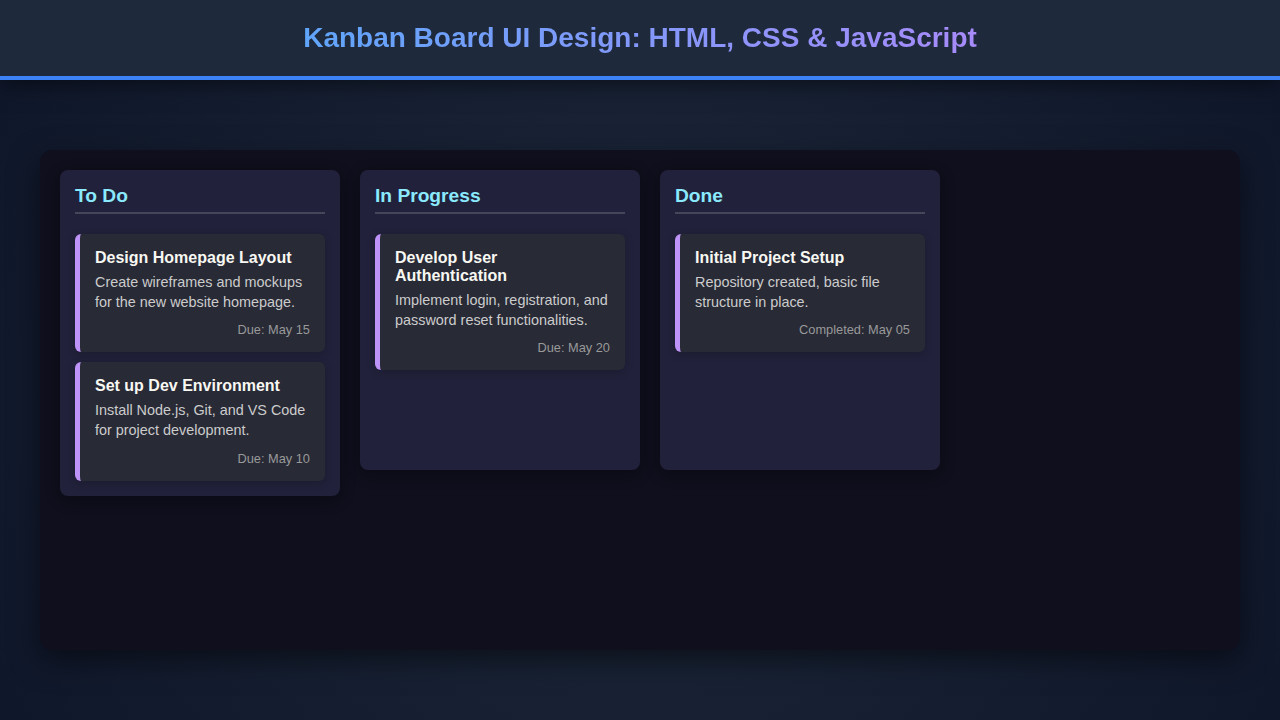
We are going to construct a sleek, responsive Kanban board, a popular agile project management tool. Imagine a digital whiteboard with columns representing stages of a workflow, such as ‘To Do,’ ‘In Progress,’ and ‘Done.’ Within these columns, we’ll have individual cards, each representing a task. Users can seamlessly drag and drop these cards between columns, reflecting changes in their project’s status. This interactive design is not just a visual treat but also a highly practical application.
Kanban boards are trending because they provide clear visual cues for progress. They help teams manage tasks efficiently. You can see at a glance what needs attention. Consequently, this transparency enhances collaboration and productivity. They’re incredibly versatile, used in software development, marketing, HR, and even personal task management. Our design will prioritize user experience, ensuring tasks are easy to manipulate and the interface is intuitive. We’ll make it feel just right.
Building this project also gives you a fantastic opportunity to deepen your understanding of how web components work together. Perhaps you’ve explored Virtual DOM implementations or complex component architectures. This project, while simpler, reinforces foundational concepts. It provides a solid base for understanding UI interactions. You’ll truly grasp how elements respond to user input and state changes.
HTML Structure
Our HTML will lay the groundwork for the Kanban board. It will define the main container, the columns, and the individual task cards. We’ll use semantic tags where appropriate to ensure accessibility and maintainability. The structure will be clean and easy to understand.
<!DOCTYPE html>
<html lang="en">
<head>
    <meta charset="UTF-8">
    <meta name="viewport" content="width=device-width, initial-scale=1.0">
    <title>Kanban Board UI Design</title>
    <link rel="stylesheet" href="style.css">
</head>
<body>
    <div class="kanban-board">
        <div class="kanban-column" id="todo-column">
            <h3>To Do</h3>
            <div class="kanban-items" data-status="todo">
                <div class="kanban-item" draggable="true" data-id="1">Design wireframes</div>
                <div class="kanban-item" draggable="true" data-id="2">Plan feature set</div≯
            </div>
            <button class="add-item-btn" data-status="todo">+ Add Card</button>
        </div>

        <div class="kanban-column" id="inprogress-column">
            <h3>In Progress</h3>
            <div class="kanban-items" data-status="inprogress">
                <div class="kanban-item" draggable="true" data-id="3">Develop authentication</div>
            </div>
            <button class="add-item-btn" data-status="inprogress">+ Add Card</button>
        </div>

        <div class="kanban-column" id="done-column">
            <h3>Done</h3>
            <div class="kanban-items" data-status="done">
                <div class="kanban-item" draggable="true" data-id="4">Set up project repo</div>
            </div>
            <button class="add-item-btn" data-status="done">+ Add Card</button>
        </div>
    </div>
    <script src="script.js"></script>
</body>
</html>
CSS Styling
Our CSS will transform the raw HTML into a visually appealing and functional Kanban board. We’ll use modern CSS techniques like Flexbox for layout and custom properties for easier theme management. Attention to detail in spacing, colors, and shadows will make the UI feel polished. You’ll appreciate the power of responsive design.
:root {
    --bg-color: #f0f2f5;
    --column-bg: #ebecf0;
    --card-bg: #ffffff;
    --border-radius: 8px;
    --shadow: 0 1px 0 rgba(9,30,66,.25);
    --text-color: #172b4d;
    --header-color: #5e6c84;
    --add-btn-bg: #007bff;
    --add-btn-hover: #0056b3;
}

body {
    font-family: 'Segoe UI', Tahoma, Geneva, Verdana, sans-serif;
    margin: 0;
    padding: 20px;
    background-color: var(--bg-color);
    color: var(--text-color);
    display: flex;
    justify-content: center;
    align-items: flex-start;
    min-height: 100vh;
}

.kanban-board {
    display: flex;
    gap: 20px;
    padding: 20px;
    overflow-x: auto;
    -webkit-overflow-scrolling: touch; /* For smoother scrolling on iOS */
}

.kanban-column {
    flex-shrink: 0;
    width: 280px;
    background-color: var(--column-bg);
    border-radius: var(--border-radius);
    padding: 15px;
    box-shadow: var(--shadow);
}

.kanban-column h3 {
    font-size: 1.2em;
    margin-top: 0;
    margin-bottom: 15px;
    color: var(--header-color);
}

.kanban-items {
    min-height: 50px;
    margin-bottom: 15px;
}

.kanban-item {
    background-color: var(--card-bg);
    padding: 10px 15px;
    margin-bottom: 10px;
    border-radius: var(--border-radius);
    box-shadow: var(--shadow);
    cursor: grab;
    border: 1px solid #dfe1e6;
    transition: background-color 0.2s ease, border-color 0.2s ease;
}

.kanban-item:hover {
    background-color: #f4f5f7;
    border-color: #cdd2d7;
}

.kanban-item.dragging {
    opacity: 0.5;
    border: 2px dashed var(--add-btn-bg);
}

.add-item-btn {
    display: block;
    width: 100%;
    padding: 10px 15px;
    background-color: var(--add-btn-bg);
    color: white;
    border: none;
    border-radius: var(--border-radius);
    cursor: pointer;
    font-size: 1em;
    font-weight: bold;
    transition: background-color 0.2s ease;
}

.add-item-btn:hover {
    background-color: var(--add-btn-hover);
}

.kanban-items.drag-over {
    background-color: rgba(0, 123, 255, 0.1);
    border-radius: var(--border-radius);
}

/* Placeholder for a dropped card */
.kanban-item-placeholder {
    background-color: rgba(0, 123, 255, 0.2);
    border: 1px dashed var(--add-btn-bg);
    height: 40px;
    margin-bottom: 10px;
    border-radius: var(--border-radius);
}

/* Responsive Design */
@media (max-width: 768px) {
    .kanban-board {
        flex-direction: column;
        align-items: center;
    }

    .kanban-column {
        width: 90%; /* Wider columns on smaller screens */
        max-width: 350px;
    }
}
Step-by-Step Breakdown
Now, let’s dive into the JavaScript that brings our Kanban board to life. This section details how we handle drag and drop, add new tasks, and persist data. Understanding these interactions is crucial. It elevates a static design into a dynamic tool.
Initializing Drag-and-Drop Functionality
The core of our interactive board relies on JavaScript’s Drag and Drop API. Firstly, we need to make our task cards draggable by setting the draggable="true" attribute in HTML. Then, in JavaScript, we attach several event listeners. The dragstart event fires when a user begins dragging a card. Here, we store the card’s ID and its original column ID. This data is crucial for later knowing where the card came from. We also add a ‘dragging’ class to the card for visual feedback, reducing its opacity. This visual cue helps users understand what’s happening.
Secondly, we listen for dragover, dragenter, dragleave, and drop events on the column containers. The dragover event, which fires constantly while dragging over a valid drop target, requires event.preventDefault(). This action allows the drop to happen. We use dragenter and dragleave to highlight potential drop zones, making the UI more intuitive. For instance, we might add a drag-over class to a column when an item hovers over it. This provides instant visual feedback.
Building interactive UIs often feels like orchestrating a symphony of events. Each user action triggers a cascade, and understanding the flow is key to a smooth experience.
Handling Card Movement
When a card is dropped (the drop event), we retrieve the stored card and source column IDs. We then append the dragged card to the new column’s task list. Crucially, we update the card’s internal `data-status` attribute to reflect its new column. This ensures data consistency. After the drop, we remove all temporary drag classes from the card and columns, restoring their original appearance. Finally, we would typically save this updated state to local storage or a backend API. This ensures persistence across sessions. Without this, reloads would reset the board.
Adding New Cards Dynamically
Each column features an “Add Card” button. When clicked, this button should prompt the user for a task description. A simple prompt() call can suffice for demonstration. After getting the input, we create a new div element for the card. We assign it a unique ID, set its draggable="true" attribute, and populate its text content. Then, we append this new card to the correct column’s task list. This dynamic creation makes the board fully interactive. It allows users to add tasks on the fly. You might also want to integrate more sophisticated JavaScript error handling here, especially if you’re validating user input before adding a new card. This helps in maintaining data integrity.
Data Persistence (Conceptual)
While not explicitly coded in the provided HTML/CSS, a real-world Kanban board would require data persistence. You could use localStorage for client-side persistence, storing the entire board’s state as a JSON string. On page load, retrieve this data and reconstruct the board. For collaborative or larger applications, integrate with a backend API (e.g., using Fetch API) to save and load data from a database. This ensures that changes are saved and shared. Thinking about this aspect from the start is good practice. It prepares you for more complex applications.
Making It Responsive
A truly useful UI adapts to various screen sizes. Our Kanban board achieves responsiveness primarily through Flexbox and media queries. Initially, the .kanban-board container uses display: flex, arranging columns horizontally with a gap. This works well on larger screens. However, on smaller devices, horizontal scrolling can be cumbersome. To combat this, we introduce a media query for screens below 768px.
Inside this media query, we change the flex-direction of .kanban-board to column. This stacks the columns vertically. We also adjust the width of .kanban-column to be a higher percentage (e.g., 90%) and set a max-width. This ensures columns take up most of the screen width but don’t become excessively wide on tablets. This mobile-first approach guarantees a great user experience regardless of the device. Consequently, your users will find the board equally usable on their phone or desktop. This approach is fundamental to modern component design, ensuring adaptability.
Responsive design isn’t just about scaling elements; it’s about re-imagining the user interaction for different contexts. Adaptability is key.
Final Output: A Functional Kanban Board
With our HTML structure, comprehensive CSS styling, and interactive JavaScript, you’ll have a fully functional Kanban Board UI. You’ll see distinct columns, each beautifully styled, holding individual task cards. The cards will boast subtle shadows and hover effects, providing a tactile feel. Dragging a card will reveal a temporary ghosted state, and dropping it will seamlessly integrate it into its new column. The “Add Card” buttons will work perfectly, expanding the board’s functionality.
Moreover, the board will gracefully adapt to different screen sizes. Whether viewed on a large desktop monitor or a compact mobile phone, the layout will remain intuitive and easy to navigate. This project showcases a robust understanding of front-end development principles. You’ve successfully built a dynamic, interactive, and responsive web application. It’s truly a testament to your skills.
Conclusion
Congratulations! You’ve successfully built a powerful and interactive Kanban board UI using HTML, CSS, and JavaScript. We covered structuring the content, styling it beautifully with modern CSS techniques like Flexbox and custom properties, and bringing it to life with drag-and-drop JavaScript functionality. This project provides a solid foundation for understanding dynamic UI development.
The skills you’ve gained here are incredibly versatile. You can apply them to countless other interactive applications, from to-do lists and project management tools to e-commerce interfaces. Keep experimenting, keep building, and never stop learning. The web development world is always evolving, and mastering these core concepts will always keep you ahead. Happy coding!