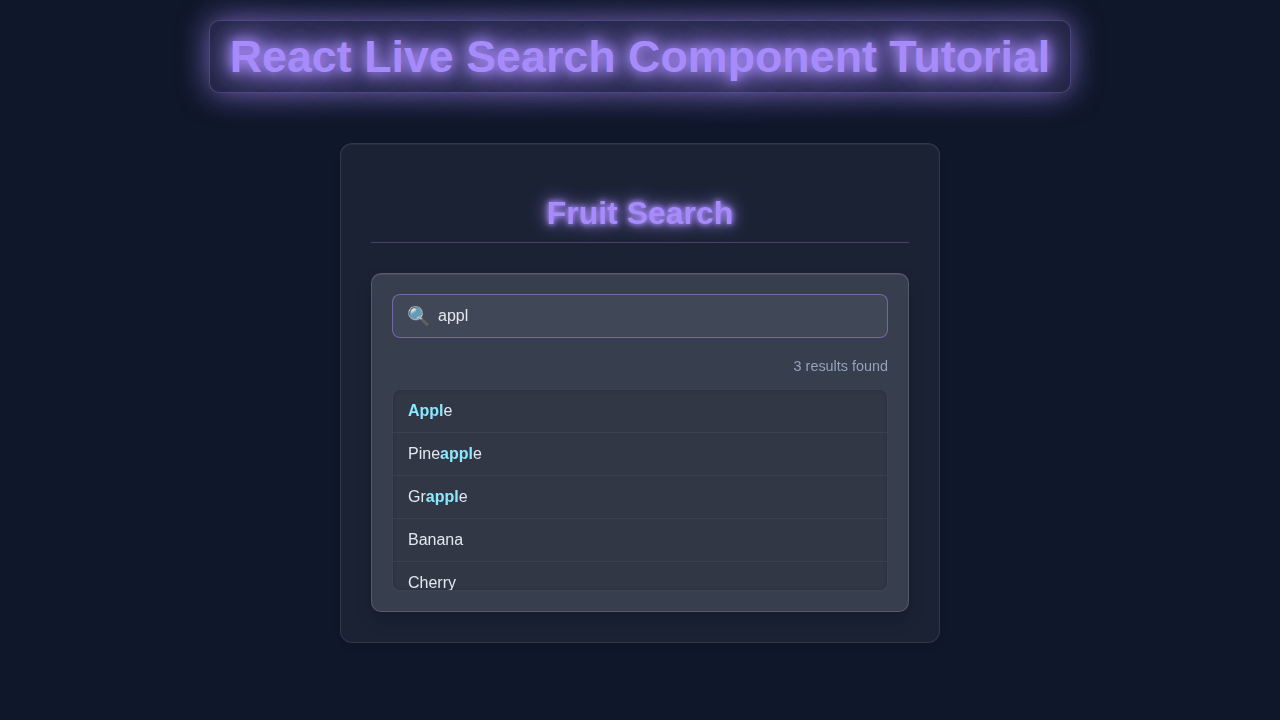
Hey there, fellow coder! If you have wanted to build a React Live Search component but had no idea where to start, you are in the right place. We’re going to create something super interactive today. This component will let users filter a list in real-time. It’s truly a game-changer for user experience. Let’s get building!
What We Are Building: Your Dynamic React Live Search
Imagine having a long list of items. Maybe they are products, users, or even blog posts. It can be hard to find what you need quickly. That’s where a live search and filter component comes in! We are going to build one right now. It will let users type into a search bar. Then, the list will update instantly. Only matching items will show up. This makes navigating data so much easier. You will see how simple yet powerful this is!
HTML Structure for Our Component
Our React component’s visual structure will be pretty straightforward. We need an input field for the search query. Below that, we’ll display our filtered list items. This setup provides a clear layout for our users. It keeps things clean and functional.
public/index.html
<!DOCTYPE html>
<html lang="en">
<head>
    <meta charset="UTF-8">
    <meta name="viewport" content="width=device-width, initial-scale=1.0">
    <title>React Live Search App</title>
    <link rel="stylesheet" href="./index.css">
</head>
<body>
    <div id="root"></div>
    <script src="index.js"></script>
</body>
</html>
CSS Styling: Making It Look Good
Of course, we want our component to look nice too! Our CSS will add some basic styling. It will make the search input clear. Also, it will style our list items attractively. This ensures a pleasant user interface. Don’t worry, we’ll keep the styles simple and easy to understand.
src/index.css
body {
    margin: 0;
    font-family: Arial, Helvetica, sans-serif;
    -webkit-font-smoothing: antialiased;
    -moz-osx-font-smoothing: grayscale;
    background-color: #1a202c; /* Dark background */
    color: #e2e8f0; /* Light text */
    display: flex;
    justify-content: center;
    align-items: flex-start; /* Align to top for full page view */
    min-height: 100vh;
    padding: 20px;
    box-sizing: border-box;
    overflow-x: hidden; /* Prevent horizontal scroll */
}

#root {
    width: 100%;
    max-width: 800px;
    margin-top: 50px; /* Give some space from the top */
}

code {
    font-family: source-code-pro, Menlo, Monaco, Consolas, 'Courier New',
    monospace;
}
src/App.css
.App {
  text-align: center;
  padding: 20px;
  background: rgba(255, 255, 255, 0.05); /* Light glassmorphism effect */
  border-radius: 12px;
  backdrop-filter: blur(10px);
  border: 1px solid rgba(255, 255, 255, 0.1);
  box-shadow: 0 4px 6px rgba(0, 0, 0, 0.1), inset 0 1px 0 rgba(255, 255, 255, 0.05);
  max-width: 600px;
  margin: 50px auto; /* Center the app container */
  overflow: hidden; /* Ensure content doesn't spill */
}

.app-title {
  color: #a78bfa; /* Neon purple */
  text-shadow: 0 0 5px #a78bfa, 0 0 10px #a78bfa, 0 0 20px #a78bfa;
  margin-bottom: 30px;
  font-size: 2.5em;
}
src/LiveSearch.css
.live-search-container {
  padding: 20px;
  border-radius: 10px;
  background: rgba(255, 255, 255, 0.08); /* Darker glassmorphism effect for component */
  backdrop-filter: blur(12px);
  border: 1px solid rgba(255, 255, 255, 0.15);
  box-shadow: 0 8px 16px rgba(0, 0, 0, 0.2), inset 0 1px 0 rgba(255, 255, 255, 0.08);
  margin-top: 30px;
  overflow: hidden; /* Ensure rounded corners clip content */
  box-sizing: border-box;
}

.search-input-wrapper {
  position: relative;
  margin-bottom: 20px;
  display: flex;
  align-items: center;
  max-width: 100%;
}

.search-input {
  width: 100%;
  padding: 12px 15px 12px 45px; /* Left padding for icon */
  border: 1px solid rgba(167, 139, 250, 0.5); /* Neon purple border */
  border-radius: 8px;
  background-color: rgba(255, 255, 255, 0.05);
  color: #e2e8f0;
  font-size: 1em;
  outline: none;
  box-sizing: border-box;
  transition: border-color 0.3s ease, box-shadow 0.3s ease;
}

.search-input::placeholder {
  color: #cbd5e0; /* Lighter placeholder text */
  opacity: 0.7;
}

.search-input:focus {
  border-color: #a78bfa; /* Brighter neon on focus */
  box-shadow: 0 0 0 3px rgba(167, 139, 250, 0.3); /* Soft glow */
}

.search-icon {
  position: absolute;
  left: 15px;
  color: #a78bfa; /* Neon purple icon */
  font-size: 1.2em;
}

.search-results-count {
  text-align: right;
  font-size: 0.9em;
  color: #94a3b8; /* Lighter grey */
  margin-bottom: 15px;
}

.search-results-list {
  list-style: none;
  padding: 0;
  margin: 0;
  max-height: 300px; /* Limit height for scrollable results */
  overflow-y: auto; /* Enable scrolling for many results */
  border: 1px solid rgba(255, 255, 255, 0.05);
  border-radius: 8px;
  background: rgba(0, 0, 0, 0.1);
  box-shadow: inset 0 0 5px rgba(0, 0, 0, 0.2);
}

/* Scrollbar styling for webkit browsers */
.search-results-list::-webkit-scrollbar {
  width: 8px;
}

.search-results-list::-webkit-scrollbar-track {
  background: rgba(0, 0, 0, 0.2);
  border-radius: 10px;
}

.search-results-list::-webkit-scrollbar-thumb {
  background: rgba(167, 139, 250, 0.5); /* Neon purple thumb */
  border-radius: 10px;
}

.search-results-list::-webkit-scrollbar-thumb:hover {
  background: #a78bfa; /* Brighter neon on hover */
}

.search-result-item {
  padding: 12px 15px;
  border-bottom: 1px solid rgba(255, 255, 255, 0.05);
  color: #e2e8f0;
  text-align: left;
  transition: background-color 0.2s ease;
}

.search-result-item:last-child {
  border-bottom: none;
}

.search-result-item:hover {
  background-color: rgba(167, 139, 250, 0.1); /* Subtle neon hover */
}

.no-results-message {
  padding: 20px 15px;
  color: #cbd5e0;
  text-align: center;
  font-style: italic;
}
JavaScript (React Logic): The Brains of Our React Live Search
Now, for the exciting part: the React JavaScript! We will use React Hooks, useState and useEffect. These are powerful tools in modern React. useState lets us add state to functional components. State is simply data that changes over time. useEffect lets us perform side effects. Side effects can be data fetching or directly updating the DOM. We’ll manage our search query and the displayed items. This is where all the filtering magic happens!
src/index.js
import React from 'react';
import ReactDOM from 'react-dom/client';
import './index.css';
import App from './App';

const root = ReactDOM.createRoot(document.getElementById('root'));
root.render(
  <React.StrictMode>
    <App />
  </React.StrictMode>
);
src/App.js
import React from 'react';
import LiveSearch from './LiveSearch';
import './App.css';

function App() {
  const items = [
    'Apple', 'Banana', 'Cherry', 'Date', 'Elderberry', 'Fig', 'Grape',
    'Honeydew', 'Imbe', 'Jackfruit', 'Kiwi', 'Lemon', 'Mango', 'Nectarine',
    'Orange', 'Papaya', 'Quince', 'Raspberry', 'Strawberry', 'Tangerine',
    'Ugli fruit', 'Vanilla bean', 'Watermelon', 'Xigua', 'Yellow passionfruit', 'Zucchini'
  ];

  return (
    <div className="App">
      <h1 className="app-title">Fruit Search</h1>
      <LiveSearch items={items} />
    </div>
  );
}

export default App;
src/LiveSearch.js
import React, { useState, useEffect, useMemo } from 'react';
import './LiveSearch.css';

/**
 * LiveSearch Component
 * A functional React component for live searching through a list of items.
 * It uses useState for managing search term and filtered results, and useMemo
 * for optimizing the filtering logic to prevent unnecessary re-calculations.
 *
 * @param {object} props - Component props.
 * @param {string[]} props.items - An array of strings to search through.
 */
function LiveSearch({ items }) {
  const [searchTerm, setSearchTerm] = useState('');
  const [filteredResults, setFilteredResults] = useState([]);

  // useMemo caches the filtered items. It only re-calculates when 'items' or 'searchTerm' changes.
  const memoizedFilteredItems = useMemo(() => {
    if (!searchTerm) {
      return items; // Show all items if no search term is entered
    }
    const lowerCaseSearchTerm = searchTerm.toLowerCase();
    return items.filter(item =>
      item.toLowerCase().includes(lowerCaseSearchTerm)
    );
  }, [items, searchTerm]);

  // useEffect synchronizes the component's state (filteredResults) with the memoized filtered items.
  // This ensures that the displayed list updates whenever the memoized results change.
  useEffect(() => {
    setFilteredResults(memoizedFilteredItems);
  }, [memoizedFilteredItems]);

  // Handles changes to the search input field, updating the searchTerm state.
  const handleInputChange = (event) => {
    setSearchTerm(event.target.value);
  };

  return (
    <div className="live-search-container">
      <div className="search-input-wrapper">
        <input
          type="text"
          placeholder="Search items..."
          value={searchTerm}
          onChange={handleInputChange}
          className="search-input"
          aria-label="Search items"
        />
        <span className="search-icon" aria-hidden="true">🔍</span>
      </div>

      <div className="search-results-count">
        {filteredResults.length} result{filteredResults.length !== 1 ? 's' : ''} found
      </div>

      <ul className="search-results-list">
        {filteredResults.length > 0 ? (
          filteredResults.map((item, index) => (
            // Using item + index for key, assuming items can be non-unique but index makes it unique within current list
            <li key={item + index} className="search-result-item">
              {item}
            </li>
          ))
        ) : (
          <li className="no-results-message">No results found for "{searchTerm}"</li>
        )}
      </ul>
    </div>
  );
}

export default LiveSearch;
How It All Works Together: Unpacking the Logic
Let’s break down the key parts of our component. Understanding each piece helps you see the bigger picture. We’ll trace the data flow from user input to filtered display. This will clarify how useState and useEffect collaborate.
Initial State and Our Data
First, we set up our initial data. This is the full list of items we want to search through. We’ll store it in a useState variable. For example, const [items, setItems] = useState(...) holds our main data array. We also need state for the user’s search input. So, we’ll have const [searchTerm, setSearchTerm] = useState(''). This variable will hold whatever the user types. Another useState will store the filtered results. const [filteredItems, setFilteredItems] = useState(items) starts with all items. This setup ensures our component is ready to handle changes.
Handling User Input with useState
When a user types in the search box, we need to capture that input. We use an onChange event handler on our <input> element. This handler calls setSearchTerm(). It updates our searchTerm state variable. setSearchTerm re-renders our component. This is how React knows the search query has changed. It’s a fundamental part of interactive forms. Each keystroke instantly updates the searchTerm.
The Filtering Magic with useEffect
Here’s the cool part: useEffect watches for changes. Specifically, it watches our searchTerm state. When searchTerm changes, our useEffect hook runs. Inside it, we write our filtering logic. We take our full items list. Then we filter it based on the current searchTerm. For instance, we might check if an item’s name includes the searchTerm. This comparison makes our search case-insensitive for a better user experience. For more on string methods like includes, check out MDN Web Docs. Finally, we update filteredItems using setFilteredItems(). The dependency array [searchTerm, items] tells useEffect when to re-run. This array is crucial for performance.
Pro Tip: Always include all variables used inside
useEffect(that come from props or state) in its dependency array. This prevents stale closures and unexpected behavior. Learn more about dependencies on React’s Official Documentation.
Displaying the Filtered Results
Once filteredItems is updated, our component re-renders. We then map over this filteredItems array in our JSX. We render each item to the screen. This ensures only the relevant items are visible. If the searchTerm is empty, filteredItems will show everything. If it has text, only matches appear. This dynamic rendering is the core of our React CRUD App Tutorial: Build a Full CRUD Application with JSX logic. It provides instant feedback to the user. It makes the entire experience seamless and efficient.
Tips to Customise Your React Live Search Component
You’ve built a solid foundation! But why stop there? Here are some ideas to make it even better:
- Add a Debounce Function: For very large lists, filtering on every keystroke can be slow. A debounce function waits a short time (e.g., 300ms) after the user stops typing before filtering. This improves performance.
- Filter Multiple Fields: Right now, we might only search by name. You could extend the logic to search by category, description, or any other property. Just adjust your
filtercondition. - No Results Message: If
filteredItemsis empty after a search, display a friendly “No results found!” message. This gives clear feedback. - Sorting Options: Add buttons or a dropdown to sort the
filteredItemsby different criteria. For example, by name (A-Z), price (low-high), or date. This adds another layer of usefulness.
Coder’s Insight: Think about your users! What would make their experience better? Adding small features like these can significantly enhance usability.
You can even integrate this live search into a React Password Strength Indicator with Hooks Tutorial if you had a list of users to manage! Or use it to enhance state management from our React Context API Guide: Master State Management.
Conclusion: You Did It!
Fantastic job! You just built a fully functional React Live Search and filter component. You used useState and useEffect like a pro. This project teaches you vital React concepts. You now understand how to manage state. You also know how to perform side effects. This dynamic filtering is a powerful feature. It drastically improves user interaction. Share what you’ve created! Experiment with new ideas. Keep building and keep learning, fellow procoder!