New Tab Extension: Build with HTML, CSS & Vanilla JavaScript
Hey there, fellow coders! Have you ever wished your browser’s default new tab page could be… more you? Perhaps you dream of a custom dashboard showing only what you truly need. Well, today is your lucky day! We’re going to build our very own New Tab Extension for Chrome. This project is super fun. Furthermore, it’s a fantastic way to learn practical web development skills. Let’s get started!
What We Are Building: Your Personalised New Tab Extension
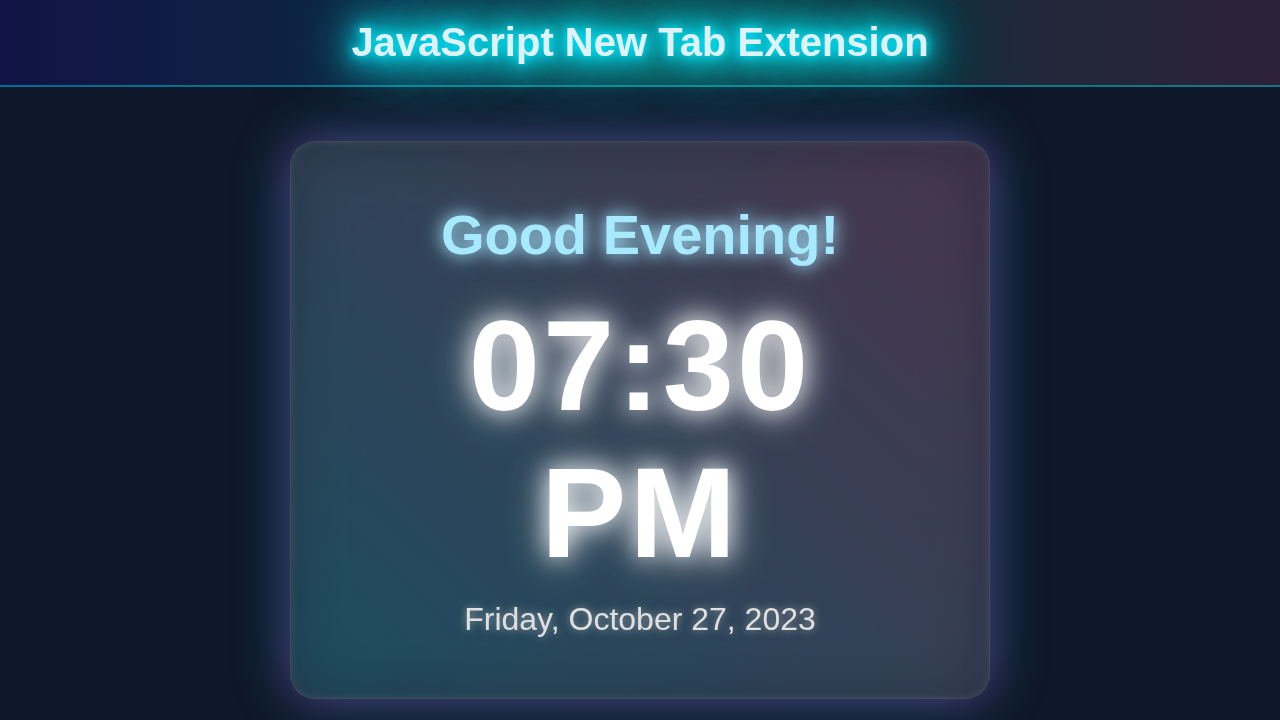
We’re not just building any new tab page. Instead, we’re creating a clean, modern start page. It will greet you with the current time and date. Plus, it will include a quick search bar for your favorite engine. Imagine opening a new tab and instantly seeing helpful information. Our design is sleek and distraction-free. You’ll love its simple, functional design. This extension will surely be a real game-changer for your daily browsing!
HTML Structure for Our New Tab Extension
First, we need the backbone for our page. Our HTML will be quite simple. It will hold containers for the time, date, and search bar. This structure keeps everything organised. Moreover, it makes styling with CSS much easier later on. Let’s get this foundational part ready right now!
index.html
<!DOCTYPE html>
<html lang="en">
<head>
    <meta charset="UTF-8">
    <meta name="viewport" content="width=device-width, initial-scale=1.0">
    <title>My Custom New Tab</title>
    <link rel="stylesheet" href="styles.css">
</head>
<body>
    <div class="container">
        <h1 id="greeting">Good Morning!</h1>
        <div id="time">12:00 PM</div>
        <div id="date">Monday, January 1, 2024</div>
    </div>
    <script src="script.js"></script>
</body>
</html>
CSS Styling: Making Our New Tab Extension Look Amazing
Now, let’s make our new tab page beautiful! We’ll use CSS to bring our design to life. This will involve setting up fonts and colors. Also, we’ll perfectly center our content. The goal is a clean, minimalist aesthetic. This ensures a pleasant visual experience every time you open a new tab. Therefore, every detail matters!
styles.css
/* Basic reset for consistent styling */
* {
    margin: 0;
    padding: 0;
    box-sizing: border-box;
    font-family: Arial, Helvetica, sans-serif; /* Safe fonts */
}

html, body {
    width: 100%;
    height: 100%;
    overflow: hidden; /* Prevent scrollbars */
    display: flex;
    justify-content: center;
    align-items: center;
    background-color: #1a1a2e; /* Dark background */
    color: #e0e0e0; /* Light text color */
}

.container {
    display: flex;
    flex-direction: column;
    justify-content: center;
    align-items: center;
    padding: 40px;
    border-radius: 20px;
    background: rgba(255, 255, 255, 0.08); /* Semi-transparent background for glassmorphism */
    border: 1px solid rgba(255, 255, 255, 0.15); /* Subtle border */
    backdrop-filter: blur(15px); /* Glassmorphism blur */
    -webkit-backdrop-filter: blur(15px); /* Safari support */
    box-shadow: 0 8px 32px 0 rgba(0, 0, 0, 0.3); /* Soft shadow */
    max-width: 90%; /* Ensure responsiveness */
    text-align: center;
}

#greeting {
    font-size: 3em;
    font-weight: bold;
    margin-bottom: 20px;
    color: #a7e9ff; /* Soft blue */
    text-shadow: 0 0 10px rgba(167, 233, 255, 0.8); /* Subtle glow */
}

#time {
    font-size: 6em;
    font-weight: bold;
    letter-spacing: 2px;
    margin-bottom: 10px;
    color: #fff;
    text-shadow: 0 0 20px rgba(255, 255, 255, 0.7); /* Stronger glow for time */
}

#date {
    font-size: 1.8em;
    color: #e0e0e0;
    text-shadow: 0 0 5px rgba(224, 224, 224, 0.5);
}

/* Optional: Add a subtle animation or background element for more visual appeal */
body::before {
    content: '';
    position: absolute;
    top: -50%;
    left: -50%;
    width: 200%;
    height: 200%;
    background: radial-gradient(circle at 60% 80%, rgba(100, 50, 200, 0.2) 0%, transparent 40%),
                radial-gradient(circle at 20% 30%, rgba(50, 150, 200, 0.2) 0%, transparent 40%);
    animation: moveGradient 20s infinite alternate;
    z-index: -1;
}

@keyframes moveGradient {
    0% { transform: translate(0, 0); }
    100% { transform: translate(10%, 10%); }
}
JavaScript: Adding Interactivity to Our New Tab Extension
Here’s the cool part: JavaScript! This powerful language will make our page dynamic. We will fetch and display the current time and date. Furthermore, we’ll handle the search functionality. JavaScript breathes life into our static HTML and CSS. You’ll see how quickly it makes our extension functional. Don’t worry, we’ll break it down together. This part is incredibly rewarding!
manifest.json
{
  "manifest_version": 3,
  "name": "Personalized New Tab",
  "version": "1.0",
  "description": "A custom new tab page featuring current time and a dynamic greeting.",
  "chrome_url_overrides": {
    "newtab": "index.html"
  },
  "icons": {
    "16": "icons/icon16.png",
    "48": "icons/icon48.png",
    "128": "icons/icon128.png"
  }
}
script.js
document.addEventListener('DOMContentLoaded', () => {
    const greetingElement = document.getElementById('greeting');
    const timeElement = document.getElementById('time');
    const dateElement = document.getElementById('date');

    /**
     * Updates the greeting message based on the current time of day.
     * Sets the text content of the greeting element.
     */
    function updateGreeting() {
        const hour = new Date().getHours();
        let greeting;
        if (hour < 12) {
            greeting = 'Good Morning!';
        } else if (hour < 18) {
            greeting = 'Good Afternoon!';
        } else {
            greeting = 'Good Evening!';
        }
        greetingElement.textContent = greeting;
    }

    /**
     * Updates the current time displayed on the page.
     * Formats the time as HH:MM AM/PM.
     * Sets the text content of the time element.
     */
    function updateTime() {
        const now = new Date();
        const optionsTime = { hour: '2-digit', minute: '2-digit', hour12: true };
        const formattedTime = now.toLocaleTimeString('en-US', optionsTime);
        timeElement.textContent = formattedTime;
    }

    /**
     * Updates the current date displayed on the page.
     * Formats the date as Day, Month Day, Year.
     * Sets the text content of the date element.
     */
    function updateDate() {
        const now = new Date();
        const optionsDate = { weekday: 'long', year: 'numeric', month: 'long', day: 'numeric' };
        const formattedDate = now.toLocaleDateString('en-US', optionsDate);
        dateElement.textContent = formattedDate;
    }

    // Initial calls to set content immediately on page load
    updateGreeting();
    updateTime();
    updateDate();

    // Update time and date every second
    setInterval(updateTime, 1000);
    setInterval(updateDate, 1000); // Date doesn't change every second, but for consistency in interval updates
    // Update greeting every minute (or less frequently, as needed)
    setInterval(updateGreeting, 60 * 1000); // Update every minute
});
How It All Works Together
You’ve seen the code snippets. Now, let’s connect the dots and understand the complete picture. Building a Chrome extension involves a few specific steps. These go beyond just writing HTML, CSS, and JavaScript. We also need to understand how each of our files interacts. This creates a cohesive and functional New Tab Extension. This section explains the magic behind the scenes. You’ll gain a full understanding of our exciting project!
1. The Manifest File (manifest.json)
Every single Chrome extension absolutely needs a manifest.json file. This file acts as your extension’s blueprint. It tells Chrome everything it needs to know. For instance, it specifies the extension’s name, its current version, and a brief description. Most critically for our project, it defines how your extension will behave. We use the "chrome_url_overrides" property. This tells Chrome to replace the default new tab page with our custom index.html. Without this special instruction, your extension wouldn’t override anything! Indeed, it’s the central configuration file. This single file makes all the difference! If you want to learn more about how different parts of JavaScript interact and manage data, explore JavaScript Closures: Master Scope & Data Encapsulation.
Pro Tip: The manifest file is critical. Pay close attention to its structure and properties. Any small error can prevent your extension from loading or working correctly. Always double-check your paths!
Here’s a minimal example of what your manifest.json might look like for this project. Notice the "manifest_version": 3. This is important for modern Chrome extensions. It signifies using the latest manifest format. You’ll definitely want to use Manifest V3 for new extensions.
{
  "manifest_version": 3,
  "name": "My Custom New Tab",
  "version": "1.0",
  "description": "A personalized new tab page with time, date, and search.",
  "chrome_url_overrides": {
    "newtab": "index.html"
  },
  "icons": {
    "16": "icon16.png",
    "48": "icon48.png",
    "128": "icon128.png"
  }
}
Remember to create simple icon files like icon16.png, icon48.png, and icon128.png in your project folder. These are not strictly required for basic functionality. However, they make your extension look professional. Chrome displays these icons in the extensions management page. Also, they sometimes appear in the browser toolbar. So, it’s good practice to include them!
2. HTML, CSS, and JavaScript Integration
Our index.html file serves as the canvas for our custom new tab. It’s where all our visual content lives. Within this HTML document, we carefully link to our style.css file. This ensures all our beautiful styling is applied correctly. We also reference our script.js file. This is typically done at the end of the <body> tag. It loads our JavaScript after the HTML elements are fully ready. The HTML provides the fundamental structure. Think of containers for time, date, and the search bar. CSS then adds all the visual flair. This includes colors, fonts, and the layout itself. JavaScript, finally, brings everything to life. It handles dynamic content and interactive features. This clear separation of concerns is a foundational web development best practice. It keeps your code organised, clean, and much easier to manage or debug. You can read more about linking resources on MDN Web Docs.
3. Displaying Time and Date Dynamically
The magic for our dynamic clock and date display happens in JavaScript. Our script starts by creating a new Date object. This object automatically captures the current date and time from the user’s computer. Next, we use powerful JavaScript methods to format this raw date information. We convert it into a user-friendly format. This shows hours, minutes, seconds, and the full date. For example, we might use toLocaleTimeString() and toLocaleDateString() methods. Finally, we target specific HTML elements. These are like a <span> with an ID of “time”. We then update their text content with this formatted data. To ensure our clock is always accurate, we wrap this logic inside a function. Then, we use JavaScript’s setInterval function. This calls our update function every 1000 milliseconds, or every second. This keeps your new tab page clock perfectly in sync. It’s a simple yet incredibly effective way to add real-time dynamic content!
4. Handling the Custom Search Bar
Our search bar is another interactive element. It is powered entirely by JavaScript. We attach an event listener to the input field. This is where users type their search queries. This listener waits for a specific action. Usually, this is the “keydown” event. When a user presses the ‘Enter’ key, our JavaScript function springs into action. It first captures the text currently typed into the search bar. Then, it constructs a valid search URL. For example, to search Google, it might create a URL like https://www.google.com/search?q=your+query. Lastly, and here’s the clever part, it redirects the browser to this newly constructed search URL. This creates a quick, custom search experience directly from your new tab. You are building a powerful utility with just a few lines of JavaScript! You can learn more about the JavaScript Date object on MDN’s Date documentation.
Expert Tip: Always sanitize user input before using it in URLs or displaying it on a page. This helps prevent security vulnerabilities like cross-site scripting (XSS) attacks. For this project, a simple encoding for URL parameters is sufficient! This is a good habit for any web project.
5. Installing and Testing Your New Tab Extension
This is the exciting moment of truth! Once all your files (manifest.json, index.html, style.css, script.js, and your icons) are in a single folder, you are ready to install. First, open your Chrome browser. Navigate to chrome://extensions. You can do this by typing it into your address bar. Next, locate and toggle on the “Developer mode” switch. This is typically found in the top right corner. Then, click the “Load unpacked” button. This will open a file browser. Simply select your entire project folder. That’s it! Your extension should now appear in the list. To test it, simply open a new tab (Ctrl+T or Cmd+T). You should now proudly see your custom-designed new tab page instead of Chrome’s default. Congratulations, you’ve successfully installed and tested your very first Chrome extension!
Tips to Customise Your New Tab Extension
You’ve built a solid foundation. Now, make it uniquely yours! Here are a few ideas to extend your project. Personalize your browsing experience even further!
- Add a To-Do List: Implement local storage. This way, users can save and manage tasks directly. It makes your new tab page even more productive.
- Dynamic Backgrounds: Integrate an API like Unsplash. This can fetch a new beautiful background image daily. It keeps your page fresh and exciting.
- Weather Widget: Use a weather API to display current conditions. Users will love seeing the forecast instantly. For more complex dynamic updates in React, check out Mastering React useEffect: A Visual Guide.
- Quick Links/Bookmarks: Add custom buttons for frequently visited websites. Think of it as a speed dial for your browser. This saves you valuable time.
- Personalised Greeting: Ask for the user’s name once. Store it securely in local storage. Then, greet them personally each time they open a new tab. This adds a nice touch!
Conclusion: You Did It! Your Own New Tab Extension!
Wow, what an achievement! You just built a fully functional Chrome New Tab Extension. You used HTML, CSS, and JavaScript effectively. You now understand how to structure an extension. You also know how to make it interactive and dynamic. This is a huge step in your web development journey. You created something practical and personal. Feel incredibly proud of your hard work!
Now, go forth and customize it even further! Make it your ultimate productivity hub. Share your amazing creations with other developers. Post them on your portfolio. You’ve got the skills to build awesome things. Keep building! If you’re keen on building interactive product tours, you might also find this article useful: React Product Tour Tutorial: Build a Step-by-Step Guide with JSX.