Hey there, fellow coder! If you’ve ever wanted to build a Responsive Navbar Tailwind component but felt a bit lost, you are in the perfect place. We are going to create a super slick navigation bar today. It will look great on any device. Plus, we will use Tailwind CSS and a tiny bit of JavaScript. Get ready to impress yourself! Building a solid navigation is key. It helps your users find their way. This tutorial will show you how easily you can do it.
What We Are Building: A Sleek, Responsive Navbar Tailwind
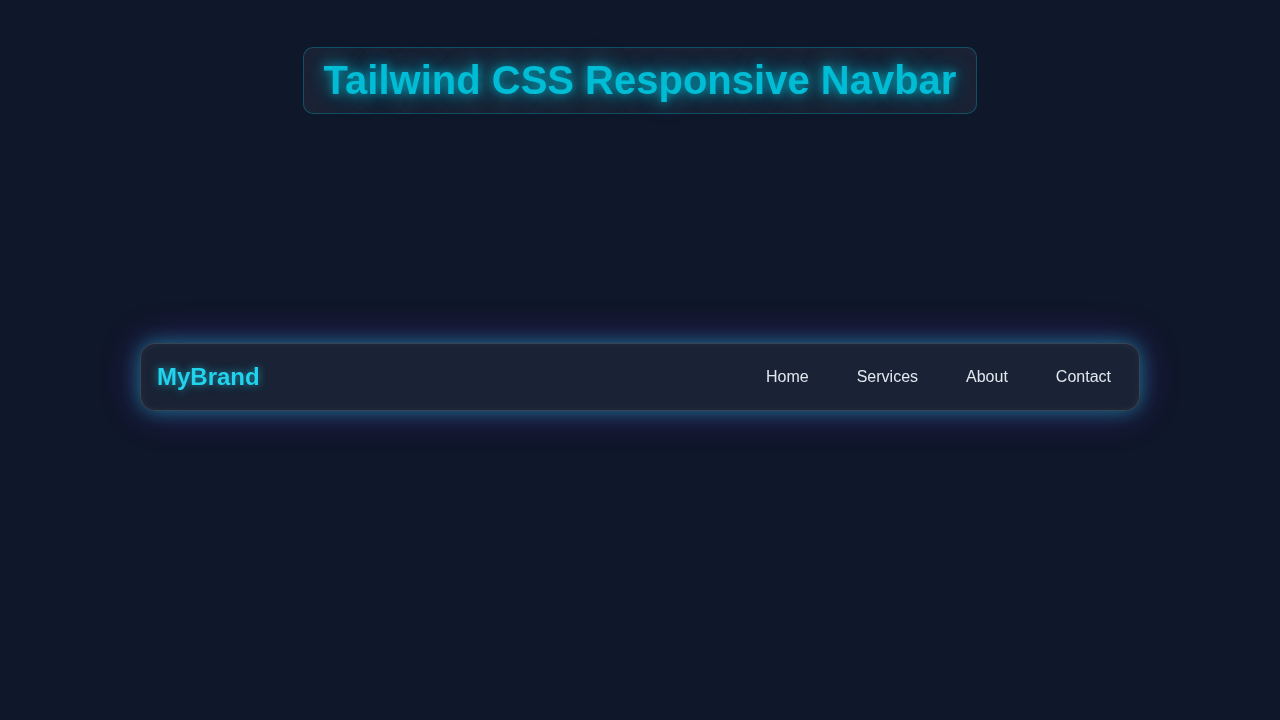
Imagine a website that guides your users effortlessly. That is exactly what we will build! Our navigation bar will magically transform. It changes from a full menu on desktops to a neat hamburger icon on smaller screens. Tapping the icon will reveal your links. This makes your site super user-friendly. No more awkward scrolling for mobile users! It’s both functional and beautiful. You will love the result. This type of navigation is essential. Every modern website needs it. We will make yours professional and dynamic. Get ready for a satisfying project!
HTML Structure: The Blueprint of Our Navbar
First, let’s lay down the foundation with some clean HTML. This provides the content and basic layout for our navbar. We will set up containers for our logo, navigation links, and the essential mobile menu button. Tailwind CSS classes will be applied directly here for immediate styling. It’s like sketching out your design. Each HTML element serves a clear purpose. We keep it simple and structured. This makes it easy to read and manage later.
index.html
<!DOCTYPE html>
<html lang="en">
<head>
    <meta charset="UTF-8">
    <meta name="viewport" content="width=device-width, initial-scale=1.0">
    <title>Responsive Navbar</title>
    <!--
        Link to the main stylesheet.
        This file will contain the Tailwind CSS directives.
        Ensure you have a Tailwind CSS build process set up
        (e.g., using `npx tailwindcss -i ./input.css -o ./styles.css --watch`)
        or use a CDN for quick prototyping (not recommended for production).
    -->
    <link href="./styles.css" rel="stylesheet">
    <style>
        /*
            Safe fonts are used as per requirements.
            A modern sans-serif stack is generally a good choice.
        */
        body {
            font-family: Arial, Helvetica, sans-serif;
            margin: 0; /* Ensure no default margin from browser */
            box-sizing: border-box; /* Standard box model */
            overflow-x: hidden; /* Prevent horizontal scroll */
        }
        *, *::before, *::after {
            box-sizing: inherit; /* Inherit box-sizing for all elements */
        }
    </style>
</head>
<body class="bg-gray-900 text-white min-h-screen flex flex-col">

    <!--
        Responsive Navbar Component
        - Desktop: Logo on left, navigation links on right.
        - Mobile: Logo on left, hamburger icon on right.
                  Hamburger toggles a full-width, stacked menu below.
    -->
    <nav class="bg-gray-800 p-4 shadow-lg relative z-20">
        <div class="container mx-auto flex justify-between items-center max-w-full overflow-hidden">
            <!-- Brand/Logo -->
            <a href="#" class="text-2xl font-bold text-cyan-400 hover:text-cyan-300 transition duration-300 ease-in-out">
                MyBrand
            </a>

            <!-- Desktop Navigation Links -->
            <div class="hidden md:flex space-x-6">
                <a href="#" class="text-white hover:text-cyan-400 transition duration-300 ease-in-out px-3 py-2 rounded-md">Home</a>
                <a href="#" class="text-white hover:text-cyan-400 transition duration-300 ease-in-out px-3 py-2 rounded-md">Services</a>
                <a href="#" class="text-white hover:text-cyan-400 transition duration-300 ease-in-out px-3 py-2 rounded-md">About</a>
                <a href="#" class="text-white hover:text-cyan-400 transition duration-300 ease-in-out px-3 py-2 rounded-md">Contact</a>
            </div>

            <!-- Mobile Menu Button (Hamburger Icon) -->
            <div class="md:hidden flex items-center">
                <button id="mobile-menu-button" class="text-white p-2 rounded-md hover:bg-gray-700 focus:outline-none focus:ring-2 focus:ring-cyan-500">
                    <!-- Hamburger Icon (Menu icon) -->
                    <svg class="h-6 w-6 block" fill="none" viewBox="0 0 24 24" stroke="currentColor" id="icon-menu">
                        <path stroke-linecap="round" stroke-linejoin="round" stroke-width="2" d="M4 6h16M4 12h16m-4 6h4"></path>
                    </svg>
                    <!-- Close Icon (X icon) - hidden by default -->
                    <svg class="h-6 w-6 hidden" fill="none" viewBox="0 0 24 24" stroke="currentColor" id="icon-close">
                        <path stroke-linecap="round" stroke-linejoin="round" stroke-width="2" d="M6 18L18 6M6 6l12 12"></path>
                    </svg>
                </button>
            </div>
        </div>

        <!-- Mobile Menu (Hidden by default, toggled by JS) -->
        <div id="mobile-menu" class="hidden md:hidden bg-gray-800 absolute top-full left-0 w-full shadow-lg border-t border-gray-700 py-2">
            <div class="flex flex-col space-y-2 px-4">
                <a href="#" class="block text-white hover:text-cyan-400 transition duration-300 ease-in-out px-3 py-2 rounded-md bg-gray-700 hover:bg-gray-600 text-center">Home</a>
                <a href="#" class="block text-white hover:text-cyan-400 transition duration-300 ease-in-out px-3 py-2 rounded-md bg-gray-700 hover:bg-gray-600 text-center">Services</a>
                <a href="#" class="block text-white hover:text-cyan-400 transition duration-300 ease-in-out px-3 py-2 rounded-md bg-gray-700 hover:bg-gray-600 text-center">About</a>
                <a href="#" class="block text-white hover:text-cyan-400 transition duration-300 ease-in-out px-3 py-2 rounded-md bg-gray-700 hover:bg-gray-600 text-center">Contact</a>
            </div>
        </div>
    </nav>

    <!-- Main content area for demonstration purposes -->
    <main class="flex-grow container mx-auto p-8 text-center">
        <h2 class="text-3xl font-semibold mb-4 text-gray-200">Welcome to Our Site!</h2>
        <p class="text-lg text-gray-400 leading-relaxed max-w-2xl mx-auto">
            This is a demonstration of a fully responsive navigation bar built with Tailwind CSS.
            Resize your browser window to see how the menu adapts from desktop links to a mobile toggle.
        </p>
    </main>

    <!--
        Link to the JavaScript file for handling mobile menu toggle.
        It's generally good practice to defer script loading
        by placing it before the closing </body> tag.
    -->
    <script src="./script.js"></script>
</body>
</html>
CSS Styling: Tailwind Does the Heavy Lifting!
For this project, Tailwind CSS is our go-to for styling. It provides utility classes that we apply directly in our HTML. This means we avoid writing traditional CSS files for most of our design. If you ever need custom styles or unique animations, you would typically add them to your input.css file. That file then imports Tailwind’s directives. However, for our responsive navbar, Tailwind handles almost everything inline! You just add classes. It’s incredibly efficient. This approach keeps your project neat. It also speeds up development. Get ready to see the power of utility-first CSS.
styles.css
/*
    Tailwind CSS directives.
    These are processed by the Tailwind CLI or PostCSS plugin
    to generate the final utility classes based on your
    tailwind.config.js and the HTML content.

    To compile Tailwind CSS:
    1. Make sure you have Node.js and npm installed.
    2. Install Tailwind CSS: `npm install -D tailwindcss postcss autoprefixer`
    3. Initialize Tailwind CSS: `npx tailwindcss init -p` (creates tailwind.config.js and postcss.config.js)
    4. Configure `tailwind.config.js` to scan your HTML files for classes:
       `content: ["./index.html", "./src/**/*.{html,js,ts,jsx,tsx}"]`
    5. Add these directives to your `styles.css` (or input.css) file.
    6. Run the build command: `npx tailwindcss -i ./styles.css -o ./dist/output.css --watch`
       (adjust paths as necessary, e.g., if styles.css is your input and output.css is your final)
*/
@tailwind base;
@tailwind components;
@tailwind utilities;
JavaScript: Bringing Our Navbar to Life
Now for the interactive magic! JavaScript will handle our mobile menu toggle. It makes the hamburger icon functional. When you click it, the hidden menu will smoothly appear or disappear. This adds that crucial responsiveness to our navbar. It’s a small script, but it makes a huge difference! We will target specific elements. Then we will manipulate their classes. This simple interaction is key. It delivers a great user experience on mobile. You’ll see how powerful just a few lines of JS can be.
script.js
document.addEventListener('DOMContentLoaded', () => {
    const mobileMenuButton = document.getElementById('mobile-menu-button');
    const mobileMenu = document.getElementById('mobile-menu');
    const iconMenu = document.getElementById('icon-menu');
    const iconClose = document.getElementById('icon-close');

    // Toggle mobile menu visibility
    if (mobileMenuButton && mobileMenu && iconMenu && iconClose) {
        mobileMenuButton.addEventListener('click', () => {
            mobileMenu.classList.toggle('hidden'); // Toggles 'hidden' class on the mobile menu
            iconMenu.classList.toggle('hidden');  // Toggles visibility of hamburger icon
            iconClose.classList.toggle('hidden'); // Toggles visibility of close icon
        });

        // Optional: Close menu when a link is clicked (useful for single-page apps)
        // const mobileMenuLinks = mobileMenu.querySelectorAll('a');
        // mobileMenuLinks.forEach(link => {
        //     link.addEventListener('click', () => {
        //         mobileMenu.classList.add('hidden');
        //         iconMenu.classList.remove('hidden');
        //         iconClose.classList.add('hidden');
        //     });
        // });

        // Optional: Close menu on resize if it's open (for better UX when switching to desktop view)
        window.addEventListener('resize', () => {
            if (window.innerWidth >= 768) { // Tailwind's 'md' breakpoint is 768px
                mobileMenu.classList.add('hidden');
                iconMenu.classList.remove('hidden');
                iconClose.classList.add('hidden');
            }
        });
    }
});
How It All Works Together: Unpacking Our Responsive Navbar Tailwind
The Core HTML Layout for Navigation
We start with a nav element. This element thoughtfully wraps all our navigation components. Inside, we have a clear section for our brand or logo. This could be simple text or an image. Then, there’s another main section for our navigation links. These links are cleverly hidden on small screens by default. They only appear on larger screens. We also include a dedicated button. This button transforms into our hamburger icon for mobile users. It acts as the gateway to our menu on smaller viewports.
Pro Tip: Using semantic HTML elements like
<nav>,<a>, and<ul>improves accessibility for all users. It also helps search engines understand your content better. Always aim for a meaningful and logical structure! You can learn more about the importance of semantic HTML on MDN Web Docs. This makes your code more readable too.
Tailwind’s Responsive Classes in Action
Tailwind CSS truly shines with its intuitive responsive utility classes. For example, we use hidden to initially hide an element. Then, md:flex makes it beautifully visible. It uses flexbox layout. This happens specifically from a medium screen size upwards. This is how our main navigation links appear gracefully on desktops. Our mobile menu button, on the other hand, uses md:hidden. This means it only shows up on small screens. It then vanishes on medium screens and larger ones. This responsive behavior is all handled by adding simple, descriptive classes. No complex media queries are needed. Tailwind makes responsive design feel like a superpower.
Toggling the Mobile Menu with JavaScript
Here’s the cool part, where our navbar truly comes alive! Our JavaScript listens intently for a ‘click’ event on the mobile menu button. When you click this button, the script efficiently finds the navigation links container. It then dynamically toggles a class on it. This class is either hidden or flex. This simple toggle makes the mobile menu visible or hidden instantly. We also carefully change the icon of the button itself. This gives clear visual feedback. A simple toggle method makes this super efficient and clean. You can explore more about the classList API on CSS-Tricks. This is how we achieve that smooth interaction.
Remember: Don’t worry if the JavaScript looks a little complex at first. Focus on the main idea: listening for an event and then changing a class. You will get the hang of it quickly!
Adding Smooth Transitions and Accessibility Features
We further enhance our navbar by adding some subtle transition classes from Tailwind. These classes make the mobile menu appear and disappear smoothly. This creates a much nicer user experience. Instead of an abrupt snap, you get a gentle animation. Beyond aesthetics, we prioritize accessibility. We use aria-expanded and aria-controls attributes on our mobile menu button. This is crucial for users who rely on screen readers. These attributes communicate if the menu is open or closed. It tells the user what the button controls. Ensuring an inclusive web experience is super important. Every user deserves a great experience.
Tips to Customise It: Make Your Responsive Navbar Tailwind Uniquely Yours!
You just built a fantastic responsive navbar! Give yourself a moment to appreciate that. But don’t stop there. Here are some exciting ideas to extend or personalize your project. Make it even better and truly your own:
- Add Custom Animations: Go beyond simple transitions. Use Tailwind’s animation utilities for fancier opening/closing effects. Maybe a cool slide-in or a subtle fade-in? Experiment with different durations.
- Integrate More Navigation Links & Dropdowns: Easily add more navigation items. Just duplicate the existing link structure within your
ul. You could even implement multi-level dropdown menus for larger sites. This adds a lot of depth. - Make It a Sticky Navbar: Implement a
fixedposition on your navbar. Users will always see it as they scroll. This is fantastic for prominent calls to action or essential links. - Conditional User Authentication Buttons: Integrate user login/logout buttons. These could appear conditionally based on a user’s logged-in state. For more advanced styling and form integration, check out our guide on Tailwind Multi-Step Form: Create Responsive Forms with HTML & JS.
- Dynamic Logo or Branding: Change the logo image based on different themes, like dark/light mode. Or, add a small animation when the page loads. If you encounter tricky styling issues, our guide on Tailwind CSS Production Issues: Common Fixes & Debugging Tips could be a life-saver. This project also helps you compare methods, as discussed in Tailwind CSS vs Plain CSS: Modern UI Design Comparison.
Conclusion: You Did It!
Wow, you have successfully built a fully functional Responsive Navbar Tailwind! Give yourself a massive high-five. This is a foundational skill for any aspiring web developer. You now understand how to thoughtfully combine HTML, the power of Tailwind CSS, and effective JavaScript. Your future websites will look fantastic and perform excellently on any device. Keep experimenting, keep building, and don’t ever forget to show off your awesome work. The web development journey is exciting. Happy coding, and keep learning new things!