Python Web Scraper Tutorial: Build a Simple Script
Hey there, future code wizard! If you’ve ever wanted to build a Python Web Scraper but felt lost on where to begin, you’ve landed in the perfect spot. Today, we’re going to create a fantastic script. This script will track product prices on your favorite e-commerce sites. It’s super cool and incredibly useful, allowing you to monitor deals and never miss a price drop again!
What Our Python Web Scraper Will Build
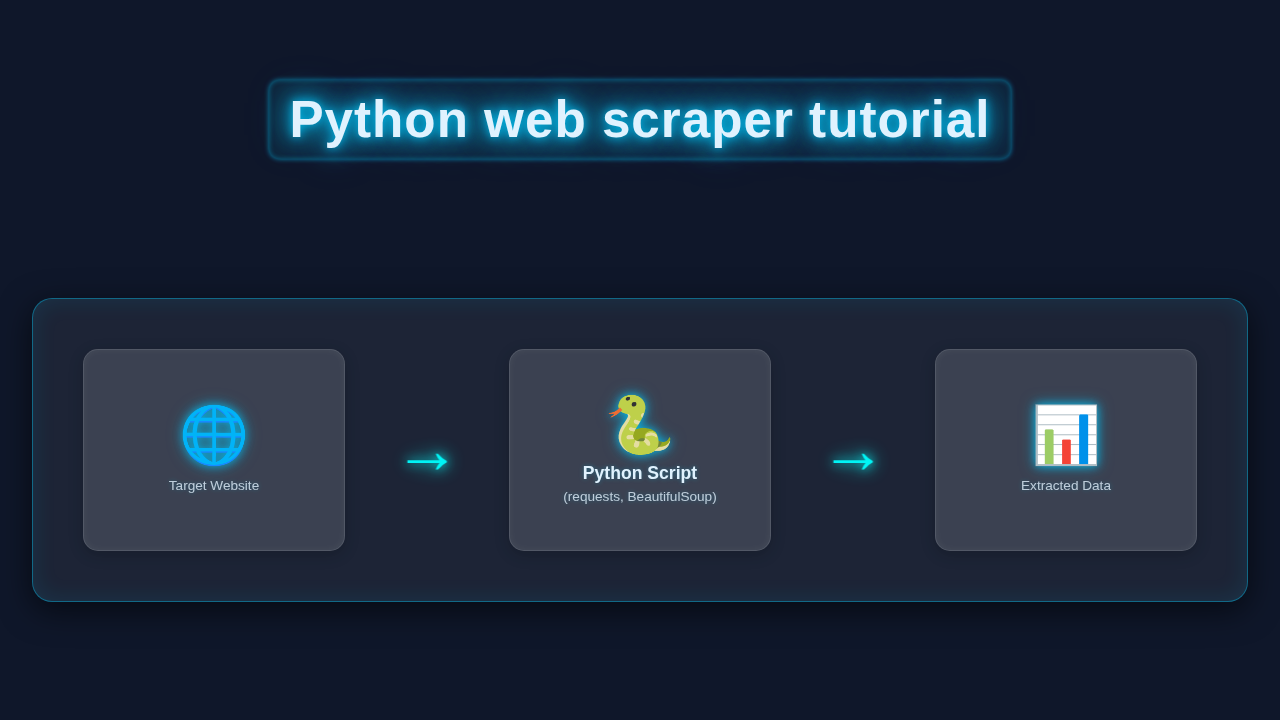
We’re crafting a smart little Python program. This program will visit a product page on an e-commerce website. It then extracts key information like the product name and its current price. The really exciting part? Our script won’t just print this data. It will also generate a clean, simple HTML file. This file will display your tracked products beautifully. Imagine a personal dashboard for your shopping wish list!
Pro Tip: Web scraping is like being a digital detective! You’re searching for clues (data) hidden within web pages.
HTML Structure for Our Output
Our Python script will create an HTML file. This file acts as a simple report for our scraped data. We need a basic structure to display the product details clearly. Think of it as a simple table or list for your price tracking. It makes the data super easy to read! To learn more about standard HTML elements and their uses, check out the MDN HTML reference.
CSS Styling for Our Report
A little styling goes a long way. We will add some CSS to make our generated HTML file look neat. This makes the product information much more presentable. It ensures your price tracking report is easy on the eyes. A clean layout helps you spot those great deals faster! For a deeper dive into CSS properties and selectors, the MDN CSS documentation is an excellent resource.
JavaScript (Optional for this Project)
For this specific price tracker, we won’t strictly need JavaScript. Our goal is to simply display data. However, you could add JS for future enhancements. For instance, you might want interactive sorting or filtering. For now, let’s keep it focused on the core scraping and display. So, no JS code injection needed today, but keep it in mind!
web_scraper.py
#!/usr/bin/env python3

import requests
from bs4 import BeautifulSoup
import time

# --- Configuration --- #
# The URL of the website to scrape. 'quotes.toscrape.com' is designed for learning.
TARGET_URL = "http://quotes.toscrape.com"

# --- Web Scraper Function --- #
def scrape_quotes(url):
    """
    Scrapes quotes, authors, and tags from a given URL.
    Args:
        url (str): The URL of the webpage to scrape.

    Returns:
        list: A list of dictionaries, where each dictionary represents a quote
              with 'text', 'author', and 'tags'. Returns an empty list on failure.
    """
    print(f"[INFO] Attempting to scrape: {url}")
    quotes_data = []

    try:
        # Send an HTTP GET request to the URL
        # Use a User-Agent header to mimic a web browser and avoid being blocked
        headers = {
            'User-Agent': 'Mozilla/5.0 (Windows NT 10.0; Win64; x64) AppleWebKit/537.36 (KHTML, like Gecko) Chrome/91.0.4472.124 Safari/537.36'
        }
        response = requests.get(url, headers=headers, timeout=10) # 10 seconds timeout

        # Check if the request was successful (status code 200)
        response.raise_for_status()

        # Parse the HTML content of the page using BeautifulSoup
        soup = BeautifulSoup(response.text, 'html.parser')

        # Find all div elements with class 'quote'
        quotes = soup.find_all('div', class_='quote')

        # Iterate through each quote and extract information
        for quote in quotes:
            text = quote.find('span', class_='text').text.strip()
            author = quote.find('small', class_='author').text.strip()
            tags_elements = quote.find('div', class_='tags').find_all('a', class_='tag')
            tags = [tag.text.strip() for tag in tags_elements]

            quotes_data.append({
                'text': text,
                'author': author,
                'tags': tags
            })

        print(f"[SUCCESS] Successfully scraped {len(quotes_data)} quotes from {url}")

    except requests.exceptions.HTTPError as e:
        print(f"[ERROR] HTTP Error occurred: {e} - Status Code: {e.response.status_code}")
    except requests.exceptions.ConnectionError as e:
        print(f"[ERROR] Connection Error occurred: {e} - Could not connect to {url}")
    except requests.exceptions.Timeout as e:
        print(f"[ERROR] Timeout Error occurred: {e} - Request to {url} timed out")
    except requests.exceptions.RequestException as e:
        print(f"[ERROR] An unexpected Request Error occurred: {e}")
    except AttributeError as e:
        print(f"[ERROR] Parsing Error (Attribute Missing): {e} - HTML structure might have changed.")
    except Exception as e:
        print(f"[ERROR] An unexpected error occurred: {e}")

    return quotes_data

# --- Main Execution Block --- #
if __name__ == "__main__":
    print("--- Python Web Scraper Tutorial ---")
    print(f"Targeting: {TARGET_URL}")

    # Scrape the first page
    all_quotes = scrape_quotes(TARGET_URL)

    if all_quotes:
        print("\n--- Extracted Quotes (First 5) ---")
        for i, quote in enumerate(all_quotes[:5]): # Print only the first 5 for brevity
            print(f"\nQuote {i+1}:")
            print(f"  Text: {quote['text']}")
            print(f"  Author: {quote['author']}")
            print(f"  Tags: {', '.join(quote['tags'])}")

        if len(all_quotes) > 5:
            print(f"\n...and {len(all_quotes) - 5} more quotes.\n")

        # Example of how to scrape multiple pages (if applicable)
        # For 'quotes.toscrape.com', there are 'next' buttons.
        # This simple example only scrapes the first page.
        # To scrape multiple pages, you would need to find the 'next' button link
        # and loop through subsequent pages until no 'next' button is found.
        # For instance:
        # next_page_link = soup.find('li', class_='next').find('a')['href']
        # next_page_url = f"{TARGET_URL}{next_page_link}"
        # time.sleep(1) # Be polite, add a delay between requests
        # more_quotes = scrape_quotes(next_page_url)
        # all_quotes.extend(more_quotes)

    else:
        print("No quotes were extracted. Please check the URL and your internet connection.")

    print("\n--- Scraper Tutorial Finished ---")
How Our Python Web Scraper Works Together
Now, let’s dive into the core of our project: the Python code. This is where the real web scraping magic happens. We’ll break down each step clearly. You’ll see how Python fetches, parses, and then presents the data.
Setting Up Our Environment
First things first, we need some tools. Python has amazing libraries for web scraping. We’ll mainly use requests and BeautifulSoup. The Python Requests Library: Essential HTTP for Developers helps us fetch web pages. BeautifulSoup helps us parse their HTML content. If you haven’t installed them, it’s super easy:
pip install requests beautifulsoup4These commands get you ready to rock and roll. You are just a few steps away from your first scraper!
Fetching the Web Page
Our journey begins by asking a website for its content. The requests library does this perfectly. It simulates a web browser visiting a URL. We simply provide the product page URL. Then, requests brings back all the HTML. Think of it as sending a messenger to get a document. Check out Python Requests Library Explained – Blog Thumbnail for more details!
import requests

url = "YOUR_PRODUCT_URL_HERE" # Replace with a real product URL!
headers = {
    "User-Agent": "Mozilla/5.0 (Windows NT 10.0; Win64; x64) AppleWebKit/537.36 (KHTML, like Gecko) Chrome/91.0.4472.124 Safari/537.36"
} # Pretend to be a real browser
response = requests.get(url, headers=headers)
html_content = response.text
print("Successfully fetched the page!")
It’s vital to include a User-Agent header. Some websites block requests from scripts without one. This header makes your script look like a regular browser. It helps you avoid getting blocked.
Parsing the HTML
Once we have the HTML, it’s just a big string of text. We can’t easily find prices in that! That’s where BeautifulSoup comes in. BeautifulSoup takes that messy HTML string. It transforms it into a tree-like structure. This structure makes navigating and searching for elements incredibly simple. It’s like turning a jumbled pile of papers into a perfectly organized filing system!
from bs4 import BeautifulSoup

soup = BeautifulSoup(html_content, "html.parser")
print("HTML parsed beautifully!")
The "html.parser" argument tells BeautifulSoup how to interpret the HTML. It’s a powerful tool for navigating complex web pages. You’ll use it constantly for Python Web Scraping Tutorial: Data Extraction with BeautifulSoup.
Extracting the Data
Here’s the cool part: finding the product name and price! We use BeautifulSoup’s methods to locate specific HTML elements. Websites use unique IDs or classes for different sections. We’ll inspect the target website to find these. You can do this using your browser’s developer tools (right-click -> Inspect Element). Look for the tags holding the product name and price.
# Example: You'd adjust these based on the actual website's HTML structure
product_name_element = soup.find("h1", class_="product-title") # Or id, or another tag
price_element = soup.find("span", class_="product-price") # Or a div, etc.

product_name = product_name_element.text.strip() if product_name_element else "N/A"
product_price = price_element.text.strip() if price_element else "N/A"

print(f"Product: {product_name}")
print(f"Price: {product_price}")
Using .text.strip() extracts the visible text. It also removes any extra whitespace. This makes our data clean and ready to use. It’s all about precision!
Generating the HTML Output
Finally, we take our scraped data and embed it into our simple HTML structure. Our Python script will create a new HTML file. This file will contain the product details. It’s a clean way to see your data at a glance!
html_template = """
<!DOCTYPE html>
<html lang="en">
<head>
    <meta charset="UTF-8">
    <meta name="viewport" content="width=device-width, initial-scale=1.0">
    <title>Price Tracker Report</title>
    <link rel="stylesheet" href="styles.css">
</head>
<body>
    <div class="container">
        <h1>Your Price Tracker Report</h1>
        <div class="product-card">
            <h2>{product_name}</h2>
            <p class="price">Current Price: <span>{product_price}</span></p>
            <p class="last-updated">Last Updated: {timestamp}</p>
        </div>
    </div>
</body>
</html>
"""

import datetime
timestamp = datetime.datetime.now().strftime("%Y-%m-%d %H:%M:%S")

output_html = html_template.format(
    product_name=product_name,
    product_price=product_price,
    timestamp=timestamp
)

with open("price_report.html", "w", encoding="utf-8") as f:
    f.write(output_html)

print("Report generated successfully: price_report.html")
We use f-strings or .format() to easily insert our variables. The timestamp helps you know when the data was last fetched. This creates a neat, self-contained report.
Running the Python Web Scraper
To run your script, save all the Python code into a file named, say, scraper.py. Make sure your styles.css file (from the CSS section) is in the same directory. Then open your terminal or command prompt in that directory. Just type:
python scraper.pyAfter running, you will find price_report.html in the same folder. Open it in your web browser. See your product data displayed beautifully! It’s that simple to run your first Python Web Scraper!
Remember: Always check a website’s robots.txt and terms of service before scraping. Ethical scraping is crucial!
Tips to Customise It
You’ve built a functional scraper! But why stop there? Here are some ideas to make it even better:
- Track Multiple Products: Modify your script to take a list of URLs. Then, loop through them to scrape multiple items.
- Schedule It: Use task schedulers (like Cron on Linux/macOS or Task Scheduler on Windows) to run your script automatically. Get daily price updates!
- Price Drop Alerts: Compare current prices with previous ones. Send yourself an email or a notification if the price drops.
- Save to CSV/Database: Instead of just HTML, save the data to a CSV file or a simple SQLite database. This makes historical tracking easier.
- Build a Simple API: Integrate your scraper with a micro-framework like Flask. This allows you to expose the data via an API.
Conclusion
Wow, you did it! You just built your very own Python Web Scraper. You learned how to fetch web pages, parse HTML, and extract specific data. Not only that, but you also created a beautiful HTML report for your findings. This is a huge step in your web development journey. Keep experimenting and building amazing things. Share your creations with us! What will you scrape next?
web_scraper.py
#!/usr/bin/env python3

import requests
from bs4 import BeautifulSoup
import time

# --- Configuration --- #
# The URL of the website to scrape. 'quotes.toscrape.com' is designed for learning.
TARGET_URL = "http://quotes.toscrape.com"

# --- Web Scraper Function --- #
def scrape_quotes(url):
    """
    Scrapes quotes, authors, and tags from a given URL.
    Args:
        url (str): The URL of the webpage to scrape.

    Returns:
        list: A list of dictionaries, where each dictionary represents a quote
              with 'text', 'author', and 'tags'. Returns an empty list on failure.
    """
    print(f"[INFO] Attempting to scrape: {url}")
    quotes_data = []

    try:
        # Send an HTTP GET request to the URL
        # Use a User-Agent header to mimic a web browser and avoid being blocked
        headers = {
            'User-Agent': 'Mozilla/5.0 (Windows NT 10.0; Win64; x64) AppleWebKit/537.36 (KHTML, like Gecko) Chrome/91.0.4472.124 Safari/537.36'
        }
        response = requests.get(url, headers=headers, timeout=10) # 10 seconds timeout

        # Check if the request was successful (status code 200)
        response.raise_for_status()

        # Parse the HTML content of the page using BeautifulSoup
        soup = BeautifulSoup(response.text, 'html.parser')

        # Find all div elements with class 'quote'
        quotes = soup.find_all('div', class_='quote')

        # Iterate through each quote and extract information
        for quote in quotes:
            text = quote.find('span', class_='text').text.strip()
            author = quote.find('small', class_='author').text.strip()
            tags_elements = quote.find('div', class_='tags').find_all('a', class_='tag')
            tags = [tag.text.strip() for tag in tags_elements]

            quotes_data.append({
                'text': text,
                'author': author,
                'tags': tags
            })

        print(f"[SUCCESS] Successfully scraped {len(quotes_data)} quotes from {url}")

    except requests.exceptions.HTTPError as e:
        print(f"[ERROR] HTTP Error occurred: {e} - Status Code: {e.response.status_code}")
    except requests.exceptions.ConnectionError as e:
        print(f"[ERROR] Connection Error occurred: {e} - Could not connect to {url}")
    except requests.exceptions.Timeout as e:
        print(f"[ERROR] Timeout Error occurred: {e} - Request to {url} timed out")
    except requests.exceptions.RequestException as e:
        print(f"[ERROR] An unexpected Request Error occurred: {e}")
    except AttributeError as e:
        print(f"[ERROR] Parsing Error (Attribute Missing): {e} - HTML structure might have changed.")
    except Exception as e:
        print(f"[ERROR] An unexpected error occurred: {e}")

    return quotes_data

# --- Main Execution Block --- #
if __name__ == "__main__":
    print("--- Python Web Scraper Tutorial ---")
    print(f"Targeting: {TARGET_URL}")

    # Scrape the first page
    all_quotes = scrape_quotes(TARGET_URL)

    if all_quotes:
        print("\n--- Extracted Quotes (First 5) ---")
        for i, quote in enumerate(all_quotes[:5]): # Print only the first 5 for brevity
            print(f"\nQuote {i+1}:")
            print(f"  Text: {quote['text']}")
            print(f"  Author: {quote['author']}")
            print(f"  Tags: {', '.join(quote['tags'])}")

        if len(all_quotes) > 5:
            print(f"\n...and {len(all_quotes) - 5} more quotes.\n")

        # Example of how to scrape multiple pages (if applicable)
        # For 'quotes.toscrape.com', there are 'next' buttons.
        # This simple example only scrapes the first page.
        # To scrape multiple pages, you would need to find the 'next' button link
        # and loop through subsequent pages until no 'next' button is found.
        # For instance:
        # next_page_link = soup.find('li', class_='next').find('a')['href']
        # next_page_url = f"{TARGET_URL}{next_page_link}"
        # time.sleep(1) # Be polite, add a delay between requests
        # more_quotes = scrape_quotes(next_page_url)
        # all_quotes.extend(more_quotes)

    else:
        print("No quotes were extracted. Please check the URL and your internet connection.")

    print("\n--- Scraper Tutorial Finished ---")