Hey there, future web wizard! Ever felt like your Python code is stuck in its own little world? You want it to reach out, grab data from the internet, or maybe even send some data out into the wild. But how?
It’s like having a super-powered car but no roads to drive on. You know Python can do amazing things, but making it talk to the web? That can feel like magic, or a frustrating mystery. Don’t worry — it clicks eventually.
You have probably been hearing about APIs and web scraping. Maybe you even tried a quick tutorial. Often, these guides point you straight to one incredible tool: the Python Requests Library. This library makes HTTP communication shockingly simple. It’s designed for humans, not robots!
Today, we are pulling back the curtain. We’re going to dive deep into how the Python Requests Library Explained actually works. You will understand the magic behind the curtain. Get ready to give your Python scripts the power of web communication!
What Even Is the Python Requests Library Explained?
Think of the internet as a massive city. There are buildings (servers) and people (your Python script). When your script wants to do something on the web, it needs to send a message. These messages are called HTTP requests.
The Python Requests Library is your script’s personal messenger. It handles all the complex details of sending those requests. It also helps you understand the responses that come back. You just tell it where to go and what to ask. It does the heavy lifting for you.
1. Behind the Scenes of a GET Request
The most common thing you do on the web is “get” information. When you type a URL into your browser, you are sending a GET request. You are asking a server for a specific resource.
With the Requests library, you do the same. You tell Python to “get” data from a particular web address. The server then sends that data back to you. It is like asking a librarian for a specific book. You state your request, and they hand over the book.
Your Python script is asking the internet, “Hey, can I have that?”
Original Example: Imagine you want to check the current stock price of a company. You send a GET request to a stock API. You specify the company symbol. The API server processes your request. It then sends back the latest stock data, probably in a structured format like JSON. You are just fetching information without changing anything on the server.
2. POST Requests: Sending Data to the Web
Sometimes you do not just want to get information. You need to send it. This is where POST requests come in. You use POST requests to create new data or submit forms.
When you fill out a registration form on a website, you are sending a POST request. You are giving the server new information. It is like filling out a deposit slip at a bank. You are providing new funds (data) to be added to an account (the server’s database).
Original Example: Let’s say you are building a simple “To-Do” application. When you create a new task, you send a POST request. You include the task description and its due date. The server receives this. It then saves your new task in its database. This is a fundamental concept in building backends like those discussed in our Flask To-Do App Tutorial: Build a Simple Python Backend.
3. Understanding Response Objects
Every time you send a request, you get a response back. The Requests library bundles all this information into a “Response object.” This object holds everything you need to know about what the server sent back.
Think of it as a detailed delivery package. It has the actual contents (the data you asked for). It also has a shipping label (the status code). Plus, it includes notes about the package (headers). You can check if the delivery was successful. You can also inspect what exactly was inside.
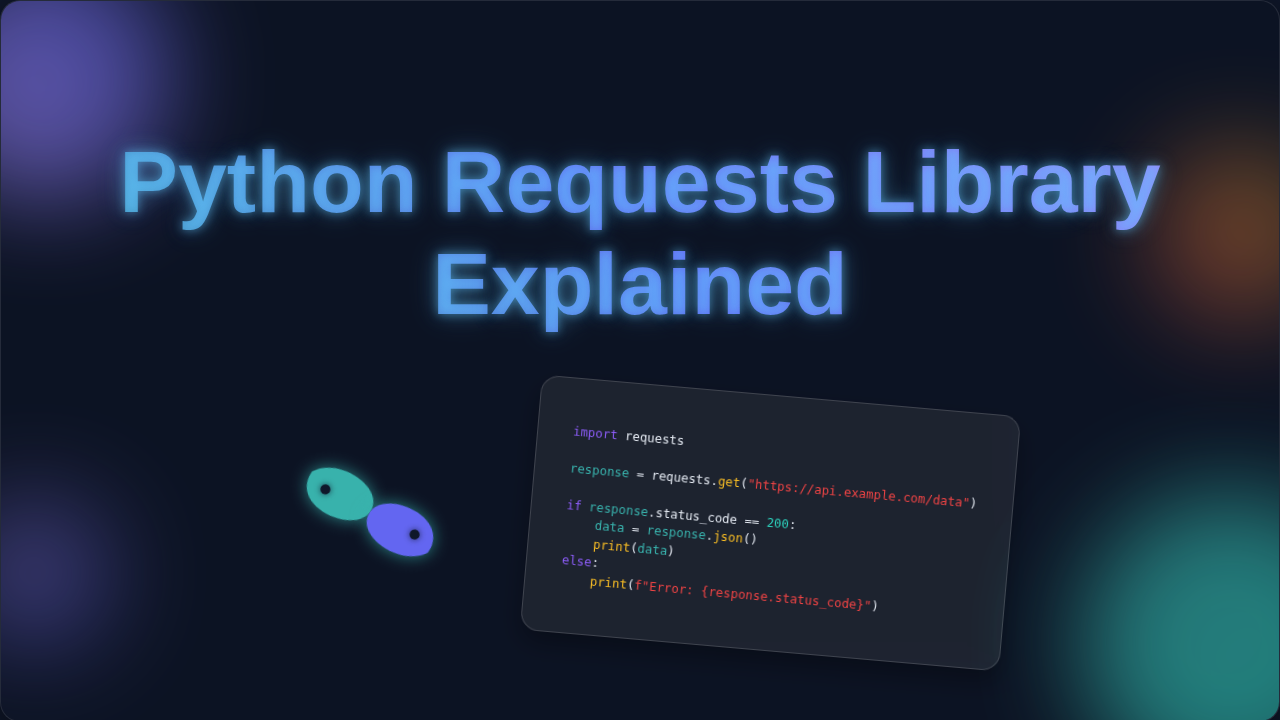
Original Example: You make a GET request to a recipe API. The server sends back a Response object. You first check the status_code. If it is 200, success! Then you can grab the recipe details using response.json(). This extracts the structured data from the “package.” Learning to interpret these responses is key to the Python Requests Library Explained: HTTP for Humans, Simplified.
4. Headers: The Secret Notes of Web Communication
Headers are like extra metadata attached to your requests and responses. They do not contain the main data, but they provide important context. Both you and the server use headers to communicate extra details.
Imagine you are sending a package. The main item is inside. But you also attach a sticky note outside. This note might say “Fragile” or “Deliver to front door.” Headers work in a similar way. They give instructions or information about the main content.
Headers provide crucial context, like a “shipping label” for your web request.
Original Example: When you are sending a POST request, you often tell the server the format of the data you are sending. You do this with a Content-Type header, perhaps setting it to application/json. Or, when scraping, you might set a User-Agent header. This makes your request look like it is coming from a real web browser. Want to learn more about these powerful communication details? Check out HTTP Headers on MDN Web Docs.
5. Parameters (Query Strings): Guiding Your Requests
When you visit a website and search for something, you often see strange bits in the URL. These are query parameters. They are specific instructions you attach to a GET request.
Think of it like giving very precise directions to someone. You are not just saying “go to the store.” You are saying “go to the store, then look for the red apples, specifically the organic ones.” You are narrowing down your request.
Original Example: Let’s say you are building a tool to search for hiking trails. You send a GET request to a trail database API. You can add parameters like location=denver and difficulty=moderate. The API then knows to return only moderate trails near Denver. This is super useful for tasks like those in our Python Web Scraping Tutorial: A Complete Guide with BeautifulSoup.
6. Authentication: Proving Who You Are
The internet is full of resources that need protection. Not everyone should have access to everything. This is where authentication comes in. You need to prove your identity to access certain APIs or web pages.
It’s just like showing your ID to get into a special event. You have a credential, and the bouncer (the server) checks it. If it matches, you are in! Requests helps you easily send these credentials with your requests.
Original Example: Many weather APIs require an API key. You get a unique string of characters after signing up. When you send a request for weather data, you include this API key as a parameter or a header. The API server verifies your key. If it’s valid, it grants you access to the data.
7. Sessions: Keeping Your Connection Alive
Normally, each request you send is completely independent. The server “forgets” about your previous request. But sometimes, you want to maintain a continuous interaction. This is where a “session” object from Requests is invaluable.
Imagine going to a coffee shop. Each time you order, it is a new transaction. But if you open a “tab,” all your orders are linked. A Requests Session object acts like that “tab.” It persists certain data, like cookies, across multiple requests. This means you stay “logged in.”
Original Example: You might use a session when you log into a website. First, you send a POST request with your username and password. The server authenticates you and sends back a cookie. Your session object automatically stores this cookie. Now, for all subsequent requests within that session, the cookie is sent automatically. You stay logged in without needing to re-authenticate every time.
Advanced Concepts with the Python Requests Library Explained
Bonus Tip: Error Handling: What to Do When Things Go Wrong
The internet is not always perfect. Servers go down. Networks fail. You will encounter errors. The Requests library makes it easy to anticipate and handle these issues gracefully.
It is like having a sturdy safety net. When something unexpected happens, you do not crash. Instead, you land safely. You get a chance to figure out what went wrong. You can then try again or inform the user.
Original Example: You are trying to fetch data from an API. Suddenly, you get a response with a status_code of 404. This means “Not Found.” Or maybe you get a 500, which is an “Internal Server Error.” You can check for these codes. Then you can print a helpful message. You could even implement a retry mechanism. Understanding these codes is essential for any web developer. Get a deeper look at HTTP Status Codes Explained on MDN. This knowledge is crucial when building robust applications, like those we explore in our Flask To-Do App Tutorial: Build a Simple Python Backend.
Ready to Master Your Web Interactions?
You have just pulled back the curtain on the Python Requests Library. It’s more than just a tool. It’s your direct line to web communication. You now understand the core concepts. You know how GET and POST requests work. You understand response objects, headers, parameters, and sessions.
This library gives your Python scripts incredible power. You can fetch data. You can send data. You can build amazing web-connected applications. Keep experimenting. Keep building. You are well on your way to mastering web interactions with Python!