JavaScript Loan Calculator: Build with HTML, CSS & Vanilla JS
Hey! If you have wanted to build a financial tool but had no idea where to start, you are in the right place. Today, we’ll create a powerful JavaScript Loan Calculator. This project will teach you about form handling, calculations, and dynamic content. It’s super practical and quite impressive!
What We Are Building
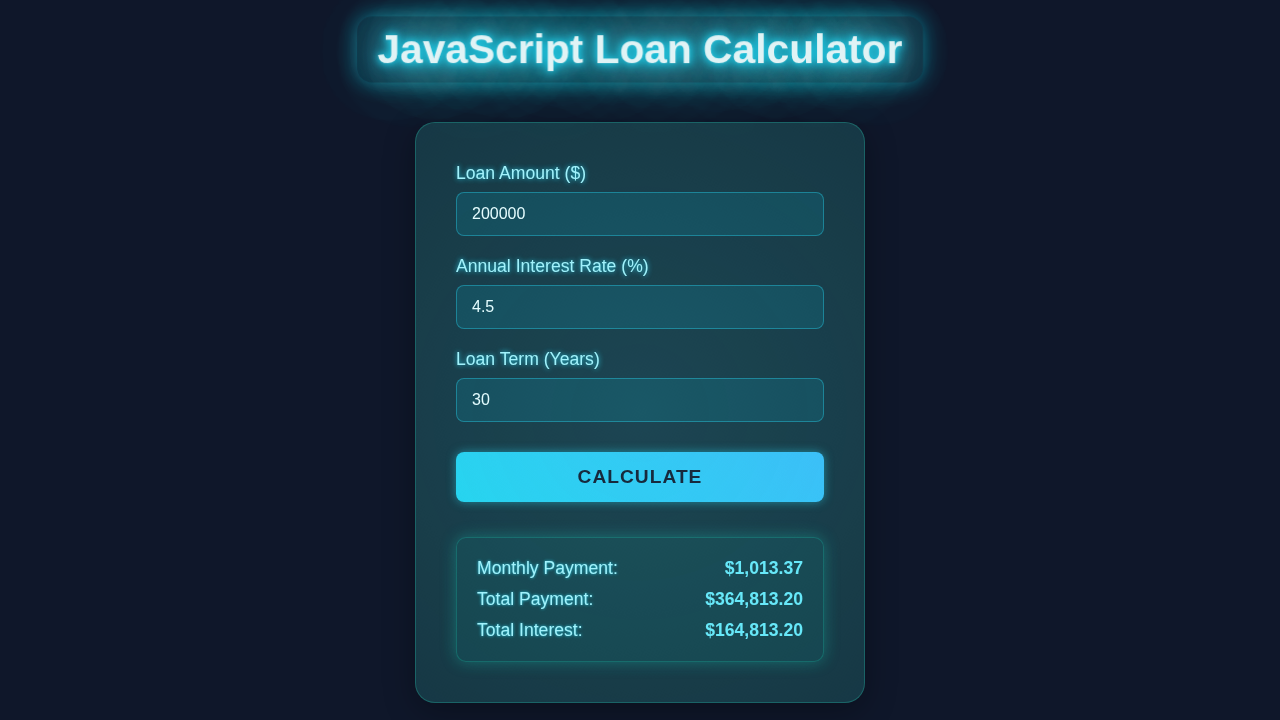
We are going to build a dynamic loan amortization calculator. You’ll input loan amount, interest rate, and loan term. Then, our tool will instantly show you the monthly payment. Here’s the cool part: it will also generate a full amortization schedule. This schedule breaks down every single payment. It shows how much goes to interest and how much reduces the principal. It is incredibly useful for understanding your loans!
HTML Structure for Our JavaScript Loan Calculator
First, we need the basic structure for our application. We’ll set up a simple form. This form will collect the loan details from the user. We also need a place to display the results. This includes the monthly payment and the detailed schedule. It’s all about clear input and clear output!
index.html
<!DOCTYPE html>
<html lang="en">
<head>
    <meta charset="UTF-8">
    <meta name="viewport" content="width=device-width, initial-scale=1.0">
    <title>JavaScript Loan Calculator</title>
    <link rel="stylesheet" href="styles.css">
</head>
<body>
    <div class="calculator-container">
        <h1>Loan Calculator</h1>

        <div class="input-group">
            <label for="loan-amount">Loan Amount ($)</label>
            <input type="number" id="loan-amount" placeholder="Enter loan amount" value="200000">
        </div>

        <div class="input-group">
            <label for="interest-rate">Annual Interest Rate (%)</label>
            <input type="number" id="interest-rate" placeholder="Enter annual interest rate" value="4.5">
        </div>

        <div class="input-group">
            <label for="loan-term">Loan Term (Years)</label>
            <input type="number" id="loan-term" placeholder="Enter loan term in years" value="30">
        </div>

        <button id="calculate-btn">Calculate Loan</button>

        <div class="results-container">
            <h2>Loan Summary</h2>
            <div id="loading" class="hidden">Calculating...</div>
            <div id="error" class="error-message hidden">Please fill in all fields with valid numbers.</div>
            <div id="results" class="hidden">
                <p>Monthly Payment: <span id="monthly-payment"></span></p>
                <p>Total Payment: <span id="total-payment"></span></p>
                <p>Total Interest: <span id="total-interest"></span></p>
            </div>
        </div>
    </div>

    <script src="script.js"></script>
</body>
</html>
CSS Styling: Making It Look Good
Next, let’s make our calculator look polished and user-friendly. We will use some basic CSS to style the form elements. Also, we will make the results table easy to read. A clean design makes the tool much more enjoyable to use. Don’t worry, we’ll keep it straightforward.
styles.css
/* Basic reset for consistent styling */
* {
    margin: 0;
    padding: 0;
    box-sizing: border-box;
}

body {
    font-family: Arial, Helvetica, sans-serif;
    background-color: #f4f7f6; /* Light grey background */
    color: #333;
    display: flex;
    justify-content: center;
    align-items: center;
    min-height: 100vh;
    padding: 20px;
    overflow: hidden; /* Prevent scrollbars if content overflows */
    -webkit-font-smoothing: antialiased;
    -moz-osx-font-smoothing: grayscale;
}

.calculator-container {
    background-color: #fff;
    padding: 30px;
    border-radius: 12px;
    box-shadow: 0 8px 24px rgba(0, 0, 0, 0.1);
    max-width: 500px;
    width: 100%;
    text-align: center;
    overflow: hidden; /* Ensure inner elements don't spill */
}

h1 {
    color: #2c3e50; /* Darker heading */
    margin-bottom: 30px;
    font-size: 2.2em;
}

h2 {
    color: #34495e;
    margin-top: 30px;
    margin-bottom: 15px;
    font-size: 1.6em;
}

.input-group {
    margin-bottom: 20px;
    text-align: left;
}

label {
    display: block;
    margin-bottom: 8px;
    font-weight: bold;
    color: #555;
    font-size: 1.1em;
}

input[type="number"] {
    width: 100%;
    padding: 12px 15px;
    border: 1px solid #ccc;
    border-radius: 8px;
    font-size: 1em;
    color: #333;
    transition: border-color 0.3s ease, box-shadow 0.3s ease;
    -webkit-appearance: none; /* Remove default number input arrows for Chrome/Safari */
    appearance: none;
}

input[type="number"]:focus {
    border-color: #007bff; /* Blue focus border */
    box-shadow: 0 0 8px rgba(0, 123, 255, 0.2);
    outline: none;
}

/* Hide spin buttons for Firefox */
input[type="number"] {
    -moz-appearance: textfield;
}
/* Hide spin buttons for Chrome, Safari, Edge */
input[type="number"]::-webkit-outer-spin-button,
input[type="number"]::-webkit-inner-spin-button {
    -webkit-appearance: none;
    margin: 0;
}


button#calculate-btn {
    background-color: #007bff; /* Blue button */
    color: #fff;
    border: none;
    padding: 14px 25px;
    border-radius: 8px;
    font-size: 1.1em;
    font-weight: bold;
    cursor: pointer;
    transition: background-color 0.3s ease, transform 0.2s ease, box-shadow 0.3s ease;
    margin-top: 10px;
    width: 100%;
    max-width: 200px; /* Limit button width */
    text-transform: uppercase;
    letter-spacing: 0.5px;
}

button#calculate-btn:hover {
    background-color: #0056b3; /* Darker blue on hover */
    transform: translateY(-2px);
    box-shadow: 0 6px 15px rgba(0, 123, 255, 0.3);
}

.results-container {
    margin-top: 30px;
    padding-top: 25px;
    border-top: 1px solid #eee;
}

.results-container p {
    font-size: 1.1em;
    margin-bottom: 10px;
    color: #444;
    display: flex;
    justify-content: space-between;
    align-items: center;
}

.results-container p span {
    font-weight: bold;
    color: #007bff;
    margin-left: 10px;
}

.hidden {
    display: none !important;
}

#loading {
    color: #007bff;
    font-size: 1.2em;
    margin-top: 15px;
    animation: fadein 1s ease-out;
}

.error-message {
    color: #dc3545; /* Red for errors */
    font-weight: bold;
    margin-top: 15px;
    padding: 10px;
    background-color: #f8d7da;
    border: 1px solid #f5c6cb;
    border-radius: 8px;
    animation: fadein 0.5s ease-out;
}

@keyframes fadein {
    from { opacity: 0; }
    to { opacity: 1; }
}

/* Responsive adjustments */
@media (max-width: 600px) {
    .calculator-container {
        padding: 20px;
    }

    h1 {
        font-size: 1.8em;
        margin-bottom: 20px;
    }

    h2 {
        font-size: 1.4em;
    }

    button#calculate-btn {
        padding: 12px 20px;
        font-size: 1em;
        max-width: 100%;
    }

    input[type="number"] {
        padding: 10px 12px;
    }

    .results-container p {
        font-size: 1em;
    }
}
JavaScript: The Brains Behind the Operation
This is where the magic happens! Our JavaScript will handle all the calculations. It will also dynamically update the page. We will grab user inputs, perform complex math, and then render the amortization table. It’s the core engine of our JavaScript Loan Calculator.
script.js
// Get DOM elements
const loanAmountInput = document.getElementById('loan-amount');
const interestRateInput = document.getElementById('interest-rate');
const loanTermInput = document.getElementById('loan-term');
const calculateBtn = document.getElementById('calculate-btn');

const monthlyPaymentSpan = document.getElementById('monthly-payment');
const totalPaymentSpan = document.getElementById('total-payment');
const totalInterestSpan = document.getElementById('total-interest');

const resultsDiv = document.getElementById('results');
const loadingDiv = document.getElementById('loading');
const errorDiv = document.getElementById('error');

// Event listener for the calculate button
calculateBtn.addEventListener('click', calculateLoan);

/**
 * Calculates the monthly payment, total payment, and total interest for a loan.
 * It retrieves values from input fields, validates them, performs calculations,
 * and displays the results or an error message.
 */
function calculateLoan() {
    // Hide previous results, loading, and error messages to prepare for new calculation
    resultsDiv.classList.add('hidden');
    loadingDiv.classList.add('hidden');
    errorDiv.classList.add('hidden');

    // Show loading spinner/message while calculation is in progress
    loadingDiv.classList.remove('hidden');

    // Get and parse input values from the DOM
    const principal = parseFloat(loanAmountInput.value); // Loan amount
    const annualInterestRate = parseFloat(interestRateInput.value); // Annual interest rate in percent
    const loanTermYears = parseFloat(loanTermInput.value); // Loan term in years

    // Validate inputs: check if they are numbers, positive, and non-zero for principal/term
    if (isNaN(principal) || isNaN(annualInterestRate) || isNaN(loanTermYears) || principal <= 0 || annualInterestRate < 0 || loanTermYears <= 0) {
        // If validation fails, hide loading and display an error message
        loadingDiv.classList.add('hidden');
        errorDiv.classList.remove('hidden');
        return; // Stop function execution
    }

    // Simulate a network request or complex calculation delay for better UX
    setTimeout(() => {
        // Convert annual interest rate percentage to monthly decimal rate
        // Example: 4.5% annual -> 0.045 annual -> 0.045/12 monthly
        const monthlyInterestRate = (annualInterestRate / 100) / 12;
        // Convert loan term from years to total number of monthly payments
        const numberOfPayments = loanTermYears * 12;

        let monthlyPayment;
        let totalPayment;
        let totalInterest;

        if (monthlyInterestRate === 0) {
            // Special case for 0% interest: simple division
            monthlyPayment = principal / numberOfPayments;
            totalPayment = principal; // Total payment is just the principal
            totalInterest = 0; // No interest paid
        } else {
            // Use the standard loan payment formula:
            // M = P [ i(1 + i)^n ] / [ (1 + i)^n – 1]
            // M = Monthly Payment
            // P = Principal Loan Amount
            // i = Monthly Interest Rate (as a decimal)
            // n = Total number of payments
            const numerator = principal * monthlyInterestRate * Math.pow(1 + monthlyInterestRate, numberOfPayments);
            const denominator = Math.pow(1 + monthlyInterestRate, numberOfPayments) - 1;
            monthlyPayment = numerator / denominator;

            totalPayment = monthlyPayment * numberOfPayments;
            totalInterest = totalPayment - principal;
        }

        // Display the calculated results, formatted to two decimal places
        monthlyPaymentSpan.textContent = `$${monthlyPayment.toFixed(2)}`;
        totalPaymentSpan.textContent = `$${totalPayment.toFixed(2)}`;
        totalInterestSpan.textContent = `$${totalInterest.toFixed(2)}`;

        // Hide loading and show the results section
        loadingDiv.classList.add('hidden');
        resultsDiv.classList.remove('hidden');
    }, 1000); // 1-second delay to simulate loading
}

// Optional: Uncomment the line below to perform an initial calculation
// when the page loads, using the default values in the input fields.
// document.addEventListener('DOMContentLoaded', calculateLoan);
How It All Works Together
Now, let’s break down the JavaScript logic. We connect our HTML elements to our script. Then, we listen for user actions. Finally, we perform calculations and display the results. It’s a clear flow from input to output.
Getting User Input and Validation
First, we need to grab the values from our input fields. This means accessing them using their IDs. For example, we might use document.getElementById('loanAmount'). Then, we convert these string values into numbers. Indeed, this is crucial for calculations. We also need to validate the input. This ensures users enter valid numbers. Empty fields or non-numeric inputs could break our calculator. Therefore, a quick check prevents errors. This makes our tool robust and reliable.
Calculating the Monthly Payment
Next, we calculate the fixed monthly payment. This uses a standard loan amortization formula. It involves the principal, interest rate, and loan term. The formula looks a bit complex, but JavaScript handles it easily. We use Math.pow() for exponential calculations. This function returns the base to the exponent power. You can learn more about it on MDN Web Docs. This step gives us one of the most important numbers.
Pro-tip: Always use
toFixed()when dealing with currency. It rounds numbers to a specified number of decimal places. This prevents weird floating-point issues!
Generating the Amortization Schedule
After finding the monthly payment, we build the full schedule. We use a loop for this process. Each iteration represents one monthly payment. Inside the loop, we calculate several things. We find the interest portion of the payment. Then, we determine the principal portion. Finally, we update the remaining balance. This happens for every single month. It shows how your principal slowly decreases. It’s quite enlightening!
Displaying Dynamic Results
Once all calculations are done, we update the HTML. We first clear any previous results. This ensures a fresh display every time. Then, we inject the monthly payment into a designated spot. Moreover, we dynamically create rows for our table. Each row represents a payment period. We add the period number, payment amount, interest, principal, and remaining balance. We use DOM manipulation for this. Also, for more dynamic content needs, consider our Dynamic List Filter: Vanilla JS Search with HTML/CSS tutorial!
Tips to Customise It
You’ve built a solid foundation. Now, let’s explore ways to extend your calculator!
- Add More Loan Types: Introduce options for fixed-rate vs. adjustable-rate loans. This would involve slightly different calculation logic.
- Allow Extra Payments: Let users input an additional monthly payment amount. Then, adjust the schedule to show how much faster the loan is paid off.
- Save Calculations: Implement local storage to save previous loan calculations. This way, users don’t have to re-enter data.
- Visualise Data: Use a simple chart library (like Chart.js) to visualise interest vs. principal paid over time. It makes the data clearer.
Challenge yourself: Can you add a dark mode switcher to this calculator? Our React Theme Switcher Tutorial: Build a Dark/Light Mode with Hooks might spark some ideas for implementation!
Building interactive UIs sometimes means thinking about performance. Even in vanilla JS, you might encounter complex updates. For advanced concepts, our React Performance Optimization: Master Faster UIs discusses strategies relevant to any front-end project!
Conclusion
Wow, you just built a fully functional JavaScript Loan Calculator! You’ve tackled HTML forms, CSS styling, and complex JavaScript logic. That’s a huge achievement. This project demonstrates your ability to create useful, interactive web applications. You can use this skill in so many ways. Share your creation with friends or family. They might find it super helpful. Keep building, keep learning, and keep coding like a pro!