Shopping Cart Drawer in React: Functional Components & Hooks
Hey there, pro-coder! If you’ve wanted to build a slick, animated Shopping Cart Drawer but felt a bit lost, you are in the perfect spot. Today, we will craft a beautiful and functional cart that slides into view. It will really elevate your e-commerce projects. We will make it super accessible too!
What We Are Building
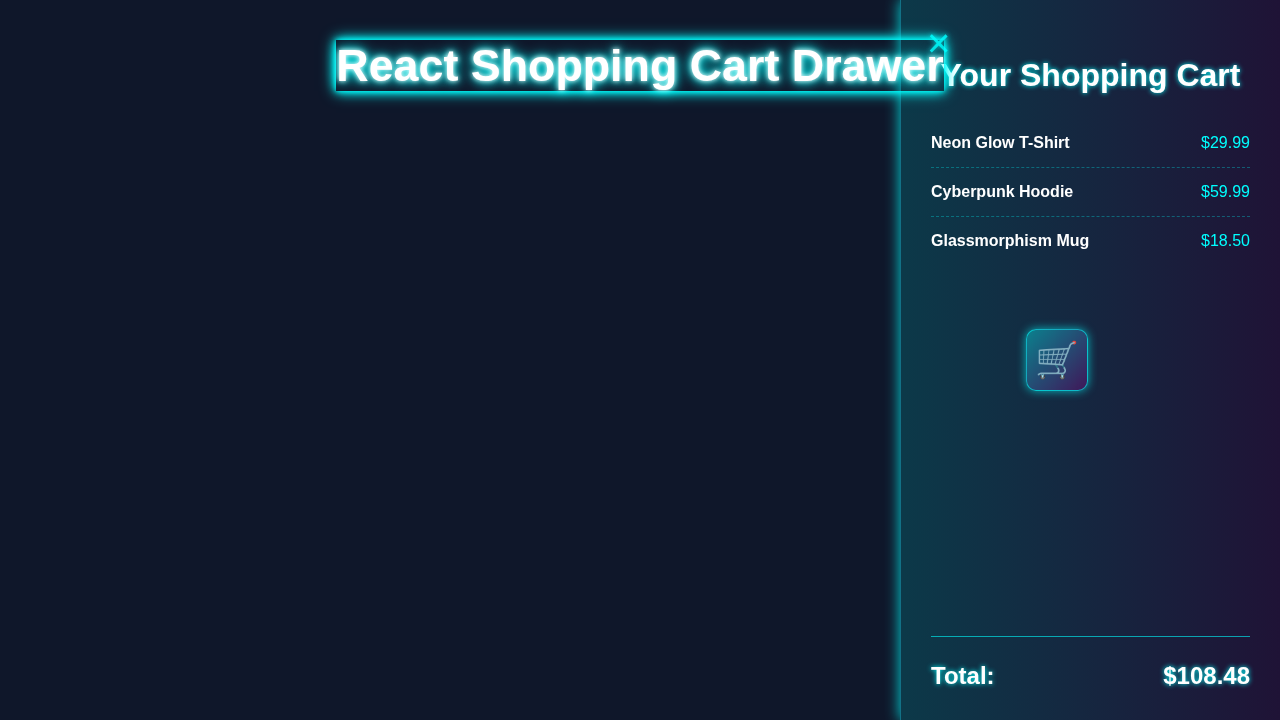
We are going to build a fantastic slide-out cart drawer. It will appear smoothly from the side of the screen. This drawer won’t just look good; it will also be incredibly user-friendly. Think about it: customers can easily add items and see their cart contents. Then, with a simple click or press, the cart slides back. This design saves screen space. It also provides a seamless shopping experience for everyone. We will focus on smooth animations and great accessibility features.
HTML Structure
Our HTML will be straightforward and semantic. We will define a main container for our app. Inside, there will be a button to toggle the cart. Crucially, we will have the cart drawer itself. An overlay will also dim the background. This overlay helps focus user attention on the cart. Moreover, semantic elements ensure better accessibility. Here is the core HTML:
public/index.html
<!DOCTYPE html>
<html lang="en">
<head>
    <meta charset="UTF-8" />
    <meta name="viewport" content="width=device-width, initial-scale=1.0" />
    <title>React Shopping Cart Drawer</title>
    <!-- The main application CSS is imported via JavaScript (src/index.js) -->
    <!-- This setup assumes a modern React build tool (like Vite or Create React App) -->
    <!-- which bundles and serves your JS and CSS. -->
</head>
<body>
    <noscript>You need to enable JavaScript to run this app.</noscript>
    <!-- This is the root div where your React application will be mounted. -->
    <div id="root"></div>
    <!-- The JavaScript entry point (src/index.js) will be automatically injected here by your build tool. -->
    <!-- No direct script tag for src/index.js is needed in development with a build tool. -->
</body>
</html>
CSS Styling
This is where the visual magic happens! Our CSS will bring our shopping cart to life. We will style the drawer for its initial hidden state. Then we’ll add classes to animate its appearance. We use CSS transform for smooth sliding. Also, transition property creates a lovely animation effect. It’s truly awesome to watch the drawer slide in. We will also style the overlay. This gives it a cool dimming effect. Lastly, remember to style focus states for accessibility.
Pro Tip: Using CSS
transformfor animations is generally better for performance than animating properties likeleftorright. It leverages your GPU!
src/styles.css
/* Global styles and CSS variables */
:root {
    --primary-color: #007bff; /* A vibrant blue for main actions */
    --accent-color: #00bcd4; /* A lively cyan for hover states and highlights */
    --text-color: #333; /* Dark grey for general text */
    --bg-color: #f8f9fa; /* Light grey for page background */
    --drawer-bg: rgba(255, 255, 255, 0.95); /* Semi-transparent white for drawer background */
    --border-color: #eee; /* Light grey for borders */
    --shadow-light: rgba(0, 0, 0, 0.1); /* Light shadow for depth */
    --success-color: #28a745; /* Green for add to cart */
    --danger-color: #dc3545; /* Red for remove from cart */
}

/* Basic reset and typography */
body {
    margin: 0;
    font-family: Arial, Helvetica, sans-serif; /* Safe, standard font stack */
    -webkit-font-smoothing: antialiased;
    -moz-osx-font-smoothing: grayscale;
    background-color: var(--bg-color);
    color: var(--text-color);
    box-sizing: border-box; /* Ensure padding/border included in element's total width and height */
    overflow-x: hidden; /* Prevent horizontal scrollbar on body */
}

/* Universal box-sizing for all elements */
*, *::before, *::after {
    box-sizing: inherit;
}

/* App Component Styles */
.app-container {
    padding: 20px;
    max-width: 1200px; /* Max width for the main app content */
    margin: 0 auto;
    text-align: center;
}

.app-container h1 {
    color: var(--primary-color);
    margin-bottom: 30px;
}

.app-container h2 {
    color: var(--text-color);
    margin-top: 40px;
    margin-bottom: 20px;
}

.cart-toggle-button {
    background-color: var(--primary-color);
    color: white;
    border: none;
    padding: 12px 25px;
    border-radius: 5px;
    cursor: pointer;
    font-size: 1em;
    font-weight: bold;
    transition: background-color 0.3s ease, transform 0.2s ease;
    margin-top: 20px;
    box-shadow: 0 4px 10px var(--shadow-light);
}

.cart-toggle-button:hover {
    background-color: var(--accent-color);
    transform: translateY(-2px); /* Slight lift effect on hover */
    box-shadow: 0 6px 15px rgba(0, 0, 0, 0.15);
}

.product-list {
    display: flex;
    flex-wrap: wrap;
    justify-content: center;
    gap: 20px;
    margin-top: 30px;
}

.product-item {
    background-color: white;
    border: 1px solid var(--border-color);
    border-radius: 8px;
    padding: 15px;
    width: 200px; /* Fixed width for product cards */
    min-height: 220px; /* Ensure consistent height */
    box-shadow: 0 2px 8px var(--shadow-light);
    text-align: left;
    display: flex;
    flex-direction: column;
    justify-content: space-between; /* Pushes button to the bottom */
    transition: transform 0.2s ease, box-shadow 0.2s ease;
}

.product-item:hover {
    transform: translateY(-5px); /* Lift effect on hover */
    box-shadow: 0 8px 20px rgba(0, 0, 0, 0.15);
}

.product-item h3 {
    margin-top: 0;
    margin-bottom: 10px;
    font-size: 1.1em;
    color: var(--primary-color);
}

.product-item p {
    margin-bottom: 15px;
    font-size: 0.9em;
    color: #666;
}

.product-item .price {
    font-weight: bold;
    color: var(--text-color);
    margin-bottom: 15px;
    font-size: 1.1em;
}

.add-to-cart-button {
    background-color: var(--success-color); /* Green for add to cart */
    color: white;
    border: none;
    padding: 8px 15px;
    border-radius: 5px;
    cursor: pointer;
    font-size: 0.9em;
    transition: background-color 0.3s ease;
    align-self: flex-start; /* Align button to start within flex column */
    margin-top: auto; /* Pushes the button to the bottom if content is short */
}

.add-to-cart-button:hover {
    background-color: #218838; /* Darker green on hover */
}

/* CartDrawer Component Styles */
.cart-drawer-overlay {
    position: fixed;
    top: 0;
    left: 0;
    width: 100%;
    height: 100%;
    background-color: rgba(0, 0, 0, 0.5); /* Semi-transparent black overlay */
    display: flex;
    justify-content: flex-end; /* Align drawer to the right */
    z-index: 1000; /* High z-index to appear on top of other content */
    opacity: 0;
    visibility: hidden; /* Hidden by default */
    transition: opacity 0.3s ease, visibility 0.3s ease; /* Smooth fade in/out */
}

.cart-drawer-overlay.open {
    opacity: 1;
    visibility: visible;
}

.cart-drawer-panel {
    width: 350px; /* Fixed width for the drawer */
    max-width: 90%; /* Responsive: ensure it doesn't exceed 90% of viewport width on small screens */
    height: 100%;
    background-color: var(--drawer-bg); /* Semi-transparent background */
    box-shadow: -5px 0 15px var(--shadow-light); /* Shadow on the left side */
    transform: translateX(100%); /* Start completely off-screen to the right */
    transition: transform 0.3s ease; /* Smooth slide in/out transition */
    display: flex;
    flex-direction: column;
    padding: 20px;
    position: relative;
    overflow-y: auto; /* Enable scrolling for cart items if content overflows */
    color: var(--text-color);
}

.cart-drawer-overlay.open .cart-drawer-panel {
    transform: translateX(0); /* Slide into view */
}

.cart-drawer-header {
    display: flex;
    justify-content: space-between;
    align-items: center;
    margin-bottom: 20px;
    padding-bottom: 15px;
    border-bottom: 1px solid var(--border-color);
}

.cart-drawer-header h2 {
    margin: 0;
    font-size: 1.5em;
    color: var(--primary-color);
}

.cart-close-button {
    background: none;
    border: none;
    font-size: 2em;
    color: var(--text-color);
    cursor: pointer;
    line-height: 1; /* Ensures the 'x' character is vertically centered */
    transition: color 0.2s ease;
    padding: 0 5px;
}

.cart-close-button:hover {
    color: var(--danger-color); /* Red color on hover for close button */
}

.cart-items {
    flex-grow: 1; /* Allows the cart items list to take up available vertical space */
    margin-bottom: 20px;
}

.cart-item-drawer {
    display: flex;
    align-items: center;
    justify-content: space-between;
    padding: 10px 0;
    border-bottom: 1px dotted var(--border-color); /* Dotted border between items */
}

.cart-item-drawer:last-child {
    border-bottom: none; /* No border for the last item */
}

.item-details {
    display: flex;
    flex-direction: column;
    text-align: left;
}

.item-details .name {
    font-weight: bold;
    font-size: 1em;
    color: var(--text-color);
}

.item-details .price-qty {
    font-size: 0.9em;
    color: #555;
    margin-top: 5px;
}

.remove-item-button {
    background-color: var(--danger-color); /* Red for remove button */
    color: white;
    border: none;
    padding: 5px 10px;
    border-radius: 4px;
    cursor: pointer;
    font-size: 0.8em;
    transition: background-color 0.3s ease;
}

.remove-item-button:hover {
    background-color: #c82333; /* Darker red on hover */
}

.cart-summary {
    padding-top: 20px;
    border-top: 1px solid var(--border-color);
}

.cart-summary .total-row {
    display: flex;
    justify-content: space-between;
    font-size: 1.2em;
    font-weight: bold;
    margin-bottom: 15px;
    color: var(--primary-color);
}

.checkout-button {
    background-color: var(--primary-color);
    color: white;
    border: none;
    padding: 12px 20px;
    border-radius: 5px;
    width: 100%;
    font-size: 1.1em;
    font-weight: bold;
    cursor: pointer;
    transition: background-color 0.3s ease;
    box-shadow: 0 4px 10px var(--shadow-light);
}

.checkout-button:hover {
    background-color: var(--accent-color);
    box-shadow: 0 6px 15px rgba(0, 0, 0, 0.15);
}

.empty-cart-message {
    text-align: center;
    margin-top: 50px;
    color: #777;
    font-style: italic;
}

/* Responsive adjustments for smaller screens */
@media (max-width: 600px) {
    .app-container {
        padding: 15px;
    }

    .cart-drawer-panel {
        width: 100%; /* Drawer takes full width on very small screens */
        max-width: 100%;
    }

    .product-item {
        width: 100%; /* Product cards stack vertically */
        max-width: 300px; /* Optional: limit max width for better readability */
    }
}
JavaScript for Our React Components
Now for the brains of our operation: React! We will use functional components. These are modern and easy to understand. Hooks like useState will manage our drawer’s open or closed state. Also, useEffect will handle important side effects. These include managing body scroll and focusing elements. We will also use useRef to interact directly with DOM elements. This setup makes our drawer highly interactive and robust. It’s so much fun to see it all come together!
src/index.js
import React from 'react';
import ReactDOM from 'react-dom/client'; // Use createRoot for React 18+
import App from './App'; // Import the main App component
import './styles.css'; // Import global styles

// ===========================================================================
// TUTORIAL SETUP:
// This code is designed for a modern React project created with tools like
// Create React App (npx create-react-app my-app) or Vite (npm create vite@latest).
// 1. Create a new React project.
// 2. Replace the contents of `src/index.js`, `src/App.js`, and create `src/CartDrawer.js`
//    and `src/styles.css` with the provided code.
// 3. Run your project (e.g., `npm start` or `npm run dev`).
// ===========================================================================

// Find the root element in public/index.html where the React app will be mounted
const rootElement = document.getElementById('root');

// Create a root and render the App component into it
// This is the standard way to initialize a React 18+ application
if (rootElement) {
    ReactDOM.createRoot(rootElement).render(
        <React.StrictMode>
            <App />
        </React.StrictMode>
    );
} else {
    console.error("Root element with ID 'root' not found in the document.");
}
src/App.js
import React, { useState, useEffect } from 'react';
import CartDrawer from './CartDrawer'; // Import the CartDrawer component

/**
 * App Component
 * The main application component, managing global state for the shopping cart.
 * It displays a list of products and controls the visibility and content of the CartDrawer.
 */
const App = () => {
    // State to manage the visibility of the cart drawer
    const [isDrawerOpen, setIsDrawerOpen] = useState(false);
    // State to manage the items currently in the shopping cart
    // Each item has: { id, name, price, quantity }
    const [cartItems, setCartItems] = useState([]);
    // State to hold a list of available products (dummy data for demonstration)
    const [products] = useState([
        { id: 1, name: 'Wireless Headphones', price: 99.99 },
        { id: 2, name: 'Mechanical Keyboard', price: 75.00 },
        { id: 3, name: 'Gaming Mouse', price: 49.99 },
        { id: 4, name: 'Monitor Arm', price: 35.50 },
        { id: 5, name: 'Webcam 1080p', price: 60.00 },
        { id: 6, name: 'USB-C Hub', price: 25.00 },
    ]);

    // Effect hook to manage body overflow when the drawer is open.
    // This prevents the main content from scrolling when the drawer is active.
    useEffect(() => {
        if (isDrawerOpen) {
            document.body.style.overflow = 'hidden'; // Prevent scrolling when drawer is open
        } else {
            document.body.style.overflow = 'unset'; // Restore default scrolling behavior
        }
        // Cleanup function: Ensures body overflow is reset if the component unmounts
        // or if `isDrawerOpen` changes back to false.
        return () => {
            document.body.style.overflow = 'unset';
        };
    }, [isDrawerOpen]); // Dependency array: Effect runs when `isDrawerOpen` changes

    /**
     * Toggles the visibility of the cart drawer.
     * Called when the "Open Cart" button or the close button/overlay is clicked.
     */
    const handleToggleDrawer = () => {
        setIsDrawerOpen(!isDrawerOpen);
    };

    /**
     * Adds a product to the cart. If the product is already in the cart,
     * its quantity is incremented. Otherwise, it's added as a new item with quantity 1.
     * @param {object} productToAdd - The product object to add from the `products` list.
     */
    const handleAddToCart = (productToAdd) => {
        setCartItems((prevItems) => {
            // Check if the item already exists in the cart
            const existingItem = prevItems.find((item) => item.id === productToAdd.id);

            if (existingItem) {
                // If item exists, map through previous items and update its quantity
                return prevItems.map((item) =>
                    item.id === productToAdd.id
                        ? { ...item, quantity: item.quantity + 1 } // Increment quantity
                        : item
                );
            } else {
                // If item is new, add it to the cart with an initial quantity of 1
                return [...prevItems, { ...productToAdd, quantity: 1 }];
            }
        });
    };

    /**
     * Removes an item completely from the cart by its ID.
     * @param {number} idToRemove - The ID of the item to remove from the cart.
     */
    const handleRemoveItem = (idToRemove) => {
        setCartItems((prevItems) => prevItems.filter((item) => item.id !== idToRemove));
    };

    return (
        <div className="app-container">
            <h1>My Awesome Store</h1>

            {/* Button to open/close the cart drawer, displays current item count */}
            <button className="cart-toggle-button" onClick={handleToggleDrawer}>
                {isDrawerOpen ? 'Close Cart' : `Open Cart (${cartItems.length} items)`}
            </button>

            <h2>Available Products</h2>
            {/* Displays a list of products that can be added to the cart */}
            <div className="product-list">
                {products.map((product) => (
                    <div key={product.id} className="product-item">
                        <h3>{product.name}</h3>
                        <p>High-quality tech gear for your setup.</p>
                        <span className="price">${product.price.toFixed(2)}</span>
                        <button
                            className="add-to-cart-button"
                            onClick={() => handleAddToCart(product)}
                        >
                            Add to Cart
                        </button>
                    </div>
                ))}
            </div>

            {/* The CartDrawer component, its visibility and content are controlled by App's state */}
            <CartDrawer
                isOpen={isDrawerOpen}      // Passed to control if the drawer is visible
                onClose={handleToggleDrawer} // Callback to close the drawer
                cartItems={cartItems}    // The current items in the cart
                onRemoveItem={handleRemoveItem} // Callback to remove an item from the cart
            />
        </div>
    );
};

export default App;
src/CartDrawer.js
import React from 'react';

/**
 * CartDrawer Component
 * A slide-out drawer for displaying shopping cart items.
 * It shows items, their quantities, total price, and allows item removal.
 *
 * @param {object} props - Component props.
 * @param {boolean} props.isOpen - Controls the visibility of the drawer.
 * @param {function} props.onClose - Callback function to close the drawer.
 * @param {Array<object>} props.cartItems - Array of cart items, each with {id, name, price, quantity}.
 * @param {function} props.onRemoveItem - Callback function to remove an item from the cart by its ID.
 */
const CartDrawer = ({ isOpen, onClose, cartItems, onRemoveItem }) => {
    /**
     * Calculates the total price of all items currently in the cart.
     * @returns {string} The formatted total price (e.g., "123.45").
     */
    const calculateTotal = () => {
        return cartItems.reduce((acc, item) => acc + item.price * item.quantity, 0).toFixed(2);
    };

    return (
        // The overlay darkens the background and captures clicks to close the drawer.
        // 'open' class dynamically applied to show/hide and trigger transitions.
        <div className={`cart-drawer-overlay ${isOpen ? 'open' : ''}`} onClick={onClose}>
            {/* The actual drawer panel that slides in/out. */}
            {/* Clicks inside the panel are stopped from propagating to the overlay to prevent accidental closing. */}
            <div className="cart-drawer-panel" onClick={(e) => e.stopPropagation()}>
                <div className="cart-drawer-header">
                    <h2>Your Cart</h2>
                    {/* Close button for the drawer */}
                    <button className="cart-close-button" onClick={onClose}>
                        ×
                    </button>
                </div>

                {/* Container for the list of cart items */}
                <div className="cart-items">
                    {cartItems.length === 0 ? (
                        // Message displayed when the cart is empty
                        <p className="empty-cart-message">Your cart is empty.</p>
                    ) : (
                        // Map through cartItems to display each item
                        cartItems.map((item) => (
                            <div key={item.id} className="cart-item-drawer">
                                <div className="item-details">
                                    <span className="name">{item.name}</span>
                                    <span className="price-qty">
                                        ${item.price.toFixed(2)} x {item.quantity}
                                    </span>
                                </div>
                                {/* Button to remove a specific item from the cart */}
                                <button
                                    className="remove-item-button"
                                    onClick={() => onRemoveItem(item.id)}
                                >
                                    Remove
                                </button>
                            </div>
                        ))
                    )}
                </div>

                {/* Cart summary and checkout button, only shown if there are items in the cart */}
                {cartItems.length > 0 && (
                    <div className="cart-summary">
                        <div className="total-row">
                            <span>Total:</span>
                            <span>${calculateTotal()}</span>
                        </div>
                        <button className="checkout-button">
                            Proceed to Checkout
                        </button>
                    </div>
                )}
            </div>
        </div>
    );
};

export default CartDrawer;
How It All Works Together
Let’s break down the magic behind our animated shopping cart. Each part plays an important role. We will combine React’s power with clever CSS. This results in a truly polished user experience. You’ve done great work so far. Therefore, let’s explore the inner workings!
Managing the Drawer’s State
We start with a simple state variable in React. We use the useState hook for this. This variable, perhaps named isCartOpen, will be a boolean. It tracks whether our drawer is visible or hidden. A value of true means the cart is open. Conversely, false means it is closed. When a user clicks the cart icon, we update this state. React then re-renders the component. This reflects the new state instantly. This is a core concept in building dynamic UI with React hooks.
Toggling the Drawer with Events
Our shopping cart needs a way to open and close. We attach event listeners to our cart button. These listeners call a function that updates our isCartOpen state. Clicking the overlay also closes the cart. This provides an intuitive user interaction. This is a common pattern for modal components. It just makes sense for users.
The Animation Magic with CSS
Here’s the cool part! When isCartOpen becomes true, we add a specific CSS class to our drawer. This class applies styles that move the drawer into view. For instance, it might change its transform property. The transition property on the drawer takes care of the smooth animation. When the class is removed, the drawer slides back. It’s all very slick and user-friendly. Check out MDN’s guide on CSS transitions for more details.
Ensuring Keyboard Accessibility
Accessibility is super important, remember? We make sure users can close the cart with the Escape key. This is a standard accessibility practice. We add an onKeyDown event listener to our drawer or a wrapper. When the Escape key is pressed, we simply update our state. The drawer then closes cleanly. This small detail makes a big difference. It helps many users navigate your site effectively.
Focus Management for Better UX
When the drawer opens, we want to move keyboard focus into it. This is crucial for accessibility. Users should easily navigate within the cart. We use useRef to reference the drawer element. Then, we can programmatically focus it. When the cart closes, we also restore focus to the element that opened it. This prevents users from getting lost. The React useEffect Hook is perfect for managing this focus logic. It runs effects after renders and cleans up correctly.
Preventing Body Scroll
When our shopping cart drawer is open, we don’t want the background content to scroll. This creates a much better user experience. We can achieve this with a simple CSS trick. When the drawer is open, we add a class to the body element. This class applies overflow: hidden; to the body. Again, useEffect is ideal for adding and removing this class. This ensures the main page remains stable. It keeps the user’s attention on the cart.
Friendly Reminder: Always test your accessible components with keyboard navigation and screen readers. Your users will thank you!
Tips to Customise It
You’ve built a fantastic foundation. Now, let’s think about how you can make this project truly your own. Customisation is key!
- Add Real Product Data: Right now, our cart is empty. Try fetching product data from an API. You could also use a simple array of objects. Then, display these items dynamically inside the drawer. This will make your cart feel much more alive.
- Quantity Controls: Implement buttons to increase or decrease item quantities. This would also involve updating the total price. It adds more interactivity to your cart.
- Different Animations: Experiment with various CSS transitions. You could make the drawer slide from the top, or fade in. Maybe even try a bouncy effect! You can get inspired by CSS-Tricks for animation properties.
- Persist Cart State: Use browser local storage to save the cart’s contents. This way, items remain in the cart even if the user refreshes the page. It’s a great feature for real-world apps.
- Integrate with a Global State: For larger applications, consider using React Context API. This could manage the cart state globally. This simplifies prop drilling and makes your app cleaner. It’s a powerful tool for any React developer. For instance, you could even tie it into something like building a React RSS feed with JSX, dynamically adding items from a feed to your cart!
Conclusion
Wow, you just built an accessible and animated shopping cart drawer in React! You tackled state management with hooks. You mastered CSS animations. Furthermore, you even focused on crucial accessibility features. That’s a huge accomplishment! You now have a reusable component. This component can be dropped into any React e-commerce project. Go ahead and share your amazing creation. Show off your new skills. Keep building awesome things!