Hey there, fellow coders! If you’ve ever scrolled endlessly through social media feeds or product listings, you’ve experienced the magic of Infinite Scroll JavaScript. It’s a fantastic way to load content dynamically as you reach the bottom of a page. Today, we’re going to build our very own infinite scroll feature from scratch. You’ll see how simple it is to create a smooth, modern user experience. Get ready to impress yourself!
What We Are Building: Your Own Dynamic Content Loader
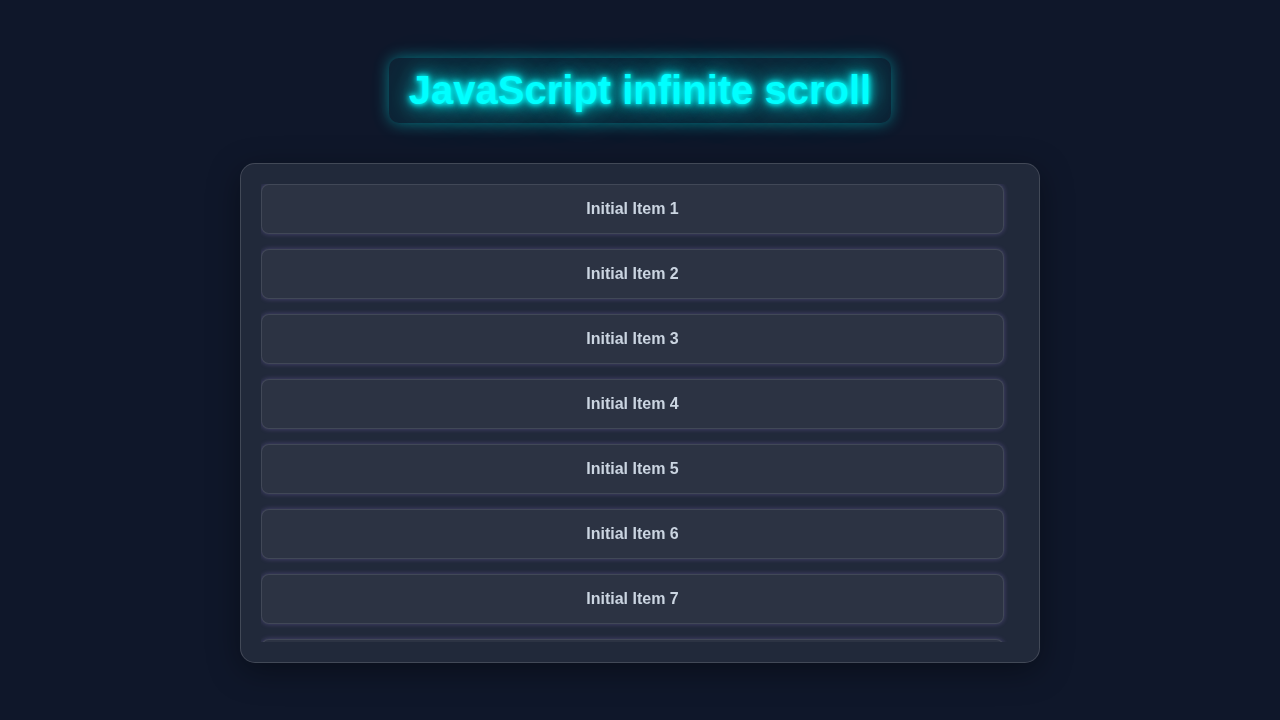
We’re crafting a page that loads new “items” automatically. Imagine a blog feed or an image gallery. Instead of clicking “next page,” new content just appears as you scroll down. This makes your site feel incredibly responsive and engaging. It reduces friction for users, keeping them on your page longer. We’ll use vanilla JavaScript, HTML, and CSS to bring this cool interaction to life. It’s a fundamental technique for many modern web applications.
HTML Structure: Setting Up Our Content Containers
First, we need some basic HTML to hold our items and a loading indicator. We’ll create a main container for our content. Inside, individual items will be dynamically added by JavaScript. We also need a small div to act as our “trigger” for the infinite scroll. This element will tell us when we are near the bottom of the page. Here’s how our simple HTML looks:
index.html
<!DOCTYPE html>
<html lang="en">
<head>
    <meta charset="UTF-8">
    <meta name="viewport" content="width=device-width, initial-scale=1.0">
    <title>JavaScript Infinite Scroll</title>
    <link rel="stylesheet" href="styles.css">
</head>
<body>
    <div class="container">
        <h1>Infinite Scroll Example</h1>
        <div id="item-container" class="item-container">
            <!-- Items will be loaded here by JavaScript -->
        </div>
        <div id="loading" class="loading">Loading more items...</div>
    </div>
    <script src="script.js"></script>
</body>
</html>
CSS Styling: Making It Look Good (and Functional!)
Next, let’s add some CSS to make our project visually appealing. We’ll style the content items and the loader. This styling isn’t just for looks; it helps us visualise the loading state. We’ll also ensure our content flows nicely on the page. Don’t worry, we’re keeping it minimal and clean for this tutorial. You can always get super creative with your own designs later!
styles.css
/* Basic Reset */
* {
    box-sizing: border-box;
    margin: 0;
    padding: 0;
}

body {
    font-family: Arial, Helvetica, sans-serif;
    line-height: 1.6;
    background-color: #f4f4f4;
    color: #333;
    display: flex;
    justify-content: center;
    align-items: flex-start; /* Align to top for a natural scroll */
    min-height: 100vh; /* Ensure body takes full viewport height */
    padding: 20px;
    overflow-y: scroll; /* Allow body to scroll for infinite scroll */
}

.container {
    width: 90%;
    max-width: 800px;
    background-color: #fff;
    padding: 30px;
    border-radius: 8px;
    box-shadow: 0 4px 10px rgba(0, 0, 0, 0.1);
}

h1 {
    text-align: center;
    margin-bottom: 25px;
    color: #0056b3;
}

.item-container {
    display: grid;
    grid-template-columns: repeat(auto-fill, minmax(250px, 1fr)); /* Responsive grid for items */
    gap: 20px;
    margin-top: 20px;
}

.item {
    background-color: #e9f7ff;
    border: 1px solid #cceeff;
    border-radius: 5px;
    padding: 15px;
    text-align: center;
    font-size: 1.1em;
    font-weight: bold;
    color: #004085;
    transition: transform 0.2s ease, box-shadow 0.2s ease;
}

.item:hover {
    transform: translateY(-3px);
    box-shadow: 0 4px 12px rgba(0, 0, 0, 0.15);
}

.loading {
    text-align: center;
    padding: 20px;
    font-size: 1.2em;
    color: #666;
    display: none; /* Hidden by default, shown when loading */
    margin-top: 20px;
    display: flex;
    flex-direction: column;
    align-items: center;
}

/* Spinner for loading indicator */
.loading::after {
    content: '';
    display: block;
    margin: 10px auto 0;
    width: 30px;
    height: 30px;
    border: 4px solid #f3f3f3;
    border-top: 4px solid #3498db;
    border-radius: 50%;
    animation: spin 1s linear infinite;
}

@keyframes spin {
    0% { transform: rotate(0deg); }
    100% { transform: rotate(360deg); }
}

/* Styling for when no more items are available */
.loading.no-more-items {
    color: #888;
    font-style: italic;
    /* Remove spinner */
}
.loading.no-more-items::after {
    display: none;
}
JavaScript: Bringing Our Infinite Scroll to Life
Now for the exciting part: the JavaScript! This is where all the logic happens. We’ll use the powerful Intersection Observer API to detect when our “trigger” element comes into view. Then, we’ll fetch more data and append it to our page. It’s truly amazing how a few lines of code can create such a dynamic experience. Let’s dive into the code!
script.js
// script.js

// --- DOM Elements ---
const itemContainer = document.getElementById('item-container');
const loadingIndicator = document.getElementById('loading');

// --- Configuration ---
let currentPage = 1;
const itemsPerPage = 10; // Number of items to load per "page"
let isLoading = false; // Flag to prevent multiple simultaneous loads
let hasMoreItems = true; // Flag to indicate if there are more items to fetch
const totalSimulatedItems = 50; // Simulate a total number of items available from an API

// --- Simulate Data Fetching ---
/**
 * Simulates an API call to fetch a batch of items.
 * In a real application, this would be an `fetch` call to your backend.
 * @param {number} page The current page number to fetch.
 * @param {number} limit The number of items per page.
 * @returns {Promise<string[]>} A promise that resolves with an array of item strings.
 */
async function fetchItems(page, limit) {
    isLoading = true;
    loadingIndicator.style.display = 'flex'; // Show loading indicator
    // Ensure the no-more-items class is removed if new items might be fetched
    loadingIndicator.classList.remove('no-more-items');
    loadingIndicator.textContent = 'Loading more items...';

    return new Promise(resolve => {
        setTimeout(() => {
            const startIndex = (page - 1) * limit;
            const endIndex = startIndex + limit;
            const items = [];

            for (let i = startIndex; i < endIndex && i < totalSimulatedItems; i++) {
                items.push(`Item ${i + 1}`);
            }

            isLoading = false;

            // Determine if there are more items based on totalSimulatedItems
            if (startIndex + items.length >= totalSimulatedItems) {
                hasMoreItems = false;
            }

            resolve(items);
        }, 800); // Simulate network delay of 800ms
    });
}

// --- Render Items to DOM ---
/**
 * Creates and appends item elements to the container.
 * @param {string[]} items An array of item strings to display.
 */
function appendItems(items) {
    items.forEach(itemText => {
        const itemDiv = document.createElement('div');
        itemDiv.classList.add('item');
        itemDiv.textContent = itemText;
        itemContainer.appendChild(itemDiv);
    });
}

// --- Infinite Scroll Logic (Intersection Observer) ---
/**
 * Callback function for the Intersection Observer.
 * It's triggered when the 'loadingIndicator' enters or exits the viewport.
 * @param {IntersectionObserverEntry[]} entries An array of IntersectionObserverEntry objects.
 * @param {IntersectionObserver} observer The Intersection Observer instance.
 */
async function handleIntersect(entries, observer) {
    const entry = entries[0]; // We are observing only one target (loadingIndicator)

    // If the loading indicator is visible, not currently loading, and there are more items
    if (entry.isIntersecting && !isLoading && hasMoreItems) {
        currentPage++;
        const newItems = await fetchItems(currentPage, itemsPerPage);
        appendItems(newItems);

        // If after loading, there are no more items, disconnect the observer
        if (!hasMoreItems) {
            observer.disconnect(); // Stop observing once all items are loaded
            loadingIndicator.style.display = 'flex'; // Ensure it's visible
            loadingIndicator.textContent = 'You have reached the end of the list.';
            loadingIndicator.classList.add('no-more-items'); // Add class to style no more items state
        }
    }
}

// --- Initialize Observer ---
// Create a new Intersection Observer instance.
// It will watch the 'loadingIndicator' element.
const observer = new IntersectionObserver(handleIntersect, {
    root: null, // Use the viewport as the root element for observing intersections
    rootMargin: '0px 0px 100px 0px', // Trigger when the target is 100px from the bottom of the viewport
    threshold: 0.1 // Trigger when 10% of the target is visible
});

// Start observing the loading indicator element
observer.observe(loadingIndicator);

// --- Initial Load ---
// Load the first batch of items when the page loads
async function initializePage() {
    const initialItems = await fetchItems(currentPage, itemsPerPage);
    appendItems(initialItems);

    // If no more items are available after the initial load (e.g., list is very short),
    // handle the end-of-list state immediately.
    if (!hasMoreItems) {
        observer.disconnect();
        loadingIndicator.style.display = 'flex';
        loadingIndicator.textContent = 'You have reached the end of the list.';
        loadingIndicator.classList.add('no-more-items');
    } else {
        loadingIndicator.style.display = 'none'; // Hide loading indicator after initial load if more items exist
    }
}

initializePage();
How It All Works Together: Unpacking the Infinite Scroll JavaScript Magic
Let’s break down the JavaScript code section by section. We’ll explore each part. This will help you understand the full flow. You’ll see how our HTML, CSS, and JS collaborate seamlessly. We’re building a robust and efficient Infinite Scroll JavaScript solution.
Getting Our Elements Ready and Initial Setup
At the top of our JavaScript, we grab references to the main content container and our loading indicator. These are crucial for displaying our dynamic items. We also set up some important state variables. currentPage tracks which “page” of data we are on. loading is a boolean flag; it tells us if data is currently being fetched. hasMore is another flag. This one checks if there’s more data available from our “server.” These flags prevent us from trying to load data repeatedly. They also stop us from loading when there’s nothing left. Finally, we establish itemsPerPage. This variable determines how many items each “fetch” operation will retrieve. Initializing these values correctly is the foundation of our entire system.
Pro Tip: State management is key in web development. Keeping track of
loadingandhasMoreprevents bugs and ensures a smooth user experience. It’s like having a control panel for your page!
The Intersection Observer: Our Scroll Detective
The star of our show is the Intersection Observer API. This built-in browser API allows us to detect when an element enters or exits the viewport. We create a new observer instance. We pass it a callback function. This function runs when the observed element’s visibility changes. The entries array within the callback gives us details. We check entry.isIntersecting. If it’s true, our “loading spinner” element is now visible. This tells us the user has scrolled near the bottom. Once detected, we call our fetchData function. Then, we start loading more content. It’s an incredibly efficient way to trigger actions based on visibility. We don’t need constant scroll event listeners. This saves a lot of performance overhead.
Fetching Data Like a Pro: The fetchData Function
Our fetchData function handles getting new content. It’s an async function because fetching data is an asynchronous operation. This means it might take some time. We first set loading to true and show our loader. This gives visual feedback to the user. Then, we simulate an API call. In a real application, you would use the JavaScript Fetch API Tutorial: HTML, CSS & Vanilla JS Guide to make a real network request. We create new div elements for each item. Each item gets simple text like “Item [number]”. After creating them, we append these new items to our contentContainer. We increment currentPage because we’ve loaded a new batch. Finally, loading is set back to false. We then hide the loader. This prepares us for the next scroll detection.
Managing State and User Experience with hasMore
The hasMore flag is super important. It tells us when we’ve loaded all available data. Imagine you only have 50 items total. Once currentPage reaches a point where no more items can be generated (or fetched from an actual API), we set hasMore to false. When hasMore is false, we unobserve our loading element. This stops the Intersection Observer from triggering fetchData anymore. It also ensures the loader stays hidden permanently. This prevents unnecessary requests and provides a clear end state. Our users know there’s no more content to load. This makes for a clean and efficient user experience. Even in complex React Animation Performance: Master Optimal UI Fluidity projects, managing state like this is crucial. It keeps things snappy and avoids visual glitches. Consider how tools like a React AI Form Assistant: Build Smart Forms with React JSX Hooks might use dynamic loading for suggestions too!
Keep Learning: This pattern of state management (
loading,hasMore) is foundational. You’ll see it everywhere in front-end development. Mastering it will make you a more capable developer!
Tips to Customise It: Make It Your Own!
- Connect to a Real API: Replace our simulated data with actual data from a backend API. This is the next logical step.
- Add More Visual Flair: Experiment with different loading animations or item entry animations. Think about subtle fades or slides.
- Implement Filtering/Sorting: Add filters or sort options. When these change, reset
currentPageandhasMore. Then re-fetch data from scratch. - “Load More” Button: For accessibility or user preference, provide a “Load More” button. This can appear instead of (or alongside) the automatic scroll.
Conclusion: You Just Built an Amazing Infinite Scroll!
Wow, look what you’ve accomplished! You’ve successfully built an incredible Infinite Scroll JavaScript feature. You tackled HTML structure, slick CSS, and powerful vanilla JavaScript. You learned about the Intersection Observer API. That’s a huge win! This technique is a cornerstone of modern web development. It makes user experiences smooth and dynamic. Now, take what you’ve learned and apply it to your own projects. Experiment, build, and share your creations with the world. We can’t wait to see what you come up with!