Python Web Scraping Tutorial: A Complete Guide with BeautifulSoup
Hey there, fellow coder! If you’ve ever wanted to gather data from websites but felt lost on where to start, you’re in the perfect place. Today, we’re diving deep into the awesome world of Python Web Scraping. This powerful skill lets you automate data collection from any corner of the web. We’ll build a script to pull valuable e-commerce product information. Get ready to unlock a whole new level of data-gathering superpowers!
What We Are Building: Your E-commerce Data Miner
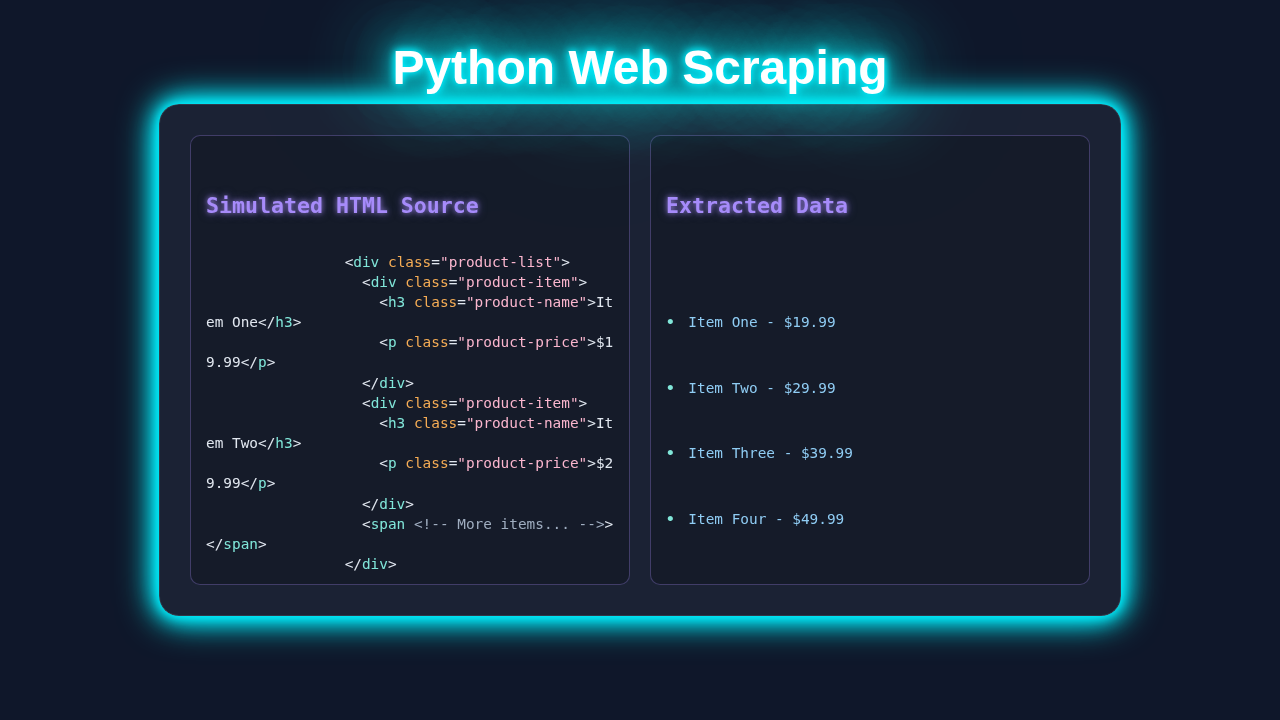
Imagine effortlessly collecting product names, prices, and descriptions from your favorite online stores. That’s exactly what we’re going to create! Our project is a robust Python script. It will visit an e-commerce product page. Then, it will intelligently extract specific pieces of data. This data could include the product title, its current price, and even a brief description. Think of it as your personal, automated research assistant. It’s incredibly useful for market research, price comparisons, or building your own product database. We’ll make it simple, clear, and super effective.
Understanding the Target: HTML Structure for Python Web Scraping
Before we can scrape data, we need to understand how web pages are built. Every webpage is essentially a document structured with HTML. HTML uses “tags” to define different parts of the content. For example, a product title might be inside an <h1> tag. Its price might be in a <span> tag with a specific class. Understanding this structure is crucial. We will “inspect” the target page’s HTML to locate our desired data. Here’s a typical example of what you might find for a product listing:

Super Cool Awesome Gadget Pro Max
$99.99
This is the ultimate gadget for all your daily needs. Features include...
- Long-lasting battery
- Stunning display
- Ergonomic design
We won’t be writing this HTML ourselves. Instead, we’ll be carefully reading it. This helps us pinpoint where our desired information lives. Each tag and attribute serves as a breadcrumb for our scraper.
Deconstructing the Look: CSS Styling
While CSS makes web pages look beautiful, it doesn’t directly hold the data we want to scrape. CSS (Cascading Style Sheets) controls the presentation of HTML elements. It dictates colors, fonts, layouts, and spacing. However, CSS class names or IDs are often used by developers to apply styles. These same class names and IDs are incredibly useful for our scraper! We can use them as identifiers to locate specific elements. So, while we don’t scrape CSS itself, its attributes help us navigate the HTML tree. For instance, a price might have a class like price-tag to style it red. We can then target the <span> with class="price-tag" to get its content.
.product-card {
    border: 1px solid #eee;
    padding: 20px;
    margin: 15px;
    border-radius: 8px;
    box-shadow: 0 2px 5px rgba(0,0,0,0.1);
}

.product-title {
    font-size: 24px;
    color: #333;
    margin-bottom: 10px;
}

.price {
    font-size: 20px;
    color: #e67e22; /* Orange price for attention! */
    font-weight: bold;
    display: block;
    margin-bottom: 15px;
}

.product-description {
    font-size: 16px;
    color: #555;
    line-height: 1.6;
}
We are simply observing how styles are applied. This gives us clues about how the HTML is organized. Remember, the goal is data extraction, not styling analysis!
Dynamic Content: JavaScript (if applicable)
Many modern websites use JavaScript to load content dynamically. This means some product details might not be present when the page first loads. Instead, JS fetches them after the initial page display. This can make traditional Python Requests Library Explained: HTTP for Humans, Simplified scraping tricky. Our basic scraper will focus on pages with mostly static content. However, for more complex sites, you might need tools like Selenium. Selenium simulates a web browser. It allows JavaScript to execute fully. Don’t worry about dynamic content for our first project. We’ll pick a page that’s easier to handle. But keep this in mind for future, more advanced projects!
// This script would typically handle dynamic content loading,
// interactive elements, or add-to-cart functionality.
// For example, fetching related products via an API:

/*
document.addEventListener('DOMContentLoaded', () => {
    const productId = document.getElementById('product-id').value;
    fetch(`/api/products/${productId}/related`)
        .then(response => response.json())
        .then(data => {
            // Render related products on the page
            console.log("Related products loaded:", data);
        })
        .catch(error => console.error('Error loading related products:', error));
});
*/

// For our basic scraper, we assume the core data is in the initial HTML.
console.log("Product page JavaScript loaded!");
For this tutorial, we assume the critical data is readily available in the initial HTML. This simplifies our approach significantly.
Pro Tip: Always check a website’s
robots.txtfile before scraping. This file tells web crawlers (like your scraper) which parts of the site they are allowed or forbidden to access. Respectingrobots.txtis crucial for ethical scraping!
How It All Works Together: Building Your Python Web Scraper
Now for the exciting part! We’ll write the Python code step-by-step. Our script will fetch a webpage. Then it will parse the HTML. Finally, it will extract the desired product data. This process is surprisingly straightforward with the right tools.
Step 1: Setting Up Your Environment
First, we need to install our essential libraries. We’ll use requests to fetch the webpage content. And BeautifulSoup will help us parse that HTML. Open your terminal or command prompt and run these commands:
pip install requests beautifulsoup4
These libraries are also foundational for building backend web apps, just like in our Flask To-Do App Tutorial: Build a Simple Python Backend.
Step 2: Fetching the Webpage
Our scraper starts by “requesting” the webpage from the internet. We’ll use the requests library for this. It simulates a web browser asking for a page. Here’s how you do it:
        import requests

        url = "https://example.com/product/awesome-gadget" # Replace with a real product URL!
        response = requests.get(url)

        if response.status_code == 200:
            print("Successfully fetched the page!")
            html_content = response.text
        else:
            print(f"Failed to fetch page. Status code: {response.status_code}")
            html_content = None
The response.status_code == 200 means everything went well. The page was found and delivered. Otherwise, something went wrong, and we should check our URL or internet connection. You can learn more about HTTP status codes on MDN Web Docs.
Step 3: Parsing HTML with BeautifulSoup
Once we have the raw HTML content, it’s just a long string of text. This is where BeautifulSoup comes in handy. It transforms that messy string into a navigable Python object. This object lets us easily search and filter the HTML.
        from bs4 import BeautifulSoup

        if html_content:
            soup = BeautifulSoup(html_content, 'html.parser')
            print("HTML parsed successfully with BeautifulSoup.")
        else:
            soup = None
'html.parser' is Python’s built-in HTML parser. BeautifulSoup works with it to create a tree-like structure of the webpage. This makes finding elements much simpler.
Step 4: Finding Specific Elements
We need to locate the product title, price, and description. You’ll use your browser’s “Inspect Element” tool to find their HTML tags, classes, or IDs. Let’s assume our example product page has:
- Product Title: an
<h1>tag with classproduct-title - Price: a
<span class="price">tag - Description: a
<div class="product-description">tag
        if soup:
            product_title_element = soup.find('h1', class_='product-title')
            product_price_element = soup.find('span', class_='price')
            product_description_element = soup.find('div', class_='product-description')

            # Extracting the text
            title = product_title_element.get_text(strip=True) if product_title_element else "N/A"
            price = product_price_element.get_text(strip=True) if product_price_element else "N/A"
            description = product_description_element.get_text(strip=True) if product_description_element else "N/A"

            print(f"\n--- Extracted Product Data ---")
            print(f"Title: {title}")
            print(f"Price: {price}")
            print(f"Description: {description}")
        else:
            print("No soup object to process. Check if HTML content was fetched.")
The .find() method helps us get the first matching element. We also use .get_text(strip=True) to clean up the extracted text. This removes extra whitespace around the content. You can also use .find_all() to get a list of all matching elements. Learn more about HTML elements and their attributes on MDN Web Docs.
Heads Up! Websites change their HTML structure often. A scraper that works today might break tomorrow. Always be prepared to re-inspect and update your selectors! Maintaining your scrapers is part of the fun.
Tips to Customise Your Python Web Scraping Project
You’ve built a solid foundation! Now, let’s explore how to make your scraper even more powerful. These ideas will help you extend its functionality. You can tailor it to your specific needs. The possibilities are truly endless.
- Scrape Multiple Products/Pages: Instead of a single URL, create a list of product URLs. Then, loop through them! You can also tackle pagination. This involves finding the “next page” button or link. Then, your script can navigate through multiple listing pages.
- Add Robust Error Handling: What if an element isn’t found? What if the page returns a 404 error? Implement
try-exceptblocks. This makes your scraper more resilient. It handles unexpected situations gracefully. - Store Data Effectively: Printing to the console is great for testing. But for real use, save your data! You can write it to a CSV file. Or, save it as a JSON file. For larger projects, consider storing data in a database. Check out our Flask CRUD Tutorial: Building a Basic Web App with Python for ideas on database interaction!
- Respect Rate Limits: Don’t overwhelm websites with requests. Add delays (
time.sleep()) between your requests. This prevents you from getting blocked. It’s good practice and keeps you friendly with the server. - Handle Dynamic Content: If your target site uses a lot of JavaScript, investigate tools like Selenium or Playwright. They can control a real browser. This allows all dynamic content to load before scraping. This will open up many more scraping opportunities.
Conclusion: You’ve Built a Python Web Scraper!
Wow, what a journey! You just built your very own Python Web Scraping tool. You learned to fetch web pages. You mastered parsing HTML with BeautifulSoup. And you extracted valuable e-commerce product data. This skill is incredibly versatile. It’s a stepping stone for many exciting projects. Think about automating research, building comparison tools, or creating unique datasets.
Feel proud of what you’ve accomplished! Share your scraper with friends. Experiment with different websites (ethically, of course!). Keep learning, keep building. The web is full of data, and now you have the key to unlock it. Happy scraping, pro coder!
web_scraper.py
#!/usr/bin/env python3

import requests
from bs4 import BeautifulSoup
import csv

def scrape_website(url):
    """
    Scrapes a given URL to extract product names and prices.

    Args:
        url (str): The URL of the website to scrape.

    Returns:
        list: A list of dictionaries, where each dictionary contains
              'name' and 'price' of a product. Returns an empty list
              if scraping fails or no data is found.
    """
    try:
        # 1. Send an HTTP GET request to the URL
        # User-Agent header helps avoid being blocked by some websites and mimics a browser.
        headers = {'User-Agent': 'Mozilla/5.0 (Windows NT 10.0; Win64; x64) AppleWebKit/537.36 (KHTML, like Gecko) Chrome/91.0.4472.124 Safari/537.36'}
        response = requests.get(url, headers=headers, timeout=10)
        response.raise_for_status() # Raise an exception for HTTP errors (4xx or 5xx)

        # 2. Parse the HTML content of the page using BeautifulSoup
        # 'html.parser' is a built-in Python parser, suitable for most HTML.
        soup = BeautifulSoup(response.text, 'html.parser')

        # 3. Find specific elements on the page using CSS selectors or tag/attribute combinations
        # --- IMPORTANT: You'll need to inspect the target website's HTML
        #     to find the correct CSS selectors or element tags/attributes. ---
        #     Use your browser's developer tools (F12) to right-click on an element and 'Inspect'.
        #     Common methods: find(), find_all(), select() (using CSS selectors).
        #
        # For this tutorial, we'll assume a common e-commerce product structure:
        # <div class="product-item">
        #   <h3 class="product-name">Product Title</h3>
        #   <p class="product-price">$XX.YY</p>
        # </div>

        products_data = []
        # Find all div elements that have the class 'product-item'
        product_items = soup.find_all('div', class_='product-item')

        if not product_items:
            print(f"[WARNING] No product items found with class 'product-item' on {url}")
            print("Please update the CSS selectors in the script to match the target website's structure.")

        # Iterate through each found product item and extract its data
        for item in product_items:
            # Find the h3 element with class 'product-name' within the current product item
            name_element = item.find('h3', class_='product-name')
            # Find the p element with class 'product-price' within the current product item
            price_element = item.find('p', class_='product-price')

            # Extract text, stripping leading/trailing whitespace. Use 'N/A' if element not found.
            name = name_element.get_text(strip=True) if name_element else 'N/A'
            price = price_element.get_text(strip=True) if price_element else 'N/A'

            products_data.append({'name': name, 'price': price})

        return products_data

    except requests.exceptions.HTTPError as e:
        print(f"[ERROR] HTTP error occurred: {e}. Status Code: {e.response.status_code}")
    except requests.exceptions.ConnectionError as e:
        print(f"[ERROR] Could not connect to the URL: {e}. Check your internet connection or URL.")
    except requests.exceptions.Timeout as e:
        print(f"[ERROR] The request timed out after 10 seconds: {e}. The server took too long to respond.")
    except requests.exceptions.RequestException as e:
        print(f"[ERROR] An unexpected request error occurred: {e}")
    except Exception as e:
        print(f"[ERROR] An unexpected error occurred during scraping: {e}")

    return [] # Return empty list on any error

def save_to_csv(data, filename='scraped_products.csv'):
    """
    Saves the scraped product data to a CSV file.

    Args:
        data (list): A list of dictionaries containing product data.
        filename (str): The name of the CSV file to save.
    """
    if not data:
        print("No data to save to CSV.")
        return

    # Determine fieldnames (CSV headers) from the keys of the first dictionary
    fieldnames = list(data[0].keys())

    try:
        with open(filename, 'w', newline='', encoding='utf-8') as csvfile:
            writer = csv.DictWriter(csvfile, fieldnames=fieldnames)
            writer.writeheader() # Write the header row
            for row in data:
                writer.writerow(row) # Write each product as a row
        print(f"Data successfully saved to {filename}")
    except IOError as e:
        print(f"[ERROR] Could not write to file {filename}: {e}")
    except Exception as e:
        print(f"[ERROR] An unexpected error occurred while saving to CSV: {e}")


if __name__ == "__main__":
    # --- Configuration ---
    # IMPORTANT: Replace 'https://www.example.com/products' with the actual URL
    # of the website you intend to scrape. Always ensure you have permission
    # to scrape a website and adhere to its robots.txt file and terms of service.
    #
    # Good practice targets for learning (check their robots.txt first):
    #   - 'http://quotes.toscrape.com/' (a dedicated scraping sandbox)
    #   - 'https://books.toscrape.com/' (another scraping sandbox)
    target_url = 'https://www.example.com/products' # <--- REPLACE THIS URL

    print(f"Starting web scraping for: {target_url}")
    scraped_products = scrape_website(target_url)

    if scraped_products:
        print("\n--- Scraped Products ---")
        for product in scraped_products:
            print(f"Name: {product['name']}, Price: {product['price']}")

        # Option to save data to a CSV file
        save_to_csv(scraped_products)
    else:
        print("No products were scraped or an error occurred. Please check the URL and selectors.")

    print("\nWeb scraping process finished.")

# --- How to Run This Script ---
# 1. Ensure you have Python 3 installed (Python 3.6+ is recommended).
# 2. Install the required libraries using pip:
#    pip install requests beautifulsoup4
# 3. Open this file (web_scraper.py) and **replace** 'https://www.example.com/products'
#    with the actual URL of the webpage you want to scrape.
# 4. **Crucially**, inspect the target website's HTML using your browser's developer tools (F12).
#    Identify the HTML tags and CSS classes/IDs for the data you want to extract (e.g., product names, prices).
#    Update the `item.find()` calls inside the `scrape_website` function accordingly.
#    For example, if product names are within `<span class="item-title">`, change:
#    `name_element = item.find('h3', class_='product-name')`
#    to `name_element = item.find('span', class_='item-title')`.
# 5. Run the script from your terminal:
#    python web_scraper.py
#    (or `python3 web_scraper.py` on some systems)