Get started with Vanilla JavaScript Todo
Hey! If you have wanted to build a Vanilla JavaScript Todo list app but had no idea where to start, you are in the right place.
We are building a cool to-do list app. It is useful for managing tasks.
What We Are Building
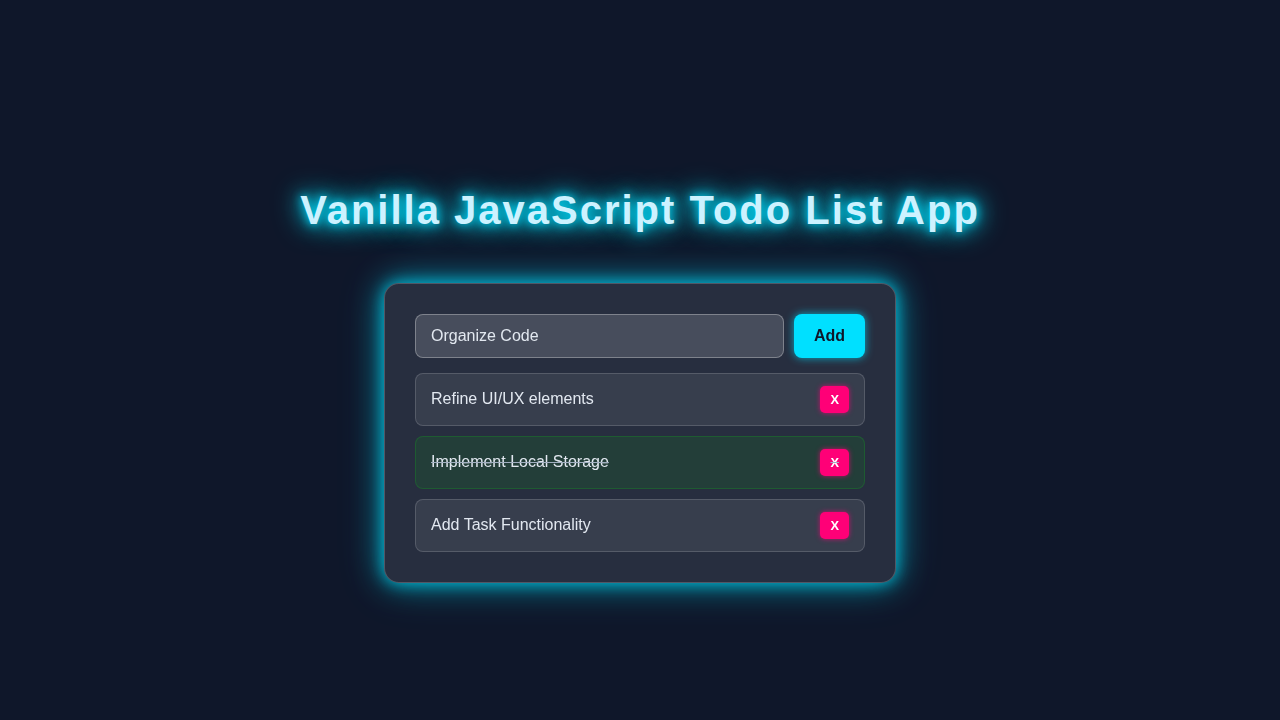
We are making a to-do list app. It will have a text input and a button.
Here’s the cool part: you can add and remove tasks.
Vanilla JavaScript Todo: HTML Structure
We need HTML for structure. It gives us a base to work with.
Don’t worry about this part. Just copy the code below.
index.html
<!DOCTYPE html>
<html lang="en">
<head>
    <meta charset="UTF-8">
    <meta name="viewport" content="width=device-width, initial-scale=1.0">
    <title>Vanilla JavaScript Todo App</title>
    <link rel="stylesheet" href="styles.css">
</head>
<body>
    <div class="container">
        <h1>Vanilla JS Todo List</h1>
        <div class="input-section">
            <input type="text" id="todo-input" placeholder="Add a new task...">
            <button id="add-button">Add</button>
        </div>
        <ul id="todo-list">
            <!-- Todo items will be added here -->
        </ul>
    </div>
    <script src="script.js"></script>
</body>
</html>
Vanilla JavaScript Todo: CSS Styling
CSS makes things look nice. We use it to style our app.
Let me explain what’s happening here. We add colors and fonts.
styles.css
/* Basic Reset and Box Model */
body {
    font-family: Arial, Helvetica, sans-serif; /* Safe fonts */
    margin: 0;
    padding: 0;
    box-sizing: border-box; /* Ensure padding and border are included in element's total width and height */
    background-color: #f4f4f4; /* Light background for the main app */
    display: flex; /* Flexbox for centering */
    justify-content: center; /* Center horizontally */
    align-items: flex-start; /* Align to the top of the container */
    min-height: 100vh; /* Full viewport height */
    padding-top: 50px; /* Space from the top */
    color: #333; /* Default text color */
}

/* Container for the entire todo application */
.container {
    background-color: #ffffff; /* White background */
    padding: 25px 30px; /* Ample padding */
    border-radius: 10px; /* Slightly rounded corners */
    box-shadow: 0 4px 15px rgba(0, 0, 0, 0.1); /* Subtle shadow for depth */
    max-width: 500px; /* Maximum width for the app */
    width: 100%; /* Ensure it takes full width up to max-width */
    overflow: hidden; /* Hide any overflowing content */
}

/* Main Heading */
h1 {
    text-align: center; /* Center the title */
    color: #333; /* Darker color for heading */
    margin-bottom: 25px; /* Space below the heading */
}

/* Input Section Styling */
.input-section {
    display: flex; /* Arrange input and button side-by-side */
    margin-bottom: 20px; /* Space below the input section */
}

#todo-input {
    flex-grow: 1; /* Allow input to take available space */
    padding: 12px 15px; /* Padding inside input */
    border: 1px solid #ddd; /* Light border */
    border-radius: 5px; /* Rounded corners */
    font-size: 16px; /* Readable font size */
    outline: none; /* Remove outline on focus */
    margin-right: 10px; /* Space between input and button */
}

#todo-input:focus {
    border-color: #007bff; /* Highlight border on focus */
    box-shadow: 0 0 5px rgba(0, 123, 255, 0.2); /* Subtle glow on focus */
}

#add-button {
    padding: 12px 20px; /* Padding for the button */
    background-color: #007bff; /* Primary blue color */
    color: white; /* White text */
    border: none; /* No border */
    border-radius: 5px; /* Rounded corners */
    cursor: pointer; /* Indicate it's clickable */
    font-size: 16px; /* Readable font size */
    transition: background-color 0.3s ease; /* Smooth transition for hover effect */
}

#add-button:hover {
    background-color: #0056b3; /* Darker blue on hover */
}

/* Todo List Styling */
#todo-list {
    list-style: none; /* Remove default bullet points */
    padding: 0; /* Remove default padding */
    margin: 0; /* Remove default margin */
}

#todo-list li {
    background-color: #f9f9f9; /* Slightly off-white background for list items */
    padding: 12px 15px; /* Padding inside list item */
    margin-bottom: 10px; /* Space between list items */
    border: 1px solid #eee; /* Light border for separation */
    border-radius: 5px; /* Rounded corners */
    display: flex; /* Arrange text and button side-by-side */
    justify-content: space-between; /* Space out text and button */
    align-items: center; /* Vertically center items */
    transition: background-color 0.3s ease, box-shadow 0.3s ease; /* Smooth transitions */
    cursor: pointer; /* Indicate list items are clickable (for marking complete) */
}

#todo-list li:last-child {
    margin-bottom: 0; /* No margin after the last item */
}

/* Styling for completed tasks */
#todo-list li.completed {
    background-color: #e6ffe6; /* Light green background for completed tasks */
    text-decoration: line-through; /* Strikethrough text */
    color: #888; /* Dim text color */
    border-color: #ccffcc; /* Lighter border color */
}

#todo-list li span {
    flex-grow: 1; /* Allow text to take available space */
    word-break: break-word; /* Break long words */
}

/* Delete Button Styling */
.delete-btn {
    background-color: #dc3545; /* Red color for delete button */
    color: white; /* White text */
    border: none; /* No border */
    border-radius: 5px; /* Rounded corners */
    padding: 6px 10px; /* Padding for the button */
    margin-left: 15px; /* Space from the todo text */
    cursor: pointer; /* Indicate it's clickable */
    font-size: 14px; /* Smaller font size */
    transition: background-color 0.3s ease; /* Smooth transition */
    flex-shrink: 0; /* Prevent button from shrinking */
}

.delete-btn:hover {
    background-color: #c82333; /* Darker red on hover */
}

/* Basic responsiveness for smaller screens */
@media (max-width: 600px) {
    .container {
        margin: 20px; /* Add some margin on smaller screens */
        padding: 20px; /* Adjust padding */
    }
    .input-section {
        flex-direction: column; /* Stack input and button vertically */
    }
    #todo-input {
        margin-right: 0; /* Remove right margin */
        margin-bottom: 10px; /* Add bottom margin */
    }
    #add-button {
        width: 100%; /* Full width button */
    }
}
JavaScript
JS makes things work. We use it to add tasks and remove them.
Vanilla JavaScript Todo is all about using JS to manipulate the DOM.
script.js
// Get references to the DOM elements
const todoInput = document.getElementById('todo-input');
const addButton = document.getElementById('add-button');
const todoList = document.getElementById('todo-list');

// --- Functions ---

/**
 * Adds a new task to the todo list.
 * @param {string} taskText - The text content of the task.
 * @param {boolean} isCompleted - Whether the task is initially completed.
 */
function addTask(taskText, isCompleted = false) {
    // If taskText is empty, do not add
    if (taskText.trim() === '') {
        alert('Please enter a task!');
        return;
    }

    // Create list item (<li>)
    const listItem = document.createElement('li');
    listItem.classList.add('todo-item'); // Add a class for potential future styling or selection

    // If the task is completed, add the 'completed' class
    if (isCompleted) {
        listItem.classList.add('completed');
    }

    // Create span for task text
    const taskSpan = document.createElement('span');
    taskSpan.textContent = taskText;
    taskSpan.classList.add('task-text'); // Add a class for potential styling

    // Create delete button
    const deleteButton = document.createElement('button');
    deleteButton.textContent = 'X';
    deleteButton.classList.add('delete-btn'); // Add class for styling

    // Append span and button to the list item
    listItem.appendChild(taskSpan);
    listItem.appendChild(deleteButton);

    // Append the list item to the todo list (UL)
    todoList.appendChild(listItem);

    // Clear the input field after adding a task
    todoInput.value = '';

    // Save tasks to local storage
    saveTasks();
}

/**
 * Handles clicks on the todo list (for toggling completion and deleting tasks).
 * @param {Event} event - The click event object.
 */
function handleListClick(event) {
    const clickedElement = event.target; // The element that was actually clicked

    // Check if a task text (span) was clicked to toggle completion
    if (clickedElement.classList.contains('task-text')) {
        const listItem = clickedElement.closest('li'); // Find the parent <li>
        if (listItem) {
            listItem.classList.toggle('completed'); // Toggle the 'completed' class
            saveTasks(); // Save updated state
        }
    }

    // Check if the delete button was clicked
    if (clickedElement.classList.contains('delete-btn')) {
        const listItem = clickedElement.closest('li'); // Find the parent <li>
        if (listItem) {
            listItem.remove(); // Remove the list item from the DOM
            saveTasks(); // Save updated state
        }
    }
}

/**
 * Saves the current tasks in the todo list to local storage.
 * Tasks are stored as an array of objects: [{ text: "Task 1", completed: true }, ...]
 */
function saveTasks() {
    const tasks = [];
    // Iterate over each list item in the todo list
    todoList.querySelectorAll('li').forEach(listItem => {
        tasks.push({
            text: listItem.querySelector('.task-text').textContent,
            completed: listItem.classList.contains('completed')
        });
    });
    // Store the tasks array as a JSON string in local storage
    localStorage.setItem('todoTasks', JSON.stringify(tasks));
}

/**
 * Loads tasks from local storage and renders them in the todo list.
 */
function loadTasks() {
    // Retrieve tasks from local storage
    const storedTasks = localStorage.getItem('todoTasks');
    if (storedTasks) {
        // Parse the JSON string back into an array
        const tasks = JSON.parse(storedTasks);
        // Add each stored task to the DOM
        tasks.forEach(task => {
            addTask(task.text, task.completed);
        });
    }
}

// --- Event Listeners ---

// Add task when the "Add" button is clicked
addButton.addEventListener('click', () => addTask(todoInput.value));

// Add task when the Enter key is pressed in the input field
todoInput.addEventListener('keypress', (event) => {
    if (event.key === 'Enter') {
        addTask(todoInput.value);
    }
});

// Use event delegation for clicking on list items (toggle complete or delete)
todoList.addEventListener('click', handleListClick);

// Load tasks when the page first loads
document.addEventListener('DOMContentLoaded', loadTasks);
How It All Works Together
Step 1: Add a Task
You type in a task. Then you click the button.
Here’s what happens next: the task gets added to the list.
Step 2: Remove a Task
You click the remove button. The task goes away.
Let me explain what’s happening here. We use JS to remove the task.
Pro tip: use the console to debug your code.
Tips to Customise It
You can add more features. Like due dates and priorities.
Here’s the cool part: you can make it your own.
Check out MDN for more info.
Conclusion
Congrats! You built a Vanilla JavaScript Todo list app.
Share it with friends. And check out React RSS feed with JSX for more projects.
Also, learn about JS Closures and React useState Tabs Tutorial.
Keep coding and never give up!
Visit CSS-Tricks for more web dev tips.