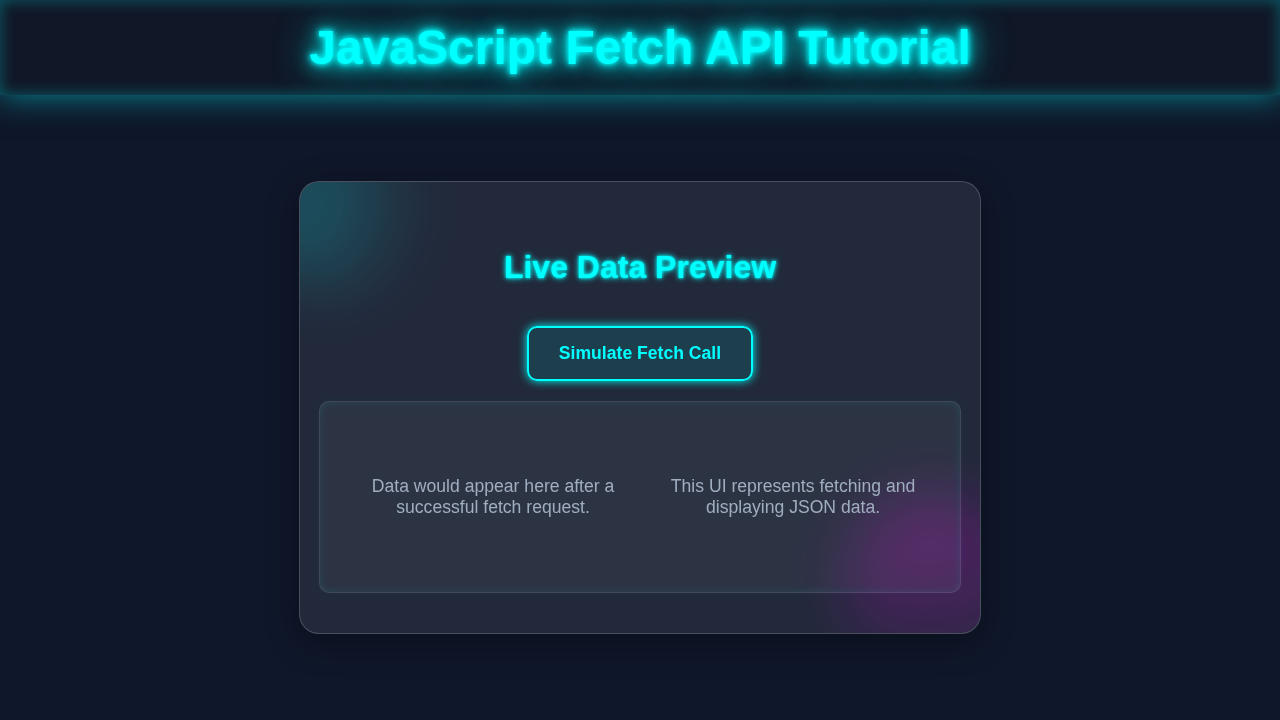
JavaScript Fetch API Tutorial: HTML, CSS & Vanilla JS
Hey there, fellow developer! If you have wanted to build a dynamic data table but had no idea where to start, you are in the right place. Today, we’re diving deep into the powerful JavaScript Fetch API. This amazing tool lets us grab data from anywhere on the web. We will use it to populate a sleek, interactive table. Get ready to level up your front-end skills!
What We Are Building: A Live Data Display!
Imagine a website that shows live information. This could be anything from cryptocurrency prices to weather data. We’re going to create exactly that! Our project will display a list of users, complete with their names, emails, and phone numbers. This data will come from a free online API. You will see how easily we can bring external data into your web pages. It’s super useful for dashboards, reports, and more!
HTML Structure: The Skeleton of Our Table
First, we need a basic HTML structure. This will provide the container for our table. It also includes an area for a loading message. We will keep it simple and semantic. This foundation will hold all our dynamic data. Here’s what our index.html file looks like:
index.html
<!DOCTYPE html>
<html lang="en">
<head>
    <meta charset="UTF-8">
    <meta name="viewport" content="width=device-width, initial-scale=1.0">
    <title>JavaScript Fetch API Tutorial</title>
    <link rel="stylesheet" href="styles.css">
</head>
<body>
    <header>
        <h1>JavaScript Fetch API Tutorial</h1>
        <p>Learn how to make HTTP requests with Fetch API in vanilla JavaScript.</p>
    </header>

    <main class="container">
        <section class="fetch-section">
            <h2>Fetch User Data</h2>
            <p>Click the button below to fetch a list of users from the JSONPlaceholder API.</p>
            <button id="fetchDataBtn" class="fetch-button">Fetch Users</button>

            <div id="loading" class="loading-indicator">
                <div class="spinner"></div>
                Loading data...
            </div>

            <div id="dataOutput" class="data-output">
                <!-- Fetched data will be displayed here -->
                <p class="placeholder-text">User data will appear here.</p>
            </div>

            <div id="error" class="error-message">
                <!-- Error messages will be displayed here -->
            </div>
        </section>
    </main>

    <footer>
        <p>© 2023 Fetch API Tutorial. All rights reserved.</p>
    </footer>

    <script src="script.js" defer></script>
</body>
</html>
CSS Styling: Making Our Table Look Great
Next, let’s make our table readable and attractive. Good styling improves the user experience. Our CSS will ensure the table is easy on the eyes. We’ll add some basic styles for the table, headers, and rows. Don’t worry, we’re not aiming for a design masterpiece, just clear presentation. Here is the CSS magic:
styles.css
/* General Body and Resets */
body {
    font-family: Arial, Helvetica, sans-serif;
    margin: 0;
    padding: 0;
    background-color: #1a202c; /* Dark background */
    color: #e2e8f0; /* Light text */
    line-height: 1.6;
    box-sizing: border-box;
    display: flex;
    flex-direction: column;
    min-height: 100vh;
}

*, *::before, *::after {
    box-sizing: inherit;
}

/* Header */
header {
    background-color: #2d3748; /* Darker header */
    color: #fff;
    padding: 20px 0;
    text-align: center;
    box-shadow: 0 2px 4px rgba(0, 0, 0, 0.2);
}

header h1 {
    margin: 0 0 10px;
    font-size: 2.5em;
    color: #4fd1c5; /* Accent color */
}

header p {
    font-size: 1.1em;
    color: #a0aec0;
}

/* Main Container */
.container {
    flex-grow: 1; /* Allows main content to take available space */
    max-width: 960px;
    margin: 30px auto;
    padding: 20px;
    background-color: #2d3748; /* Card background */
    border-radius: 8px;
    box-shadow: 0 4px 8px rgba(0, 0, 0, 0.3);
    border: 1px solid #4a5568;
    overflow: hidden; /* Ensures no content spills out */
}

/* Fetch Section */
.fetch-section {
    text-align: center;
}

.fetch-section h2 {
    font-size: 2em;
    color: #4fd1c5;
    margin-bottom: 15px;
}

.fetch-section p {
    margin-bottom: 20px;
    color: #cbd5e0;
}

/* Fetch Button */
.fetch-button {
    background-color: #4fd1c5;
    color: #1a202c;
    border: none;
    padding: 12px 25px;
    font-size: 1.1em;
    font-weight: bold;
    border-radius: 5px;
    cursor: pointer;
    transition: background-color 0.3s ease, transform 0.2s ease;
    margin-bottom: 30px;
    box-shadow: 0 2px 5px rgba(0, 0, 0, 0.2);
    max-width: 100%;
}

.fetch-button:hover {
    background-color: #38b2ac;
    transform: translateY(-2px);
}

.fetch-button:active {
    transform: translateY(0);
}

/* Loading Indicator */
.loading-indicator {
    display: none; /* Hidden by default */
    align-items: center;
    justify-content: center;
    gap: 10px;
    font-size: 1.1em;
    color: #63b3ed; /* Blue for loading */
    margin-bottom: 20px;
}

.spinner {
    border: 4px solid rgba(255, 255, 255, 0.3);
    border-top: 4px solid #63b3ed;
    border-radius: 50%;
    width: 30px;
    height: 30px;
    animation: spin 1s linear infinite;
}

@keyframes spin {
    0% { transform: rotate(0deg); }
    100% { transform: rotate(360deg); }
}

/* Data Output Area */
.data-output {
    background-color: #4a5568; /* Slightly lighter card for output */
    border-radius: 6px;
    padding: 20px;
    text-align: left;
    min-height: 150px;
    display: flex; /* Use flex to center placeholder text */
    align-items: center;
    justify-content: center;
    flex-wrap: wrap; /* Allow items to wrap */
    gap: 10px; /* Space between user cards */
    color: #cbd5e0;
    position: relative;
    overflow: hidden; /* Clear floats/contain content */
}

.data-output .placeholder-text {
    font-style: italic;
    color: #a0aec0;
}

.user-card {
    background-color: #2d3748;
    border: 1px solid #4a5568;
    border-radius: 8px;
    padding: 15px;
    width: calc(50% - 20px); /* Two cards per row with gap */
    margin: 10px 0; /* Adjust margin for proper gap calculation */
    box-shadow: 0 2px 5px rgba(0, 0, 0, 0.2);
    transition: transform 0.2s ease;
}

.user-card:hover {
    transform: translateY(-3px);
}

.user-card h3 {
    margin-top: 0;
    color: #4fd1c5;
    font-size: 1.2em;
}

.user-card p {
    margin-bottom: 5px;
    font-size: 0.9em;
    color: #cbd5e0;
}

/* Error Message */
.error-message {
    display: none; /* Hidden by default */
    background-color: #e53e3e; /* Red for errors */
    color: #fff;
    padding: 15px;
    border-radius: 6px;
    margin-top: 20px;
    font-weight: bold;
    text-align: center;
}

/* Footer */
footer {
    background-color: #2d3748;
    color: #a0aec0;
    text-align: center;
    padding: 15px 0;
    margin-top: auto; /* Pushes footer to the bottom */
    box-shadow: 0 -2px 4px rgba(0, 0, 0, 0.2);
    font-size: 0.9em;
}

/* Responsive adjustments */
@media (max-width: 768px) {
    header h1 {
        font-size: 2em;
    }

    .container {
        margin: 20px auto;
        padding: 15px;
    }

    .fetch-button {
        padding: 10px 20px;
        font-size: 1em;
    }

    .user-card {
        width: calc(100% - 0px); /* One card per row on smaller screens, remove margin offset */
        margin: 10px 0;
    }

    .data-output {
        padding: 15px;
    }
}
JavaScript: Dynamic Data with the JavaScript Fetch API
Now for the main event! JavaScript will power our dynamic table. We’ll use the JavaScript Fetch API to get our user data. Then, we will dynamically create table rows and cells. This makes our table truly interactive. It’s where the real magic happens! Let’s jump into the script.js file:
script.js
document.addEventListener('DOMContentLoaded', () => {
    // Get references to DOM elements
    const fetchDataBtn = document.getElementById('fetchDataBtn');
    const dataOutput = document.getElementById('dataOutput');
    const loadingIndicator = document.getElementById('loading');
    const errorMessage = document.getElementById('error');

    // Base URL for the API (JSONPlaceholder for example user data)
    const API_URL = 'https://jsonplaceholder.typicode.com/users';

    // Add event listener to the fetch button
    fetchDataBtn.addEventListener('click', async () => {
        // 1. Clear previous data, errors, and reset styles
        dataOutput.innerHTML = '';
        errorMessage.style.display = 'none';
        dataOutput.classList.remove('error-state'); // Remove any error styling
        // Reset data output alignment in case previous state changed it
        dataOutput.style.justifyContent = 'center';
        dataOutput.style.alignItems = 'center';

        // 2. Show loading indicator
        loadingIndicator.style.display = 'flex'; // Use flex to center spinner and text

        try {
            // 3. Make the fetch request using async/await
            const response = await fetch(API_URL);

            // 4. Check if the response was successful (HTTP status code 200-299)
            if (!response.ok) {
                // If not successful, throw an error to be caught by the catch block
                throw new Error(`HTTP error! Status: ${response.status}`);
            }

            // 5. Parse the JSON response body
            const users = await response.json();

            // 6. Display the fetched data on the page
            displayUsers(users);

        } catch (error) {
            // 7. Handle any errors that occurred during the fetch or processing
            console.error('Fetch error:', error);
            displayError(error.message); // Display a user-friendly error message
        } finally {
            // 8. Hide loading indicator regardless of success or failure
            loadingIndicator.style.display = 'none';
        }
    });

    /**
     * Displays an array of user objects in the data output area.
     * Creates a card for each user with their details.
     * @param {Array<Object>} users - An array of user objects from the API.
     */
    function displayUsers(users) {
        if (users && users.length > 0) {
            dataOutput.innerHTML = ''; // Clear previous content (e.g., placeholder text)
            // Adjust flex properties to align user cards properly
            dataOutput.style.justifyContent = 'flex-start';
            dataOutput.style.alignItems = 'flex-start';

            users.forEach(user => {
                const userCard = document.createElement('div');
                userCard.classList.add('user-card');
                userCard.innerHTML = `
                    <h3>${user.name}</h3>
                    <p><strong>Username:</strong> ${user.username}</p>
                    <p><strong>Email:</strong> ${user.email}</p>
                    <p><strong>Phone:</strong> ${user.phone}</p>
                    <p><strong>Website:</strong> <a href="http://${user.website}" target="_blank" rel="noopener noreferrer">${user.website}</a></p>
                `;
                dataOutput.appendChild(userCard);
            });
        } else {
            dataOutput.innerHTML = '<p class="placeholder-text">No user data found.</p>';
            // Center placeholder text if no data
            dataOutput.style.justifyContent = 'center';
            dataOutput.style.alignItems = 'center';
        }
    }

    /**
     * Displays an error message in the error area and updates the data output.
     * @param {string} message - The error message to display.
     */
    function displayError(message) {
        errorMessage.textContent = `Error: ${message}. Please try again.`;
        errorMessage.style.display = 'block'; // Show the error message element
        dataOutput.innerHTML = '<p class="placeholder-text">Failed to load data.</p>'; // Indicate failure in data output
        dataOutput.style.justifyContent = 'center';
        dataOutput.style.alignItems = 'center';
        dataOutput.classList.add('error-state'); // Add a class for potential error-specific styling
    }
});
How It All Works Together: Step-by-Step Magic
You’ve seen the code, but let’s break it down. We are combining HTML, CSS, and JavaScript. This trio works in harmony to create our dynamic table. Each part plays a crucial role. Let me explain what’s happening here.
Setting Up Our HTML Base
Our index.html file is straightforward. It contains a div with an ID of app. This is where our table will live. We also have a p tag with id="loading-message". This shows users that data is on its way. It’s a small detail, but it improves the user experience. You can even find similar concepts when learning about state management, like how dependencies work in React useEffect Dependencies: Visual Guide.
Making It Look Good with CSS
The style.css file gives our table a clean look. We use border-collapse on the table. This makes the borders of adjacent cells merge into a single border. We style the th (table headers) and td (table data cells). This ensures they have padding and a border. It makes the data easy to read. A visually appealing table keeps users engaged. Furthermore, we hide the loading message initially. It only shows when data is being fetched.
Pro Tip: Responsive design is key! Consider adding media queries to your CSS. This will make your table look great on mobile devices too. Users love a flexible layout.
You can learn more about CSS border-collapse on MDN Web Docs. This property is very helpful for tables. Also, explore CSS Grid or Flexbox for more complex layouts if you are interested!
Fetching Data with JavaScript Fetch API
Here’s the cool part! Our script.js file starts by grabbing references to our app div and loading-message. Then we define an API_URL. This points to a public API for user data. The fetchUsers function is async. This means it can perform tasks in the background without freezing your browser. It uses await for operations that take time to complete. Specifically, it waits for the data to arrive.
The fetch(API_URL) call initiates the request. The JavaScript Fetch API returns a Promise. A Promise represents a value that might be available now, or in the future. We await the response. Then, we check if the response.ok property is true. This tells us if the request was successful. If not, we throw an error. This is important for robust applications. Next, await response.json() converts the response into a JavaScript object. This object is the data we want!
Populating the Table
Once we have the data, we create our table. First, we create table and thead elements. We also make tr and th elements for our table headers. These include ‘Name’, ‘Email’, and ‘Phone’. We append these headers to the thead, then to the table. This sets up the top row of our table. Next, we create a tbody element. This will hold all our user data.
We then loop through each user in the fetched data array. For every user, we create a new table row (tr). Inside this row, we create three data cells (td). Each td gets populated with the user’s name, email, and phone number. Finally, we append these td elements to the tr. The tr then goes into the tbody. This process happens for every user. It builds out our entire table!
Pro Tip: For large datasets, consider using a document fragment. This can improve performance by reducing direct DOM manipulations. You build all your elements off-screen, then attach them in one go.
Error Handling and Loading States
Our code includes try...catch...finally blocks. This is crucial for real-world applications. The try block contains our fetching and table-building logic. If anything goes wrong during this process, the catch block activates. It logs the error to the console. It could also display a user-friendly error message. The finally block always runs. It doesn’t matter if there was an error or not. In our case, it hides the loading message. This ensures the message disappears regardless of the outcome. It’s a great pattern for managing asynchronous operations. This pattern is similar to how you manage dependencies when using React’s useEffect hook, which you can read more about in Mastering React useEffect: A Visual Guide.
To learn more about how try...catch...finally works, check out the MDN Web Docs on try...catch. It’s a fundamental concept in JavaScript. Understanding it will make your applications much more robust.
Tips to Customise It: Make It Your Own!
You’ve built a solid foundation. Now, let’s think about how you can take it further:
- Add Sorting and Filtering: Implement features to sort the table by name or email. You could also add an input field to filter results. This would display only matching entries.
- Implement Pagination: For very large datasets, show only a few rows at a time. Add “Next” and “Previous” buttons. This keeps the table manageable and fast.
- Use a Different API: Explore other free APIs! There are APIs for weather, quotes, or even Pokémon data. Swap out our user API for a new source.
- Styling Enhancements: Get creative with your CSS! Add hover effects, zebra striping for rows, or make it responsive. You could even build a New Tab Extension: Build with HTML, CSS & Vanilla JavaScript and integrate this table there!
Conclusion: You Did It!
Congratulations! You just built a dynamic data table using the powerful JavaScript Fetch API. You learned how to grab external data. You then dynamically rendered it on your webpage. This is a fundamental skill for any modern web developer. Keep experimenting with the Fetch API. It opens up a world of possibilities for your projects. Share your creation with us on social media! We can’t wait to see what you build next.