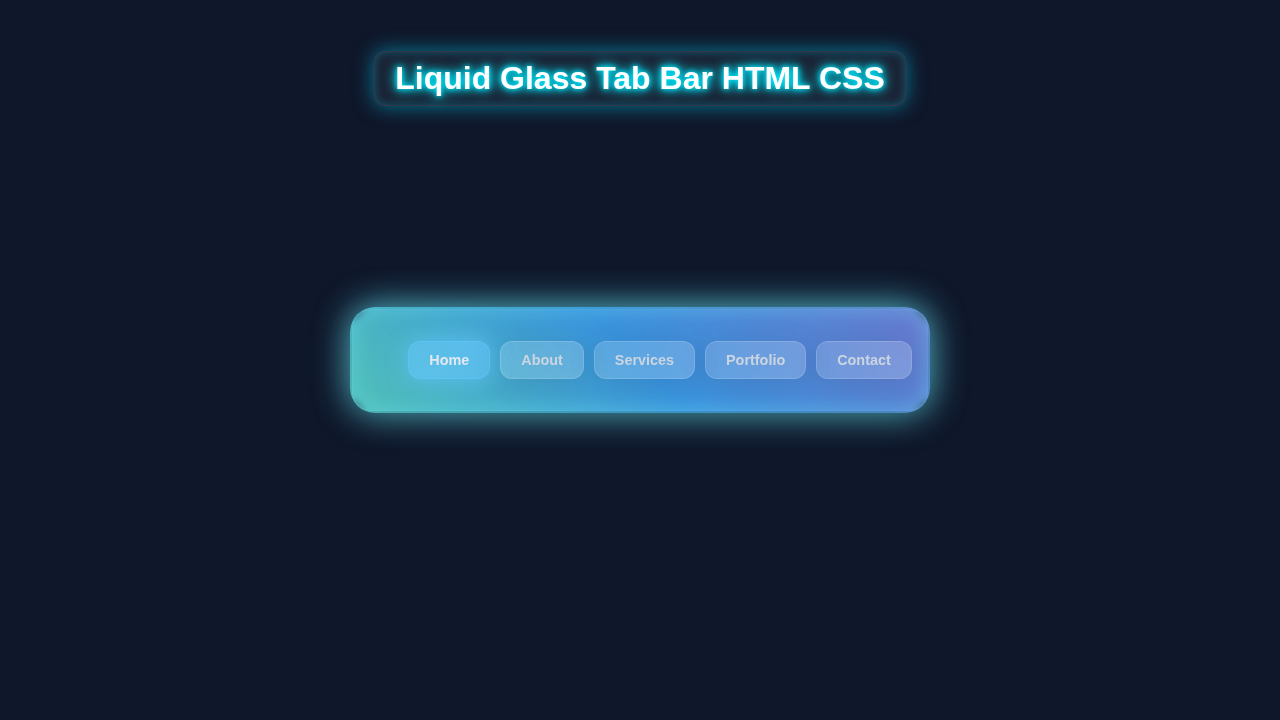
Hey there, fellow web adventurer! If you’ve been dreaming of adding some truly unique flair to your navigation, you are in the perfect spot. Today, we’re going to build an incredible Liquid Glass Tab Bar. This isn’t just any navigation menu. It features beautiful, smooth animations. It also has a translucent ‘glass’ effect. This truly makes your website shine. Get ready to impress your visitors with a truly dynamic experience!
What We Are Building: Your Next Favorite Liquid Glass Tab Bar
Imagine a navigation bar at the bottom of your screen. It looks sleek and remarkably modern. When you tap or click on an icon, a shimmering, liquid-like circle slides smoothly to highlight your selection. This indicator appears to flow effortlessly behind the icon. Furthermore, the tab itself takes on a subtle, frosted glass appearance. This effect adds incredible depth and elegance to your design. It’s incredibly intuitive and visually engaging. Building this project will sharpen your HTML, CSS, and JavaScript skills in exciting new ways. You will create something genuinely impressive. Therefore, prepare to add a fantastic new component to your web dev toolkit!
HTML Structure: Laying the Foundation for Our Liquid Glass Tab Bar
First, we need to set up our basic HTML markup. This structure will be simple yet robust. We will use a semantic <nav> element to hold our entire tab bar. Inside, an unordered list <ul> will contain our individual tab items <li>. Each list item will hold an anchor tag <a> for navigation and an icon. We will also add a special <span> for our ‘liquid’ indicator. This clean setup makes our component easy to understand and maintain.
index.html
<!DOCTYPE html>
<html lang="en">
<head>
    <meta charset="UTF-8">
    <meta name="viewport" content="width=device-width, initial-scale=1.0">
    <title>Liquid Glass Tab Bar</title>
    <link rel="stylesheet" href="styles.css">
</head>
<body>
    <nav class="tab-bar-container">
        <ul class="tab-bar">
            <li class="tab-item">
                <a href="#" class="tab-link active">Home</a>
            </li>
            <li class="tab-item">
                <a href="#" class="tab-link">About</a>
            </li>
            <li class="tab-item">
                <a href="#" class="tab-link">Services</a>
            </li>
            <li class="tab-item">
                <a href="#" class="tab-link">Portfolio</a>
            </li>
            <li class="tab-item">
                <a href="#" class="tab-link">Contact</a>
            </li>
        </ul>
    </nav>
</body>
</html>
CSS Styling: Bringing the Liquid Glass Effect to Life
Here’s the cool part: CSS is where our Liquid Glass Tab Bar truly comes alive! We will use modern CSS properties extensively. We will style everything. This includes the overall container, individual icons, and the text. We will create the smooth sliding animation for our indicator. Moreover, we will add that fantastic frosted glass effect to the tabs. This involves careful positioning, smooth transitions, and some clever background properties. Get ready to dive into some advanced styling techniques. We’ll make this navigation bar both beautiful and functionally superior.
styles.css
/* Basic Reset & Box Sizing for consistent rendering across browsers */
*, *::before, *::after {
    box-sizing: border-box; /* Include padding and border in the element's total width and height */
    margin: 0; /* Remove default margins */
    padding: 0; /* Remove default paddings */
}

body {
    font-family: Arial, Helvetica, sans-serif; /* Safe, sans-serif fallback font stack */
    background-color: #1a202c; /* Dark charcoal background for contrast with glass elements */
    display: flex; /* Use flexbox for centering content */
    justify-content: center; /* Center content horizontally */
    align-items: center; /* Center content vertically */
    min-height: 100vh; /* Ensure body takes full viewport height */
    color: #e2e8f0; /* Light text color for readability on dark background */
    overflow: hidden; /* Prevent scrollbars from appearing, ensuring a clean presentation */
}

/* Container for the entire tab bar module */
.tab-bar-container {
    max-width: 100%; /* Ensure the container is responsive and doesn't overflow */
    padding: 20px; /* Internal spacing around the tabs */
    border-radius: 20px; /* Rounded corners for the glass container */

    /* Glassmorphism properties for the container itself */
    background: rgba(255, 255, 255, 0.03); /* Very subtle transparent white background */
    backdrop-filter: blur(5px); /* Apply a light blur effect behind the container */
    border: 1px solid rgba(255, 255, 255, 0.05); /* Thin, subtle white border */
    box-shadow: 0 8px 32px 0 rgba(0, 0, 0, 0.2); /* Soft shadow for depth */
}

/* Unordered list holding the tab items */
.tab-bar {
    list-style: none; /* Remove default list bullets */
    display: flex; /* Use flexbox to arrange tabs horizontally */
    gap: 15px; /* Space between individual tab items */
}

/* Individual list item for each tab */
.tab-item {
    flex-shrink: 0; /* Prevent tabs from shrinking on smaller screens, allowing wrap if needed */
}

/* Anchor tag representing each clickable tab link */
.tab-link {
    display: flex; /* Use flexbox for content (e.g., icon + text) alignment if added later */
    align-items: center; /* Center content vertically */
    justify-content: center; /* Center content horizontally */
    padding: 12px 25px; /* Internal spacing for click area */
    text-decoration: none; /* Remove underline from links */
    color: #cbd5e0; /* Default text color */
    font-size: 1rem; /* Standard font size */
    font-weight: 600; /* Semi-bold text */
    border-radius: 12px; /* Rounded corners for individual tabs */

    /* Base Glassmorphism styling for tabs */
    background: rgba(255, 255, 255, 0.08); /* Transparent white background */
    backdrop-filter: blur(10px); /* Frosted glass effect */
    border: 1px solid rgba(255, 255, 255, 0.15); /* Subtle border to define the glass edge */
    box-shadow: 0 4px 30px rgba(0, 0, 0, 0.1); /* Soft shadow for depth */

    /* Liquid effect setup: A larger gradient that will be animated */
    background-image: linear-gradient(
        135deg, /* Angle of the gradient */
        rgba(255, 255, 255, 0.05) 0%, /* Start with very subtle transparency */
        rgba(255, 255, 255, 0.1) 50%, /* Mid-point slightly more visible */
        rgba(255, 255, 255, 0.05) 100% /* End with very subtle transparency */
    );
    background-size: 200% 200%; /* Make the gradient twice the size of the element to allow movement */
    background-position: 0% 0%; /* Initial position of the gradient */

    /* Smooth transitions for all animated properties */
    transition:
        color 0.3s ease, /* Text color transition */
        background-position 0.5s ease, /* Gradient flow transition */
        background-color 0.3s ease, /* Solid background color transition */
        border-color 0.3s ease, /* Border color transition */
        box-shadow 0.3s ease, /* Shadow transition */
        backdrop-filter 0.3s ease; /* Blur effect transition */
}

/* Hover state for tab links */
.tab-link:hover {
    color: #f8fafc; /* Lighter text color on hover */
    background-position: 100% 100%; /* Animate gradient to flow across the tab */
    background-color: rgba(255, 255, 255, 0.12); /* Slightly brighter base background */
    border-color: rgba(255, 255, 255, 0.25); /* Brighter border */
    box-shadow: 0 8px 40px rgba(0, 0, 0, 0.2); /* Enhanced shadow for a lifted effect */
    cursor: pointer; /* Indicate interactivity */
}

/* Active state for the currently selected tab */
.tab-link.active {
    color: #e2e8f0; /* Consistent text color for active state */
    /* More pronounced "liquid" background with a distinct color */
    background-color: rgba(100, 200, 255, 0.2); /* Base blue tint */
    background-image: linear-gradient(
        135deg,
        rgba(100, 200, 255, 0.3) 0%, /* Start with blue tint */
        rgba(100, 200, 255, 0.5) 50%, /* Stronger blue tint in the middle */
        rgba(100, 200, 255, 0.3) 100%
    );
    background-position: 50% 50%; /* Center the 'liquid' glow effect for the active state */
    border-color: rgba(100, 200, 255, 0.5); /* Glowing blue border */
    /* Stronger, glowing shadow for the active tab */
    box-shadow:
        0 0 20px rgba(100, 200, 255, 0.6), /* Inner glow */
        0 0 40px rgba(100, 200, 255, 0.3); /* Outer glow */
    backdrop-filter: blur(15px); /* Slightly increased blur for active state */
}

/* Responsive adjustments for various screen sizes */
@media (max-width: 768px) {
    .tab-bar {
        flex-wrap: wrap; /* Allow tabs to wrap to the next line on smaller screens */
        justify-content: center; /* Center wrapped tabs */
        gap: 10px; /* Reduce gap slightly */
    }
    .tab-link {
        padding: 10px 20px; /* Adjust padding */
        font-size: 0.9rem; /* Slightly smaller font size */
    }
}

@media (max-width: 480px) {
    .tab-bar-container {
        padding: 15px; /* Reduce container padding */
    }
    .tab-bar {
        flex-direction: column; /* Stack tabs vertically on very small screens */
        align-items: stretch; /* Make tabs take full available width */
    }
    .tab-item {
        width: 100%; /* Ensure each tab link spans full width when stacked */
    }
}
JavaScript: Adding Interactive “Liquid” Touch
While CSS handles most of the visual magic, a little JavaScript brings our Liquid Glass Tab Bar to full interactive glory. We need JS to manage the ‘active’ state of our tabs. When you click a tab, JavaScript will update which item is currently selected. It also moves our liquid indicator to the correct position. This ensures a smooth and incredibly responsive user experience. Don’t worry about complex code; it’s just a few straightforward lines!
How It All Works Together: Unpacking the Magic
Let’s break down exactly how these pieces combine. Each part plays a crucial role in the overall effect. We start with the basic structural layout. Then we add the visual flourishes step-by-step. Finally, we implement the interactive elements using JavaScript. This methodical approach makes complex effects manageable. It also builds up our understanding piece by piece.
The Core Navigation (<nav> and <ul>)
Our navigation begins with a robust <nav> element. This wraps our entire tab bar, marking it as navigation. Inside, a <ul> (unordered list) acts as the flexible container for our individual tabs. Each <li> (list item) represents a single navigation link. We use anchor tags <a> within each <li> to make them clickable and accessible. Inside the <a>, you’ll find an icon element and some descriptive text. This is a very common and highly accessible pattern for navigation. Furthermore, ensuring your navigation is structured semantically is important for screen readers. If you are interested in building other accessible navigation, check out our tutorial on an Accessible Hamburger Menu: HTML & CSS Only Tutorial.
Styling the Base and Icons
We apply display: flex to our <ul> container. This property automatically distributes our <li> items evenly across the available space. We also use align-items: center and justify-content: space-around to center them beautifully. Each <li> then gets its own precise styling. This includes padding for spacing and relative positioning. The relative positioning is absolutely essential for our ‘liquid’ indicator. It will be positioned absolutely *within* each <li>. Therefore, the parent <li> provides a crucial reference point. Our icons are usually SVG or font icons. We size them appropriately with font-size or width/height. We also ensure they have good color contrast. This makes them easily visible and enhances user experience. Flexbox, in particular, makes this alignment straightforward and powerful.
Pro Tip: Understanding Flexbox is key here! It helps arrange your items perfectly. Mastering it will open up many amazing design possibilities for you.
Crafting the “Liquid” Circle
This is truly where the ‘liquid’ magic begins to unfold! We create a specific <span> element for our indicator. This <span> is absolutely positioned. It floats precisely above or below our icons within its parent <li>. We give it a vibrant background color and a large border-radius to make it a perfect, smooth circle. Initially, it might be hidden or scaled down to nothing. When a tab becomes active, this circle scales up dramatically. It also gracefully changes position to highlight the chosen tab. The smooth, flowing movement comes from precise CSS transition properties. These are applied to its transform, width, and height properties. The transition property tells the browser to animate changes over a set duration. It makes the movement look incredibly fluid and natural. This visual feedback is engaging for users. It clearly tells them exactly where they are in your navigation structure.
The Active State and JavaScript Dance
Our JavaScript plays a small but incredibly vital role in this interactive tab bar. It patiently listens for click events on our tab items. When a click occurs, it first removes the .active class from any previously active tab. Then, it immediately adds the .active class to the newly clicked tab. This single class toggle triggers all our CSS animations and styling changes simultaneously. The .active class applies various styles. These styles affect the icon color, making it pop. They also control the ‘liquid’ circle’s position and size through CSS transforms. This approach keeps our CSS clean and modular. It also separates concerns effectively between structure, style, and behavior. Understanding how CSS classes drive interactive elements is a core skill for any web developer. Sometimes, specificity might seem tricky when applying styles. If you ever wonder why your styles aren’t applying, our guide on CSS Specificity Explained: A Visual Guide to Styling Priority can help clear things up!
Remember: Small JavaScript touches can create big visual impact! Don’t be afraid to experiment with adding subtle interactions to your components for enhanced user experience.
The Glass Effect and Animations
The ‘glass’ part of our Liquid Glass Tab Bar comes from the remarkable backdrop-filter CSS property. This amazing property applies graphical effects to the area *behind* an element, creating stunning visual depth. We use backdrop-filter: blur() to create that distinctive frosted glass look. We also apply a subtle background-color with some transparency. This helps to further enhance the glass illusion and make it more convincing. The transitions for the liquid circle are absolutely key for smooth, professional-looking movement. We primarily use properties like transform: translateX() to move it horizontally. We also use transform: scale() to change its size elegantly. This combination ensures the indicator gracefully glides and expands. For even more advanced fluid design principles, including how to make elements scale beautifully and adapt across various screen sizes, check out our guide on CSS Clamp Fluid Typography: Dynamic Scaling Layouts. It’s a game-changer for responsive layouts!
For a deeper dive into backdrop-filter, which makes our incredible glass effect possible, you might find this CSS-Tricks article on backdrop-filter incredibly helpful. It explains how to use it for various stunning visual effects beyond just blurring.
Tips to Customise Your Liquid Glass Tab Bar
You have just built an amazing Liquid Glass Tab Bar! But don’t stop there. Web development is all about making things your own. Here are some fantastic ideas to make it uniquely yours and truly shine:
- Change the Colors: Experiment with different background colors for the tab bar itself. Try adjusting the liquid circle’s color and the icon colors. Make it perfectly match your brand!
- Alternate Shapes: Instead of a perfect circle, what if your liquid indicator was a square? Or even a custom SVG shape? Get creative with
border-radiusorclip-pathfor unique effects. - Icon Variety: Integrate more icon libraries like Font Awesome or Material Icons. Perhaps add animated Lottie files for an even more dynamic and engaging touch.
- Animation Speed: Play with the
transition-durationproperty. Make the liquid effect faster or slower, snappier or more leisurely. Fine-tune it to feel just right for your users. - Add More Tabs: Don’t be shy! Extend the list with more navigation items. This design scales remarkably well.
Conclusion: You Did It!
Congratulations, future web wizard! You have successfully built a stunning and interactive Liquid Glass Tab Bar. This project masterfully combines HTML, advanced CSS, and a sprinkle of JavaScript. You now have a fantastic piece of UI. It’s ready to enhance any web project with its elegant animations. You’ve also learned valuable techniques. These include Flexbox for layout, sophisticated CSS transitions for movement, and the powerful backdrop-filter for visual effects. Share your awesome creation with us on social media. We absolutely love seeing what you build. Keep coding, keep experimenting, and keep making the web a more beautiful and interactive place!