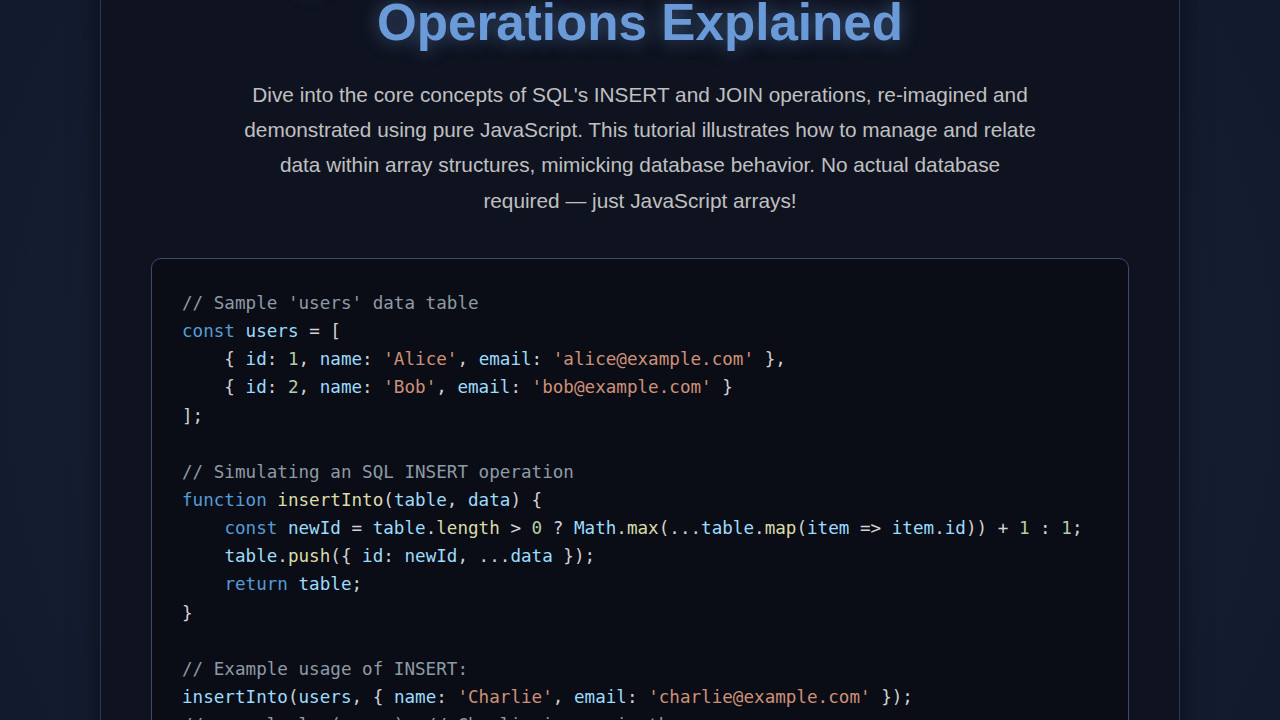
SQL JavaScript is a powerful combination for understanding database interactions, even without a live SQL server. Have you ever wondered how data gets added or combined from different tables? Today, we’re diving into INSERT and JOIN operations, showing you how to simulate them using the JavaScript you already love. This hands-on approach will solidify your understanding of data management principles, empowering you to build more robust web applications.
What We Are Building
We’re building a simple “Product Catalog” application. Imagine a mini e-commerce site where you can add new products and view a list enriched with category details. This project is purely client-side, using JavaScript arrays to mimic database tables.
This approach is incredibly valuable. It demystifies database operations, letting you focus on logic without backend setup. It’s also fantastic for rapid prototyping or building offline-first applications. Developers often use similar techniques for mock data in testing or interactive dashboards that aggregate information, or even dynamic message displays as seen in a Pop-out Messaging: HTML, CSS & JS Tutorial.
The concepts explored here are directly transferable. You’ll find these patterns everywhere, from managing user profiles to complex analytics. Every time you add an item to a cart or see related blog posts, an INSERT or JOIN operation happens, whether with actual SQL or a similar data manipulation strategy.
HTML Structure
Our HTML will be straightforward, setting up the basic layout for our product input form and the display area. We’ll use semantic tags for accessibility and maintainability.
<div class="container">
    <h1>Product Catalog Dashboard</h1>

    <section class="product-input-section card">
        <h2>Add New Product</h2>
        <form id="productForm">
            <div class="form-group">
                <label for="productName">Product Name:</label>
                <input type="text" id="productName" required>
            </div>
            <div class="form-group">
                <label for="productCategory">Category:</label>
                <select id="productCategory" required>
                    <option value="1">Electronics</option>
                    <option value="2">Apparel</option>
                    <option value="3">Books</option>
                </select>
            </div>
            <div class="form-group">
                <label for="productPrice">Price:</label>
                <input type="number" id="productPrice" step="0.01" required>
            </div>
            <button type="submit">Add Product</button>
        </form>
    </section>

    <section class="product-list-section card">
        <h2>All Products</h2>
        <div id="productList">
            <p>No products added yet.</p>
        </div>
    </section>
</div>
CSS Styling
To give our application a clean and modern look, we’ll apply some basic CSS. Styling will focus on readability and clear distinction between the input form and the product display area.
body {
    font-family: 'Arial', sans-serif;
    background-color: #f4f7f6;
    margin: 0;
    padding: 20px;
    color: #333;
}

.container {
    max-width: 900px;
    margin: 0 auto;
    padding: 20px;
}

h1, h2 {
    color: #007bff;
    text-align: center;
    margin-bottom: 20px;
}

.card {
    background-color: #ffffff;
    border-radius: 8px;
    box-shadow: 0 2px 10px rgba(0, 0, 0, 0.1);
    padding: 25px;
    margin-bottom: 25px;
}

.form-group {
    margin-bottom: 15px;
}

label {
    display: block;
    margin-bottom: 5px;
    font-weight: bold;
}

input[type="text"],
input[type="number"],
select {
    width: calc(100% - 20px);
    padding: 10px;
    border: 1px solid #ddd;
    border-radius: 4px;
    box-sizing: border-box;
}

button {
    background-color: #28a745;
    color: white;
    padding: 10px 15px;
    border: none;
    border-radius: 4px;
    cursor: pointer;
    font-size: 16px;
    transition: background-color 0.3s ease;
}

button:hover {
    background-color: #218838;
}

#productList ul {
    list-style-type: none;
    padding: 0;
}

#productList li {
    background-color: #e9f7ef;
    border: 1px solid #d4edda;
    margin-bottom: 10px;
    padding: 12px 15px;
    border-radius: 4px;
    display: flex;
    justify-content: space-between;
    align-items: center;
}

#productList li strong {
    color: #0056b3;
}
Step-by-Step Breakdown: Simulating SQL JavaScript Operations
This is where the magic truly happens! We’ll dive into the JavaScript code simulating our database operations. Remember, we’re not using a real SQL server. Instead, we’re using JavaScript arrays as “tables” and plain JS functions for INSERT and JOIN logic. This fundamental understanding of SQL JavaScript data management is crucial for any web developer.
Setting Up Our “Database” (Data Structures)
First, define our “tables” as JavaScript arrays. We’ll have products and categories arrays. Each item will be an object, representing a row in a traditional database table.
let products = [
    { id: 1, name: 'Laptop', categoryId: 1, price: 1200 },
    { id: 2, name: 'Mouse', categoryId: 1, price: 25 },
    { id: 3, name: 'Keyboard', categoryId: 1, price: 75 },
    { id: 4, name: 'T-Shirt', categoryId: 2, price: 20 },
    { id: 5, name: 'Jeans', categoryId: 2, price: 60 }
];

let categories = [
    { id: 1, name: 'Electronics' },
    { id: 2, name: 'Apparel' },
    { id: 3, name: 'Books' }
];

let nextProductId = products.length > 0 ? Math.max(...products.map(p => p.id)) + 1 : 1;
The products array includes product details and a categoryId. This categoryId acts as our “foreign key,” linking to the id in the categories array. This relationship is vital for performing JOIN operations later, organizing related data cleanly.
Simulating INSERT Operations with JavaScript
The INSERT operation adds new records to a table. In JavaScript, this means pushing a new product object into our products array. We’ll create insertProduct to take product details and assign a unique ID.
function insertProduct(name, categoryId, price) {
    const newProduct = {
        id: nextProductId++,
        name: name,
        categoryId: parseInt(categoryId), // Ensure it's a number
        price: parseFloat(price) // Ensure it's a number
    };
    products.push(newProduct);
    console.log('Product inserted:', newProduct);
    displayProducts(); // Refresh the displayed list
}
This function mimics an SQL INSERT INTO query. It generates a unique id and adds the new product object. We increment nextProductId for distinct identifiers. Parsing categoryId and price ensures correct data types, mirroring database schema enforcement.
Simulating JOIN Operations for Enriched Data
Now for the exciting part: simulating a JOIN! A JOIN combines rows from two or more tables based on a related column. Our goal is to display products with full category names, not just categoryId. We’ll use getJoinedProducts to achieve this.
function getJoinedProducts() {
    return products.map(product => {
        const category = categories.find(cat => cat.id === product.categoryId);
        return {
            ...product,
            categoryName: category ? category.name : 'Unknown'
        };
    });
}
This JavaScript code performs an “INNER JOIN” equivalent. For each product, we find the corresponding category object where category.id matches product.categoryId. We then return a new object including product properties plus the categoryName. If a category isn’t found, it gracefully defaults to ‘Unknown’. This is a powerful demonstration of how SQL JavaScript can transform raw data. If you’re eager to learn more about array methods like map and find, the MDN Web Docs on Array are an invaluable resource!
Connecting to the UI (Event Handling)
To make our application interactive, we connect our JavaScript functions to HTML elements. We select form elements and the product list container, then attach event listeners.
const productForm = document.getElementById('productForm');
const productListContainer = document.getElementById('productList');

productForm.addEventListener('submit', (event) => {
    event.preventDefault();

    const productName = document.getElementById('productName').value;
    const productCategory = document.getElementById('productCategory').value;
    const productPrice = document.getElementById('productPrice').value;

    if (productName && productCategory && productPrice) {
        insertProduct(productName, productCategory, productPrice);
        productForm.reset();
    } else {
        alert('Please fill in all fields!');
    }
});

function displayProducts() {
    productListContainer.innerHTML = '';
    const joinedData = getJoinedProducts();

    if (joinedData.length === 0) {
        productListContainer.innerHTML = '<p>No products added yet.</p>';
        return;
    }

    const ul = document.createElement('ul');
    joinedData.forEach(product => {
        const li = document.createElement('li');
        li.innerHTML = `<strong>${product.name}</strong> (Category: ${product.categoryName}) - $${product.price.toFixed(2)}`;
        ul.appendChild(li);
    });
    productListContainer.appendChild(ul);
}

displayProducts();
Upon form submission, we prevent default behavior, grab input values, and call insertProduct. productForm.reset() clears fields. The displayProducts function dynamically creates li elements, incorporating the joined category name. It’s truly satisfying to see such seamless data manipulation with pure JavaScript. You can see similar dynamic UI update patterns in my Ephemeral Story: HTML, CSS & JS Design tutorial.
Using JavaScript to simulate database operations on the frontend is a fantastic way to grasp core data management concepts without the complexity of a full backend setup. It’s an empowering skill for prototyping and learning.
Making It Responsive
In today’s multi-device world, responsive design is essential. Our layout looks good on desktops, but needs tweaks for smaller screens. Employing a mobile-first approach ensures usability and aesthetic appeal across all device sizes.
We’ll use media queries to adjust our container width and stack elements vertically when space is limited. This common strategy ensures a consistent user experience. For example, we might reduce padding or adjust font sizes for smaller viewports.
@media (max-width: 768px) {
    .container {
        padding: 15px;
    }

    .card {
        padding: 20px;
    }

    input[type="text"],
    input[type="number"],
    select {
        width: 100%;
    }
}

@media (max-width: 480px) {
    h1 { font-size: 1.8em; }
    h2 { font-size: 1.4em; }
    button {
        width: 100%;
        font-size: 15px;
    }
    #productList li {
        flex-direction: column;
        align-items: flex-start;
    }
}
By starting with a base style, then adding media queries for specific breakpoints, our “Product Catalog” adapts gracefully. This attention to detail enhances user experience on any device. For more advanced techniques, check out this guide on Flexbox on CSS-Tricks!
Final Output
After integrating our HTML, CSS, and JavaScript, the final output is a simulated product catalog. You’ll observe an intuitive form for adding new products, complete with input fields. Once submitted, products appear instantly in the list below.
Crucially, the product list displays human-readable category names, thanks to our JOIN simulation, not just the category ID. This provides a rich, user-friendly interface that clearly demonstrates data relationship power. The layout remains clean and accessible, adapting smoothly to different screen sizes.
Conclusion: Mastering SQL JavaScript Concepts
Wow, what a journey! We’ve successfully explored how to simulate fundamental SQL operations like INSERT and JOIN using plain JavaScript and array manipulation. This exercise in SQL JavaScript shows that core database management principles are accessible, even without a full server-side setup.
Understanding these concepts is paramount. Whether you move to full-stack development with databases like PostgreSQL or continue building sophisticated client-side applications, the logic of adding records and combining data remains consistent. You now have a solid foundation for more complex data interactions.
Think about applying these skills: building interactive dashboards, managing client-side forms, or creating complex data visualizations. Effective data manipulation is a superpower in web development. Keep practicing, keep building. You might even find these techniques useful in my Tag Input Component: HTML, CSS, JavaScript Design article!
Simulating database operations in JavaScript is more than just a theoretical exercise; it’s a practical skill that sharpens your logic and prepares you for real-world data challenges, bridging the gap between frontend logic and backend paradigms.