Hey! If you have wanted to build an AI Chatbot but had no idea where to start, you are in the right place.
What We Are Building
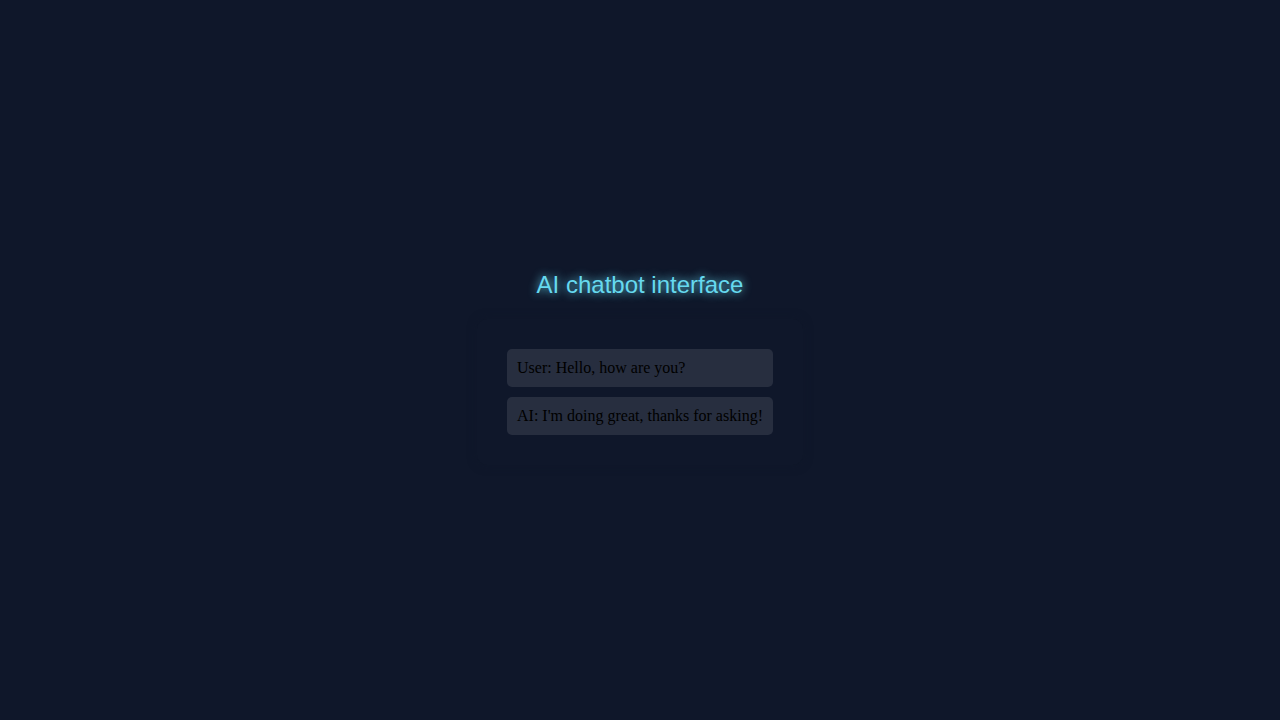
We are building a cool AI Chatbot interface. It’s useful for beginners.
AI Chatbot Interface with HTML Structure
Our HTML is basic. Here’s the cool part: we use a simple form.
index.html
<!DOCTYPE html><html lang='en'><head><meta charset='UTF-8'><meta http-equiv='X-UA-Compatible' content='IE=edge'><meta name='viewport' content='width=device-width, initial-scale=1.0'><title>AI Chatbot Interface</title><link rel='stylesheet' href='styles.css'></head><body><div class='chatbot-container'><div class='chatbot-header'>AI Chatbot Interface</div><div class='chatbot-messages'></div><input type='text' id='user-input' placeholder='Type your message...'><button id='send-button'>Send</button></div><script src='script.js'></script></body></html>CSS Styling for Our AI Chatbot
CSS makes it look nice. Don’t worry about this part.
styles.css
body { font-family: Arial; background-color: #0f172a; height: 100vh; display: flex; justify-content: center; align-items: center; flex-direction: column; overflow: hidden;}.chatbot-container { max-width: 400px; background-color: rgba(15, 23, 42, 0.5); padding: 20px; border-radius: 10px; box-shadow: 0 0 10px rgba(15, 23, 42, 0.5); box-sizing: border-box;}.chatbot-header { font-size: 18px; font-weight: bold; margin-bottom: 10px;}.chatbot-messages { padding: 10px;}.message { background-color: rgba(255, 255, 255, 0.1); padding: 10px; border-radius: 5px; margin-bottom: 10px;}.message.user { background-color: rgba(255, 255, 255, 0.2);}.message.ai { background-color: rgba(255, 255, 255, 0.1);}JavaScript for AI Chatbot Functionality
JavaScript adds function. Let me explain what’s happening here.
script.js
const chatbotMessages = document.querySelector('.chatbot-messages');const userInputElement = document.getElementById('user-input');const sendButton = document.getElementById('send-button');let messageId = 0;sendButton.addEventListener('click', () => {const userInput = userInputElement.value.trim();if (userInput) {const userMessage = document.createElement('div');userMessage.classList.add('message', 'user');userMessage.textContent = userInput;chatbotMessages.appendChild(userMessage);const aiMessage = document.createElement('div');aiMessage.classList.add('message', 'ai');aiMessage.textContent = `AI: ${getAiResponse(userInput)}`;chatbotMessages.appendChild(aiMessage);userInputElement.value = '';chatbotMessages.scrollTop = chatbotMessages.scrollHeight;}});function getAiResponse(userInput) {const responses = {hello: 'Hi, how are you?',how: 'I'm doing great, thanks for asking!'};return responses[userInput.toLowerCase()] || 'I didn't understand that.';}How It All Works Together
Step 1: User Input
User types a message. Then we use JavaScript.
Step 2: AI Response
Our AI Chatbot responds. It’s like magic!
Pro tip: Keep it simple. Use a library for AI.
Tips to Customise It
You can add more features. Try CSS for style.
Learn about CSS guides for more.
Visit Python Loops & Conditionals: Master Control Flow for control flow.
Or try Tailwind Custom Themes: Building with HTML & Tailwind CSS for themes.
Check out React Weather App Tutorial: Build with Functional Components for React.
Remember: practice makes perfect. Share your project!
Conclusion
Congrats! You built an AI Chatbot interface. Share it now.