Hey there, future React superstar! If you’ve wanted to build a really cool React Quiz App but felt a bit lost, you are absolutely in the right place. Today, we will craft an interactive quiz together. This project is a fantastic way to solidify your React skills. We will use modern functional components and Hooks. Get ready to make something amazing!
What We Are Building: A Fantastic React Quiz App!
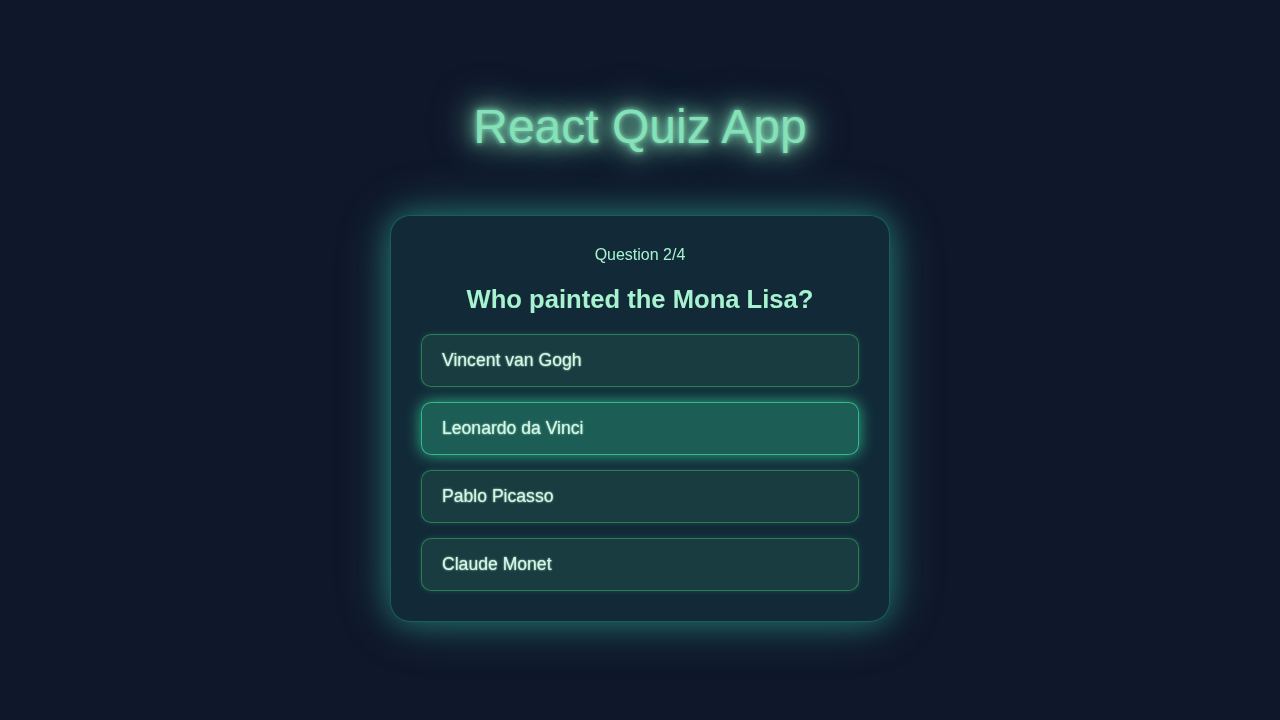
Imagine a fun quiz that tests your knowledge. That is exactly what we are building! Our app will show one question at a time. It will give you multiple choices to pick from. When you select an answer, the app will tell you if it’s correct. Then it moves to the next question. Finally, you will see your total score. You can even restart the quiz easily. It’s an awesome way to practice your React skills. Plus, it’s super useful for learning!
HTML Structure: Getting Our Layout Ready
For a React app, our initial HTML is quite minimal. We just need a main container. React will dynamically inject all the quiz elements into it. This approach keeps our index.html clean. It allows React to manage everything. It’s very efficient. Here’s what our basic index.html looks like:
index.html
<!DOCTYPE html>
<html lang="en">
<head>
    <meta charset="UTF-8">
    <meta name="viewport" content="width=device-width, initial-scale=1.0">
    <title>React Quiz App</title>
    <link rel="stylesheet" href="styles.css">
</head>
<body>
    <div id="root"></div>
    <!--
        The type="module" attribute is crucial for modern JavaScript
        modules to work directly in the browser. It allows you to use
        import/export syntax.
    -->
    <script src="index.js" type="module"></script>
</body>
</html>
CSS Styling: Making Our Quiz Look Amazing
A great quiz is not just functional; it also looks fantastic! Our CSS will make the app user-friendly. We will use modern techniques like Flexbox. This helps with alignment. We will add some vibrant colors too. This makes the quiz engaging. Don’t worry, the styling is straightforward. It enhances the user experience. You can easily customize it later. Take a look at the CSS:
styles.css
/* Global styles for the entire app */
body {
    font-family: Arial, Helvetica, sans-serif; /* Safe font stack */
    background-color: #0f172a; /* Dark slate background */
    color: #e2e8f0; /* Light text for contrast */
    margin: 0;
    display: flex;
    justify-content: center;
    align-items: center;
    min-height: 100vh; /* Full viewport height */
    overflow: hidden; /* Prevent scrolling */
    box-sizing: border-box; /* Include padding and border in element's total width and height */
}

/* Root container for the React app */
#root {
    max-width: 100%;
    width: 100%;
    display: flex;
    justify-content: center;
    align-items: center;
}

/* Main quiz container styling (Glassmorphism + Neon) */
.quiz-container {
    background: rgba(45, 212, 191, 0.1); /* Semi-transparent teal background */
    backdrop-filter: blur(10px); /* Glassmorphism blur effect */
    border: 1px solid rgba(45, 212, 191, 0.3);
    border-radius: 20px;
    padding: 30px;
    box-shadow: 0 0 30px rgba(45, 212, 191, 0.4), /* Outer glow */
                0 0 60px rgba(100, 255, 218, 0.2); /* Stronger glow */
    text-align: center;
    max-width: 500px;
    width: 90%; /* Responsive width, but with a max */
    box-sizing: border-box;
}

/* Quiz title styling */
h1 {
    color: #84e1b8; /* Lighter teal for header */
    margin-bottom: 25px;
    font-size: 2.2em;
    text-shadow: 0 0 5px #84e1b8, 0 0 10px #84e1b8; /* Neon effect for title */
}

/* Question text styling */
.question-section h2 {
    color: #a7f3d0;
    font-size: 1.6em;
    margin-bottom: 20px;
}

/* Container for answer buttons */
.answer-options {
    display: flex;
    flex-direction: column;
    gap: 15px;
    margin-top: 20px;
}

/* Individual answer button styling */
.answer-button {
    background: rgba(74, 222, 128, 0.1); /* Green glass background */
    border: 1px solid rgba(74, 222, 128, 0.4);
    border-radius: 10px;
    padding: 15px 20px;
    font-size: 1.1em;
    color: #d1fae5;
    cursor: pointer;
    transition: all 0.3s ease; /* Smooth transitions for hover/active states */
    text-align: left;
    width: 100%;
    box-sizing: border-box;
    text-shadow: 0 0 2px #d1fae5;
    box-shadow: 0 0 5px rgba(74, 222, 128, 0.2);
    user-select: none; /* Prevent text selection on buttons */
}

/* Hover effect for answer buttons */
.answer-button:hover {
    background: rgba(74, 222, 128, 0.3);
    box-shadow: 0 0 15px rgba(74, 222, 128, 0.6);
    transform: translateY(-2px); /* Slight lift effect */
}

/* Active (click) effect for answer buttons */
.answer-button:active {
    background: rgba(74, 222, 128, 0.5);
    transform: translateY(0);
    box-shadow: 0 0 10px rgba(74, 222, 128, 0.8);
}

/* Styling for question counter */
.question-count {
    color: #a7f3d0;
    font-size: 1em;
    margin-top: 15px;
}

/* Result screen title */
.result-screen h2 {
    font-size: 2em;
    color: #6ee7b7;
    margin-bottom: 20px;
    text-shadow: 0 0 5px #6ee7b7, 0 0 10px #6ee7b7; /* Neon effect for results */
}

/* Result screen paragraph */
.result-screen p {
    font-size: 1.2em;
    color: #d1fae5;
    margin-bottom: 30px;
}

/* Restart button styling */
.restart-button {
    background: rgba(251, 191, 36, 0.2); /* Amber glass background */
    border: 1px solid rgba(251, 191, 36, 0.5);
    border-radius: 10px;
    padding: 12px 25px;
    font-size: 1.2em;
    color: #fcd34d;
    cursor: pointer;
    transition: all 0.3s ease;
    text-shadow: 0 0 3px #fcd34d;
    box-shadow: 0 0 8px rgba(251, 191, 36, 0.4);
    user-select: none;
}

/* Hover effect for restart button */
.restart-button:hover {
    background: rgba(251, 191, 36, 0.4);
    box-shadow: 0 0 20px rgba(251, 191, 36, 0.8);
    transform: translateY(-2px);
}
JavaScript: Bringing Our React Quiz App to Life with Logic
Now for the exciting part: the JavaScript! This is where React steps in. We will define our quiz questions. We will manage the current question, user score, and display logic. Functional components will handle all the heavy lifting. We will also use React Hooks. These help us manage state and side effects. It’s truly the brain of our application. Let’s dive into the core React code:
index.js
import React from 'react';
import ReactDOM from 'react-dom/client';
import App from './App';

// Create a React root to manage updates to the DOM
const root = ReactDOM.createRoot(document.getElementById('root'));

// Render the main App component into the root
root.render(
  <React.StrictMode>
    {/* React.StrictMode helps identify potential problems in an application.
        It activates additional checks and warnings for its descendants. */}
    <App />
  </React.StrictMode>
);
App.js
import React, { useState } from 'react';

// Mock quiz data array
const questions = [
  {
    questionText: 'What is the capital of France?',
    answerOptions: [
      { answerText: 'New York', isCorrect: false },
      { answerText: 'London', isCorrect: false },
      { answerText: 'Paris', isCorrect: true },
      { answerText: 'Dublin', isCorrect: false },
    ],
  },
  {
    questionText: 'Who painted the Mona Lisa?',
    answerOptions: [
      { answerText: 'Vincent van Gogh', isCorrect: false },
      { answerText: 'Leonardo da Vinci', isCorrect: true },
      { answerText: 'Pablo Picasso', isCorrect: false },
      { answerText: 'Claude Monet', isCorrect: false },
    ],
  },
  {
    questionText: 'What is the largest ocean on Earth?',
    answerOptions: [
      { answerText: 'Atlantic Ocean', isCorrect: false },
      { answerText: 'Indian Ocean', isCorrect: false },
      { answerText: 'Arctic Ocean', isCorrect: false },
      { answerText: 'Pacific Ocean', isCorrect: true },
    ],
  },
  {
    questionText: 'Which planet is known as the Red Planet?',
    answerOptions: [
      { answerText: 'Earth', isCorrect: false },
      { answerText: 'Mars', isCorrect: true },
      { answerText: 'Jupiter', isCorrect: false },
      { answerText: 'Venus', isCorrect: false },
    ],
  },
];

/**
 * Main React component for the Quiz App.
 * Manages quiz state, displays questions, and shows results.
 */
function App() {
  // State hook to keep track of the current question's index
  const [currentQuestion, setCurrentQuestion] = useState(0);
  // State hook to store the user's score
  const [score, setScore] = useState(0);
  // State hook to control whether to display the results screen or quiz questions
  const [showResults, setShowResults] = useState(false);

  /**
   * Handles the click event when an answer option is selected.
   * Increments the score if the answer is correct and moves to the next question
   * or displays results if all questions are answered.
   * @param {boolean} isCorrect - Indicates if the selected answer is correct.
   */
  const handleAnswerOptionClick = (isCorrect) => {
    if (isCorrect) {
      setScore(score + 1); // Increment score for correct answers
    }

    const nextQuestion = currentQuestion + 1;
    if (nextQuestion < questions.length) {
      setCurrentQuestion(nextQuestion); // Move to the next question
    } else {
      setShowResults(true); // All questions answered, show the results
    }
  };

  /**
   * Resets the quiz to its initial state, allowing the user to play again.
   */
  const restartQuiz = () => {
    setCurrentQuestion(0);
    setScore(0);
    setShowResults(false);
  };

  return (
    <div className="quiz-container">
      <h1>React Quiz App</h1>
      {
        showResults ? (
          // If showResults is true, display the result screen
          <div className="result-screen">
            <h2>You scored {score} out of {questions.length}</h2>
            <p>Congratulations on completing the quiz!</p>
            <button className="restart-button" onClick={restartQuiz}>
              Restart Quiz
            </button>
          </div>
        ) : (
          // Otherwise, display the current question and its options
          <div className="question-section">
            <div className="question-count">
              <span>Question {currentQuestion + 1}</span>/{questions.length}
            </div>
            <h2>{questions[currentQuestion].questionText}</h2>
            <div className="answer-options">
              {/* Map through answer options and create a button for each */}
              {questions[currentQuestion].answerOptions.map((answerOption, index) => (
                <button
                  key={index} // Using index as key is generally discouraged if items can be reordered/filtered, but fine for static lists.
                  className="answer-button"
                  onClick={() => handleAnswerOptionClick(answerOption.isCorrect)}
                >
                  {answerOption.answerText}
                </button>
              ))}
            </div>
          </div>
        )
      }
    </div>
  );
}

export default App;
How It All Works Together: Step-by-Step Magic
Setting Up Our React Project
First, we need a React project. If you don’t have one ready, let’s create one. Open your terminal. Then, type npx create-react-app my-quiz-app. This powerful command sets up everything you need. It includes all necessary build tools and configurations. You don’t have to worry about complex setups. After it finishes, navigate into your new project folder. Just type cd my-quiz-app. Then, start your local development server with npm start. You will then see a basic React page in your browser. This is our perfect starting point. We will develop our entire interactive quiz inside the src/App.js file.
Pro Tip: For faster project setup, consider using Vite! It’s super quick for new React projects. Just
npm create vite@latestand follow the prompts. Give it a try!
Understanding State Management with useState
Our quiz needs to remember things. For example, which question are we on? What is the user’s score? React’s useState hook is perfect for this. useState lets us add state to functional components. It gives us a state variable and a function to update it. We will use useState for currentQuestion. This tracks the index of the current question. We also use it for showScore. This toggles between the quiz and results. And finally, for score. This stores the user’s points. Whenever these state variables change, React automatically re-renders our component. This keeps our UI fresh and interactive. That is the power of state!
Handling User Interactions
Interaction is key in a quiz. When a user clicks an answer button, we need to react. We attach an onClick event handler to each answer button. This handler calls a function. Inside this function, we check if the selected answer is correct. If it is, we update the score state. We then move to the next question. We update the currentQuestion state. When displaying answer choices, we often use the JavaScript Array.prototype.map() method. This helps us transform an array of choices into a list of buttons. This process ensures the quiz flows smoothly. It provides instant feedback to the user. Also, we conditionally render the score screen. This happens once all questions are answered.
Educator’s Note: Managing state updates correctly is crucial. It directly impacts your app’s responsiveness. If you ever find your React app feeling sluggish with many state changes, check out our guide on React Performance Mistakes: Optimize Your Apps.
Conditional Rendering: Showing the Right Stuff
Not everything should always be on screen. Our quiz has two main views: the active quiz questions and the final score screen. We use the showScore state variable for this. If showScore is true, we display the score. Otherwise, we show the current question and its answer options. This is conditional rendering in action. It allows us to dynamically change what the user sees. It keeps the interface clean. It also provides a seamless experience. It’s a fundamental concept in React development. This technique helps manage complex UIs with ease.
React Hooks in Action
We’ve already talked about useState, which is a powerful hook. React Hooks let you use state and other React features without writing a class. For example, if you wanted to fetch quiz questions from an external API when the component loads, you would use the React useEffect Hook Tutorial: Master Side Effects in JSX. This hook handles side effects. Let me explain what’s happening here. Hooks make our code cleaner and easier to understand. They promote reusable logic too. It’s a modern way to build React components. You are already using them! This simplifies your component logic significantly.
Tips to Customise It: Make It Your Own!
You’ve built a solid foundation! Now, let’s think about how you can make this React Quiz App even better:
- Add a Timer: Implement a countdown for each question. This makes it more challenging!
- Different Question Types: Introduce true/false questions or fill-in-the-blank. Variety is exciting.
- Difficulty Levels: Create different sets of questions for “easy,” “medium,” and “hard.”
- Progress Bar: Show how many questions are left. This helps users track their progress.
- Fetch Questions from an API: Instead of hardcoding questions, pull them from an online source. This makes your quiz dynamic!
Conclusion: You Did It! Your Awesome React Quiz App!
Wow, give yourself a massive pat on the back! You just built an interactive React Quiz App using modern React features. You tackled state management, user interactions, and conditional rendering. These are essential skills for any React developer. This project demonstrates real-world application of your learning. Feel proud of your accomplishment! Keep experimenting with the customization tips. Share your creation with friends. Show off your new skills! What will you build next?