Fetch Public API Data with JavaScript: HTML, CSS Tutorial
Hey there, fellow coders! If you’ve ever wanted to build a web page that feels alive, displaying fresh information without a page reload, you are in the right place. Today, we’ll learn to Fetch Public API data. This means grabbing information from external sources. We will then beautifully display it using just HTML, CSS, and JavaScript. Get ready to make your projects truly dynamic!
What We Are Building
We are going to create a simple, elegant display for random programming quotes. Imagine a clean card-like design that updates with a new quote and its author every time you refresh. Or, even better, with a click of a button! This project is a fantastic stepping stone. It teaches you how to interact with external services. It shows how to bring that data onto your own site. This skill is super valuable for countless web applications. Think about weather apps, news feeds, or even e-commerce sites.
Our focus is on clarity and understanding. We will ensure every step makes sense to you. You’ll finish with a working example and a solid grasp of the concepts. It’s truly exciting to see data come to life on your screen!
HTML Structure
Our HTML will be minimal and semantic. It provides the basic containers for our content. We’ll set up a main container, a place for our quote, and another for the author. Then, we will add a button to grab new data. It’s like preparing the canvas for our masterpiece.
Here’s the cool part: all the content will be injected by JavaScript. This means our HTML stays clean. It is ready to receive dynamic updates. Take a look at the simple setup we need:
index.html
<!DOCTYPE html>
<html lang="en">
<head>
    <meta charset="UTF-8">
    <meta name="viewport" content="width=device-width, initial-scale=1.0">
    <title>Fetch Public API Data</title>
    <link rel="stylesheet" href="styles.css">
</head>
<body>
    <div class="container">
        <h1>Fetch Data from a Public API</h1>
        <p>This tutorial demonstrates how to fetch data from an external public API using JavaScript's Fetch API and display it on a web page.</p>

        <div id="loading" class="loading-spinner">
            <div class="spinner"></div>
            <p>Loading data...</p>
        </div>

        <div id="data-container" class="data-grid">
            <!-- Data will be inserted here by JavaScript -->
        </div>

        <div id="error-message" class="error-message" style="display: none;">
            <!-- Error messages will be inserted here by JavaScript -->
        </div>
    </div>

    <script src="script.js"></script>
</body>
</html>
CSS Styling
Now, let’s make our display look good! Our CSS will transform plain elements into a visually appealing card. We’ll use Flexbox for easy centering. We’ll add some shadows and rounded corners for a modern feel. Don’t worry if some properties are new. I’ll explain the key ideas. You can always dive deeper into Flexbox on MDN Web Docs for more details.
We’re aiming for a clean, readable design. This will make our quotes stand out. Also, we will ensure it is responsive. This means it will look great on any device size. This attention to detail improves the user experience significantly. You can also explore Tailwind CSS vs Plain CSS if you want to see other styling approaches.
styles.css
/* Basic Reset & Body Styling */
body {
    margin: 0;
    padding: 20px; /* Add some padding around the content */
    font-family: Arial, Helvetica, sans-serif;
    background-color: #f4f7f6; /* Light background */
    color: #333;
    line-height: 1.6;
    box-sizing: border-box; /* Include padding and border in the element's total width and height */
    min-height: 100vh; /* Ensure body takes at least full viewport height */
    display: flex;
    justify-content: center;
    align-items: flex-start; /* Align content to the top */
}

/* Main Container */
.container {
    max-width: 960px;
    width: 100%; /* Ensure it takes full width up to max-width */
    margin: 0 auto;
    background-color: #ffffff;
    padding: 30px;
    border-radius: 8px;
    box-shadow: 0 4px 15px rgba(0, 0, 0, 0.1);
    overflow: hidden; /* Clear floats and contain any inner elements */
}

/* Headings */
h1 {
    color: #2c3e50;
    text-align: center;
    margin-bottom: 25px;
    font-size: 2.2em;
}

p {
    text-align: center;
    margin-bottom: 30px;
    color: #555;
}

/* Data Grid Container */
.data-grid {
    display: grid;
    grid-template-columns: repeat(auto-fit, minmax(280px, 1fr)); /* Responsive grid */
    gap: 20px;
    margin-top: 30px;
}

/* Individual Data Card Styling */
.data-card {
    background-color: #fdfdfd;
    border: 1px solid #e0e0e0;
    border-radius: 8px;
    padding: 20px;
    box-shadow: 0 2px 8px rgba(0, 0, 0, 0.05);
    transition: transform 0.2s ease-in-out, box-shadow 0.2s ease-in-out;
}

.data-card:hover {
    transform: translateY(-5px);
    box-shadow: 0 4px 15px rgba(0, 0, 0, 0.1);
}

.data-card h2 {
    color: #3498db;
    font-size: 1.4em;
    margin-top: 0;
    margin-bottom: 10px;
}

.data-card p {
    color: #666;
    font-size: 0.95em;
    text-align: left; /* Override parent p text-align */
    margin-bottom: 0;
}

/* Loading Spinner */
.loading-spinner {
    display: flex;
    flex-direction: column;
    align-items: center;
    justify-content: center;
    min-height: 100px; /* Ensure spinner has some space */
    margin-top: 50px;
    color: #777;
}

.spinner {
    border: 4px solid rgba(0, 0, 0, 0.1);
    border-top: 4px solid #3498db; /* Blue spinner */
    border-radius: 50%;
    width: 40px;
    height: 40px;
    animation: spin 1s linear infinite;
    margin-bottom: 15px;
}

@keyframes spin {
    0% { transform: rotate(0deg); }
    100% { transform: rotate(360deg); }
}

/* Error Message Styling */
.error-message {
    background-color: #fcebeb; /* Light red background */
    color: #e74c3c; /* Red text */
    border: 1px solid #e74c3c;
    border-radius: 5px;
    padding: 15px;
    margin-top: 30px;
    text-align: center;
    font-weight: bold;
}

/* Responsive Adjustments */
@media (max-width: 768px) {
    .container {
        padding: 20px;
    }

    h1 {
        font-size: 1.8em;
    }
}

@media (max-width: 480px) {
    body {
        padding: 10px;
    }
    .container {
        padding: 15px;
    }
    h1 {
        font-size: 1.5em;
    }
    .data-grid {
        grid-template-columns: 1fr; /* Single column on small screens */
    }
}
JavaScript to Fetch Public API Data
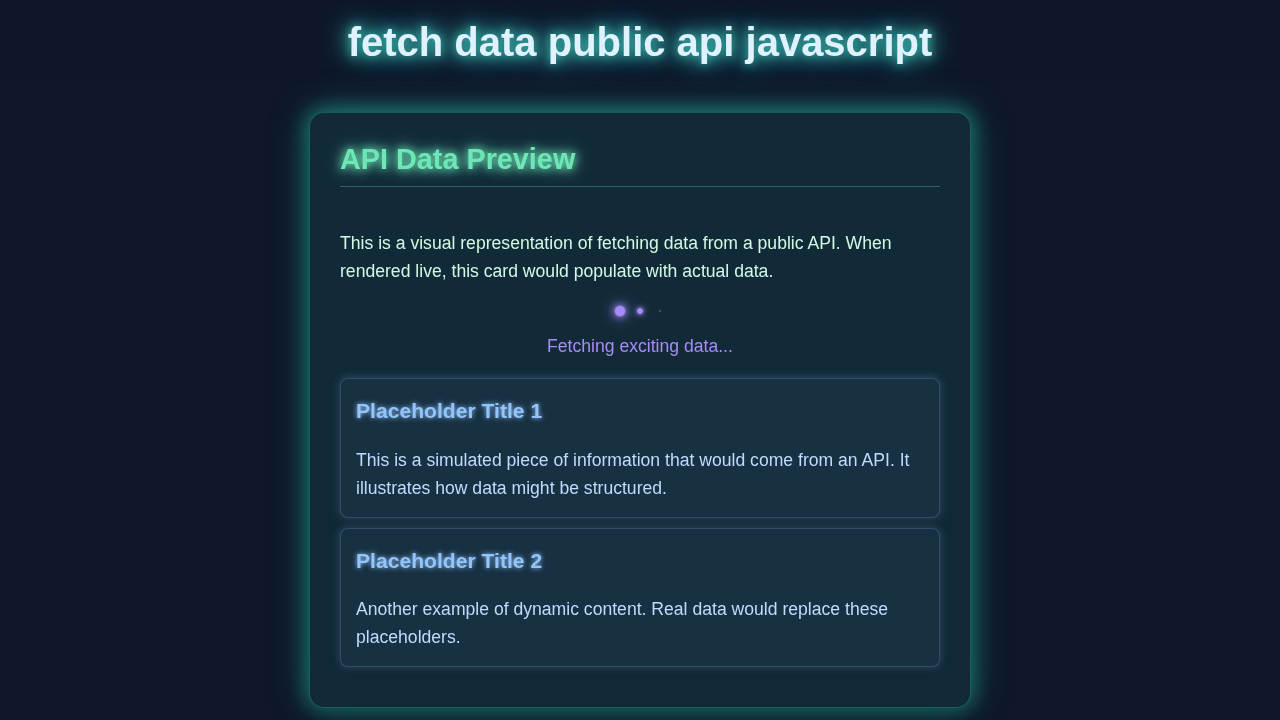
Here’s where the magic happens! Our JavaScript will do three main things. First, it will connect to a public API. Second, it will grab the data. Third, it will then display it on our page. We will use the modern fetch() API. This is a built-in browser function. It lets us make network requests easily. We’ll also handle updating our HTML elements. This will show the new quotes and authors. It’s incredibly powerful and fun to implement!
This section is the core of our dynamic application. We are bringing external information into our local environment. It’s an essential skill for any web developer. You can also learn about fetching data in Python with the Python Requests Library for server-side operations.
script.js
// script.js

// 1. Select DOM Elements
const loadingSpinner = document.getElementById('loading');
const dataContainer = document.getElementById('data-container');
const errorMessage = document.getElementById('error-message');

// 2. Define the Public API URL
// We'll use JSONPlaceholder for sample data. It's a free fake API for testing and prototyping.
// We'll fetch a limited number of posts.
const API_URL = 'https://jsonplaceholder.typicode.com/posts?_limit=8';

/**
 * 3. Function to Fetch Data from the API
 * Uses async/await for cleaner asynchronous code.
 */
async function fetchApiData() {
    // Show loading spinner and hide previous data/errors
    loadingSpinner.style.display = 'flex'; // Use 'flex' to center spinner and text
    dataContainer.innerHTML = ''; // Clear previous data
    errorMessage.style.display = 'none'; // Hide any previous error messages

    try {
        // Make the API request using the Fetch API
        const response = await fetch(API_URL);

        // Check if the request was successful (status code 200-299)
        if (!response.ok) {
            // If response is not OK, throw an error with the status text
            throw new Error(`HTTP error! Status: ${response.status}`);
        }

        // Parse the JSON response
        const data = await response.json();

        // Display the fetched data
        displayData(data);

    } catch (error) {
        // Catch any errors during the fetch or JSON parsing
        console.error("Error fetching data:", error);
        displayError(`Failed to load data: ${error.message}. Please try again later.`);
    } finally {
        // This block always executes, regardless of success or error
        // Hide the loading spinner
        loadingSpinner.style.display = 'none';
    }
}

/**
 * 4. Function to Display Fetched Data
 * Creates HTML elements for each data item and appends them to the container.
 * @param {Array<Object>} data - An array of objects from the API.
 */
function displayData(data) {
    if (data.length === 0) {
        dataContainer.innerHTML = '<p class="no-data">No data found.</p>';
        return;
    }

    data.forEach(item => {
        const card = document.createElement('div');
        card.classList.add('data-card');

        const title = document.createElement('h2');
        title.textContent = item.title; // Display the title from the API

        const body = document.createElement('p');
        body.textContent = item.body; // Display the body/content from the API

        card.appendChild(title);
        card.appendChild(body);
        dataContainer.appendChild(card);
    });
}

/**
 * 5. Function to Display Error Messages
 * @param {string} message - The error message to display.
 */
function displayError(message) {
    errorMessage.textContent = message;
    errorMessage.style.display = 'block';
}

// 6. Call the fetch function when the page loads
document.addEventListener('DOMContentLoaded', fetchApiData);
How It All Works Together
Let’s break down the flow of our application. Each part plays a vital role. It contributes to fetching and displaying our data. Understanding this workflow is key. It helps you build more complex features later on. We start with the page loading. Then, we make our request. Finally, we update the display.
Setting Up Our Page
When you open your index.html file, your browser loads everything. The HTML creates the basic structure. The CSS applies all the beautiful styles. Then, our JavaScript file loads. It waits for the DOM (Document Object Model) to be ready. The DOM is just a tree-like representation of your HTML elements. We grab references to our <div> for the quote and author. We also reference our ‘New Quote’ button. This prepares us for interaction. We also call our fetchQuote() function immediately. This ensures a quote displays as soon as the page loads. It provides instant content for the user.
Making the API Call
Our fetchQuote() function is the star. It uses the fetch() API. This initiates a request to our chosen public API. We’re using the ‘Programming Quotes API’ for this tutorial. The .then() methods handle the response. First, we convert the raw response into JSON format. JSON is a common data exchange format. It’s like a neatly organized package of information. Then, we process that JSON data. We extract the quote and author. If anything goes wrong, the .catch() block handles errors. This prevents our app from crashing. It provides a smooth user experience. This robust error handling is very important for real-world applications.
Pro Tip: Always handle errors in your fetch requests. Network issues or API changes can break your app. A simple
.catch()block makes your code much more resilient. It improves the stability of your application.
Displaying the Data
Once we have the quote and author, it’s time to show them! We update the textContent property. This changes the visible text inside our HTML elements. We target the specific <p> tags we created earlier. The quote goes into the quote element. The author goes into the author element. We also disable the button briefly. This prevents multiple rapid clicks. It gives the API time to respond. This small detail greatly enhances usability. It provides a better interaction flow for the user. Then, we re-enable the button after a short delay, ready for the next quote. This creates a responsive and controlled interaction.
Tips to Customise It
You’ve built a working dynamic data display! But don’t stop here. Here are some ideas to make it even better:
- Explore Other APIs: Find a different public API that interests you. Think about weather, news, or even a dog breed API. Then, adapt the JavaScript to parse its specific data structure. This is a great way to practice!
- Add a Loading State: Display a ‘Loading…’ message or a spinner while fetching data. This improves the user experience. It tells users something is happening. You can even explore advanced React Animation Performance for more complex loading indicators.
- Error Messages: Show a friendly message to the user if the API request fails. Instead of a blank page, display ‘Failed to load quote. Please try again later.’ This provides useful feedback.
- Local Storage: Store the last fetched quote in your browser’s local storage. This way, if a user revisits the page, they see the last quote instantly. Then, fetch a new one in the background.
Conclusion
Fantastic work! You’ve just learned how to Fetch Public API data. You have built a dynamic web page from scratch. You connected HTML, CSS, and JavaScript. This is a fundamental skill for any modern web developer. You can now pull data from anywhere on the internet. You can display it beautifully on your own sites. This opens up a world of possibilities for your projects. Think about all the amazing things you can build!
Keep experimenting with different APIs and features. Practice makes perfect. Share what you’ve built with the procoder09.com community. We can’t wait to see your creations!
This project is a solid foundation. You’ve mastered dynamic content loading. You’ve gained invaluable experience. Congratulations on a job well done!