Liquid Glass Tabs CSS: Build a Dynamic HTML/CSS Tab Bar
Hey there, fellow coders! Have you ever wanted to build a navigation component that truly shines? Today, we are diving deep into creating stunning Liquid Glass Tabs. They offer a super sleek and interactive user experience. Get ready to add some serious sparkle to your web projects with this tutorial! We will build something truly eye-catching.
What We Are Building: Your Own Liquid Glass Tabs
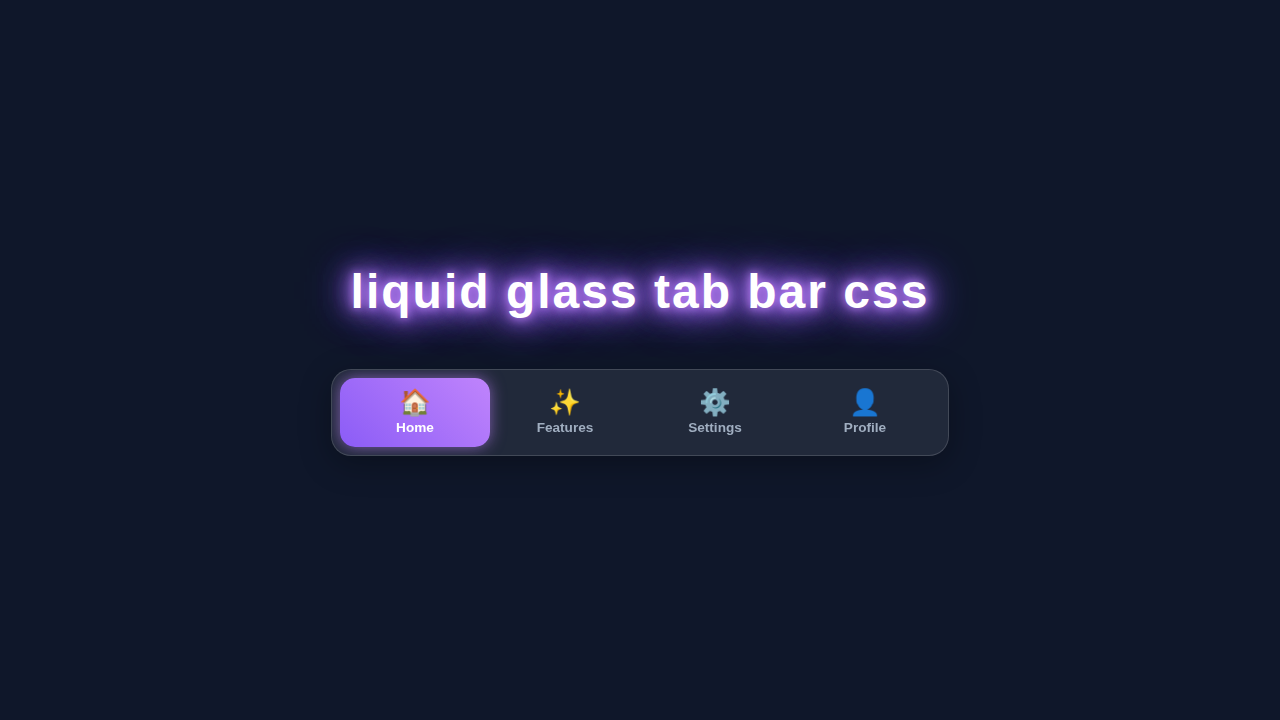
We are going to craft a beautiful tab bar. This tab bar will feature a cool “liquid glass” effect. It makes selected tabs truly stand out. The background element will smoothly glide between tabs. It is a visual treat for any user. It’s not just pretty; it’s highly functional too. Dynamic navigation keeps users engaged on your site. This project uses pure HTML, advanced CSS, and a touch of JavaScript. You will learn to control element positioning. Also, you will master smooth transitions. This makes for a delightful user interface. It is a fantastic skill to add to your toolkit. Imagine using this on your portfolio!
HTML Structure: The Backbone of Our Tabs
First, we lay down the sturdy foundation with HTML. Our structure is designed to be clean and semantic. We use a nav element for better accessibility. This element wraps our entire tab component. Inside, there’s an unordered list (ul). Each list item (li) represents a single tab. These tabs contain a (anchor) tags. The a tags are our clickable navigation links.
We will also add a special span element. This span is our moving “liquid glass” indicator. It visually highlights the active tab. It lives inside the nav too. This simple structure makes styling much easier.
index.html
<!DOCTYPE html>
<html lang="en">
<head>
    <meta charset="UTF-8">
    <meta name="viewport" content="width=device-width, initial-scale=1.0">
    <title>Liquid Glass Tab Bar</title>
    <link rel="stylesheet" href="styles.css">
</head>
<body>
    <div class="container">
        <h1>Your Application</h1>

        <!-- Liquid Glass Tab Bar Component -->
        <nav class="liquid-glass-tab-bar">
            <a href="#home" class="tab-item active">
                <span class="icon">🏠</span>
                <span class="text">Home</span>
            </a>
            <a href="#features" class="tab-item">
                <span class="icon">✨</span>
                <span class="text">Features</span>
            </a>
            <a href="#settings" class="tab-item">
                <span class="icon">⚙️</span>
                <span class="text">Settings</span>
            </a>
            <a href="#profile" class="tab-item">
                <span class="icon">👤</span>
                <span class="text">Profile</span>
            </a>
        </nav>
        <!-- End Liquid Glass Tab Bar Component -->

        <p>Click on the tabs to simulate navigation (though no actual page change occurs without JavaScript).</p>
    </div>
</body>
</html>
CSS Styling: Bringing Liquid Glass Tabs to Life
Now for the real magic! Our CSS transforms basic HTML into something extraordinary. We will create the iconic glassy look. We will also manage the super smooth transitions. This section is where all the visual flair happens. We make sure everything looks absolutely perfect. We’ll use modern CSS properties. You will gain a deeper understanding of them.
styles.css
/* Global Styles & Reset */
* {
    box-sizing: border-box; /* Ensure consistent box model across all elements */
}

body {
    font-family: Arial, Helvetica, sans-serif; /* Safe and widely available font stack */
    margin: 0;
    padding: 0;
    background-color: #1a202c; /* A deep charcoal background for good contrast */
    color: #e2e8f0; /* Light text color for dark background */
    display: flex;
    justify-content: center;
    align-items: center;
    min-height: 100vh; /* Full viewport height */
    overflow: hidden; /* Prevent body scrollbars */
}

.container {
    text-align: center;
    padding: 20px;
    max-width: 90%; /* Ensure container doesn't get too wide */
}

h1 {
    font-size: 2.5rem;
    margin-bottom: 40px;
    color: #f0f4f8;
}

p {
    margin-top: 30px;
    font-size: 1rem;
    color: #cbd5e0;
}

/* Liquid Glass Tab Bar Component Styles */
.liquid-glass-tab-bar {
    display: flex;
    background: rgba(255, 255, 255, 0.08); /* Semi-transparent white for glass effect */
    backdrop-filter: blur(12px); /* Frosted glass blur effect */
    border: 1px solid rgba(255, 255, 255, 0.15); /* Subtle border for definition */
    border-radius: 20px; /* Rounded corners for the entire bar */
    padding: 8px; /* Inner padding around tabs */
    box-shadow: 0 8px 32px 0 rgba(0, 0, 0, 0.3); /* Soft, subtle shadow */
    max-width: fit-content; /* Adjusts width to content */
    overflow: hidden; /* Ensures internal elements respect border-radius and prevent overflow */
    position: relative;
    margin: 0 auto; /* Center the tab bar */
}

.tab-item {
    flex-shrink: 0; /* Prevents items from shrinking too much, maintaining layout */
    display: flex;
    flex-direction: column;
    align-items: center;
    justify-content: center;
    padding: 12px 25px;
    text-decoration: none; /* Remove underline from links */
    color: #a0aec0; /* Default text color for inactive tabs */
    transition: color 0.4s ease, background-color 0.4s ease, transform 0.2s ease, box-shadow 0.4s ease; /* Smooth transitions for hover/active states */
    position: relative;
    z-index: 1; /* Ensures text/icon is above any background effects */
    border-radius: 15px; /* Rounded corners for individual tab items */
    cursor: pointer; /* Indicate clickable item */
    min-width: 100px; /* Ensures a minimum width for each tab */
}

.tab-item:hover {
    color: #c084fc; /* Light purple glow on hover */
    transform: translateY(-2px); /* Subtle lift effect */
}

.tab-item .icon {
    font-size: 1.6rem;
    margin-bottom: 5px;
    line-height: 1; /* Ensures icon is vertically centered and doesn't affect line height */
}

.tab-item .text {
    font-size: 0.85rem;
    font-weight: 600;
    white-space: nowrap; /* Prevents text from wrapping */
}

/* Active tab styling - the "liquid" effect */
.tab-item.active {
    color: #ffffff; /* White text for the active tab */
    background: linear-gradient(45deg, #8b5cf6 0%, #c084fc 100%); /* Vibrant purple gradient for liquid fill */
    box-shadow: 0 0 15px rgba(192, 132, 252, 0.6); /* Glowing shadow for the active tab */
    transform: translateY(0); /* Resets any hover lift if it's the active tab */
}

/* Responsive Adjustments */
@media (max-width: 768px) {
    h1 {
        font-size: 2rem;
    }
    .liquid-glass-tab-bar {
        flex-wrap: wrap; /* Allow tabs to wrap onto multiple lines */
        justify-content: center;
        max-width: 90%; /* Adjust max-width for smaller screens */
    }
    .tab-item {
        flex-basis: 45%; /* Arrange items into two columns */
        margin: 5px; /* Add some margin between wrapped items */
        padding: 10px 15px;
    }
    .tab-item .icon {
        font-size: 1.3rem;
    }
    .tab-item .text {
        font-size: 0.75rem;
    }
}
JavaScript: Adding Dynamic Interaction
Finally, we introduce some JavaScript. This tiny script handles all the dynamic tab selection. It updates the visual active state. It also moves our “liquid” indicator with precision. This makes the tab bar interactive and responsive. It feels incredibly fluid to the user.
How It All Works Together: The Magic Behind Liquid Glass Tabs
Setting Up the HTML Foundation
Our HTML starts with a nav container. This is a semantic element. It tells browsers and screen readers that this is navigation. Inside, we have an unordered list (ul). This ul holds all our individual tabs. Each tab is a li element. Each li then contains an a tag. These a tags are the actual clickable items. They will link to different content sections.
Crucially, we include a span element. This span will act as our “liquid” background. It will move behind the tabs. We give it a specific id or class. This makes it easy to target with CSS and JavaScript. Remember, a clean HTML structure is vital. It forms the base for all our styling and interactivity.
Crafting the Glass Effect with Advanced CSS
We start by styling the main nav and ul. The nav element needs position: relative. This is important for positioning our moving span. We use display: flex on the ul to align all our tabs. This puts them in a neat, horizontal row. Then, we style the individual li and a tags. We give them generous padding. We also apply appropriate text styles.
The span element is absolutely positioned. It gets position: absolute. This allows it to move freely within its relative parent. It gets a background property. We often use a semi-transparent white or a soft gradient. This creates that elegant, light-refracting glass-like sheen. We also add a border-radius. This gives it a soft, rounded appearance. This is key for the “liquid” feel. For a deeper dive into how position works, check out the MDN documentation on CSS positioning.
The filter: blur() property is absolutely essential. It adds a subtle blur effect to our span. This truly sells the “liquid glass” illusion. Without it, it would just be a moving colored block. Transition properties are also vital here. They make the span move smoothly across tabs. This creates a delightful and fluid user experience. This smooth movement is what makes the “liquid” part of our effect!
Pro Tip: Experiment with different
backgroundgradients andfilter: blur()values on yourspanelement. Slight changes can dramatically alter the glass effect’s intensity and color. Find what looks best for your overall design! You can also check out this related tutorial on building an Elegant Navigation Tutorial if you’re looking for more inspiration on similar effects.
We set initial width and transform: translateX() for the span. This places it perfectly under the first tab. When a new tab becomes active, JavaScript updates these properties. The CSS transition property handles the smooth animation. CSS-Tricks has a fantastic guide on CSS transitions if you want to master smooth animations.
JavaScript for Seamless Tab Switching
Our JavaScript is quite straightforward. First, it selects all our individual tab elements. It also grabs the special indicator span element. We usually get them using document.querySelectorAll() and document.querySelector().
We then set up event listeners. Each tab listens for a click event. When any tab is clicked, a specific function runs. This function manages the active state.
Most importantly, it updates the indicator span. It calculates the clicked tab’s offsetWidth (width) and offsetLeft (position). It then applies these values to the span using style.width and style.transform = translateX(). This ensures the “liquid glass” effect follows your selection perfectly. This function does a few critical things. It first removes the active class. It removes it from all previously active tabs. This ensures only one tab is highlighted at a time. Then, it adds the active class to the recently clicked tab. This updates its visual style. Want to learn more about how different CSS rules apply? Understanding CSS Specificity Explained: A Visual Guide to Styling Priority can help you debug tricky styling issues that might arise when combining JavaScript and CSS.
Tips to Customise Your Liquid Glass Tabs
- Color Themes: Change the
backgroundandcolorproperties of your tabs. Experiment with light or dark themes. You could even use CSS variables for easy theme switching. This makes your design super flexible. Adjust thespanbackground too. - Different Shapes: Adjust the
border-radiusof your tabs. Make them square, pill-shaped, or even uniquely angled. Thespanindicator should match thisborder-radius. This keeps the design cohesive. - Icon Integration: Add cool icons next to your text labels. This can make tabs more intuitive. Font Awesome is a fantastic resource for vector icons. Remember to keep icon sizes consistent for a polished look.
- More Interactions: Add a subtle
scale()transform onhoverfor tabs. This gives a gentle bounce effect. Or try a differentbox-shadowon the active tab for extra depth. You could also experiment with an animating border. - Responsiveness: Think about how your tabs will look on smaller screens. You might need to adjust
flex-wrapor change the layout. Media queries are your best friend here.
Encouragement: Don’t be afraid to break things and experiment! That’s how we learn the most in web development. Every line of code is a chance to discover something new and make it your own. Your creativity is your greatest asset!
Conclusion
You did it! You have successfully built dynamic Liquid Glass Tabs. We started with basic, semantic HTML. Then we added some truly advanced CSS for the visuals. Finally, a little JavaScript brought it all to life with smooth interactivity.
This project is so much more than just a tab bar. It showcases powerful CSS properties. It also highlights smooth JavaScript interactions. You’ve created a beautiful and functional component. It enhances user experience.
Now, take this fantastic knowledge. Apply it to your own web projects. Share your amazing creations with the procoder09.com community. We can’t wait to see what you build next! Perhaps you’ll even integrate it into something bigger, like an Accessible Hamburger Menu: HTML & CSS Only Tutorial, for a complete and accessible navigation solution. Keep coding and keep learning!