Python File Organizer Script: Automate Your Downloads Folder
Hey there, future automation wizard! If you’ve ever wished your computer could just… tidy itself, you’re in the right place. Today, we’re going to build an amazing Python File Organizer script. It will automate your desktop cleanup. Say goodbye to messy downloads folders forever! This project is super useful. You’ll feel like a coding superhero. It’s truly empowering to build something so practical.
What We Are Building: Your Personal Digital Assistant
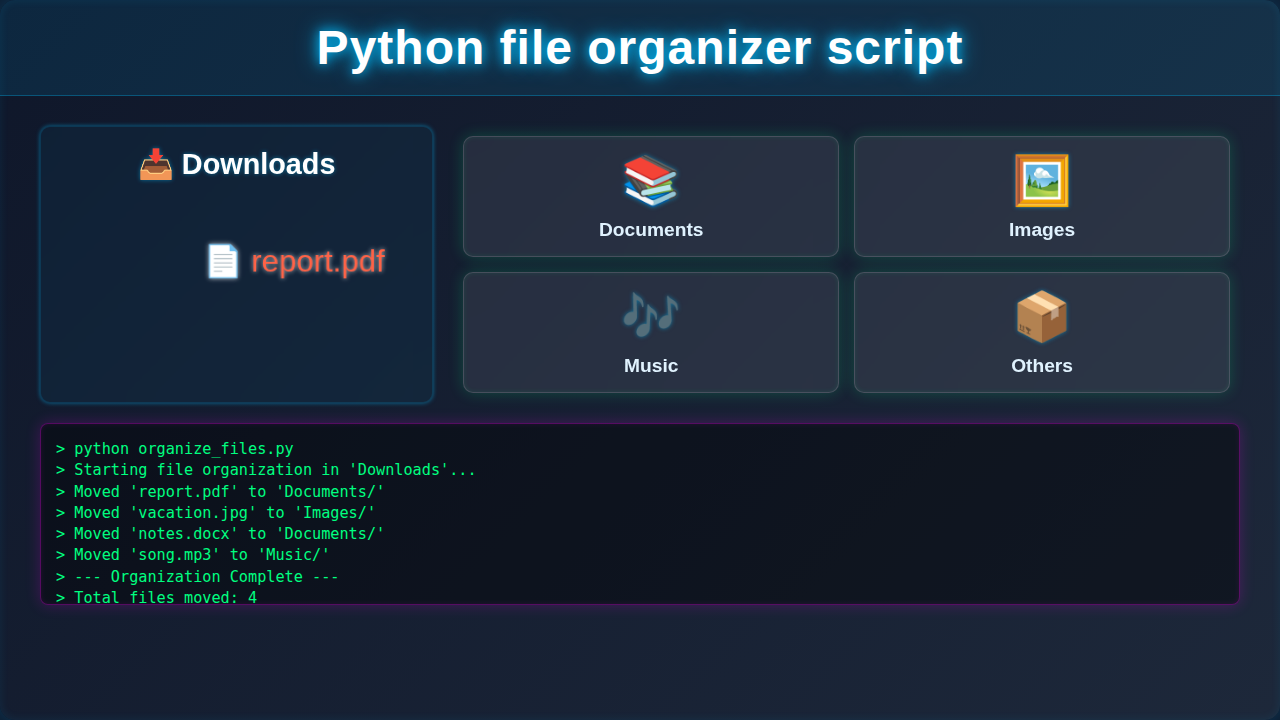
Imagine never seeing a cluttered “Downloads” folder again. That’s exactly what we’re creating! This smart script will automatically sort your files. It moves them into specific folders. These folders are based on the file’s type. For example, all your PDFs will go to a “Documents” folder. Your favorite images will land in “Pictures.” Videos will find their way to “Videos.” It’s like having a tiny robot butler for your digital life! We’ll make it efficient and super easy to understand. You can then spend more time coding, instead of cleaning. This is going to be a fun project.
Setting Up Our Python Environment
To get started, we need our basic Python setup. This tutorial won’t use HTML, CSS, or JavaScript. Instead, we are diving deep into Python’s capabilities. We’ll use core Python modules. These are fantastic because they come built right into Python. You don’t need to install anything extra! Just a working Python installation.
Here’s the basic structure of where our code will live. Think of this as the main “body” of our Python script. It’s the canvas for our creation.
# Our amazing Python File Organizer script code will go here!
# Get ready to automate!
Let me explain what’s happening here. This placeholder is where your Python code will actually go. We will fill it with powerful functions and clever logic very soon. Don’t worry about this specific marker for now. Just understand this is our starting point. It’s where the magic begins to unfold.
Understanding the Core Libraries for Our Python File Organizer
Our powerful Python File Organizer will rely on two incredibly useful Python modules. These are os and shutil. They are like the Swiss Army knife for file operations.
The os module (which stands for “operating system”) lets us interact with the underlying OS. We can list directory contents, check file paths, and understand file properties. It’s like giving our script eyes and hands to navigate the file system.
The shutil module (short for “shell utilities”) helps us perform high-level file operations. This means things like moving, copying, and deleting files or entire directories. It’s our script’s strong arm for organization.
Here’s a quick peek at how we’ll import them into our script. This is similar to bringing the right tools to our workshop.
import os
import shutil

# We'll use these modules throughout our script!
These two lines are absolutely crucial for our script to function. They give us access to a wealth of important functions. Without them, our script couldn’t communicate with your computer’s file system. It also couldn’t move your files around effectively. So, these simple import statements are very, very important. They lay the groundwork for our automation.
Writing Our Python Logic for File Organization
Now for the truly exciting part! We’re going to write the actual Python code. This is the code that will perform the intelligent file sorting. We’ll define a target directory for cleanup. Then, we’ll teach Python how to categorize different file types. This is where the real automation magic happens. You’ll see your script come alive!
# The main Python logic for our file organizer will be crafted here!
# Get ready to build a smart script.
organize_files.py
import os
import shutil

# --- Configuration --- #
# The directory you want to organize.
# IMPORTANT: It's highly recommended to test this script with a dummy folder first!
# Example: SOURCE_DIRECTORY_TO_ORGANIZE = os.path.join(os.path.expanduser('~'), 'Desktop', 'Test_Downloads')
# Defaulting to the user's Downloads folder for convenience.
SOURCE_DIRECTORY_TO_ORGANIZE = os.path.join(os.path.expanduser('~'), 'Downloads')

# The root directory where organized subfolders will be created.
# It can be the same as SOURCE_DIRECTORY_TO_ORGANIZE or a different path.
# Example: DESTINATION_ROOT_FOR_ORGANIZED_FILES = os.path.join(os.path.expanduser('~'), 'Documents', 'Organized_Downloads')
# Defaulting to organize files within the source directory itself.
DESTINATION_ROOT_FOR_ORGANIZED_FILES = SOURCE_DIRECTORY_TO_ORGANIZE

# Define file types and their corresponding target subfolder names.
# Add or modify categories and extensions as needed.
FILE_TYPE_CATEGORIES = {
    'Documents': ['.pdf', '.doc', '.docx', '.txt', '.rtf', '.odt', '.ppt', '.pptx', '.xls', '.xlsx', '.csv'],
    'Images': ['.jpg', '.jpeg', '.png', '.gif', '.bmp', '.tiff', '.webp', '.heic'],
    'Videos': ['.mp4', '.mov', '.avi', '.mkv', '.flv', '.webm'],
    'Audio': ['.mp3', '.wav', '.flac', '.aac', '.ogg'],
    'Archives': ['.zip', '.rar', '.7z', '.tar', '.gz'],
    'Executables': ['.exe', '.dmg', '.pkg', '.appimage', '.deb', '.rpm', '.iso'],
    'Code': ['.py', '.js', '.html', '.css', '.json', '.xml', '.java', '.c', '.cpp', '.h', '.sh', '.md'],
    'Fonts': ['.ttf', '.otf', '.woff', '.woff2'],
    'Torrents': ['.torrent']
}

def organize_files(source_dir, destination_root, file_type_map):
    """
    Organizes files from a source directory into categorized subdirectories
    within a specified destination root.

    Args:
        source_dir (str): The path to the directory to be organized.
        destination_root (str): The root directory where categorized subfolders will be created.
        file_type_map (dict): A dictionary mapping category names to lists of file extensions.
    """
    if not os.path.exists(source_dir):
        print(f"Error: Source directory '{source_dir}' does not exist. Please check the path.")
        return

    print(f"Starting file organization in '{source_dir}'...")
    print(f"Organized files will be moved to subfolders under '{destination_root}'.")

    # Create a reverse map for efficient lookup: extension -> category
    ext_to_category = {}
    for category, extensions in file_type_map.items():
        for ext in extensions:
            ext_to_category[ext.lower()] = category

    # Ensure the 'Others' directory exists for uncategorized files
    others_dir = os.path.join(destination_root, 'Others')
    os.makedirs(others_dir, exist_ok=True)

    files_moved_count = 0
    files_skipped_count = 0

    # Iterate through all items in the source directory
    for filename in os.listdir(source_dir):
        # Construct the full path to the current file/directory
        file_path = os.path.join(source_dir, filename)

        # Skip if it's this script itself (to prevent moving it while running)
        if filename == os.path.basename(__file__):
            print(f"Skipping script file: '{filename}'")
            continue

        # Process only files, ignore subdirectories (for simplicity in this script)
        if os.path.isfile(file_path):
            # Split the filename into name and extension
            file_name, file_extension = os.path.splitext(filename)
            file_extension = file_extension.lower() # Convert to lowercase for consistent lookup

            # Determine the target category based on file extension
            # If extension is not found, default to 'Others'
            target_category = ext_to_category.get(file_extension, 'Others')
            target_dir = os.path.join(destination_root, target_category)

            # Create the target category directory if it doesn't exist
            os.makedirs(target_dir, exist_ok=True)

            destination_path = os.path.join(target_dir, filename)

            # Handle potential duplicate filenames in the destination folder
            counter = 1
            while os.path.exists(destination_path):
                print(f"  Warning: File '{filename}' already exists in '{target_category}'. Renaming to avoid overwrite.")
                # Rename the file by appending a counter before the extension
                destination_path = os.path.join(target_dir, f"{file_name}_{counter}{file_extension}")
                counter += 1

            try:
                # Move the file from source to its categorized destination
                shutil.move(file_path, destination_path)
                print(f"  Moved '{filename}' to '{target_category}/'")
                files_moved_count += 1
            except Exception as e:
                # Catch any errors during the move operation
                print(f"  Error moving '{filename}': {e}")
                files_skipped_count += 1
        else:
            # If it's a directory, you might add logic here to recursively organize subdirectories
            # For this basic script, we'll just acknowledge and skip directories.
            print(f"  Skipping directory: '{filename}'")

    print("\n--- File Organization Complete ---")
    print(f"Total files moved: {files_moved_count}")
    print(f"Total files skipped (due to errors or directories): {files_skipped_count}")
    print(f"Please review the 'Others' folder under '{destination_root}' for uncategorized files.")
    print("Script finished.")

# --- Main Execution Block --- #
if __name__ == "__main__":
    # Ensure the destination root exists if it's different from source_dir
    os.makedirs(DESTINATION_ROOT_FOR_ORGANIZED_FILES, exist_ok=True)

    # Run the file organizer
    organize_files(SOURCE_DIRECTORY_TO_ORGANIZE, DESTINATION_ROOT_FOR_ORGANIZED_FILES, FILE_TYPE_CATEGORIES)
This section, represented by the
organize_files.py
import os
import shutil

# --- Configuration --- #
# The directory you want to organize.
# IMPORTANT: It's highly recommended to test this script with a dummy folder first!
# Example: SOURCE_DIRECTORY_TO_ORGANIZE = os.path.join(os.path.expanduser('~'), 'Desktop', 'Test_Downloads')
# Defaulting to the user's Downloads folder for convenience.
SOURCE_DIRECTORY_TO_ORGANIZE = os.path.join(os.path.expanduser('~'), 'Downloads')

# The root directory where organized subfolders will be created.
# It can be the same as SOURCE_DIRECTORY_TO_ORGANIZE or a different path.
# Example: DESTINATION_ROOT_FOR_ORGANIZED_FILES = os.path.join(os.path.expanduser('~'), 'Documents', 'Organized_Downloads')
# Defaulting to organize files within the source directory itself.
DESTINATION_ROOT_FOR_ORGANIZED_FILES = SOURCE_DIRECTORY_TO_ORGANIZE

# Define file types and their corresponding target subfolder names.
# Add or modify categories and extensions as needed.
FILE_TYPE_CATEGORIES = {
    'Documents': ['.pdf', '.doc', '.docx', '.txt', '.rtf', '.odt', '.ppt', '.pptx', '.xls', '.xlsx', '.csv'],
    'Images': ['.jpg', '.jpeg', '.png', '.gif', '.bmp', '.tiff', '.webp', '.heic'],
    'Videos': ['.mp4', '.mov', '.avi', '.mkv', '.flv', '.webm'],
    'Audio': ['.mp3', '.wav', '.flac', '.aac', '.ogg'],
    'Archives': ['.zip', '.rar', '.7z', '.tar', '.gz'],
    'Executables': ['.exe', '.dmg', '.pkg', '.appimage', '.deb', '.rpm', '.iso'],
    'Code': ['.py', '.js', '.html', '.css', '.json', '.xml', '.java', '.c', '.cpp', '.h', '.sh', '.md'],
    'Fonts': ['.ttf', '.otf', '.woff', '.woff2'],
    'Torrents': ['.torrent']
}

def organize_files(source_dir, destination_root, file_type_map):
    """
    Organizes files from a source directory into categorized subdirectories
    within a specified destination root.

    Args:
        source_dir (str): The path to the directory to be organized.
        destination_root (str): The root directory where categorized subfolders will be created.
        file_type_map (dict): A dictionary mapping category names to lists of file extensions.
    """
    if not os.path.exists(source_dir):
        print(f"Error: Source directory '{source_dir}' does not exist. Please check the path.")
        return

    print(f"Starting file organization in '{source_dir}'...")
    print(f"Organized files will be moved to subfolders under '{destination_root}'.")

    # Create a reverse map for efficient lookup: extension -> category
    ext_to_category = {}
    for category, extensions in file_type_map.items():
        for ext in extensions:
            ext_to_category[ext.lower()] = category

    # Ensure the 'Others' directory exists for uncategorized files
    others_dir = os.path.join(destination_root, 'Others')
    os.makedirs(others_dir, exist_ok=True)

    files_moved_count = 0
    files_skipped_count = 0

    # Iterate through all items in the source directory
    for filename in os.listdir(source_dir):
        # Construct the full path to the current file/directory
        file_path = os.path.join(source_dir, filename)

        # Skip if it's this script itself (to prevent moving it while running)
        if filename == os.path.basename(__file__):
            print(f"Skipping script file: '{filename}'")
            continue

        # Process only files, ignore subdirectories (for simplicity in this script)
        if os.path.isfile(file_path):
            # Split the filename into name and extension
            file_name, file_extension = os.path.splitext(filename)
            file_extension = file_extension.lower() # Convert to lowercase for consistent lookup

            # Determine the target category based on file extension
            # If extension is not found, default to 'Others'
            target_category = ext_to_category.get(file_extension, 'Others')
            target_dir = os.path.join(destination_root, target_category)

            # Create the target category directory if it doesn't exist
            os.makedirs(target_dir, exist_ok=True)

            destination_path = os.path.join(target_dir, filename)

            # Handle potential duplicate filenames in the destination folder
            counter = 1
            while os.path.exists(destination_path):
                print(f"  Warning: File '{filename}' already exists in '{target_category}'. Renaming to avoid overwrite.")
                # Rename the file by appending a counter before the extension
                destination_path = os.path.join(target_dir, f"{file_name}_{counter}{file_extension}")
                counter += 1

            try:
                # Move the file from source to its categorized destination
                shutil.move(file_path, destination_path)
                print(f"  Moved '{filename}' to '{target_category}/'")
                files_moved_count += 1
            except Exception as e:
                # Catch any errors during the move operation
                print(f"  Error moving '{filename}': {e}")
                files_skipped_count += 1
        else:
            # If it's a directory, you might add logic here to recursively organize subdirectories
            # For this basic script, we'll just acknowledge and skip directories.
            print(f"  Skipping directory: '{filename}'")

    print("\n--- File Organization Complete ---")
    print(f"Total files moved: {files_moved_count}")
    print(f"Total files skipped (due to errors or directories): {files_skipped_count}")
    print(f"Please review the 'Others' folder under '{destination_root}' for uncategorized files.")
    print("Script finished.")

# --- Main Execution Block --- #
if __name__ == "__main__":
    # Ensure the destination root exists if it's different from source_dir
    os.makedirs(DESTINATION_ROOT_FOR_ORGANIZED_FILES, exist_ok=True)

    # Run the file organizer
    organize_files(SOURCE_DIRECTORY_TO_ORGANIZE, DESTINATION_ROOT_FOR_ORGANIZED_FILES, FILE_TYPE_CATEGORIES)
marker, will contain the very heart of our Python File Organizer. We’ll craft several functions and logical blocks. We’ll learn to loop through files efficiently. Then, we’ll apply our carefully defined sorting rules. Get ready to write some truly powerful and practical code! This is where your skills shine.
How It All Works Together: Step-by-Step Automation in Action
Let’s break down the entire process. This will show you exactly how your new script cleans up your digital workspace. It’s a simple, yet incredibly powerful workflow. You’ll understand each piece of the puzzle.
Initial Setup: Defining Your Target Directory
First, we need to tell our script where to start its cleaning mission. This will be the directory it monitors and organizes. Most often, this is your “Downloads” folder. However, you can choose any directory you like!
# Make sure to change this path to your actual downloads folder!
DOWNLOADS_PATH = "/Users/yourusername/Downloads" # Example for macOS/Linux
# For Windows, it might look like: r"C:\Users\yourusername\Downloads"

# Let's confirm our target path! (Optional, but good for debugging)
print(f"Targeting: {DOWNLOADS_PATH}")
You must change yourusername to your real user account name. Also, adjust the path format for your operating system. This line sets the stage. Our script now knows its designated playground. It’s ready to observe.
Creating Category Folders for Structure
Next, we need specific places for our sorted files to go. We’ll create dedicated subfolders. Examples include “Images,” “Documents,” “Videos,” and more.
The os.makedirs() function is incredibly helpful here. It creates new directories. Importantly, it can also create any necessary parent directories along the way. We use exist_ok=True as an important safeguard. This ensures our script won’t throw an error if a folder already exists. It just skips over it gracefully.
categories = {
    "Images": [".jpg", ".jpeg", ".png", ".gif", ".bmp", ".tiff", ".webp"],
    "Documents": [".pdf", ".doc", ".docx", ".txt", ".rtf", ".xls", ".xlsx", ".ppt", ".pptx", ".csv"],
    "Archives": [".zip", ".rar", ".7z", ".tar", ".gz"],
    "Videos": [".mp4", ".mov", ".avi", ".mkv", ".flv"],
    "Audio": [".mp3", ".wav", ".aac", ".flac", ".ogg"],
    "Executables": [".exe", ".dmg", ".app", ".bat", ".sh"],
    "Code": [".py", ".js", ".html", ".css", ".java", ".c", ".cpp"], # A new category!
    "Others": [] # This is our catch-all for files that don't fit any specific category
}

# Loop through our categories and create the folders
for category_folder in categories:
    folder_path = os.path.join(DOWNLOADS_PATH, category_folder)
    os.makedirs(folder_path, exist_ok=True)
    print(f"Ensured folder '{category_folder}' exists at {folder_path}")
This clever loop goes through our categories dictionary. It ensures that all our desired destination folders are ready. Pretty neat, right? This systematic approach helps you automate your desktop with a Python Automation Script easily.
Pro Tip: Always double-check your
DOWNLOADS_PATH! An incorrect path means your script won’t find any files to organize. You can print the path at the start of your script to quickly verify it.
Looping Through the Files in the Directory
Now, the script needs to examine every item in your target folder. It uses os.listdir() to get a list of all file and folder names.
It’s very important to ignore subfolders and the category folders we just created. We only want our script to sort individual files. Processing subfolders directly could lead to unintended consequences.
print("\nStarting to organize files...\n")
for filename in os.listdir(DOWNLOADS_PATH):
    # Construct the full path to the item
    item_path = os.path.join(DOWNLOADS_PATH, filename)

    # We only care about actual files, not directories or our new category folders
    if os.path.isfile(item_path) and filename not in categories:
        # This is an actual file ready for processing!
        # ... (processing logic will go here)
        pass
    else:
        # print(f"Skipping '{filename}' (not a file or is a category folder).") # Optional: for debugging
        pass
This if statement ensures we only deal with actual files that need sorting. This is crucial for preventing errors and keeping our organization smooth. It prevents the script from trying to move a folder into itself.
Categorizing and Moving Each File
For each eligible file, we need to determine its type. We do this by looking at its file extension.
Then, we precisely move the file to its correct category folder. The shutil.move() function handles this transfer safely and efficiently.
        file_extension = os.path.splitext(filename)[1].lower() # Get the file extension, e.g., ".pdf"
        moved = False # Flag to track if the file was moved

        for category, extensions in categories.items():
            if file_extension in extensions:
                source_path = os.path.join(DOWNLOADS_PATH, filename)
                destination_path = os.path.join(DOWNLOADS_PATH, category, filename)

                # Handle potential duplicate file names
                base_name, ext = os.path.splitext(filename)
                counter = 1
                while os.path.exists(destination_path):
                    destination_path = os.path.join(
                        DOWNLOADS_PATH, category, f"{base_name} ({counter}){ext}"
                    )
                    counter += 1

                shutil.move(source_path, destination_path)
                print(f"Moved '{filename}' to '{category}' folder as '{os.path.basename(destination_path)}'.")
                moved = True
                break # Stop checking categories once moved

        # If the file didn't match any specific category, move it to "Others"
        if not moved and file_extension: # Make sure it's not a folder or a file without an extension
            source_path = os.path.join(DOWNLOADS_PATH, filename)
            destination_path = os.path.join(DOWNLOADS_PATH, "Others", filename)

            # Handle potential duplicate file names for "Others"
            base_name, ext = os.path.splitext(filename)
            counter = 1
            while os.path.exists(destination_path):
                destination_path = os.path.join(
                    DOWNLOADS_PATH, "Others", f"{base_name} ({counter}){ext}"
                )
                counter += 1

            shutil.move(source_path, destination_path)
            print(f"Moved '{filename}' to 'Others' folder as '{os.path.basename(destination_path)}'.")
We obtain the file extension using os.path.splitext(). Then, we check if it matches any of our predefined categories. If there’s a match, we move it! If not, it gracefully goes into the “Others” folder. This system automatically handles duplicate filenames by adding a counter. This is how you effectively Automated Cleanup your digital space. Explore more about file system operations in Python on the official Python documentation.
Fun Fact: The
os.path.splitext()function is super handy. It splits a file path into a(root, ext)pair. The[1]part extracts just the extension. Using.lower()ensures consistent matching, regardless of case.
Summarizing the Workflow
The script first identifies its target folder. Then, it diligently creates all necessary subfolders. It iterates through each file in the target. It accurately checks the file’s extension. Finally, it moves the file to its correct category. It’s a smooth, highly automated process. This kind of automation makes a real difference! This is why understanding a Python script to organize files is so valuable.
Tips to Customise Your Python File Organizer
You’ve built the core of an amazing tool! Now, let’s explore how you can make it uniquely yours. Personalization is key for any useful script.
- Add Even More Categories: Do you work with specific file types, like
.blendfiles for 3D modeling or.sketchfiles for design? Create a “3D Projects” or “Design Assets” folder. Simply add it to yourcategoriesdictionary with its associated extensions! The possibilities are endless. - Schedule the Script for Regular Runs: Make your cleanup fully automatic! Use operating system tools like
cron(for Linux/macOS users) or Task Scheduler (for Windows users). This allows your script to run at specific intervals. Imagine waking up to an already tidy downloads folder every morning! - Implement Advanced Duplicate Handling: What if a file with the exact same name already exists in the destination folder? Our current script renames it. You could modify it to prompt the user, skip the file, or even compare file contents. The
hashlibmodule can help compare file contents for true duplicates. For more advanced file system interactions, check out Real Python’s comprehensive guide on the Pathlib module. It offers an object-oriented approach to paths. - Develop a Simple Graphical User Interface (GUI): Take your script to the next level of user-friendliness! Add a simple GUI using Python libraries.
Tkinter(built-in) orPyQt(more feature-rich) are great options. This would allow you to select the folder, add categories, and run the script with just a few clicks. It’s a fantastic next project!
Conclusion: You’re a File Automation Master!
Wow! You just built a fantastic and incredibly practical Python File Organizer script. You’ve successfully taken control of your digital clutter. You now understand how to interact powerfully with your computer’s file system using Python. This is a monumental step in your coding journey. Feel immense pride in what you’ve accomplished! Share your newly organized desktop with friends and family. Keep experimenting, keep building, and keep learning cool stuff. Happy coding, future automation expert!
organize_files.py
import os
import shutil

# --- Configuration --- #
# The directory you want to organize.
# IMPORTANT: It's highly recommended to test this script with a dummy folder first!
# Example: SOURCE_DIRECTORY_TO_ORGANIZE = os.path.join(os.path.expanduser('~'), 'Desktop', 'Test_Downloads')
# Defaulting to the user's Downloads folder for convenience.
SOURCE_DIRECTORY_TO_ORGANIZE = os.path.join(os.path.expanduser('~'), 'Downloads')

# The root directory where organized subfolders will be created.
# It can be the same as SOURCE_DIRECTORY_TO_ORGANIZE or a different path.
# Example: DESTINATION_ROOT_FOR_ORGANIZED_FILES = os.path.join(os.path.expanduser('~'), 'Documents', 'Organized_Downloads')
# Defaulting to organize files within the source directory itself.
DESTINATION_ROOT_FOR_ORGANIZED_FILES = SOURCE_DIRECTORY_TO_ORGANIZE

# Define file types and their corresponding target subfolder names.
# Add or modify categories and extensions as needed.
FILE_TYPE_CATEGORIES = {
    'Documents': ['.pdf', '.doc', '.docx', '.txt', '.rtf', '.odt', '.ppt', '.pptx', '.xls', '.xlsx', '.csv'],
    'Images': ['.jpg', '.jpeg', '.png', '.gif', '.bmp', '.tiff', '.webp', '.heic'],
    'Videos': ['.mp4', '.mov', '.avi', '.mkv', '.flv', '.webm'],
    'Audio': ['.mp3', '.wav', '.flac', '.aac', '.ogg'],
    'Archives': ['.zip', '.rar', '.7z', '.tar', '.gz'],
    'Executables': ['.exe', '.dmg', '.pkg', '.appimage', '.deb', '.rpm', '.iso'],
    'Code': ['.py', '.js', '.html', '.css', '.json', '.xml', '.java', '.c', '.cpp', '.h', '.sh', '.md'],
    'Fonts': ['.ttf', '.otf', '.woff', '.woff2'],
    'Torrents': ['.torrent']
}

def organize_files(source_dir, destination_root, file_type_map):
    """
    Organizes files from a source directory into categorized subdirectories
    within a specified destination root.

    Args:
        source_dir (str): The path to the directory to be organized.
        destination_root (str): The root directory where categorized subfolders will be created.
        file_type_map (dict): A dictionary mapping category names to lists of file extensions.
    """
    if not os.path.exists(source_dir):
        print(f"Error: Source directory '{source_dir}' does not exist. Please check the path.")
        return

    print(f"Starting file organization in '{source_dir}'...")
    print(f"Organized files will be moved to subfolders under '{destination_root}'.")

    # Create a reverse map for efficient lookup: extension -> category
    ext_to_category = {}
    for category, extensions in file_type_map.items():
        for ext in extensions:
            ext_to_category[ext.lower()] = category

    # Ensure the 'Others' directory exists for uncategorized files
    others_dir = os.path.join(destination_root, 'Others')
    os.makedirs(others_dir, exist_ok=True)

    files_moved_count = 0
    files_skipped_count = 0

    # Iterate through all items in the source directory
    for filename in os.listdir(source_dir):
        # Construct the full path to the current file/directory
        file_path = os.path.join(source_dir, filename)

        # Skip if it's this script itself (to prevent moving it while running)
        if filename == os.path.basename(__file__):
            print(f"Skipping script file: '{filename}'")
            continue

        # Process only files, ignore subdirectories (for simplicity in this script)
        if os.path.isfile(file_path):
            # Split the filename into name and extension
            file_name, file_extension = os.path.splitext(filename)
            file_extension = file_extension.lower() # Convert to lowercase for consistent lookup

            # Determine the target category based on file extension
            # If extension is not found, default to 'Others'
            target_category = ext_to_category.get(file_extension, 'Others')
            target_dir = os.path.join(destination_root, target_category)

            # Create the target category directory if it doesn't exist
            os.makedirs(target_dir, exist_ok=True)

            destination_path = os.path.join(target_dir, filename)

            # Handle potential duplicate filenames in the destination folder
            counter = 1
            while os.path.exists(destination_path):
                print(f"  Warning: File '{filename}' already exists in '{target_category}'. Renaming to avoid overwrite.")
                # Rename the file by appending a counter before the extension
                destination_path = os.path.join(target_dir, f"{file_name}_{counter}{file_extension}")
                counter += 1

            try:
                # Move the file from source to its categorized destination
                shutil.move(file_path, destination_path)
                print(f"  Moved '{filename}' to '{target_category}/'")
                files_moved_count += 1
            except Exception as e:
                # Catch any errors during the move operation
                print(f"  Error moving '{filename}': {e}")
                files_skipped_count += 1
        else:
            # If it's a directory, you might add logic here to recursively organize subdirectories
            # For this basic script, we'll just acknowledge and skip directories.
            print(f"  Skipping directory: '{filename}'")

    print("\n--- File Organization Complete ---")
    print(f"Total files moved: {files_moved_count}")
    print(f"Total files skipped (due to errors or directories): {files_skipped_count}")
    print(f"Please review the 'Others' folder under '{destination_root}' for uncategorized files.")
    print("Script finished.")

# --- Main Execution Block --- #
if __name__ == "__main__":
    # Ensure the destination root exists if it's different from source_dir
    os.makedirs(DESTINATION_ROOT_FOR_ORGANIZED_FILES, exist_ok=True)

    # Run the file organizer
    organize_files(SOURCE_DIRECTORY_TO_ORGANIZE, DESTINATION_ROOT_FOR_ORGANIZED_FILES, FILE_TYPE_CATEGORIES)