Desktop File Organizer Python Script for Automated Cleanup
Hey there, fellow coders! If you’ve wanted to build a Desktop File Organizer but didn’t know where to start, you are in the right place. We’re diving into an exciting project today. You’ll create a powerful tool. It will tame your chaotic desktop. Get ready to automate your workspace!
Imagine a clean, organized computer. This project makes that dream real. You’ll use Python, Flask, HTML, CSS, and a little JavaScript. It’s going to be a blast. Plus, you’ll master valuable full-stack skills!
What We Are Building: Your Own Web-Based Desktop File Organizer!
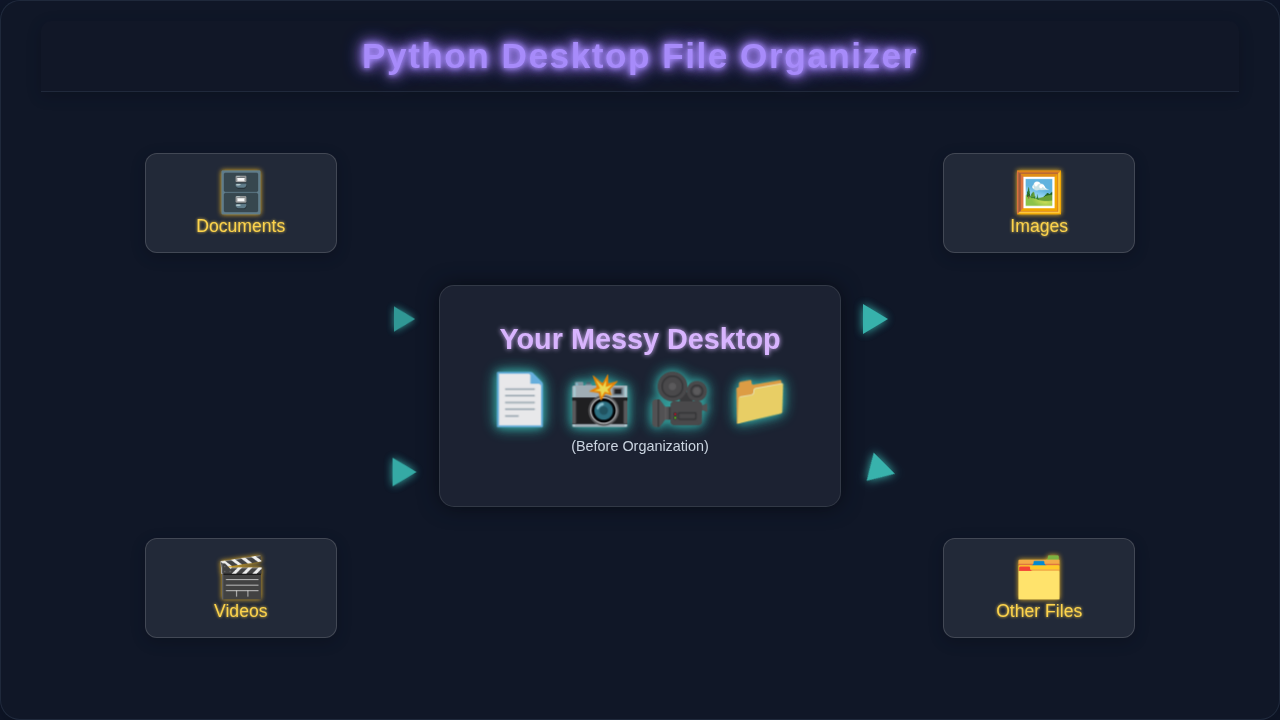
We’re building something truly awesome. This isn’t just a simple script. We’re creating a web-based Desktop File Organizer. It gives you a friendly interface. You can tell your files exactly where to go. This tool categorizes and moves files with ease. Say goodbye to manual sorting forever!
Think about it. You’ll have a slick web page. On this page, you choose a specific folder to clean. You also define smart rules. For instance, “move all .png files to ‘Pictures'”. Then, with a single click, your directory gets perfectly organized. It’s incredibly useful. Moreover, you’ll learn a ton about combining frontend and backend development!
This project bridges desktop utility with web accessibility. You get the best of both worlds. We’ll use Flask to power the backend logic. Your organizing rules are handled by robust Python code. Get ready to transform your digital space!
Setting Up Your Web App: The HTML Structure
First, let’s lay the foundation for our web interface. We’ll create a simple HTML page. This page will be our command station. It will host all necessary input fields. It will also feature a button to trigger organization. Don’t worry, crafting this HTML is straightforward! Here’s the basic HTML for our index.html file:
This HTML sets up our user interface. The main container holds everything. We have a clear section for selecting a target directory. This is where you point your organizer. There’s also an area for defining file type rules. Each rule needs a file extension (like .pdf) and a destination folder. We include a button to start the organization process. This clean and functional layout ensures a great user experience. It’s the starting point for interaction!
Pro Tip: HTML forms are essential for user input in any web application. They allow users to submit information. You can learn more about HTML form elements on MDN. Mastering forms makes your web applications more interactive and powerful!
We’ve included placeholders for success or error messages. This way, the user always knows what’s happening. Every HTML part has a clear purpose. It guides the user efficiently.
Making It Look Good: CSS Styling for Our Organizer
Our web app doesn’t just need to function; it needs to look appealing. We’ll add some CSS to make it shine. Good styling always improves user experience. It makes your powerful tool a joy to use. We want our Desktop File Organizer to be both functional and beautiful. Here’s the CSS that goes into our static/style.css file:
This CSS gives our app a clean, modern look. We strategically use Flexbox for layout management. This technique ensures everything is neatly aligned and responsive. We also add thoughtful padding and margins. This makes elements feel spacious and easy to interact with. It’s all about making the interface intuitive. Users will find it easy on the eyes. And, they’ll find it easy to navigate! Good design is crucial.
We’ve added subtle hover effects. These provide visual feedback. There are styles for success and error messages too. This ensures they stand out clearly. Styling is more than colors; it’s about guiding the user. For a deep dive into responsive layouts, check out this excellent guide to Flexbox on CSS-Tricks. It’s a game-changer!
Bringing It to Life with Python and JavaScript
Now for the brains and interactivity of our application! We’ll utilize JavaScript for front-end magic. It handles dynamic rule creation directly in the browser. Furthermore, it sends requests to our Python backend. Python (with Flask!) will do all the heavy lifting. It manages the actual file organization on your system. Here’s a look at our static/script.js and the conceptual outline of our Python Flask logic:
file_organizer.py
import os
import shutil
import logging
from datetime import datetime

# --- Configuration ---

# Set up logging for better tracking of operations.
# A new log file will be created in a 'Organizer_Logs' folder on your Desktop
# each time the script is run.
log_directory = os.path.join(os.path.expanduser("~"), "Desktop", "Organizer_Logs")
os.makedirs(log_directory, exist_ok=True)
log_file_path = os.path.join(log_directory, f"organizer_{datetime.now().strftime('%Y%m%d_%H%M%S')}.log")

logging.basicConfig(
    level=logging.INFO, # Set to logging.DEBUG for more verbose output
    format='%(asctime)s - %(levelname)s - %(message)s',
    handlers=[
        logging.FileHandler(log_file_path), # Logs to a file
        logging.StreamHandler() # Also prints logs to the console
    ]
)

# The directory to be organized.
# By default, this is set to your user's Desktop folder.
# IMPORTANT: Change this path if you want to organize a different directory.
# Example for a test folder: TARGET_DIR = os.path.join(os.path.expanduser("~"), "Desktop", "Test_Folder")
TARGET_DIR = os.path.join(os.path.expanduser("~"), "Desktop")

# Define file categories and their corresponding extensions.
# You can customize these categories and add/remove extensions as needed.
# File extensions should be in lowercase.
FILE_CATEGORIES = {
    "Documents": [".pdf", ".doc", ".docx", ".txt", ".rtf", ".odt", ".xls", ".xlsx", ".ppt", ".pptx", ".csv", ".json", ".xml"],
    "Images": [".jpg", ".jpeg", ".png", ".gif", ".bmp", ".tiff", ".ico", ".webp", ".svg"],
    "Videos": [".mp4", ".mov", ".avi", ".mkv", ".flv", ".wmv", ".webm"],
    "Audio": [".mp3", ".wav", ".aac", ".flac", ".ogg"],
    "Archives": [".zip", ".rar", ".7z", ".tar", ".gz", ".iso"],
    "Executables": [".exe", ".msi", ".dmg", ".app", ".bat", ".sh"], # Use with caution!
    "Code": [".py", ".js", ".html", ".css", ".php", ".java", ".cpp", ".c", ".h", ".go", ".rb"],
    "Design": [".psd", ".ai", ".sketch", ".fig", ".xd"],
    "Spreadsheets": [".xls", ".xlsx", ".csv", ".ods"]
}

# --- Core Logic Functions ---

def create_destination_directories(base_dir, categories):
    """
    Creates destination directories for organizing files if they don't already exist.
    This includes the specified categories and a general 'Other_Files' directory.
    """
    logging.info(f"Checking/creating category directories in: {base_dir}")
    for category in categories:
        dir_path = os.path.join(base_dir, category)
        os.makedirs(dir_path, exist_ok=True)
        logging.debug(f"Ensured directory exists: {dir_path}")

    # Create an "Other_Files" directory for anything that doesn't fit a defined category
    other_dir_path = os.path.join(base_dir, "Other_Files")
    os.makedirs(other_dir_path, exist_ok=True)
    logging.debug(f"Ensured directory exists: {other_dir_path}")

def get_file_category(file_extension, categories_map):
    """
    Determines the category for a given file extension.
    Returns the category name or 'Other_Files' if no match is found.
    """
    file_extension = file_extension.lower()
    for category, extensions in categories_map.items():
        if file_extension in extensions:
            return category
    return "Other_Files" # Default category if no specific match is found

def organize_files(source_directory, categories_map):
    """
    Organizes files in the specified source directory into category-based subdirectories.
    It moves files based on their extensions and logs all actions.
    """
    logging.info(f"\n--- Starting file organization in: {source_directory} ---")

    if not os.path.isdir(source_directory):
        logging.error(f"Error: Source directory not found: {source_directory}. Please check the TARGET_DIR path.")
        return

    create_destination_directories(source_directory, categories_map.keys())

    organized_count = 0
    skipped_count = 0
    error_count = 0

    # Iterate through all items (files and directories) in the source directory
    for filename in os.listdir(source_directory):
        source_path = os.path.join(source_directory, filename)

        # Skip directories and the log directory/file itself to prevent moving them
        if os.path.isdir(source_path):
            # Skip if it's one of our created category directories or the log folder
            if source_path == log_directory or source_path in [os.path.join(source_directory, cat) for cat in categories_map.keys()] or source_path == os.path.join(source_directory, "Other_Files"):
                logging.debug(f"Skipping known category/log directory: {filename}")
            else:
                logging.info(f"Skipping user directory: {filename}")
            continue

        # Skip the log file if it's placed within the target directory itself
        if source_path == log_file_path:
            logging.debug(f"Skipping the current log file: {filename}")
            continue

        # Process files
        file_name, file_extension = os.path.splitext(filename)
        category = get_file_category(file_extension, categories_map)

        destination_dir = os.path.join(source_directory, category)
        destination_path = os.path.join(destination_dir, filename)

        try:
            # Handle cases where a file with the same name already exists in the destination
            if os.path.exists(destination_path):
                # Option 1: Rename the new file by adding a timestamp to avoid overwriting.
                # This is generally safer than overwriting or skipping.
                timestamp = datetime.now().strftime("_%Y%m%d%H%M%S")
                new_filename = f"{file_name}{timestamp}{file_extension}"
                destination_path = os.path.join(destination_dir, new_filename)
                logging.warning(f"File '{filename}' already exists in '{category}'. Renaming to '{new_filename}' to prevent overwrite.")

                # Option 2: Uncomment the following lines and comment out Option 1 to simply skip duplicates.
                # logging.warning(f"File '{filename}' already exists in '{category}'. Skipping to prevent overwrite.")
                # skipped_count += 1
                # continue

            shutil.move(source_path, destination_path)
            logging.info(f"Moved: '{filename}' to '{category}/'")
            organized_count += 1
        except Exception as e:
            logging.error(f"Failed to move '{filename}': {e}")
            error_count += 1

    logging.info(f"\n--- File organization complete for '{source_directory}'. ---")
    logging.info(f"Summary: Organized {organized_count} files, Skipped {skipped_count} files, {error_count} errors.")
    logging.info(f"Detailed logs saved to: {log_file_path}")

# --- Main Execution Block ---
if __name__ == "__main__":
    print("\n=========================================")
    print("  PYTHON DESKTOP FILE ORGANIZER SCRIPT ")
    print("=========================================")
    print("This script will automate the organization of files in a target directory.")
    print("It creates categorized folders (e.g., Documents, Images) and moves files into them.")
    print("\n--- IMPORTANT CONFIGURATION ---")
    print(f"1. Target Directory: '{TARGET_DIR}' (This is typically your Desktop.)")
    print("   Please verify this path in the 'TARGET_DIR' variable within the script.")
    print("   Change it if you want to organize a different folder.")
    print("2. File Categories: Review and customize the 'FILE_CATEGORIES' dictionary ")
    print("   in the script to define how files are sorted (e.g., add new extensions, create new categories).")
    print(f"\nFolders to be created/utilized: {', '.join(FILE_CATEGORIES.keys())}, Other_Files")

    print("\n--- ACTION REQUIRED ---")
    confirm = input("Type 'yes' to proceed with file organization, or 'no' to cancel: ").lower()

    if confirm == 'yes':
        organize_files(TARGET_DIR, FILE_CATEGORIES)
        print("\nProcess finished. Please check your target directory and the log file for results.")
    else:
        print("File organization cancelled by the user.")
    print("=========================================\n")
The JavaScript code adds new rule input fields dynamically. This feature is super helpful for many file types! When you click the “Organize Files!” button, JavaScript takes charge. It collects all your defined rules. Then, it bundles them up. It sends them securely to our Python Flask backend. Our Flask backend, acting as the server, receives this data. It then applies the sophisticated file organization logic. This powerful combination makes our app dynamic and responsive!
The JavaScript ensures a smooth, single-page experience. No annoying page refreshes! It uses the modern fetch API for server communication. This makes the interaction feel snappy. Meanwhile, Python waits patiently. It is ready to process your commands. This setup is a hallmark of modern web applications. You’re building something truly professional!
How Our Web-Based Desktop File Organizer Works
Let’s break down the magic behind our project. It’s a journey from your web browser to your local file system. Each piece plays a vital role. You’ve built a complete full-stack application! Let me explain what’s happening here.
The Flask Backend: Your Python Powerhouse
Our Python code leverages the Flask framework. Flask is a fantastic micro-framework, perfect for building web applications quickly. It listens for incoming requests from your browser. When you click that “Organize Files!” button, Flask receives the target directory and all your rules. It then springs into action! It iterates through the specified target folder. For each file, it checks its type. Then, it moves files based on your exact rules. Remember our previous post on a Python File Organizer Script? This is that powerful logic, now web-enabled!
We heavily use Python’s built-in os and shutil modules. The os module is your go-to for interacting with the operating system. It lists directories and files. It also checks for file types and paths. The shutil module is superb for file system operations. It handles file movements (like shutil.move()) and copying. Together, these modules are incredibly powerful for file management. Python’s capabilities extend far beyond web requests; here it’s skillfully managing local files and directories! This robust backend ensures your files are handled safely and correctly.
The Frontend Interaction: HTML, CSS, and JS Teamwork
Your web browser serves as the user’s window into our organizer. HTML provides the essential structure. It displays all the input fields clearly. It makes sure everything is where it should be. CSS then steps in to make it pretty and usable. It ensures every element looks great and is easy to read. JavaScript adds the crucial dynamic touch. It lets you add as many organization rules as you need. No page refreshes! It efficiently collects all your input. Then it bundles this data. It sends this package to your Flask application. This is typically done using the fetch API. This creates a smooth and responsive user experience. You’ll truly feel like a seasoned web developer!
The synergy between these three technologies is fantastic. HTML defines the bones. CSS applies the skin. JavaScript provides the nervous system. This trio works together seamlessly. It delivers a polished and interactive user interface. This is what modern web development is all about!
Putting It All Together: The Workflow
Here’s the cool part: understanding the entire workflow. First, you open your new web app. Then, you select a directory on your computer to clean. Next, you add specific rules. For example, “all .docx files go to ‘Documents’, and .jpeg files go to ‘Photos'”. Finally, you click the “Organize Files!” button. JavaScript instantly takes over. It grabs all your settings and rules. It sends them as a request to your Flask application. Flask, in turn, executes the Python script. It moves your files automatically. Finally, Flask sends back a confirmation message. It tells you the process is complete. You can even see a success message appear on your web page. It’s an end-to-end automated Desktop File Organizer!
Friendly Encouragement: Don’t be afraid to experiment with the Python logic on the backend! Maybe you want to create subfolders for each month automatically. Or perhaps you want to implement a more complex renaming scheme. The possibilities are endless. You’ve built a solid foundation here, so make it your own!
This powerful approach combines the accessibility of a web interface. It also harnesses the power of Python scripting for desktop tasks. It’s a fantastic way to tackle common desktop clutter challenges. Think about how much time you’ll save! Remember our other guide on Python File Organizer Script: Automate Folder Cleanup? This web-enabled version elevates that concept to a new level.
Tips to Customise Your Desktop File Organizer
You’ve just built a fantastic tool! Now, let’s make it even better. Here are some exciting ideas to extend or personalize your project. Remember, customization is key. Make this Desktop File Organizer truly yours!
- Add More File Actions: Our organizer primarily moves files. What if you wanted options to copy them? Or perhaps safely delete old, unneeded ones? You could easily add buttons or dropdowns for these actions.
- Schedule Automation: Integrate a robust scheduler! Tools like
cronon Linux/macOS or Task Scheduler on Windows can run your Python script regularly. Imagine your desktop cleaning itself perfectly every night! - Implement Undo Functionality: This is a cool but challenging feature. Keep a detailed log of all moved files. Store their original paths alongside new locations. Then, add a “rollback” button. This lets you gracefully undo any unintended changes.
- User Authentication: If you plan to share this web app, consider adding user accounts. This ensures only authorized users can configure and trigger file organization. It adds an important layer of security.
- Visualize Progress: Provide real-time feedback to the user. Show a loading bar during organization. Or perhaps display a list of files being processed. This gives users confidence and makes the process more robust.
- Configuration Saving: Allow users to save their favorite rule sets. This means they don’t have to re-enter rules every time. Store them in a simple JSON file or a small database.
Conclusion: Celebrate Your Achievement!
Wow, you did it! You built a fully functional web-based Desktop File Organizer. You expertly combined HTML, CSS, JavaScript, and Python Flask. That’s a huge accomplishment in full-stack development! You now possess a powerful tool. It automates your workspace cleanup efficiently. Plus, you’ve gained invaluable practical skills. Feel incredibly proud of your hard work!
Keep experimenting with your new organizer. Don’t hesitate to share it with friends. Show off your incredible skills! What’s next for your coding journey? The world is truly your oyster. Happy coding, and keep building awesome things!
file_organizer.py
import os
import shutil
import logging
from datetime import datetime

# --- Configuration ---

# Set up logging for better tracking of operations.
# A new log file will be created in a 'Organizer_Logs' folder on your Desktop
# each time the script is run.
log_directory = os.path.join(os.path.expanduser("~"), "Desktop", "Organizer_Logs")
os.makedirs(log_directory, exist_ok=True)
log_file_path = os.path.join(log_directory, f"organizer_{datetime.now().strftime('%Y%m%d_%H%M%S')}.log")

logging.basicConfig(
    level=logging.INFO, # Set to logging.DEBUG for more verbose output
    format='%(asctime)s - %(levelname)s - %(message)s',
    handlers=[
        logging.FileHandler(log_file_path), # Logs to a file
        logging.StreamHandler() # Also prints logs to the console
    ]
)

# The directory to be organized.
# By default, this is set to your user's Desktop folder.
# IMPORTANT: Change this path if you want to organize a different directory.
# Example for a test folder: TARGET_DIR = os.path.join(os.path.expanduser("~"), "Desktop", "Test_Folder")
TARGET_DIR = os.path.join(os.path.expanduser("~"), "Desktop")

# Define file categories and their corresponding extensions.
# You can customize these categories and add/remove extensions as needed.
# File extensions should be in lowercase.
FILE_CATEGORIES = {
    "Documents": [".pdf", ".doc", ".docx", ".txt", ".rtf", ".odt", ".xls", ".xlsx", ".ppt", ".pptx", ".csv", ".json", ".xml"],
    "Images": [".jpg", ".jpeg", ".png", ".gif", ".bmp", ".tiff", ".ico", ".webp", ".svg"],
    "Videos": [".mp4", ".mov", ".avi", ".mkv", ".flv", ".wmv", ".webm"],
    "Audio": [".mp3", ".wav", ".aac", ".flac", ".ogg"],
    "Archives": [".zip", ".rar", ".7z", ".tar", ".gz", ".iso"],
    "Executables": [".exe", ".msi", ".dmg", ".app", ".bat", ".sh"], # Use with caution!
    "Code": [".py", ".js", ".html", ".css", ".php", ".java", ".cpp", ".c", ".h", ".go", ".rb"],
    "Design": [".psd", ".ai", ".sketch", ".fig", ".xd"],
    "Spreadsheets": [".xls", ".xlsx", ".csv", ".ods"]
}

# --- Core Logic Functions ---

def create_destination_directories(base_dir, categories):
    """
    Creates destination directories for organizing files if they don't already exist.
    This includes the specified categories and a general 'Other_Files' directory.
    """
    logging.info(f"Checking/creating category directories in: {base_dir}")
    for category in categories:
        dir_path = os.path.join(base_dir, category)
        os.makedirs(dir_path, exist_ok=True)
        logging.debug(f"Ensured directory exists: {dir_path}")

    # Create an "Other_Files" directory for anything that doesn't fit a defined category
    other_dir_path = os.path.join(base_dir, "Other_Files")
    os.makedirs(other_dir_path, exist_ok=True)
    logging.debug(f"Ensured directory exists: {other_dir_path}")

def get_file_category(file_extension, categories_map):
    """
    Determines the category for a given file extension.
    Returns the category name or 'Other_Files' if no match is found.
    """
    file_extension = file_extension.lower()
    for category, extensions in categories_map.items():
        if file_extension in extensions:
            return category
    return "Other_Files" # Default category if no specific match is found

def organize_files(source_directory, categories_map):
    """
    Organizes files in the specified source directory into category-based subdirectories.
    It moves files based on their extensions and logs all actions.
    """
    logging.info(f"\n--- Starting file organization in: {source_directory} ---")

    if not os.path.isdir(source_directory):
        logging.error(f"Error: Source directory not found: {source_directory}. Please check the TARGET_DIR path.")
        return

    create_destination_directories(source_directory, categories_map.keys())

    organized_count = 0
    skipped_count = 0
    error_count = 0

    # Iterate through all items (files and directories) in the source directory
    for filename in os.listdir(source_directory):
        source_path = os.path.join(source_directory, filename)

        # Skip directories and the log directory/file itself to prevent moving them
        if os.path.isdir(source_path):
            # Skip if it's one of our created category directories or the log folder
            if source_path == log_directory or source_path in [os.path.join(source_directory, cat) for cat in categories_map.keys()] or source_path == os.path.join(source_directory, "Other_Files"):
                logging.debug(f"Skipping known category/log directory: {filename}")
            else:
                logging.info(f"Skipping user directory: {filename}")
            continue

        # Skip the log file if it's placed within the target directory itself
        if source_path == log_file_path:
            logging.debug(f"Skipping the current log file: {filename}")
            continue

        # Process files
        file_name, file_extension = os.path.splitext(filename)
        category = get_file_category(file_extension, categories_map)

        destination_dir = os.path.join(source_directory, category)
        destination_path = os.path.join(destination_dir, filename)

        try:
            # Handle cases where a file with the same name already exists in the destination
            if os.path.exists(destination_path):
                # Option 1: Rename the new file by adding a timestamp to avoid overwriting.
                # This is generally safer than overwriting or skipping.
                timestamp = datetime.now().strftime("_%Y%m%d%H%M%S")
                new_filename = f"{file_name}{timestamp}{file_extension}"
                destination_path = os.path.join(destination_dir, new_filename)
                logging.warning(f"File '{filename}' already exists in '{category}'. Renaming to '{new_filename}' to prevent overwrite.")

                # Option 2: Uncomment the following lines and comment out Option 1 to simply skip duplicates.
                # logging.warning(f"File '{filename}' already exists in '{category}'. Skipping to prevent overwrite.")
                # skipped_count += 1
                # continue

            shutil.move(source_path, destination_path)
            logging.info(f"Moved: '{filename}' to '{category}/'")
            organized_count += 1
        except Exception as e:
            logging.error(f"Failed to move '{filename}': {e}")
            error_count += 1

    logging.info(f"\n--- File organization complete for '{source_directory}'. ---")
    logging.info(f"Summary: Organized {organized_count} files, Skipped {skipped_count} files, {error_count} errors.")
    logging.info(f"Detailed logs saved to: {log_file_path}")

# --- Main Execution Block ---
if __name__ == "__main__":
    print("\n=========================================")
    print("  PYTHON DESKTOP FILE ORGANIZER SCRIPT ")
    print("=========================================")
    print("This script will automate the organization of files in a target directory.")
    print("It creates categorized folders (e.g., Documents, Images) and moves files into them.")
    print("\n--- IMPORTANT CONFIGURATION ---")
    print(f"1. Target Directory: '{TARGET_DIR}' (This is typically your Desktop.)")
    print("   Please verify this path in the 'TARGET_DIR' variable within the script.")
    print("   Change it if you want to organize a different folder.")
    print("2. File Categories: Review and customize the 'FILE_CATEGORIES' dictionary ")
    print("   in the script to define how files are sorted (e.g., add new extensions, create new categories).")
    print(f"\nFolders to be created/utilized: {', '.join(FILE_CATEGORIES.keys())}, Other_Files")

    print("\n--- ACTION REQUIRED ---")
    confirm = input("Type 'yes' to proceed with file organization, or 'no' to cancel: ").lower()

    if confirm == 'yes':
        organize_files(TARGET_DIR, FILE_CATEGORIES)
        print("\nProcess finished. Please check your target directory and the log file for results.")
    else:
        print("File organization cancelled by the user.")
    print("=========================================\n")