Python File Organizer Script: Automate Folder Cleanup
Hey there, fellow coders! If your desktop looks like a digital warzone, you’re in the right place. Today, we’re going to build a fantastic Python File Organizer. This script will magically clean up your folders. Imagine no more lost downloads or scattered screenshots! It’s super satisfying and incredibly useful. Get ready to reclaim your digital space!
What We Are Building
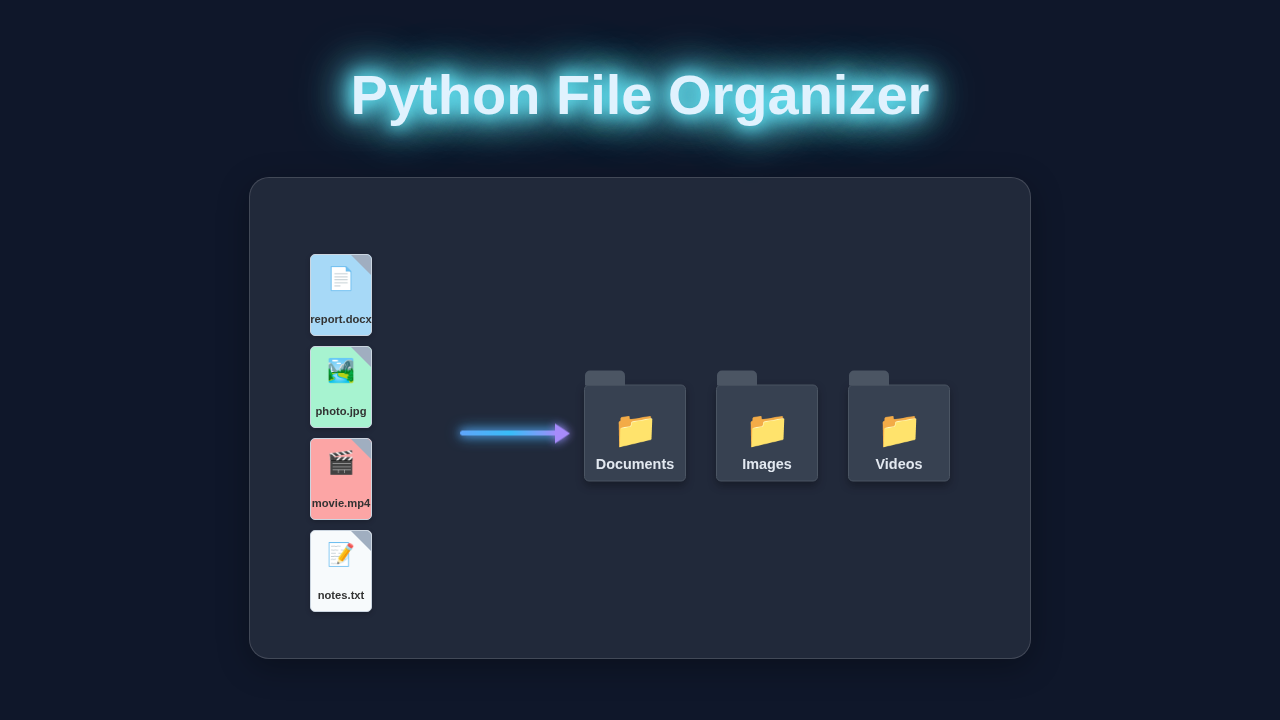
We are building a smart script. This script will scan a chosen directory. It will then sort files into specific folders based on their type. For instance, all your PDFs will go into a "PDFs" folder. Images land in "Images". Documents will find their "Documents" home. It’s like having a tiny digital assistant! This project is perfect for beginners. You will learn about file system interactions. Plus, you will understand how to use Python’s built-in modules. It’s a powerful skill for any programmer.
How Our Python File Organizer Works
Now, let’s dive into the code. This is where the real magic happens! We will use Python’s powerful os and shutil modules. They are your new best friends for file management. These modules help us interact with your file system directly. Don’t worry if these sound complex at first. We will break down each part step-by-step. You will see how simple file organization can be. For deeper dives into these essential tools, check out the official Python os module documentation. It’s a fantastic resource for learning more about operating system interfaces. Also, understanding how to move and copy files is crucial. You can learn more about general file I/O operations from GeeksforGeeks on the shutil module. These resources will be great companions on your coding journey.
Step 1: Setting Up Your Environment
First, we need to import some crucial modules. The os module is your direct line to the operating system. It lets us do things like list files, check if a path is a file or a directory, and even create new folders. It’s truly indispensable for any file-related task! The shutil module helps us move files and directories around. Think of it as your digital moving crew. You just tell it what to move and where to put it.
import os
import shutil
Next, we need to define our target directory. This is the main folder we want to clean and organize. For many people, this often starts with the "Downloads" folder. However, you can choose any messy directory! We will also set up a base directory. This is where our organized folders will live. Maybe you want them right in "Downloads" or in a separate "Organized_Files" folder. This gives you lots of flexibility and control.
Step 2: Listing and Filtering Files
After setting up, our next step is to discover what’s inside our target directory. The os.listdir() function comes to the rescue here. It provides a list of everything in that folder. This includes files and even other subdirectories. However, we only want to sort actual files. Directories are folders, and we typically don’t move them with this script. This helps prevent accidental reorganization of your folder structure.
So, we will loop through the list returned by os.listdir(). Inside the loop, we use os.path.isfile() to check each item. This function returns True if the item is a file. It returns False if it’s a directory or something else. This check is really important! It prevents our script from trying to move folders by mistake. That could lead to unexpected errors. We want our organizer to be robust and reliable for you.
Pro Tip: Always test your script on a small, unimportant folder first! This ensures everything works exactly as you expect. It’s a safe way to experiment before you unleash your awesome Python File Organizer on your main downloads folder.
Step 3: Classifying and Moving Files
This is the true heart of our Python File Organizer. This part handles how we classify and move each file. First, we need to figure out what type of file we are dealing with. We do this by looking at its file extension. You know, like ".pdf", ".jpg", ".mp3", or ".zip". Python makes getting this extension quite easy. We use os.path.splitext(). This helpful function splits a filename into its base name and its extension.
Once we have the extension, we can match it to a specific category. We will set up a dictionary for this. For example, ".pdf" might map to an "PDFs" folder. ".jpg" and " .png" might both map to an "Images" folder. This dictionary is fully customizable by you! If the destination folder doesn’t exist yet, we create it. The os.makedirs() function does this automatically. It even creates parent directories if needed! This saves you time and manual folder creation.
Let me explain what’s happening more clearly. Our file_types dictionary holds all our organizational rules. For each file we find, we grab its extension. We then check if this extension exists as a key in our file_types dictionary. If there’s a match, we know exactly where that file belongs! We construct the full path for the new folder and the new file location. Finally, shutil.move() does the heavy lifting. It safely relocates the file from its current spot to its new, organized home. You are essentially building a custom sorting machine! Understanding file paths is key to this process. You can learn more about managing files with Python from our other helpful guides like Python File Organizer: Automate Your Desktop Cleanup Script. This specific link shows more advanced sorting techniques for your projects.
Step 4: Robustness and Error Handling
A good script should be robust. It needs to handle unexpected situations gracefully. What happens if a file has no extension? Or if it’s a hidden system file? Our script must consider these scenarios to avoid crashes. We will ensure we skip directories, as we discussed earlier. But we also need a plan for unknown file types.
We can create a special "Others" folder. Any file that doesn’t match our predefined extensions goes here. This keeps your main directory completely clean. No files will be forgotten or left behind! Think about duplicate filenames too. What if you download document.pdf twice? If we just move it, one might overwrite the other. A simple solution is to add a counter. So document.pdf becomes document_1.pdf if a file with that name already exists. This prevents any accidental data loss. This also makes your Python File Organizer truly reliable. Expanding your Python skills is always great. Check out our post on Python Requests Library: Master API Calls Easily for more fun projects and understanding how to build robust applications!
[INJECT_PYTHON_CODE]
Tips to Customise Your Python File Organizer
You just built an awesome Python File Organizer! This is a fantastic foundation. But don’t stop there! Here are some creative ideas to make it even more powerful and personalized:
- Add more file types: Expand your
file_typesdictionary. Think about all the different files you encounter. Include.zip,.rar,.gif,.mp4, or any other formats you use frequently. The more types you define, the smarter and more comprehensive your organizer becomes. You’ll be amazed at how quickly your folders clear up! - Schedule it: Imagine your desktop cleaning itself! You can use a task scheduler (like
cronon Linux/macOS or Task Scheduler on Windows) to run your script automatically. Set it to run daily or weekly. This brings true automation to your digital life. You could even use a different Python approach to scheduling, like exploring libraries that interact with APIs, similar to how you might use the Python Requests Library: Master Web API Interaction to automate web tasks or trigger your script. - User input for paths: Instead of hardcoding the target directory, make your script more interactive. Ask the user for the path they want to clean. This makes your script incredibly flexible and reusable. The built-in
input()function in Python is perfect for gathering user-provided paths. - Implement logging: Add robust logging to your script. This means your script will record what files were moved, where they went, and any issues encountered. It creates a helpful history of your organization efforts. Python’s built-in
loggingmodule is easy to use and incredibly powerful for debugging and tracking.
Think Big: This simple script is just the beginning! Use it as a foundation. Explore more advanced file operations, like handling cloud storage or sorting based on file content. You have the power to build incredible, useful tools with Python. Keep experimenting!
Conclusion
Congratulations, awesome coder! You just built your very own powerful Python File Organizer. This is a truly significant step in your coding journey. You learned fundamental concepts about file system interaction. You successfully used powerful Python modules like os and shutil. And, most importantly, you made your digital life much, much tidier! Don’t be shy; share your creation with friends and family. Show them what practical and amazing things Python can do. Keep building, keep learning new things, and keep creating amazing projects. We are so incredibly proud of your progress and can’t wait to see what you build next! Happy coding!
file_organizer.py
import os
import shutil

def organize_files(directory_path):
    """
    Organizes files in the specified directory into subdirectories based on their file extensions.

    Args:
        directory_path (str): The path to the directory to organize.
    """
    if not os.path.isdir(directory_path):
        print(f"Error: Directory '{directory_path}' not found or is not a directory.")
        return

    # Define a mapping of common file extensions to target folder names.
    # You can customize this dictionary as needed.
    # Files with unrecognized extensions will be moved to an 'Others' folder.
    extension_map = {
        # Documents
        '.pdf': 'Documents', '.doc': 'Documents', '.docx': 'Documents',
        '.txt': 'Documents', '.rtf': 'Documents', '.odt': 'Documents',
        '.ppt': 'Documents', '.pptx': 'Documents', '.xls': 'Documents',
        '.xlsx': 'Documents', '.csv': 'Documents', '.md': 'Documents',
        '.pages': 'Documents', '.key': 'Documents', '.numbers': 'Documents',
        # Images
        '.jpg': 'Images', '.jpeg': 'Images', '.png': 'Images',
        '.gif': 'Images', '.bmp': 'Images', '.tiff': 'Images',
        '.webp': 'Images', '.svg': 'Images', '.heic': 'Images',
        # Videos
        '.mp4': 'Videos', '.mov': 'Videos', '.avi': 'Videos',
        '.mkv': 'Videos', '.flv': 'Videos', '.wmv': 'Videos',
        '.webm': 'Videos', '.m4v': 'Videos',
        # Audio
        '.mp3': 'Audio', '.wav': 'Audio', '.flac': 'Audio',
        '.aac': 'Audio', '.ogg': 'Audio', '.wma': 'Audio',
        # Executables / Archives
        '.exe': 'Executables', '.dmg': 'Executables', '.app': 'Executables',
        '.zip': 'Archives', '.rar': 'Archives', '.7z': 'Archives',
        '.tar': 'Archives', '.gz': 'Archives',
        # Code Files
        '.py': 'Code', '.js': 'Code', '.html': 'Code', '.css': 'Code',
        '.java': 'Code', '.c': 'Code', '.cpp': 'Code', '.h': 'Code',
        '.php': 'Code', '.rb': 'Code', '.go': 'Code', '.swift': 'Code',
        '.json': 'Code', '.xml': 'Code', '.yml': 'Code', '.yaml': 'Code'
    }

    print(f"\nStarting file organization in: {directory_path}")
    print("------------------------------------------")

    organized_count = 0
    skipped_count = 0
    created_folders = set()

    # Iterate over all items in the directory
    for filename in os.listdir(directory_path):
        source_path = os.path.join(directory_path, filename)

        # Skip directories and the script itself to prevent moving folders or self-deleting
        if os.path.isdir(source_path) or filename == os.path.basename(__file__):
            skipped_count += 1
            continue

        # Get file extension. os.path.splitext returns a tuple (root, ext).
        _, extension = os.path.splitext(filename)
        extension = extension.lower() # Convert to lowercase for consistent mapping

        # Determine target folder name based on extension_map, default to 'Others'
        target_folder_name = extension_map.get(extension, 'Others')
        target_folder_path = os.path.join(directory_path, target_folder_name)

        # Create target folder if it doesn't exist
        if not os.path.exists(target_folder_path):
            try:
                os.makedirs(target_folder_path)
                created_folders.add(target_folder_name)
                print(f"Created directory: {target_folder_path}")
            except OSError as e:
                print(f"Error creating directory {target_folder_path}: {e}")
                skipped_count += 1
                continue

        # Move the file to its designated folder
        destination_path = os.path.join(target_folder_path, filename)
        try:
            shutil.move(source_path, destination_path)
            print(f"Moved '{filename}' to '{target_folder_name}/'")
            organized_count += 1
        except shutil.Error as e:
            print(f"Error moving '{filename}' to '{target_folder_name}/': {e}")
            skipped_count += 1
        except Exception as e:
            print(f"An unexpected error occurred with '{filename}': {e}")
            skipped_count += 1

    print("\n------------------------------------------")
    print("Organization Complete!")
    print(f"Files organized: {organized_count}")
    print(f"Files skipped (directories, script itself, or errors): {skipped_count}")
    if created_folders:
        print(f"New folders created: {', '.join(sorted(list(created_folders)))}")
    print(f"All files are now sorted in '{directory_path}'.")

if __name__ == "__main__":
    # Inform the user about the script's purpose
    print("Python File Organizer Script")
    print("This script will organize files in a specified directory into subdirectories based on their file type.")
    print("Example: 'C:\\Users\\YourUser\\Downloads' (Windows) or '/home/youruser/Downloads' (Linux/macOS)")

    while True:
        target_directory = input("Please enter the full path of the directory to organize (or 'exit' to quit): ").strip()

        if target_directory.lower() == 'exit':
            print("Exiting script. Goodbye!")
            break

        if not target_directory:
            print("Directory path cannot be empty. Please try again.")
            continue

        # Validate if the provided path exists and is a directory
        if os.path.exists(target_directory) and os.path.isdir(target_directory):
            confirm = input(f"Are you sure you want to organize files in '{target_directory}'? (yes/no): ").lower()
            if confirm == 'yes':
                organize_files(target_directory)
                break # Exit loop after organization
            else:
                print("Organization cancelled. Please provide a different directory or confirm.")
        else:
            print(f"The path '{target_directory}' does not exist or is not a valid directory. Please try again.")