React Streaming Chat UI: Real-time Messages with JSX & Hooks
Hey there, fellow coders! If you have wanted to build a React Streaming Chat interface but had no idea where to start, you are in the right place. Today, we’re diving deep into creating a truly dynamic chat UI. Imagine an AI assistant delivering responses in real-time, word by word! This project is super cool and teaches essential React skills. You’ll build something awesome!
What We Are Building
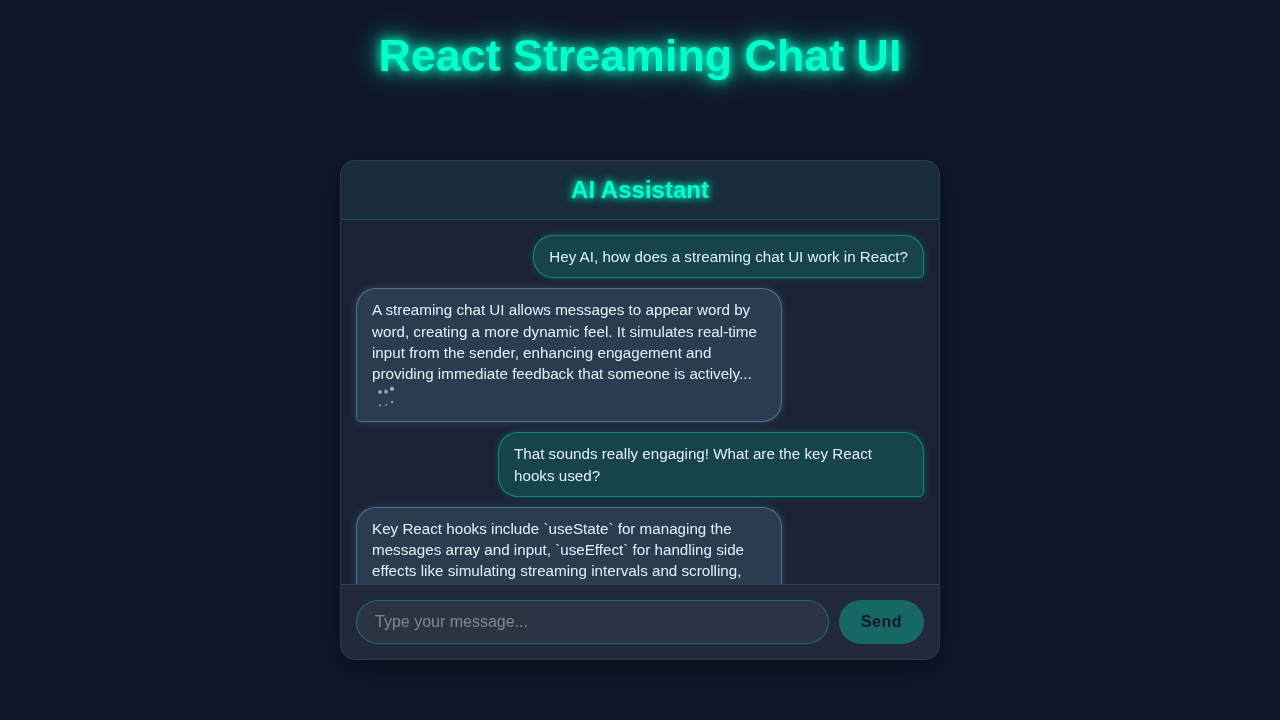
We are going to build a sleek chat interface. It will feel just like talking to a modern AI. Messages will appear smoothly, character by character. This mimics popular AI experiences you see everywhere. It’s incredibly useful for any application needing real-time interaction. Think customer support bots or interactive tutorials. This project will make your UI feel alive and engaging!
HTML Structure
First, let’s lay down the basic structure. This forms the foundation of our chat application. We will use simple HTML elements within our React components. These provide containers for our messages and input. For a deeper dive into semantic HTML elements, you can always check out MDN Web Docs on HTML Elements. Don’t worry, it’s very straightforward!
public/index.html
<!DOCTYPE html>
<html lang="en">
  <head>
    <meta charset="utf-8" />
    <link rel="icon" href="%PUBLIC_URL%/favicon.ico" />
    <meta name="viewport" content="width=device-width, initial-scale=1" />
    <meta name="theme-color" content="#000000" />
    <meta
      name="description"
      content="React Streaming Chat UI built with functional components and hooks"
    />
    <link rel="apple-touch-icon" href="%PUBLIC_URL%/logo192.png" />
    <link rel="manifest" href="%PUBLIC_URL%/manifest.json" />
    <title>React Streaming Chat UI</title>
  </head>
  <body>
    <noscript>You need to enable JavaScript to run this app.</noscript>
    <div id="root"></div>
    <!--
      This HTML file is a template.
      If you open it directly in the browser, you will see an empty page.
      You can add webfonts, meta tags, or analytics to this file.
      The build step will place the bundled scripts into the <body> tag.

      To begin the development, run `npm start` or `yarn start`.
      To create a production bundle, use `npm run build` or `yarn build`.
    -->
  </body>
</html>
CSS Styling
Next, we need to make our chat look great. Good styling makes all the difference. We will add CSS to give it a clean, modern appearance. This ensures a great user experience. If you want to explore more about responsive design for chat layouts, CSS-Tricks has an excellent guide on Flexbox. It’s time to bring our UI to life visually!
src/App.css
/*
  Global Styles & Resets
  - Applies to the entire application to ensure consistent styling.
  - Uses safe, system fonts (Arial, Helvetica, sans-serif).
  - `box-sizing: border-box` is crucial for predictable layouts.
*/
body {
    margin: 0;
    font-family: 'Arial', 'Helvetica', sans-serif;
    background-color: #0f172a; /* Dark background for a sleek look */
    color: #e0f2f7; /* Light text color for contrast */
    overflow: hidden; /* Prevent body scrollbars */
    box-sizing: border-box;
    display: flex;
    justify-content: center;
    align-items: center;
    min-height: 100vh;
    width: 100vw; /* Ensure full viewport width */
}

*,
*::before,
*::after {
    box-sizing: border-box;
}

/*
  Chat Container Styling
  - Implements a glassmorphism effect with blur and subtle border.
  - Uses flexbox for internal layout (header, messages, input).
  - `overflow: hidden` ensures content doesn't break out of rounded corners.
*/
.chat-container {
    width: 90%;
    max-width: 650px; /* Optimal width for readability */
    height: 90vh; /* Takes most of the viewport height */
    max-height: 800px;
    background: rgba(255, 255, 255, 0.05); /* Semi-transparent white */
    backdrop-filter: blur(10px); /* Glassmorphism blur effect */
    border: 1px solid rgba(255, 255, 255, 0.1); /* Subtle white border */
    border-radius: 20px;
    box-shadow: 0 8px 32px 0 rgba(0, 0, 0, 0.37); /* Prominent shadow */
    display: flex;
    flex-direction: column;
    overflow: hidden;
    min-width: 300px; /* Minimum width for responsiveness */
}

/*
  Chat Header Styling
  - Features a glowing neon effect for prominence.
*/
.chat-header {
    background: rgba(0, 255, 204, 0.05); /* Subtle green background */
    padding: 15px 20px;
    border-bottom: 1px solid rgba(0, 255, 204, 0.2); /* Dividing line */
    text-align: center;
    color: #00ffcc; /* Neon green color */
    text-shadow: 0 0 5px #00ffcc, 0 0 10px rgba(0, 255, 204, 0.5); /* Initial glow */
    animation: neon-glow-header 1.5s infinite alternate; /* Pulsating glow animation */
}

.chat-header h1 {
    margin: 0;
    font-size: 1.8em;
    font-weight: bold;
}

@keyframes neon-glow-header {
    from {
        text-shadow: 0 0 5px #00ffcc, 0 0 10px rgba(0, 255, 204, 0.5);
    }
    to {
        text-shadow: 0 0 10px #00ffcc, 0 0 20px rgba(0, 255, 204, 0.7), 0 0 30px rgba(0, 255, 204, 0.3);
    }
}

/*
  Chat Messages Area
  - Uses flexbox for message layout, enabling easy scrolling.
  - Custom scrollbar styles for a themed look.
*/
.chat-messages {
    flex-grow: 1; /* Takes up available space */
    padding: 15px;
    overflow-y: auto; /* Enables vertical scrolling */
    display: flex;
    flex-direction: column;
    gap: 10px; /* Space between message bubbles */

    /* Custom scrollbar for Webkit browsers (Chrome, Safari) */
    &::-webkit-scrollbar {
        width: 8px;
    }
    &::-webkit-scrollbar-track {
        background: rgba(255, 255, 255, 0.05);
        border-radius: 10px;
    }
    &::-webkit-scrollbar-thumb {
        background: rgba(0, 255, 204, 0.3); /* Neon green thumb */
        border-radius: 10px;
        transition: background 0.3s ease;
    }
    &::-webkit-scrollbar-thumb:hover {
        background: rgba(0, 255, 204, 0.5);
    }

    /* Custom scrollbar for Firefox */
    scrollbar-width: thin;
    scrollbar-color: rgba(0, 255, 204, 0.3) rgba(255, 255, 255, 0.05);
}

/*
  Message Bubble Styling
  - Differentiates user and AI messages with distinct backgrounds and alignment.
  - `word-wrap: break-word` ensures long messages wrap correctly.
*/
.message-bubble {
    max-width: 75%; /* Limit bubble width for readability */
    padding: 10px 15px;
    border-radius: 20px;
    word-wrap: break-word;
    position: relative;
    font-size: 0.95em;
    line-height: 1.4;
    color: #e0f2f7;
}

.message-bubble.user {
    align-self: flex-end; /* Align user messages to the right */
    background: rgba(0, 255, 204, 0.15); /* Neon green translucent background */
    border: 1px solid rgba(0, 255, 204, 0.4);
    border-bottom-right-radius: 5px; /* Creates a small 'tail' effect */
    box-shadow: 0 0 8px rgba(0, 255, 204, 0.2);
}

.message-bubble.ai {
    align-self: flex-start; /* Align AI messages to the left */
    background: rgba(135, 206, 250, 0.15); /* Light blue translucent background */
    border: 1px solid rgba(135, 206, 250, 0.4);
    border-bottom-left-radius: 5px; /* Creates a small 'tail' effect */
    box-shadow: 0 0 8px rgba(135, 206, 250, 0.2);
}

/*
  Typing Dots Animation
  - Creates a subtle, bouncing animation for the '...' indicator during streaming.
*/
.typing-dots {
    display: inline-flex; /* Keeps dots inline with text */
    align-items: center;
    margin-left: 5px;
    height: 1em;
}

.typing-dots span {
    animation: typing-bounce 0.8s infinite ease-in-out;
    width: 4px;
    height: 4px;
    background-color: rgba(255, 255, 255, 0.7);
    border-radius: 50%;
    margin: 0 1px;
    display: inline-block;
}

/* Stagger animation delays for a wave effect */
.typing-dots span:nth-child(1) { animation-delay: 0s; }
.typing-dots span:nth-child(2) { animation-delay: 0.15s; }
.typing-dots span:nth-child(3) { animation-delay: 0.3s; }

@keyframes typing-bounce {
    0%, 80%, 100% {
        transform: translateY(0);
        opacity: 0.7;
    }
    40% {
        transform: translateY(-4px);
        opacity: 1;
    }
}

/*
  Chat Input Form
  - Bottom section with input field and send button.
*/
.chat-input-form {
    display: flex;
    padding: 15px;
    border-top: 1px solid rgba(255, 255, 255, 0.1);
    background: rgba(255, 255, 255, 0.03); /* Slightly darker background for the input area */
}

.chat-input-form input[type="text"] {
    flex-grow: 1;
    padding: 12px 18px;
    border: 1px solid rgba(0, 255, 204, 0.3); /* Neon green border */
    background: rgba(255, 255, 255, 0.05); /* Translucent input background */
    border-radius: 25px;
    color: #e0f2f7;
    outline: none;
    transition: all 0.3s ease;
    font-size: 1em;
}

.chat-input-form input[type="text"]::placeholder {
    color: rgba(255, 255, 255, 0.4);
}

.chat-input-form input[type="text"]:focus {
    border-color: #00ffcc; /* Brighter neon on focus */
    box-shadow: 0 0 10px rgba(0, 255, 204, 0.6); /* Glowing shadow on focus */
    background: rgba(255, 255, 255, 0.1);
}

.chat-input-form button {
    margin-left: 10px;
    padding: 12px 22px;
    background: #00ffcc; /* Solid neon green button */
    border: none;
    border-radius: 25px;
    color: #0f172a; /* Dark text for contrast */
    font-weight: bold;
    cursor: pointer;
    transition: all 0.3s ease;
    box-shadow: 0 0 10px rgba(0, 255, 204, 0.5); /* Glowing shadow */
    font-size: 1em;
    letter-spacing: 0.5px;
}

.chat-input-form button:hover:not(:disabled) {
    background: #00e6b8; /* Slightly darker green on hover */
    box-shadow: 0 0 15px rgba(0, 255, 204, 0.8); /* Enhanced glow on hover */
    transform: translateY(-1px); /* Slight lift effect */
}

.chat-input-form button:disabled {
    background: rgba(0, 255, 204, 0.3); /* Dimmed when disabled */
    cursor: not-allowed;
    box-shadow: none;
}
JavaScript
Now for the real magic: JavaScript! We will use React and its powerful hooks. These manage our chat state and streaming logic. We’ll handle user input and display AI responses. This is where the interactive experience truly comes together. We are about to make our UI dynamic!
src/index.js
import React from 'react';
import ReactDOM from 'react-dom/client';
import App from './App';

// Create a root for rendering. This is the modern React 18+ way.
const root = ReactDOM.createRoot(document.getElementById('root'));

// Render the main App component into the root.
// React.StrictMode helps in identifying potential problems in an application.
// It activates additional checks and warnings for its descendants.
root.render(
  <React.StrictMode>
    <App />
  </React.StrictMode>
);
src/App.js
import React, { useState, useEffect, useRef } from 'react';
import './App.css'; // Import the CSS file for styling the chat UI

const App = () => {
    // State to hold all chat messages. Each message includes an ID, text, sender, and completion status.
    const [messages, setMessages] = useState([]);
    // State for the current message being typed by the user in the input field.
    const [inputMessage, setInputMessage] = useState('');
    // Ref to automatically scroll to the bottom of the chat window when new messages arrive.
    const chatEndRef = useRef(null);
    // Ref to store the streaming interval ID, allowing cleanup on unmount or before a new stream starts.
    const streamingIntervalRef = useRef(null);

    // A predefined array of AI responses for simulation.
    const aiResponses = [
        "Hello! I am an AI assistant ready to help you.",
        "That's a great question! Let me think about that for a moment.",
        "The quick brown fox jumps over the lazy dog. This is a classic test sentence.",
        "I can provide information, generate text, or assist with various tasks. What would you like to discuss?",
        "React is a popular JavaScript library for building user interfaces. It's component-based and uses a virtual DOM for efficient updates.",
        "Streaming responses create a more dynamic and engaging user experience, making interactions feel more real-time."
    ];

    // Derived state: checks if any AI message is currently incomplete (i.e., streaming).
    const isCurrentlyStreaming = messages.some(msg => msg.sender === 'ai' && !msg.isComplete);

    /**
     * Simulates an AI streaming response by adding words one by one to a message.
     * @param {string} userInput - The user's message that prompted the AI response.
     */
    const generateStreamingResponse = (userInput) => {
        // Clear any existing streaming interval to prevent multiple streams from running simultaneously.
        if (streamingIntervalRef.current) {
            clearInterval(streamingIntervalRef.current);
        }

        // Simulate a brief delay before the AI starts 'typing'.
        setTimeout(() => {
            const botResponse = aiResponses[Math.floor(Math.random() * aiResponses.length)];
            const words = botResponse.split(' ');
            let currentStreamedText = '';

            const newAIMessageId = Date.now(); // Unique ID for the new AI message.
            // Add an initial empty AI message to the state as a placeholder.
            // It's marked as `isComplete: false` to indicate it's streaming.
            setMessages(prevMessages => [
                ...prevMessages,
                { id: newAIMessageId, text: '', sender: 'ai', isComplete: false }
            ]);

            let wordIndex = 0;
            // Set up an interval to gradually add words to the AI message.
            streamingIntervalRef.current = setInterval(() => {
                if (wordIndex < words.length) {
                    // Append the next word to the current streamed text.
                    currentStreamedText += (wordIndex > 0 ? ' ' : '') + words[wordIndex];
                    // Update only the specific streaming message in the state.
                    setMessages(prevMessages =>
                        prevMessages.map(msg =>
                            msg.id === newAIMessageId
                                ? { ...msg, text: currentStreamedText }
                                : msg
                        )
                    );
                    wordIndex++;
                } else {
                    // All words have been streamed, clear the interval.
                    clearInterval(streamingIntervalRef.current);
                    streamingIntervalRef.current = null; // Reset the ref.
                    // Mark the message as complete.
                    setMessages(prevMessages =>
                        prevMessages.map(msg =>
                            msg.id === newAIMessageId
                                ? { ...msg, isComplete: true }
                                : msg
                        )
                    );
                }
            }, 80); // Adjust streaming speed (milliseconds per word).
        }, 500); // Initial delay (milliseconds) before AI starts.
    };

    /**
     * Handles sending a user message.
     * @param {Event} e - The form submission event.
     */
    const handleSendMessage = (e) => {
        e.preventDefault(); // Prevent default form submission behavior (page reload).
        // If the input is empty or AI is currently streaming, do nothing.
        if (inputMessage.trim() === '' || isCurrentlyStreaming) return;

        // Create a new user message object.
        const newUserMessage = { id: Date.now(), text: inputMessage, sender: 'user', isComplete: true };
        // Add the new user message to the chat.
        setMessages(prevMessages => [...prevMessages, newUserMessage]);
        setInputMessage(''); // Clear the input field.

        // Trigger the AI to generate a streaming response.
        generateStreamingResponse(inputMessage);
    };

    // useEffect hook to scroll to the bottom of the chat when messages update.
    useEffect(() => {
        // Use optional chaining `?.` to ensure `current` exists before calling `scrollIntoView`.
        chatEndRef.current?.scrollIntoView({ behavior: 'smooth' });
    }, [messages]); // Dependency array includes `messages` so this runs on every message change.

    // useEffect hook for cleanup: clear the streaming interval when the component unmounts.
    useEffect(() => {
        return () => {
            if (streamingIntervalRef.current) {
                clearInterval(streamingIntervalRef.current);
            }
        };
    }, []); // Empty dependency array ensures this runs only on mount and unmount.

    return (
        <div className="chat-container">
            <div className="chat-header">
                <h1>React Streaming Chat</h1>
            </div>
            <div className="chat-messages">
                {messages.map(message => (
                    <div key={message.id} className={`message-bubble ${message.sender}`}>
                        {message.text}
                        {/* Display typing dots only for incomplete AI messages. */}
                        {message.sender === 'ai' && !message.isComplete && (
                            <span className="typing-dots">
                                <span style={{ animationDelay: '0s' }}>.</span>
                                <span style={{ animationDelay: '0.15s' }}>.</span>
                                <span style={{ animationDelay: '0.3s' }}>.</span>
                            </span>
                        )}
                    </div>
                ))}
                <div ref={chatEndRef} /> {/* Invisible element to scroll into view */}
            </div>
            <form onSubmit={handleSendMessage} className="chat-input-form">
                <input
                    type="text"
                    value={inputMessage}
                    onChange={(e) => setInputMessage(e.target.value)}
                    placeholder="Type your message..."
                    disabled={isCurrentlyStreaming} // Disable input while AI is streaming
                />
                <button type="submit" disabled={isCurrentlyStreaming}>Send</button> {/* Disable button while AI is streaming */}
            </form>
        </div>
    );
};

export default App;
How It All Works Together: Building Your React Streaming Chat
Let’s break down how our React Streaming Chat application functions. We’ll cover the key React concepts involved. You will see how state management and asynchronous operations combine. This creates a smooth, real-time chat experience. Every part plays a crucial role. We make sure our UI remains responsive. Therefore, your users will love interacting with it.
Setting Up Our Chat Component and State
We begin with our main ChatApp component. This component serves as the brain of our chat application. It intelligently holds all the necessary state variables. For instance, messages will be an array. It stores our entire conversation history. Each message will have an id, sender (user or AI), and text. The input state tracks whatever the user is currently typing. Moreover, we need an isLoading flag. This shows when the AI is busy generating a response. State hooks like useState are absolutely crucial here. They let our component react instantly to data changes. Therefore, our UI stays wonderfully updated and synchronized. This ensures a seamless flow for the user.
Crafting the User Interface with JSX
Our chat interface is built using simple, semantic HTML wrapped in JSX. This allows us to combine JavaScript logic with UI structure. We have a main container for the chat history. Inside, we map through our messages array. Each message gets its own bubble. The input field and send button are also React elements. This creates a familiar chat layout. We control their appearance and behavior directly from our component. It’s truly a powerful way to build user interfaces.
Handling User Input and Sending Messages
When you type into the input field, the handleInputChange function instantly updates our input state. This makes the input a controlled component. Pressing the Enter key or clicking the ‘Send’ button triggers handleSendMessage. First, this function takes your current input. It then adds it as a new user message object to our messages array. Immediately after, we clear the input field. Subsequently, we set isLoading to true. This prepares the UI for an AI response. Understanding how component updates are triggered here is key, and it ties into concepts like React useEffect Dependencies: Visual Guide. We then call our fetchAIResponse function.
Simulating AI Streaming Responses with setTimeout
Here’s the cool part, the true magic of a React Streaming Chat! Instead of getting the whole AI response at once, we simulate streaming. We use a function like simulateStreamingResponse. This breaks the AI’s full answer into individual words or even characters. Then, it displays them one by one with a small, controlled delay. We achieve this delay using setTimeout. Each setTimeout call adds a new part of the message. This creates the wonderful illusion of real-time typing. Thus, the user sees a dynamic, engaging reply appearing before their eyes. This technique significantly enhances the user’s perceived responsiveness and makes the chat feel more interactive.
Pro Tip: True AI streaming typically involves a WebSocket connection or Server-Sent Events from a backend. Our simulation teaches the essential UI-side logic. You can easily connect this frontend to a real backend service later, keeping much of this UI code!
This process builds the streamingMessage state gradually. When the full message is built, we add it to the messages array. We also reset isLoading to false.
Dynamically Displaying Messages and Scroll Management
Our messages state array dynamically powers the chat display. We map over this array within our JSX. Each item in the array becomes a distinct chat bubble component. The streamingMessage state holds the current AI response being ‘typed out’. As new parts of the streamed message arrive, streamingMessage updates. Consequently, the UI efficiently re-renders, showing the progress. This creates a delightful, living visual effect. It feels very responsive and modern. Furthermore, we need to ensure the chat always scrolls to the bottom. This happens whenever a new message appears. This critical usability feature prevents users from missing new content. For creating smooth visual updates, exploring principles of React Animation Performance: Master Optimal UI Fluidity can be super helpful. It ensures a polished user experience.
Tips to Customise Your React Streaming Chat
Now that you have your React Streaming Chat UI working, let’s think about customisation!
- Connect to a Real AI API: Replace our simulated
fetchAIResponsewith an actual API call. Think OpenAI or another provider. This will make your chat truly intelligent. - Add User Avatars: Enhance the visual appeal. Display distinct avatars for the user and the AI. This adds personality to the conversation.
- Implement Typing Indicators: Show a ‘…is typing’ message when the AI is preparing its response. This provides valuable feedback to the user.
- Scroll to Bottom Automatically: Ensure the chat window always scrolls to the newest message. This improves usability greatly. You could use
useEffectwith a ref for this. If you are interested in integrating more AI features, check out our guide on building a React AI Form Assistant: Build Smart Forms with React JSX Hooks.
Conclusion
Wow, you did it! You just built a fantastic React Streaming Chat interface. We covered setting up state, handling input, and simulating real-time AI responses. That’s a huge accomplishment! Your new skills will open up so many possibilities. Go ahead, share your creation with friends and fellow developers. Keep experimenting, keep building amazing things! We are excited to see what you create next.
Remember, every line of code you write builds your expertise. Don’t be afraid to break things and then fix them. That’s how we learn best!