React AI Form Assistant: Build Smart Forms with React JSX Hooks
Hey! If you’ve ever wanted to build a React AI Form Assistant but felt a bit lost, you are absolutely in the right place. We’re going to create something super cool today! We’ll build a smart form assistant. It helps users fill out forms. Best of all, they can review and edit AI suggestions before submitting. This project is practical and fun. It will really boost your React skills!
What We Are Building
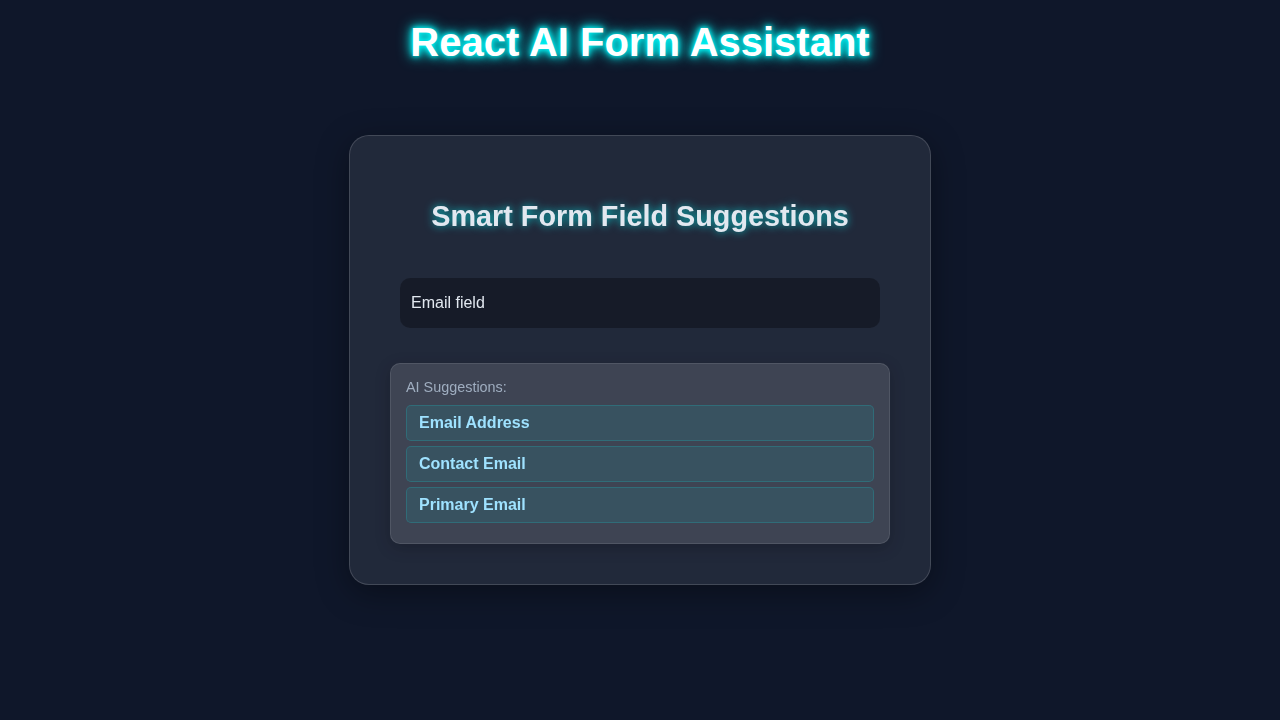
We are going to build a dynamic form. This form will offer AI-powered suggestions. Imagine a content creation form, for example. You type a title, and the AI suggests a description. You can accept the suggestion. Or, you can tweak it to perfection. This makes filling forms much faster. It also ensures quality. Our React AI Form Assistant gives users full control. They interact with an AI. Yet, they always have the final say. It’s truly the best of both worlds!
Pro Tip: Building interactive UIs like this is a core skill for modern web development. You’re not just coding; you’re crafting user experiences!
HTML Structure (JSX in React)
Our form structure is quite straightforward. It will reside within a single React component. We will use standard HTML elements. These include label, input, textarea, and button. These elements create our form fields. They also handle user interactions. This JSX code defines our component’s visual layout. It’s what users will see and click.
Here’s how we set up the basic JSX for our form assistant component:
public/index.html
<!DOCTYPE html>
<html lang="en">
  <head>
    <meta charset="utf-8" />
    <link rel="icon" href="%PUBLIC_URL%/favicon.ico" />
    <meta name="viewport" content="width=device-width, initial-scale=1" />
    <meta name="theme-color" content="#000000" />
    <meta
      name="description"
      content="Web site created using create-react-app"
    />
    <link rel="apple-touch-icon" href="%PUBLIC_URL%/logo192.png" />
    <link rel="manifest" href="%PUBLIC_URL%/manifest.json" />
    <title>React AI Form Assistant</title>
  </head>
  <body>
    <noscript>You need to enable JavaScript to run this app.</noscript>
    <div id="root"></div>
  </body>
</html>
CSS Styling
Great design makes any application better. We want our React AI Form Assistant to look professional. Our CSS will ensure a clean, modern aesthetic. We’ll use Flexbox for layout. This makes everything responsive. We’ll also add some subtle shadows. These shadows give depth to our form elements. Good styling improves user experience significantly. So, let’s make it shine!
Remember: Clean, readable code is always worth the effort. Both in your JSX and your CSS files!
src/index.css
/* src/index.css */

/* Global reset and box-sizing */
*,
*::before,
*::after {
  margin: 0;
  padding: 0;
  box-sizing: border-box;
}

/* Body styles */
body {
  font-family: Arial, Helvetica, sans-serif; /* Safe font stack */
  background-color: #0f172a; /* Dark background */
  color: #e2e8f0; /* Light text color */
  display: flex;
  justify-content: center;
  align-items: center;
  min-height: 100vh; /* Full viewport height */
  overflow: hidden; /* Prevent scrollbars */
  margin: 0; /* Ensure no default body margin */
}

/* Root element styles for React app */
#root {
  width: 100%;
  max-width: 100%;
  display: flex;
  justify-content: center;
  align-items: center;
}
src/App.css
/* src/App.css */

/* Container for the AI Form Assistant component */
.ai-form-assistant-container {
  background: rgba(255, 255, 255, 0.08); /* Semi-transparent white */
  backdrop-filter: blur(15px); /* Glassmorphism blur effect */
  -webkit-backdrop-filter: blur(15px); /* Safari support */
  border: 1px solid rgba(255, 255, 255, 0.15); /* Light border */
  border-radius: 20px; /* Rounded corners */
  padding: 40px;
  width: 90%;
  max-width: 500px;
  box-shadow: 0 8px 32px 0 rgba(0, 0, 0, 0.37); /* Subtle shadow */
  text-align: center;
  display: flex;
  flex-direction: column;
  gap: 20px;
  overflow: hidden; /* Ensure content stays within bounds */
  box-sizing: border-box; /* Include padding and border in the element's total width and height */
}

/* Heading inside the container */
.ai-form-assistant-container h2 {
  color: #e2e8f0; /* Light heading color */
  margin-bottom: 25px;
  font-size: 1.8em;
  text-shadow: 0 0 8px rgba(0, 255, 255, 0.7); /* Neon glow effect for text */
}

/* Input field group */
.input-group {
  position: relative;
  width: 100%;
}

/* AI input field styling */
.ai-input {
  width: calc(100% - 20px); /* Adjust width for padding */
  padding: 15px 10px;
  border: none;
  border-radius: 10px;
  background: rgba(0, 0, 0, 0.3); /* Darker background for input */
  color: #e2e8f0;
  font-size: 1em;
  outline: none; /* Remove default outline */
  transition: box-shadow 0.3s ease, border 0.3s ease; /* Smooth transitions */
  box-sizing: border-box;
  border: 1px solid transparent; /* Initial transparent border */
}

.ai-input::placeholder {
  color: rgba(226, 232, 240, 0.6); /* Lighter placeholder text */
}

/* Glow effect on input focus */
.ai-input:focus {
  border: 1px solid #0ff; /* Cyan border on focus */
  box-shadow: 0 0 10px rgba(0, 255, 255, 0.6); /* Cyan glow shadow */
}

/* Suggestions box styling */
.suggestions-box {
  background: rgba(255, 255, 255, 0.05); /* Lighter semi-transparent background */
  backdrop-filter: blur(8px);
  -webkit-backdrop-filter: blur(8px);
  border-radius: 10px;
  padding: 15px;
  margin-top: 15px;
  border: 1px solid rgba(255, 255, 255, 0.1);
  min-height: 80px;
  display: flex;
  flex-direction: column;
  gap: 10px;
  text-align: left;
  box-shadow: 0 4px 16px 0 rgba(0, 0, 0, 0.2);
  box-sizing: border-box;
}

.suggestions-box p {
  margin: 0;
  color: #a0aec0; /* Slightly darker text for description */
  font-size: 0.9em;
}

.suggestions-box ul {
  list-style: none; /* Remove bullet points */
  padding: 0;
  margin: 0;
}

.suggestions-box li {
  background: rgba(0, 255, 255, 0.08); /* Light cyan background for list items */
  padding: 8px 12px;
  border-radius: 5px;
  margin-bottom: 5px;
  cursor: pointer;
  transition: background 0.2s ease, transform 0.2s ease; /* Smooth hover effects */
  border: 1px solid rgba(0, 255, 255, 0.15); /* Subtle cyan border */
  color: #9fe2ff; /* Light cyan text */
  font-weight: bold;
  box-sizing: border-box;
}

/* Hover effect for suggestions */
.suggestions-box li:hover {
  background: rgba(0, 255, 255, 0.15); /* Darker cyan on hover */
  transform: translateY(-2px); /* Slight lift effect */
  box-shadow: 0 0 8px rgba(0, 255, 255, 0.4); /* Subtle glow on hover */
}

/* Loading spinner animation */
.loading-spinner {
  border: 4px solid rgba(255, 255, 255, 0.3); /* Light border */
  border-top: 4px solid #0ff; /* Cyan top border for spin effect */
  border-radius: 50%;
  width: 30px;
  height: 30px;
  animation: spin 1s linear infinite;
  align-self: center; /* Center the spinner */
  margin-top: 10px;
}

@keyframes spin {
  0% { transform: rotate(0deg); }
  100% { transform: rotate(360deg); }
}
JavaScript (React Component Logic)
Now for the brains of our operation! This is where React really shines. We’ll manage our form’s state. We will also handle user input. Furthermore, we’ll simulate AI interactions. We use React hooks like useState. These hooks keep our component logic clean and efficient. This JavaScript code brings our form to life. It handles all the interactive magic.
package.json
{
  "name": "react-ai-form-assistant",
  "version": "0.1.0",
  "private": true,
  "dependencies": {
    "react": "^18.2.0",
    "react-dom": "^18.2.0",
    "react-scripts": "5.0.1"
  },
  "scripts": {
    "start": "react-scripts start",
    "build": "react-scripts build",
    "test": "react-scripts test",
    "eject": "react-scripts eject"
  },
  "eslintConfig": {
    "extends": [
      "react-app",
      "react-app/jest"
    ]
  },
  "browserslist": {
    "production": [
      ">0.2%",
      "not dead",
      "not op_mini all"
    ],
    "development": [
      "last 1 chrome version",
      "last 1 firefox version",
      "last 1 safari version"
    ]
  }
}
src/index.js
// src/index.js
import React from 'react';
import ReactDOM from 'react-dom/client';
import './index.css'; // Import global styles
import App from './App'; // Import the main App component

// Create a root to render the React application
const root = ReactDOM.createRoot(document.getElementById('root'));

// Render the App component into the root
root.render(
  <React.StrictMode>
    <App />
  </React.StrictMode>
);
src/App.js
// src/App.js
import React, { useState, useEffect, useRef, useCallback } from 'react';
import './App.css'; // Component-specific styles

// Mock AI API call
// In a real application, this would fetch from a backend API (e.g., OpenAI, custom LLM).
const mockAIApi = async (query) => {
  return new Promise((resolve) => {
    setTimeout(() => {
      const lowerQuery = query.toLowerCase();
      let suggestions = [];

      if (lowerQuery.includes('name')) {
        suggestions = ['Full Name', 'First Name', 'Last Name', 'Middle Initial'];
      } else if (lowerQuery.includes('address')) {
        suggestions = ['Street Address', 'Apartment/Suite', 'City', 'State/Province', 'Postal Code', 'Country'];
      } else if (lowerQuery.includes('email')) {
        suggestions = ['Email Address', 'Contact Email', 'Primary Email'];
      } else if (lowerQuery.includes('phone')) {
        suggestions = ['Phone Number', 'Mobile Phone', 'Work Phone'];
      } else if (lowerQuery.includes('date')) {
        suggestions = ['Date of Birth', 'Start Date', 'End Date'];
      } else if (lowerQuery.includes('product')) {
        suggestions = ['Product Name', 'Product ID', 'Category'];
      } else if (lowerQuery.includes('description')) {
        suggestions = ['Short Description', 'Detailed Description', 'Summary'];
      } else if (lowerQuery.includes('amount')) {
        suggestions = ['Amount Due', 'Payment Amount', 'Total Amount'];
      } else if (lowerQuery.includes('password')) {
        suggestions = ['New Password', 'Confirm Password', 'Current Password'];
      } else if (lowerQuery.trim() === '') {
        suggestions = ['Type something to get suggestions...'];
      } else {
        suggestions = [`AI is thinking about "${query}"...`, 'No specific suggestions found, try a different keyword.'];
      }
      resolve(suggestions);
    }, 700); // Simulate network latency
  });
};

function App() {
  const [inputQuery, setInputQuery] = useState('');
  const [aiSuggestions, setAiSuggestions] = useState([]);
  const [isLoading, setIsLoading] = useState(false);
  const debounceTimerRef = useRef(null); // Ref to hold the debounce timer

  // useCallback to memoize the fetch logic, preventing unnecessary re-renders
  const fetchSuggestions = useCallback(async (query) => {
    if (query.trim() === '') {
      setAiSuggestions([]);
      setIsLoading(false);
      return;
    }

    setIsLoading(true);
    try {
      const suggestions = await mockAIApi(query);
      setAiSuggestions(suggestions);
    } catch (error) {
      console.error('Error fetching AI suggestions:', error);
      setAiSuggestions(['Failed to fetch suggestions. Please try again.']);
    } finally {
      setIsLoading(false);
    }
  }, []); // Empty dependency array means this function is created once

  // useEffect for debouncing API calls based on inputQuery changes
  useEffect(() => {
    // Clear previous timer on every inputQuery change or component unmount
    if (debounceTimerRef.current) {
      clearTimeout(debounceTimerRef.current);
    }

    // Set a new timer to fetch suggestions after 500ms of inactivity
    debounceTimerRef.current = setTimeout(() => {
      fetchSuggestions(inputQuery);
    }, 500);

    // Cleanup function: Clear the timer if component unmounts or inputQuery changes again
    return () => {
      if (debounceTimerRef.current) {
        clearTimeout(debounceTimerRef.current);
      }
    };
  }, [inputQuery, fetchSuggestions]); // Rerun effect when inputQuery or fetchSuggestions changes

  // Handler for input field changes
  const handleInputChange = (event) => {
    setInputQuery(event.target.value);
  };

  // Handler for clicking on a suggestion
  const handleSuggestionClick = (suggestion) => {
    setInputQuery(suggestion);
    setAiSuggestions([]); // Clear suggestions after selection
  };

  return (
    <div className="ai-form-assistant-container">
      <h2>Smart Form Field Suggestions</h2>

      <div className="input-group">
        <input
          type="text"
          className="ai-input"
          placeholder="Ask for a form field (e.g., 'address', 'name')"
          value={inputQuery}
          onChange={handleInputChange}
        />
      </div>

      <div className="suggestions-box">
        <p>AI Suggestions:</p>
        {isLoading ? (
          <div className="loading-spinner"></div>
        ) : (
          <ul>
            {aiSuggestions.length > 0 ? (
              aiSuggestions.map((suggestion, index) => (
                <li key={index} onClick={() => handleSuggestionClick(suggestion)}>
                  {suggestion}
                </li>
              ))
            ) : (
              <li>No active suggestions. Start typing!</li>
            )}
          </ul>
        )}
      </div>
    </div>
  );
}

export default App;
How It All Works Together
Let’s break down the magic. Our component combines JSX for structure. It uses CSS for style. Finally, it uses React hooks for functionality. Each part plays a crucial role. Understanding these connections is key. It helps you build more complex apps. We’ll go step-by-step through the process. You’ll see how everything communicates. This makes the whole assistant work seamlessly.
Setting Up Your React App
First, you need a React project. If you don’t have one, use Vite or Create React App. Run npm create vite@latest my-ai-form -- --template react. Then, move into your project folder. Install dependencies with npm install. Next, open your App.jsx or create a new component. Name it AIAssistantForm.jsx. This is where our code will live. It provides a clean starting point. This setup is quick and easy.
Managing Form State with useState
The core of any React form is state management. We use the useState hook for this. For example, we’ll have state for user input. We’ll also have state for the AI’s suggestions. When a user types, the state updates instantly. This ensures our form is always reactive. It displays the latest information. Keeping state organized is vital. It makes debugging much simpler. Event handlers capture user input. Then they update our state variables. This process is fundamental to React development.
Simulating AI Interaction
In a real application, you’d call an AI API. For our tutorial, we’ll simulate this. When the user clicks a button, we’ll have a function. This function will return a mock AI response. It will act like a real AI service. This allows us to focus on the React logic. We don’t get bogged down with backend details. The mock response goes into a state variable. This makes it available for display. You can later swap this out for a live API call.
Reviewing and Editing AI Suggestions
Here’s the cool part! Once the AI provides a suggestion, we display it. The user can see the AI’s idea. They also have an option to accept it. If they accept, the suggestion fills the main input field. Or, they can ignore it. They might even edit the suggestion directly. This flexibility is what makes our assistant ‘reviewable.’ It empowers the user fully. They are never locked into an AI’s output. This creates a helpful, not prescriptive, experience.
Submitting the Form
Finally, the user completes the form. They click the submit button. We prevent the default form submission. This keeps our single-page application smooth. Then, we can gather all the form data. This includes both user input and accepted AI suggestions. We might log it to the console. In a real app, you would send this data to a backend server. This finishes the user’s journey. It delivers all the compiled information. Similarly, managing side effects like data fetching often involves React useEffect Dependencies: Visual Guide.
Conditional Rendering
We use conditional rendering a lot in our component. This means showing or hiding elements based on state. For example, we only show AI suggestions when they exist. We might hide the ‘Generate Suggestion’ button after clicking it. This keeps our UI clean. It only displays relevant information. It also prevents clutter. Mastering conditional rendering is a powerful skill. It makes your user interfaces dynamic. You can learn more about related concepts in React Product Tour Tutorial: Build a Step-by-Step Guide with JSX for more advanced UI patterns.
Tips to Customise It
You’ve built a fantastic foundation! Now, how can you make it even better? Here are some ideas:
- Integrate a Real AI API: Replace our mock function. Use a service like OpenAI’s API. This makes your React AI Form Assistant truly smart.
- Add More Form Fields: Expand beyond title and description. Include fields for keywords, categories, or target audience.
- Refine UI/UX: Experiment with different layouts. Maybe use animated transitions. Explore CSS transitions to make suggestions appear smoothly.
- User Authentication: Protect your form. Add user login and registration. This secures data.
- Save Drafts: Implement local storage. Allow users to save their progress. They can return later to complete the form. This is great for user experience.
- Error Handling: Add validation for inputs. Show helpful error messages. This guides users better.
- Explore More Hooks: Consider using
useReducerfor complex state logic. Or, learn aboutuseCallbackanduseMemofor performance. Mastering Mastering React useEffect: A Visual Guide can also open up new possibilities.
Conclusion
Wow! You just built a functional React AI Form Assistant. You learned about state management. You also handled user interactions. And you even simulated AI integration! This is a huge step in your development journey. You created an interactive, smart tool. It empowers users with AI help. Yet, it keeps them in control. Feel proud of your accomplishment! Keep experimenting. Share your projects online. The developer community loves seeing new creations. Happy coding!