Developing a robust Browser Automation Script empowers you to streamline countless web-based tasks. Imagine instantly testing web applications, scraping data, or filling out forms with a single click. This guide will walk you through the fundamental design principles and practical JavaScript techniques needed to build effective automation solutions.
What We Are Building
We are diving deep into the world of automating web interactions. Our goal is to design a client-side JavaScript architecture capable of performing repetitive actions on a webpage. Think of it as teaching your browser to do tasks for you, all powered by clever code. This kind of smart scripting often involves efficient data handling, similar to how LLMs process tokens.
Browser automation is more than just a trending topic; it’s a productivity superpower. Developers use it for end-to-end testing, ensuring user flows work perfectly every time. Data analysts leverage it for web scraping, collecting valuable information from public sources. Furthermore, anyone facing monotonous click-and-type routines can benefit from a well-designed automation script.
Our design inspiration comes from the desire for efficiency and precision. We want a solution that’s adaptable, easy to understand, and robust against minor page changes. By focusing on modularity and clear intent, we can create scripts that serve various purposes, from content interaction to form submission.
HTML Structure
Our HTML provides the basic interface for our automation example. It includes a simple form and a button to trigger our script. This minimal setup allows us to focus primarily on the JavaScript logic.
index.html
<!DOCTYPE html>
<html lang="en">
<head>
    <meta charset="UTF-8">
    <meta name="viewport" content="width=device-width, initial-scale=1.0">
    <title>Browser Automation Script Design with JavaScript</title>
    <link rel="stylesheet" href="styles.css">
</head>
<body>
    <div class="tutorial-container">
        <h1>Browser Automation Script Design with JavaScript</h1>
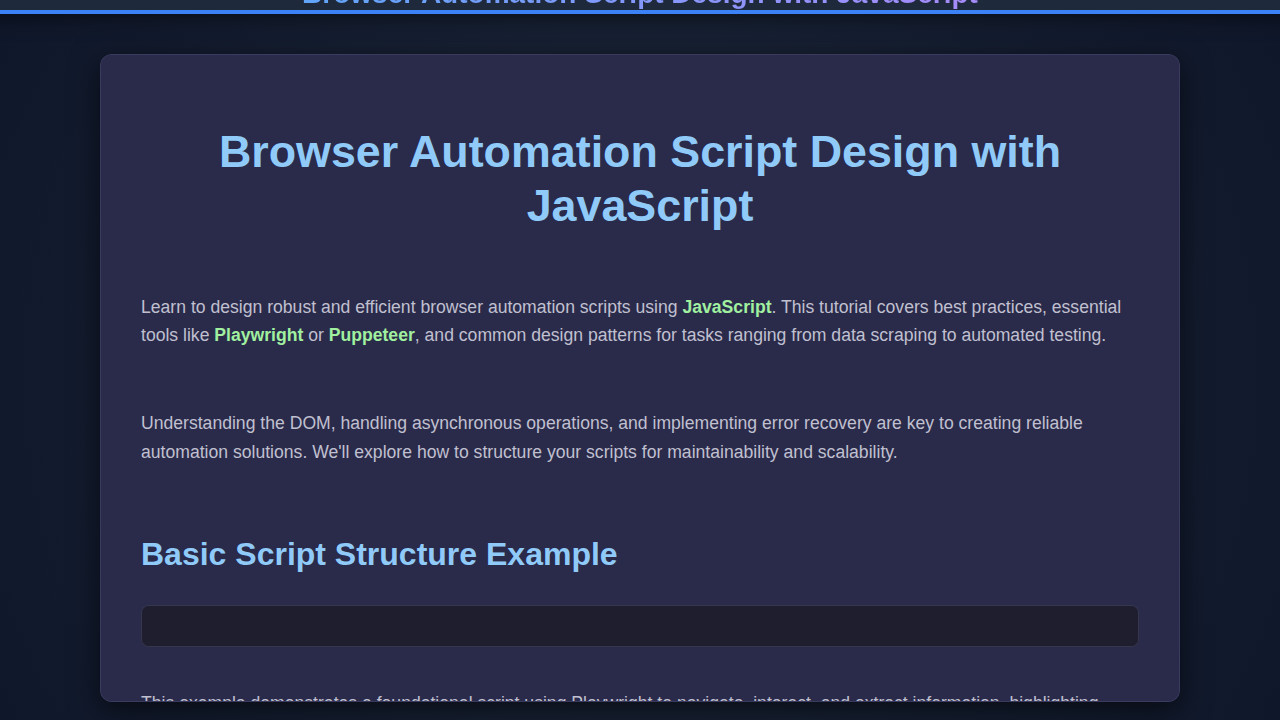
        <p>Learn to design robust and efficient browser automation scripts using <strong>JavaScript</strong>. This tutorial covers best practices, essential tools like <strong>Playwright</strong> or <strong>Puppeteer</strong>, and common design patterns for tasks ranging from data scraping to automated testing.</p>
        <p>Understanding the DOM, handling asynchronous operations, and implementing error recovery are key to creating reliable automation solutions. We'll explore how to structure your scripts for maintainability and scalability.</p>

        <h2>Basic Script Structure Example</h2>
        <div class="code-section">
            <pre><code>
const playwright = require('playwright');

(async () => {
    const browser = await playwright['chromium'].launch({ headless: false });
    const page = await browser.newPage();

    try {
        await page.goto('https://example.com');
        console.log('Navigated to example.com');

        // Example: Type into an input field
        // await page.fill('#username', 'myuser');
        // await page.fill('#password', 'mypass');
        // await page.click('#loginButton');

        // Example: Take a screenshot
        await page.screenshot({ path: 'example.png' });
        console.log('Screenshot taken: example.png');

        // Example: Extract text
        const pageTitle = await page.title();
        console.log('Page Title:', pageTitle);

    } catch (error) {
        console.error('An error occurred:', error);
    } finally {
        await browser.close();
        console.log('Browser closed.');
    }
})();
            </code></pre>
        </div>
        <p>This example demonstrates a foundational script using Playwright to navigate, interact, and extract information, highlighting crucial error handling and browser management.</p>
    </div>
</body>
</html>
CSS Styling
The CSS enhances the user experience, making our automation example look clean and functional. We’ll use basic styles to ensure readability and an intuitive layout.
styles.css
body {
    margin: 0;
    padding: 0;
    height: 100vh;
    display: flex;
    justify-content: center;
    align-items: center;
    background-color: #1a1a2e; /* Dark cinematic background */
    color: #e0e0e0; /* Light text */
    font-family: 'Arial', 'Helvetica', sans-serif;
    overflow: hidden; /* Ensure no scrollbars */
    box-sizing: border-box;
}

.tutorial-container {
    width: 90%;
    max-width: 1100px;
    min-height: 500px;
    padding: 40px;
    background-color: #2a2a4a; /* Darker main panel */
    border-radius: 12px;
    box-shadow: 0 8px 30px rgba(0, 0, 0, 0.6); /* Deep shadow */
    border: 1px solid rgba(100, 100, 150, 0.3); /* Subtle border */
    display: flex;
    flex-direction: column;
    gap: 25px;
    box-sizing: border-box;
    max-height: 90vh; /* Prevent container from going off screen vertically */
    overflow-y: auto; /* Allow scrolling if content is too long */
}

h1 {
    font-size: 2.8em;
    color: #90caf9; /* Soft blue for heading */
    margin-bottom: 0.4em;
    text-align: center;
    line-height: 1.2;
}

h2 {
    font-size: 2em;
    color: #90caf9; /* Soft blue for sub-heading */
    margin-bottom: 0.2em;
    text-align: left;
    line-height: 1.2;
}

p {
    font-size: 1.1em;
    line-height: 1.6;
    margin-bottom: 1em;
    color: #c0c0d0;
}

.code-section {
    background-color: #1e1e2e; /* Even darker for code blocks */
    border-radius: 8px;
    padding: 20px;
    border: 1px solid rgba(150, 150, 200, 0.2);
    overflow-x: auto; /* Allow horizontal scrolling for long lines */
    box-sizing: border-box; /* Ensure padding is included in width */
    max-width: 100%; /* Ensure it doesn't overflow container */
}

.code-section pre {
    margin: 0;
    padding: 0;
    font-family: 'Consolas', 'Monaco', monospace; /* Monospace for code */
    font-size: 0.95em;
    line-height: 1.5;
    color: #f8f8f2; /* Light code text */
}

.code-section pre code {
    display: block; /* Ensure code block takes full width */
}

strong {
    color: #a0f0a0; /* Highlight important terms */
}
Step-by-Step Breakdown
Creating an effective Browser Automation Script requires a systematic approach. We’ll break down the core components, focusing on JavaScript’s role in interacting with the DOM, handling events, and managing the automation flow. This section will guide you through the logic piece by piece.
1. Setting Up the Automation Core
First, we need to initialize our automation logic. We’ll wrap our script in an immediately invoked function expression (IIFE) to prevent global scope pollution. This practice keeps our variables and functions private, which is excellent for maintainability. Our script needs to wait for the DOM to be fully loaded before attempting any interactions. We achieve this with the DOMContentLoaded event listener.
Consider this crucial point:
“Effective browser automation begins with a solid foundation. Always ensure your script has access to a fully rendered DOM before executing interaction commands.”
This setup ensures our script runs reliably. We define a few global selectors to easily reference elements. These constants make our code cleaner and simpler to update.
2. Interacting with Form Elements
Browser automation often involves filling out forms. We’ll demonstrate how to select input fields and programmatically set their values. This process simulates user typing. For example, we might target an email input or a password field. We’ll use document.querySelector to grab these elements efficiently.
Furthermore, we need to handle different input types. Text inputs are straightforward, but checkboxes and radio buttons require managing their checked property. We can even simulate a select box interaction by setting the value of the <select> element directly. This flexibility is key to comprehensive automation.
3. Simulating Clicks and Events
Triggering buttons or links is a fundamental part of any automation script. JavaScript’s .click() method on an HTMLElement allows us to programmatically simulate a user’s click. This action can submit forms, navigate pages, or toggle UI elements. It’s an indispensable tool for interactive automation.
Sometimes, simply clicking isn’t enough. We might need to trigger specific events like change or input for frameworks to react correctly. We can achieve this using dispatchEvent with a custom Event object. For instance, after filling a text field, dispatching an ‘input’ event ensures any attached listeners respond as if a real user typed. Learn more about events on MDN Web Docs.
4. Implementing Conditional Logic and Loops
Automation isn’t always linear. We often need to make decisions based on page content or perform actions repeatedly. Conditional statements (if/else) allow our script to adapt. For example, if a certain element exists, perform an action; otherwise, do something else.
Loops (for, forEach, while) are invaluable for repetitive tasks. Imagine clicking through multiple pagination links or processing items in a list. A loop can automate this efficiently. We can even add a progress bar to visualize the script’s advancement when processing many items, enhancing user feedback.
5. Error Handling and Robustness
Web pages are dynamic. Elements might not load, or network requests could fail. A robust browser automation script includes error handling. Using try...catch blocks around DOM interactions or network requests prevents your script from crashing. We can also implement checks to see if an element exists before trying to interact with it.
Consider adding retry mechanisms for transient failures. If a click fails, wait a moment and try again. This approach makes your automation more resilient to minor timing issues or network glitches. Thoughtful error handling transforms a fragile script into a dependable workhorse.
Making It Responsive
While our automation script primarily interacts with existing page elements, the interface we design for triggering and managing the script should be responsive. Using flexible units like percentages and rem for sizing ensures our control panel looks good on any device. Media queries are our best friend here, allowing us to adjust layouts for smaller screens.
For example, we might stack elements vertically on mobile. On larger screens, they could display side-by-side. Prioritizing a mobile-first approach during design guarantees a solid experience across the board. This thoughtful UI design ensures anyone can easily use the automation controls, whether on a desktop or a smartphone.
Final Output
When all our components come together, the final output is a seamless, interactive experience. Users can initiate complex web tasks with minimal effort. Our HTML provides the structure, our CSS makes it visually appealing, and our JavaScript brings the automation to life. The key visual elements achieved include a clear control panel and immediate feedback on script execution.
This design creates an intuitive and efficient tool. We’ve built a system that’s not just functional, but also a pleasure to use. Our script provides a clear path for automating tasks, showing its progress or logging its actions for transparency.
Conclusion
Designing an effective browser automation script using JavaScript opens up a world of possibilities for efficiency and productivity. We explored the core principles, from setting up the environment to handling interactions and managing errors. By focusing on modularity and resilience, you can build powerful tools that save time and reduce manual effort.
The principles discussed here are applicable across many domains. Whether you’re enhancing your workflow, performing quality assurance, or gathering data, a well-crafted automation script is an invaluable asset. Keep experimenting with the DOM and event handling to unlock even more sophisticated automation capabilities. For more advanced CSS techniques, check out CSS-Tricks.