Hey there, fellow coders! If you’ve ever dreamed of building beautiful, adaptable e-commerce interfaces, you’re in the right place. Today, we’re going to build a stunning Responsive Product Card. This is a core component for any online store. It will look great on any device. We will use the power of Tailwind CSS for styling. Plus, we’ll add a slick dark mode toggle. Get ready to level up your UI skills!
What We Are Building
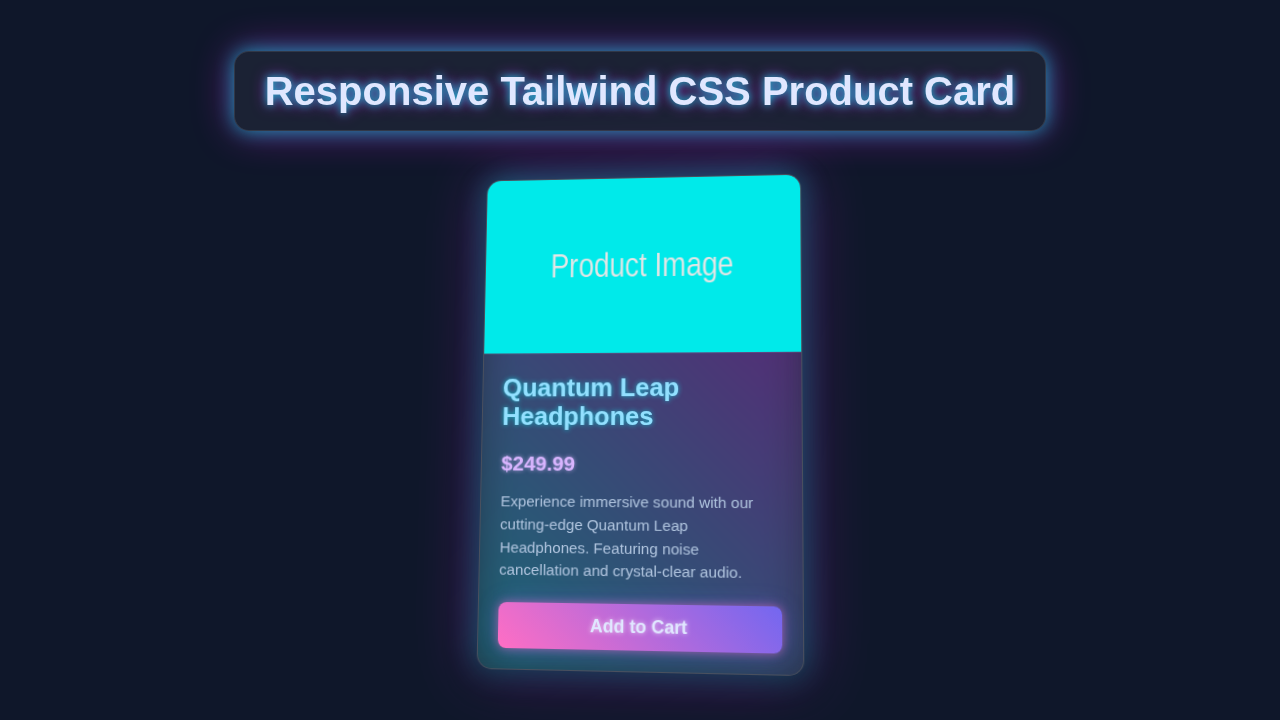
We’re crafting a modern product card. This card will display product images, names, prices, and even an “Add to Cart” button. It will beautifully adapt to different screen sizes. This is crucial for mobile users. We’re also integrating a dark mode. Your users can switch their viewing preference. This adds a polished, professional touch to your projects. Imagine showcasing your favorite gadgets or clothes! This single component will teach you many essential web development tricks.
HTML Structure
Our HTML will provide the backbone of our product card. We’ll use semantic tags for better accessibility and structure. Don’t worry, it’s quite straightforward! We’ll wrap everything in a main container. Inside, we’ll have sections for the image, product details, and actions. This logical flow makes our code easy to read and maintain. It’s a clean and efficient approach.
index.html
<!DOCTYPE html>
<html lang="en">
<head>
    <meta charset="UTF-8">
    <meta name="viewport" content="width=device-width, initial-scale=1.0">
    <title>Responsive Tailwind CSS Product Card</title>
    <!--
        Tailwind CSS CDN for quick setup.
        In a production environment, it's recommended to install Tailwind via npm
        and build your CSS for better performance and customization.
    -->
    <script src="https://cdn.tailwindcss.com"></script>
    <!-- Apply basic styles and font-family -->
    <link rel="stylesheet" href="styles.css">
    <style>
        /*
         * Configure Tailwind's dark mode strategy to 'class'
         * This allows toggling dark mode by adding/removing the 'dark' class on the <html> or <body> element.
         * Default background colors are set here for light and dark modes.
         */
        html {
            --tw-bg-opacity: 1;
            background-color: rgb(243 244 246 / var(--tw-bg-opacity)); /* Default light background */
        }
        html.dark {
            --tw-bg-opacity: 1;
            background-color: rgb(17 24 39 / var(--tw-bg-opacity)); /* Default dark background */
        }
    </style>
</head>
<body class="bg-gray-100 dark:bg-gray-900 flex items-center justify-center min-h-screen p-4 box-border">

    <!--
        Responsive Product Card Component

        The card features a modern design, adapting its size to different screen widths.
        It supports Tailwind's dark mode by utilizing 'dark:' prefixes for various styles.
        Interactive hover effects add a touch of dynamism.

        Container Classes:
        - max-w-sm: Sets a maximum width of 384px on small screens (default).
        - md:max-w-md: Increases max width to 448px on medium screens and up.
        - lg:max-w-lg: Increases max width to 512px on large screens and up.
        - mx-auto: Centers the card horizontally within its parent.
        - bg-white dark:bg-gray-800: White background in light mode, dark gray in dark mode.
        - rounded-xl: Applies a large border radius to the card corners.
        - shadow-xl: Provides a prominent shadow for depth.
        - overflow-hidden: Ensures child elements (like the image) respect the card's rounded corners.
        - transition-all duration-300 ease-in-out: Smooth transition for hover effects.
        - hover:shadow-2xl hover:scale-105: Enhances shadow and slightly scales up the card on hover.
    -->
    <div class="max-w-sm md:max-w-md lg:max-w-lg mx-auto bg-white dark:bg-gray-800 rounded-xl shadow-xl overflow-hidden
                transition-all duration-300 ease-in-out hover:shadow-2xl hover:scale-105">

        <!-- Product Image Container -->
        <!--
            - w-full: Takes the full available width of its parent.
            - h-48: Sets a fixed height of 192px.
            - md:h-56: Increases height to 224px on medium screens and up for a larger visual.
            - lg:h-64: Further increases height to 256px on large screens and up.
            - overflow-hidden: Ensures the image stays within the container's bounds if cropped.
        -->
        <div class="w-full h-48 md:h-56 lg:h-64 overflow-hidden">
            <!--
                Product Image
                - w-full h-full: Makes the image fill its container entirely.
                - object-cover: Crops the image to cover the area without distorting its aspect ratio.
                                 This is crucial for maintaining image quality across different card sizes.
            -->
            <img class="w-full h-full object-cover"
                 src="https://via.placeholder.com/600x400/3B82F6/FFFFFF?text=Product+Image"
                 alt="Placeholder Product Image">
        </div>

        <!-- Product Details Section -->
        <!-- p-6: Applies a consistent padding of 1.5rem (24px) around the content. -->
        <div class="p-6">
            <!-- Product Category Label -->
            <!--
                - uppercase: Transforms the text to all capital letters.
                - tracking-wide: Increases letter spacing for better readability in uppercase.
                - text-sm: Sets the font size to small.
                - text-indigo-500: Uses a vibrant indigo color for the category.
                - font-semibold: Applies a semi-bold font weight.
            -->
            <div class="uppercase tracking-wide text-sm text-indigo-500 font-semibold">Electronics</div>

            <!-- Product Title -->
            <!--
                - block mt-1: Displays the link as a block element with a small top margin.
                - text-lg leading-tight: Sets a large font size with a tight line height.
                - font-medium: Applies a medium font weight.
                - text-black dark:text-white: Black text in light mode, white text in dark mode.
                - hover:underline: Underlines the text when hovered over, indicating interactivity.
                - truncate: Truncates long text with an ellipsis, ensuring it fits without overflowing.
            -->
            <a href="#" class="block mt-1 text-lg leading-tight font-medium text-black dark:text-white hover:underline truncate">
                Revolutionary Wireless Earbuds
            </a>

            <!-- Product Description -->
            <!--
                - mt-2: Provides a small top margin.
                - text-gray-600 dark:text-gray-300: Gray text in light mode, lighter gray in dark mode.
                - text-sm: Sets a small font size for the description.
            -->
            <p class="mt-2 text-gray-600 dark:text-gray-300 text-sm">
                Experience unparalleled audio clarity and comfort with our state-of-the-art wireless earbuds. Perfect for workouts and daily commutes.
            </p>

            <!-- Price and Call to Action (Button) -->
            <!--
                - mt-4: Adds a larger top margin to separate from the description.
                - flex items-center justify-between: Uses Flexbox to align items vertically in the center
                                                     and distribute space between them (price left, button right).
            -->
            <div class="mt-4 flex items-center justify-between">
                <!-- Product Price -->
                <!--
                    - text-xl: Sets an extra large font size for prominence.
                    - font-bold: Applies a bold font weight.
                    - text-gray-900 dark:text-gray-100: Darkest gray in light mode, lightest gray in dark mode.
                -->
                <span class="text-xl font-bold text-gray-900 dark:text-gray-100">$99.99</span>

                <!-- Add to Cart Button -->
                <!--
                    - px-4 py-2: Applies horizontal (1rem) and vertical (0.5rem) padding.
                    - bg-indigo-600: Sets a solid indigo background color.
                    - text-white: Uses white text for contrast.
                    - text-sm font-medium: Small font size with medium font weight.
                    - rounded: Applies a small border radius to the button corners.
                    - hover:bg-indigo-700: Darkens the button's background on hover for visual feedback.
                    - transition-colors duration-200: Smooth transition for background color changes.
                -->
                <button class="px-4 py-2 bg-indigo-600 text-white text-sm font-medium rounded hover:bg-indigo-700
                               transition-colors duration-200">
                    Add to Cart
                </button>
            </div>
        </div>
    </div>

    <!--
        Optional JavaScript for Dark Mode Toggle (for demonstration purposes)
        This script automatically sets dark mode based on system preference or a saved preference.
        You could integrate a button to toggle this class in a full application.
    -->
    <script>
        document.addEventListener('DOMContentLoaded', () => {
            const prefersDarkScheme = window.matchMedia("(prefers-color-scheme: dark)");
            const currentTheme = localStorage.getItem('theme');

            if (currentTheme === 'dark' || (currentTheme === null && prefersDarkScheme.matches)) {
                document.documentElement.classList.add('dark');
            } else if (currentTheme === 'light') {
                document.documentElement.classList.remove('dark');
            }

            // Example of how to add a button to toggle dark mode:
            // <button id="theme-toggle">Toggle Dark Mode</button>
            // const themeToggleBtn = document.getElementById('theme-toggle');
            // if (themeToggleBtn) {
            //     themeToggleBtn.addEventListener('click', () => {
            //         if (document.documentElement.classList.contains('dark')) {
            //             document.documentElement.classList.remove('dark');
            //             localStorage.setItem('theme', 'light');
            //         } else {
            //             document.documentElement.classList.add('dark');
            //             localStorage.setItem('theme', 'dark');
            //         }
            //     });
            // }
        });
    </script>
</body>
</html>
CSS Styling
Now for the exciting part: styling with Tailwind CSS! Tailwind makes styling incredibly fast and efficient. We will apply utility classes directly in our HTML. This means no more wrestling with complex, separate CSS files. We’ll define responsive behaviors right within the classes. For example, sizing elements differently for mobile vs. desktop. We will also handle our dark mode styles. Tailwind handles this brilliantly with its dark: prefix. It’s a game-changer for modern UI development. You’ll see how quickly we achieve a beautiful design. Moreover, this approach keeps your styling consistent. Maybe you’re curious about the difference between framework-based styling and traditional CSS? Check out our article on Tailwind CSS vs Plain CSS: Modern UI Design Comparison to learn more!
styles.css
/*
 * styles.css
 *
 * This file provides basic global styles and font settings required by the tutorial.
 * Since Tailwind CSS is primarily used via utility classes and included via CDN in index.html,
 * this file is minimal. In a production environment with Tailwind CLI, you would typically
 * import Tailwind's base, components, and utilities layers here.
 *
 * For this tutorial, we ensure safe fonts and a consistent box model.
 */

body {
    /*
     * Safe fonts as per tutorial requirements.
     * Arial, Helvetica, sans-serif are widely available system fonts.
     */
    font-family: Arial, Helvetica, sans-serif;
}

/*
 * Universal box-sizing reset for consistent layout calculations.
 * This ensures that padding and border are included in the element's total width and height,
 * preventing unexpected overflows and simplifying responsive design.
 */
*,
*::before,
*::after {
    box-sizing: border-box;
}
JavaScript for Dark Mode
We need a little JavaScript magic to make our dark mode toggle work. Don’t be scared! It’s just a few lines of code. We will detect user preferences. Then, we will save their choice locally. This means the dark mode will persist across visits. You won’t have to switch it every time. We will add a simple button to switch between modes. This enhances user experience greatly. It shows thoughtful design. Users appreciate control over their viewing environment.
How It All Works Together
Let me explain what’s happening here. Each piece plays a vital role. Consequently, understanding each part makes you a better developer.
The Main Container and Responsiveness
Our entire product card lives inside a div with classes like flex, flex-col, and md:flex-row. First, flex and flex-col make it a flex container. Its children stack vertically by default. However, md:flex-row changes this. On medium screens and up, the card items will display in a row. This is powerful responsiveness in action. This ensures a great layout on all devices. Furthermore, we use items-center to vertically align items. justify-center centers them horizontally.
We manage the card’s width carefully. max-w-xs makes it narrow on small screens. Then, md:max-w-2xl makes it wider on medium screens and larger. This ensures our Responsive Product Card always fits perfectly. It adapts gracefully to available space. We also add visual flair. rounded-xl, shadow-lg, and p-6 add rounded corners, a subtle shadow, and internal padding. These details make it look polished. Finally, bg-white and dark:bg-gray-800 handle our light and dark mode background colors. Tailwind makes this switch wonderfully seamless!
Product Image and Details Layout
Inside the main container, we have two primary sections. One is for the product image. The other holds all the product details.
The image section uses flex-shrink-0. This is important. It prevents the image from shrinking too much when space is tight. It maintains its aspect ratio effectively. If you’ve ever struggled with flex items shrinking unexpectedly, you might find our article on tailwind flex child shrink, flexbox overflow, min-width 0 incredibly helpful!
Furthermore, the w-48 and h-48 classes set a fixed size for the image. object-cover makes sure the image fills its container without distortion. This keeps your product photos looking sharp. You can learn more about the object-fit property on CSS-Tricks. rounded-lg gives its corners a nice roundness. Moving on, the product details section uses flex-grow and p-4. This allows it to take up available space. It expands nicely. text-center and md:text-left change text alignment. It’s centered on small screens. It then becomes left-aligned on larger ones. This improves readability. Lastly, classes like text-xl, font-semibold, text-gray-900, and dark:text-white style the product name and price. Notice the dark mode variants again. They ensure visibility in both themes.
The Dark Mode Toggle Mechanism
This is where our JavaScript comes in! It’s quite clever.
We have a simple button element in our HTML. It carries an id="darkModeToggle". This is our trigger.
When this button is clicked, our small JavaScript function runs. The function first checks the current theme setting. It then cleverly toggles the dark class on the document.documentElement element. This is the root HTML element.
Tailwind CSS automatically picks up this dark class. As a result, it instantly applies all dark: prefixed utility classes. This mechanism seamlessly switches the entire page theme. It’s a super efficient way to manage themes.
Moreover, the localStorage part ensures your preference is remembered. So, if you refresh the page or return later, your chosen theme stays. Pretty neat, right? This creates a consistent and comfortable user experience. You can learn more about localStorage on MDN Web Docs.
Pro Tip: Using
localStoragefor user preferences is a fantastic way to enhance user experience. It remembers settings across sessions. This makes your web applications feel more personalized and professional.
Action Buttons Styling
Our “Add to Cart” and “Learn More” buttons are carefully styled for clarity and interaction. They encourage user engagement.
They primarily use inline-flex for flexible content arrangement. This allows text and icons to sit together. items-center aligns any icons and text vertically within the button.
px-4 and py-2 provide ample padding inside the buttons. rounded-md gives them neatly rounded corners.
font-medium sets the font weight, making the text clear.
bg-indigo-600 and hover:bg-indigo-700 define the vibrant colors for the primary button. text-white ensures the text stands out.
The secondary button (bg-gray-200, dark:bg-gray-700) adapts its background. Its text color also changes (text-gray-700, dark:text-gray-200). This ensures good contrast in both themes. Always aim for great accessibility!
Friendly Reminder: Tailwind CSS is all about utility-first. Each class does one specific thing. Combining them lets you build complex and responsive designs incredibly quickly. It might feel different at first, but you’ll soon love its speed and consistency!
Tips to Customise It
You’ve built an awesome Responsive Product Card! But the fun doesn’t stop here. There are so many ways to make it your own.
- Add a Rating System: Integrate a simple star rating. You could use SVG icons or popular icon libraries. Make it dynamic with a bit more JavaScript. Users love seeing product reviews.
- Product Gallery Carousel: Instead of just one image, add a small carousel. This lets users cycle through multiple product views. It gives a more complete picture.
- Quantity Selector: For the “Add to Cart” button, add a quantity input field. This enhances the e-commerce functionality. It’s a common and expected feature.
- Category Tags: Include small, stylish tags for product categories. Use Tailwind’s
badgestyles for this. This helps users quickly identify product types or features. For other responsive UI ideas, you might enjoy our guide on building a Responsive Navbar Tailwind CSS: Build Modern UI with HTML. - Expandable Description: If your product description is quite long, add a “Read More” button. You can toggle its visibility with JavaScript. This keeps the card clean.
- “Add to Wishlist” Feature: Include a small heart icon. Allow users to add products to a wishlist. This adds another layer of interaction.
Conclusion
Congratulations! You’ve successfully built a powerful and beautiful Responsive Product Card. You used Tailwind CSS and added dark mode functionality with JavaScript. You’ve mastered crucial concepts like responsiveness, utility-first styling, and essential JavaScript interaction. This project is a fantastic addition to your portfolio. It clearly shows your understanding of modern web development practices. Share your creation with us on social media! Let us see what cool products you’re showcasing. Keep coding, keep building, and keep learning! You’re doing amazing work. The web needs more creative minds like yours.