Custom Checkboxes Radio: HTML CSS Styling Tutorial
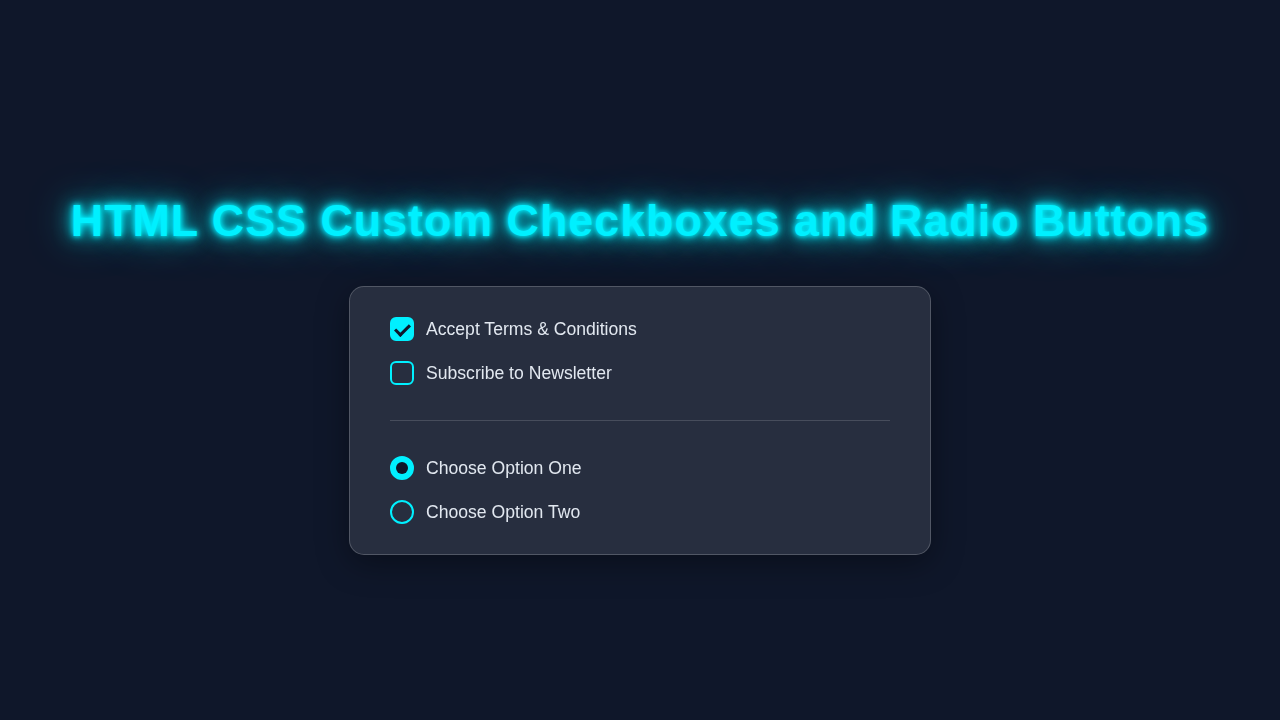
Hey there, future web wizard! If you’ve ever wanted to style your form inputs beyond their default look, you’re in the right place. Today, we’re diving deep into creating beautiful Custom Checkboxes Radio buttons. We will make them pop with pure HTML and CSS. Get ready to add some serious flair to your forms!
What We Are Building
Imagine your forms having a sleek, modern, and perfectly branded feel. No more drab, default checkboxes or radio buttons! We are going to craft our very own interactive elements. These will be visually stunning. They will also be fully accessible. We will use clever CSS pseudo-elements. This project transforms basic form inputs. It makes them engaging and fun for your users. Think about a custom design that matches your site’s aesthetic! You will feel so proud of your custom creations.
HTML Structure
First, let’s lay down the foundation with our HTML. We will use standard <input type='checkbox'> and <input type='radio'> elements. The trick is to hide them visually. Then, we will create our custom look-alikes. We’ll use <label> elements for great accessibility. This connects our custom design to the actual input. Here’s what our basic structure looks like:
index.html
<!DOCTYPE html>
<html lang="en">
<head>
    <meta charset="UTF-8">
    <meta name="viewport" content="width=device-width, initial-scale=1.0">
    <title>HTML CSS Custom Checkboxes and Radio Buttons</title>
    <!-- Link to the external stylesheet -->
    <link rel="stylesheet" href="styles.css">
</head>
<body>
    <div class="container">
        <h1>Customize Your Input: Checkboxes & Radio Buttons</h1>

        <p>Simple and accessible custom styled form controls using only HTML and CSS.</p>

        <div class="form-group">
            <h2>Custom Checkboxes</h2>
            <label class="custom-control">
                <input type="checkbox" name="acceptTerms" id="acceptTerms" checked>
                <span class="custom-indicator custom-checkbox-indicator"></span>
                Accept Terms and Conditions
            </label>

            <label class="custom-control">
                <input type="checkbox" name="newsletter" id="newsletter">
                <span class="custom-indicator custom-checkbox-indicator"></span>
                Subscribe to our Newsletter
            </label>

            <label class="custom-control">
                <input type="checkbox" name="rememberMe" id="rememberMe">
                <span class="custom-indicator custom-checkbox-indicator"></span>
                Remember Me
            </label>
        </div>

        <div class="form-group">
            <h2>Custom Radio Buttons</h2>
            <label class="custom-control">
                <input type="radio" name="deliveryOption" id="standardDelivery" value="standard" checked>
                <span class="custom-indicator custom-radio-indicator"></span>
                Standard Delivery (3-5 business days)
            </label>

            <label class="custom-control">
                <input type="radio" name="deliveryOption" id="expressDelivery" value="express">
                <span class="custom-indicator custom-radio-indicator"></span>
                Express Delivery (1-2 business days)
            </label>

            <label class="custom-control">
                <input type="radio" name="deliveryOption" id="pickup" value="pickup">
                <span class="custom-indicator custom-radio-indicator"></span>
                Store Pickup (same day)
            </label>
        </div>

        <button class="submit-button">Submit Form</button>
    </div>
</body>
</html>
We wrap each input and its corresponding label in a <div>. This helps with layout. It also gives us a clear container for styling. Notice the for attribute on the label. It matches the id of the input. This is crucial for accessibility!
CSS Styling
Now for the fun part: making our inputs shine with CSS! We will visually hide the browser’s default inputs. Then, we use the ::before and ::after pseudo-elements. These will build our custom checkbox and radio button designs. We’ll also add smooth transitions. This provides a delightful user experience. Let’s make some magic happen:
styles.css
/*
    Custom Checkboxes and Radio Buttons
    Technology: HTML and CSS only
    Author: Your Name/UI/UX Developer
    Description: Provides accessible and visually appealing custom checkboxes and radio buttons.
*/

/* --- Base Styles & Resets --- */
*, *::before, *::after {
    box-sizing: border-box; /* Ensure padding and border are included in the element's total width and height */
}

body {
    font-family: Arial, Helvetica, sans-serif; /* Safe fonts */
    margin: 0;
    padding: 20px;
    background-color: #f4f7f6; /* Light background for the tutorial */
    color: #333;
    line-height: 1.6;
    display: flex; /* Center the container */
    justify-content: center;
    align-items: flex-start; /* Align to start for natural flow with scrolling */
    min-height: 100vh;
}

.container {
    max-width: 800px; /* Limit content width */
    width: 100%; /* Make it responsive */
    background-color: #fff;
    padding: 30px 40px;
    border-radius: 8px;
    box-shadow: 0 4px 15px rgba(0, 0, 0, 0.1);
    margin: 20px 0; /* Add margin top/bottom */
}

h1, h2 {
    color: #2c3e50;
    margin-top: 0;
    margin-bottom: 20px;
}

h1 {
    font-size: 2.2em;
    border-bottom: 2px solid #e0e0e0;
    padding-bottom: 10px;
    margin-bottom: 25px;
}

h2 {
    font-size: 1.6em;
    margin-top: 30px;
    margin-bottom: 15px;
}

p {
    margin-bottom: 20px;
    color: #555;
}

.form-group {
    margin-bottom: 30px;
    padding-bottom: 20px;
    border-bottom: 1px dashed #e0e0e0;
}

.form-group:last-of-type {
    border-bottom: none;
    margin-bottom: 20px;
}

/* --- Custom Control Styling --- */

/* Hide the default browser input (checkbox/radio) */
.custom-control input {
    position: absolute; /* Take out of flow */
    opacity: 0; /* Make invisible */
    width: 0;
    height: 0;
    pointer-events: none; /* Ensure it doesn't interfere with pointer events */
}

/* The label acts as the clickable area */
.custom-control {
    display: flex; /* Align indicator and text */
    align-items: center;
    cursor: pointer;
    position: relative; /* For absolute positioning of indicator if needed, though not here */
    user-select: none; /* Prevent text selection */
    margin-bottom: 15px;
    font-size: 1em;
    color: #444;
}

/* The custom indicator (our visual checkbox/radio) */
.custom-indicator {
    display: inline-block;
    width: 20px; /* Size of the custom control */
    height: 20px; /* Size of the custom control */
    border: 2px solid #888; /* Default border color */
    margin-right: 12px; /* Space between indicator and text */
    flex-shrink: 0; /* Prevent the indicator from shrinking */
    transition: all 0.2s ease-in-out; /* Smooth transitions for visual changes */
    position: relative; /* For pseudo-elements (checkmark/radio dot) */
    box-sizing: border-box; /* Crucial for consistent sizing */
    background-color: #fff; /* Default background */
}

/* Hover state for the indicator */
.custom-control:hover .custom-indicator {
    border-color: #007bff; /* Primary blue on hover */
    box-shadow: 0 0 5px rgba(0, 123, 255, 0.4);
}

/* Focus state for accessibility (when tabbing) */
.custom-control input:focus-visible ~ .custom-indicator {
    outline: 3px solid rgba(0, 123, 255, 0.5); /* Blue outline for focus */
    outline-offset: 3px;
}

/* --- Checkbox Specific Styles --- */
.custom-checkbox-indicator {
    border-radius: 4px; /* Slightly rounded corners for checkbox */
}

/* Checkmark styling (hidden by default) */
.custom-checkbox-indicator::after {
    content: '';
    position: absolute;
    display: none; /* Hidden until checked */
    left: 6px; /* Position of the checkmark */
    top: 2px; /* Position of the checkmark */
    width: 5px;
    height: 10px;
    border: solid #fff; /* White checkmark */
    border-width: 0 3px 3px 0; /* Only right and bottom borders for 'V' shape */
    transform: rotate(45deg); /* Rotate to make it a checkmark */
}

/* When the checkbox is checked */
.custom-control input[type="checkbox"]:checked ~ .custom-checkbox-indicator {
    background-color: #007bff; /* Blue background when checked */
    border-color: #007bff; /* Blue border when checked */
}

/* Show the checkmark when the checkbox is checked */
.custom-control input[type="checkbox"]:checked ~ .custom-checkbox-indicator::after {
    display: block; /* Show the checkmark */
}

/* --- Radio Button Specific Styles --- */
.custom-radio-indicator {
    border-radius: 50%; /* Circle shape for radio button */
}

/* Inner dot for radio button (hidden by default) */
.custom-radio-indicator::after {
    content: '';
    position: absolute;
    display: none; /* Hidden until checked */
    top: 50%;
    left: 50%;
    width: 10px; /* Size of the inner dot */
    height: 10px; /* Size of the inner dot */
    border-radius: 50%;
    background: #fff; /* White inner dot */
    transform: translate(-50%, -50%); /* Center the dot */
    transition: background 0.2s ease-in-out;
}

/* When the radio button is checked */
.custom-control input[type="radio"]:checked ~ .custom-radio-indicator {
    background-color: #007bff; /* Blue background when checked */
    border-color: #007bff; /* Blue border when checked */
}

/* Show the inner dot when the radio button is checked */
.custom-control input[type="radio"]:checked ~ .custom-radio-indicator::after {
    display: block; /* Show the inner dot */
}


/* --- Button Style --- */
.submit-button {
    display: block;
    width: 100%;
    padding: 12px 20px;
    background-color: #28a745; /* Green button */
    color: #fff;
    border: none;
    border-radius: 5px;
    font-size: 1.1em;
    cursor: pointer;
    transition: background-color 0.3s ease, box-shadow 0.3s ease;
    margin-top: 30px;
}

.submit-button:hover {
    background-color: #218838;
    box-shadow: 0 4px 8px rgba(0, 0, 0, 0.2);
}

.submit-button:focus-visible {
    outline: 3px solid rgba(40, 167, 69, 0.5);
    outline-offset: 3px;
}

/* Responsive adjustments */
@media (max-width: 600px) {
    .container {
        padding: 20px;
    }

    h1 {
        font-size: 1.8em;
    }

    h2 {
        font-size: 1.4em;
    }

    .custom-control {
        font-size: 0.95em;
    }

    .submit-button {
        font-size: 1em;
        padding: 10px 15px;
    }
}
That’s a lot of CSS, but don’t worry! We will break it down soon. This code handles everything from hiding the native elements to drawing our custom shapes. It also manages the checked states and hover effects. You will love how clean and interactive it looks.
JavaScript (not applicable for this tutorial)
You might wonder about JavaScript. For this project, we are keeping things pure HTML and CSS! Our custom checkboxes and radio buttons will be fully functional. No complex scripting is needed. This shows the power of modern CSS. You can achieve amazing interactive elements with just styles. That’s a huge win for performance and simplicity!
How It All Works Together
Let’s unpack the magic behind our custom form elements. Understanding each piece helps you customize it later. We will walk through the core concepts step-by-step. Get ready to learn some neat CSS tricks!
Hiding the Native Inputs
Firstly, we use position: absolute; opacity: 0; and pointer-events: none; on the actual <input type="checkbox"> and <input type="radio"> elements. This makes them invisible and non-interactive to the user. However, they remain in the DOM. Screen readers and assistive technologies can still interact with them. This is key for accessibility. It ensures our forms are usable by everyone. We also add height: 0; width: 0; to make them take no space. This is a very common and effective technique.
Pro Tip: Using
opacity: 0;instead ofdisplay: none;orvisibility: hidden;for hiding inputs is better for accessibility. The element remains in the tab order. It can still be focused by keyboard users. This is essential for a good user experience.
Styling the Custom Look
The visual custom element lives on the <label>. Specifically, we use the ::before pseudo-element of the label. We give it a fixed width and height. It also gets a border and a border-radius. The border-radius determines if it’s a square (checkbox) or a circle (radio button). We position it relative to the label. This makes sure it sits nicely next to the text. We also add a background color. This makes it visible. Learn more about ::before on MDN.
Creating the Checkmark or Dot
When an input is checked, we need to show an indicator. We use the ::after pseudo-element of the label for this. For checkboxes, ::after becomes a rotated rectangle. This creates a satisfying checkmark. For radio buttons, it’s a smaller, solid circle. We control its appearance with opacity and transform properties. These are initially hidden. They only become visible when the associated input is :checked. We add smooth transition effects. This makes the checkmark or dot appear gracefully. It’s a small detail that adds a lot to the user experience.
Handling Checked and Focus States
The magic happens with the :checked pseudo-class. When the actual invisible input is checked, we target its sibling label. We then style the label’s ::before and ::after pseudo-elements. For example, input:checked + label::before changes the border color. input:checked + label::after makes the checkmark or dot visible. We also handle the :focus state. When a user tabs to an input, its label gets a distinct outline. This is incredibly important for keyboard navigation. It ensures our forms are fully accessible. Check out our post on Accessible Hamburger Menu: HTML & CSS Only Tutorial for more accessibility tips.
Remember This! The
+(adjacent sibling combinator) is key. It targets the label that immediately follows the input. This way, the input’s state controls the label’s appearance. It’s a powerful CSS selector!
Tips to Customise It
You just built functional, beautiful **Custom Checkboxes Radio** buttons! Now, let’s make them uniquely yours. Here are some ideas to extend your project:
- Change Shapes and Sizes: Adjust the
width,height, andborder-radiusof the::beforeelement. Try an oval for radio buttons, or a star for checkboxes! - Animated Checkmarks: Experiment with more complex
transformproperties for the::afterelement. You could make the checkmark draw itself in. Or have the radio dot expand from the center. - Color Palettes: Update the
background-color,border-color, andcolorvalues. Match them to your website’s brand identity. You can create different themes. - Interactive Hover Effects: Add a subtle shadow or a slight color change on the label’s
:hoverstate. This provides visual feedback to users before they click. - SVG Icons: Instead of CSS shapes, use SVG images for your checkmark or radio dot. This offers endless design possibilities. You can embed them directly in your CSS.
- Group Styling: If you have groups of checkboxes or radio buttons, add specific styles. For example, you might highlight the entire group when one is selected. This improves clarity. You could explore techniques similar to those in Liquid Glass Tab Bar HTML CSS: Elegant Navigation Tutorial for grouping effects.
- Advanced Accessibility: Beyond focus styles, consider adding
aria-checkedattributes dynamically if you *do* add JavaScript for other functionalities. CSS-Tricks has more great advice on accessible custom forms.
Conclusion
Wow, you just built something awesome! You transformed plain old form inputs into stylish, interactive components. Your forms will look amazing now. This skill is super valuable for any web project. Go ahead, experiment with colors, shapes, and animations. Share your creations on social media! Tag us so we can see your fantastic work. Keep coding, and keep building beautiful web experiences! You’ve officially leveled up your CSS skills. Maybe your next project will be something like Liquid Glass Tabs CSS: Build a Dynamic HTML/CSS Tab Bar?