Hey there, pro coder! If you’ve ever wanted to build a web application but felt lost, you’re in the right spot. We will build a cool Flask To-Do App today. This project is perfect for new web developers. You will learn so much, and you will have a working app by the end. Get ready for some fun!
What We Are Building
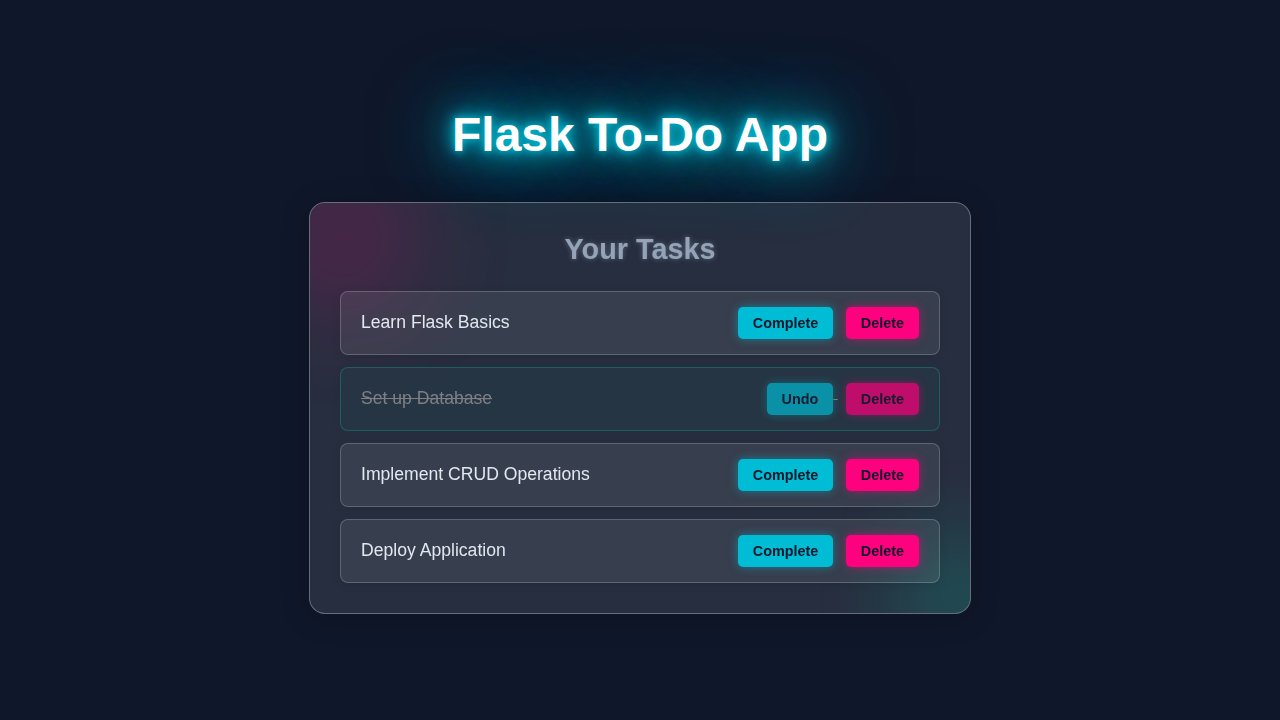
So, what are we creating together? We’re going to build a simple, yet incredibly functional, To-Do list web app. You will be able to add new tasks easily. Moreover, you can mark tasks as complete. And indeed, you can also delete tasks you no longer need. This application will use Python Flask for its backend magic. Furthermore, SQLite will handle all our data storage. It’s a fantastic, hands-on way to see how web applications truly work from start to finish. Imagine organizing your daily tasks with your very own creation! It’s super useful and a great learning tool for anyone curious about web development.
HTML Structure: The Skeleton of Your App
First, let’s look at the HTML. This is the basic structure, the skeleton of our web page. It defines where your tasks will appear. It also contains the form you will use to add new tasks. We are keeping it simple and clean for clarity. Consequently, it is easy to understand. Here’s the code that brings our page to life:
templates/index.html
<!-- templates/index.html -->
<!DOCTYPE html>
<html lang="en">
<head>
    <meta charset="UTF-8">
    <meta name="viewport" content="width=device-width, initial-scale=1.0">
    <title>Flask To-Do App</title>
    <!-- Link to the external stylesheet. Flask's url_for is used to correctly locate static files. -->
    <link rel="stylesheet" href="{{ url_for('static', filename='styles.css') }}">
</head>
<body>
    <div class="container">
        <h1>Your Flask To-Do List</h1>

        <!-- Form for adding new tasks -->
        <form action="{{ url_for('add_task') }}" method="POST" class="add-task-form">
            <!-- 'required' attribute prevents submitting an empty task -->
            <input type="text" name="task" placeholder="Add a new To-Do item..." required>
            <button type="submit">Add Task</button>
        </form>

        <!-- Display tasks -->
        <ul class="task-list">
            <!-- Jinja2 loop to iterate over the 'tasks' list passed from the Flask backend -->
            {% if tasks %}
                {% for task in tasks %}
                    <!-- Apply 'completed' class if the task is marked as completed -->
                    <li class="task-item {% if task.completed %}completed{% endif %}">
                        <span class="task-text">{{ task.task }}</span>
                        <div class="task-actions">
                            <!-- Form for completing/uncompleting task -->
                            <!-- Each action (complete/undo, delete) uses its own form for POST requests -->
                            <form action="{{ url_for('complete_task', task_id=task.id) }}" method="POST" style="display:inline;">
                                <button type="submit" class="button {% if task.completed %}undo-button{% else %}complete-button{% endif %}">
                                    {% if task.completed %}Undo{% else %}Complete{% endif %}
                                </button>
                            </form>
                            <!-- Form for deleting task -->
                            <form action="{{ url_for('delete_task', task_id=task.id) }}" method="POST" style="display:inline;">
                                <button type="submit" class="button delete-button">Delete</button>
                            </form>
                        </div>
                    </li>
                {% endfor %}
            {% else %}
                <!-- Message displayed if there are no tasks -->
                <p class="no-tasks">No tasks yet! Add one above.</p>
            {% endif %}
        </ul>
    </div>
</body>
</html>
CSS Styling: Making Your Flask To-Do App Look Great
Next up is our CSS. This is where we add the visual flair. It truly makes your Flask To-Do App look good. We will apply some basic yet effective styling. This ensures excellent readability and a pleasant user experience. No more boring plain text for your tasks! Therefore, your app will be both functional and aesthetically pleasing. Here’s how we style it:
static/styles.css
/* static/styles.css */

/* Global styles for body */
body {
    font-family: Arial, Helvetica, sans-serif; /* Safe, common sans-serif font */
    background-color: #f4f7f6; /* Light background for the actual app */
    color: #333; /* Dark grey text */
    margin: 0;
    padding: 20px;
    display: flex;
    justify-content: center;
    align-items: flex-start; /* Align to top for longer content to prevent stretching */
    min-height: 100vh; /* Ensure body takes full viewport height */
    box-sizing: border-box; /* Include padding and border in the element's total width and height */
    overflow-x: hidden; /* Prevent horizontal scrollbars */
}

/* Main container for the To-Do app */
.container {
    background-color: #ffffff;
    padding: 30px;
    border-radius: 10px;
    box-shadow: 0 4px 15px rgba(0, 0, 0, 0.1); /* Subtle shadow for depth */
    width: 100%;
    max-width: 700px; /* Max width for readability */
    margin-top: 50px; /* Space from top of the viewport */
    box-sizing: border-box;
}

/* Heading style */
h1 {
    text-align: center;
    color: #34495e;
    margin-bottom: 30px;
    font-size: 2.2em;
}

/* Form for adding new tasks */
.add-task-form {
    display: flex;
    margin-bottom: 30px;
    gap: 10px; /* Space between input field and button */
}

.add-task-form input[type="text"] {
    flex-grow: 1; /* Allow input to take available space */
    padding: 12px 15px;
    border: 2px solid #ccc;
    border-radius: 8px;
    font-size: 1em;
    outline: none;
    transition: border-color 0.3s ease;
    box-sizing: border-box; /* Include padding and border in the element's total width and height */
    max-width: 100%; /* Ensure input doesn't overflow */
}

.add-task-form input[type="text"]:focus {
    border-color: #007bff; /* Highlight on focus */
}

.add-task-form button {
    padding: 12px 20px;
    background-color: #007bff; /* Primary blue button */
    color: white;
    border: none;
    border-radius: 8px;
    cursor: pointer;
    font-size: 1em;
    font-weight: bold;
    transition: background-color 0.3s ease, transform 0.2s ease;
    box-sizing: border-box;
    max-width: 100%; /* Ensure button doesn't overflow */
}

.add-task-form button:hover {
    background-color: #0056b3; /* Darker blue on hover */
    transform: translateY(-1px); /* Slight lift effect */
}

.add-task-form button:active {
    transform: translateY(0); /* Reset on click */
}

/* Task list styles */
.task-list {
    list-style: none;
    padding: 0;
    margin: 0;
}

.task-item {
    display: flex;
    justify-content: space-between;
    align-items: center;
    background-color: #f8f9fa;
    border: 1px solid #e0e0e0;
    padding: 15px 20px;
    margin-bottom: 12px;
    border-radius: 8px;
    transition: all 0.3s ease;
    box-sizing: border-box;
    max-width: 100%;
}

.task-item:hover {
    box-shadow: 0 2px 8px rgba(0, 0, 0, 0.08); /* Enhance shadow on hover */
}

.task-item.completed {
    background-color: #e9ecef;
    text-decoration: line-through;
    color: #888;
    border-color: #d0d0d0;
    opacity: 0.8;
}

.task-text {
    flex-grow: 1;
    font-size: 1.1em;
    word-break: break-word; /* Ensure long words break to fit container */
    margin-right: 15px; /* Space between text and buttons */
    /* Max width to prevent text from pushing buttons off screen in narrow layouts */
    max-width: calc(100% - 180px); /* Approx width of buttons (2 buttons * 80px width + gap) */
}

.task-actions {
    display: flex;
    gap: 8px;
    flex-shrink: 0; /* Prevent buttons from shrinking on smaller screens */
}

.button {
    padding: 8px 15px;
    border: none;
    border-radius: 5px;
    cursor: pointer;
    font-size: 0.9em;
    font-weight: bold;
    transition: background-color 0.3s ease, transform 0.2s ease;
    box-sizing: border-box;
}

.complete-button {
    background-color: #28a745; /* Green for complete */
    color: white;
}

.complete-button:hover {
    background-color: #218838;
    transform: translateY(-1px);
}

.undo-button {
    background-color: #ffc107; /* Yellow for undo */
    color: #333;
}

.undo-button:hover {
    background-color: #e0a800;
    transform: translateY(-1px);
}

.delete-button {
    background-color: #dc3545; /* Red for delete */
    color: white;
}

.delete-button:hover {
    background-color: #c82333;
    transform: translateY(-1px);
}

.button:active {
    transform: translateY(0);
}

/* Message for no tasks */
.no-tasks {
    text-align: center;
    color: #6c757d;
    font-style: italic;
    margin-top: 20px;
}

/* Responsive adjustments for smaller screens */
@media (max-width: 550px) {
    .container {
        margin-top: 20px;
        padding: 20px;
    }

    h1 {
        font-size: 1.8em;
    }

    .add-task-form {
        flex-direction: column; /* Stack input and button vertically */
        gap: 15px;
    }

    .add-task-form button {
        width: 100%; /* Make button full width */
    }

    .task-item {
        flex-direction: column; /* Stack task text and actions vertically */
        align-items: flex-start;
        padding: 15px;
    }

    .task-text {
        margin-right: 0; /* Remove right margin */
        margin-bottom: 10px;
        max-width: 100%; /* Allow text to take full width */
    }

    .task-actions {
        width: 100%;
        justify-content: flex-end; /* Align buttons to the right */
        gap: 5px;
    }

    .button {
        flex-grow: 1; /* Make buttons grow to fill space */
        padding: 10px;
        font-size: 0.85em;
    }
}
JavaScript: Adding Interactivity
We also need a tiny bit of JavaScript. This makes our app truly interactive. It lets you mark tasks as complete. It also helps manage their visual state instantly. Don’t worry, it’s very straightforward. This enhances the user experience nicely. Moreover, it demonstrates simple client-side interaction. Check out this simple script:
main.py
# main.py
import sqlite3
import os
from flask import Flask, render_template, request, redirect, url_for, g

# --- Flask App Configuration ---
app = Flask(__name__)
# Set a secret key for session management (important for production)
app.config['SECRET_KEY'] = 'a_very_secret_key_for_flask_session_security' # In production, use os.environ.get('SECRET_KEY')
# Define the SQLite database file name
app.config['DATABASE'] = 'todo_app.db'

# --- Database Setup and Management ---

def get_db():
    """Establishes a database connection or returns the existing one within the current application context."""
    # Check if a database connection already exists in the global 'g' object
    if 'db' not in g:
        # If not, create a new connection to the SQLite database
        g.db = sqlite3.connect(
            app.config['DATABASE'],
            detect_atypes=sqlite3.PARSE_DECLTYPES # Parses types like DATE, TIMESTAMP
        )
        g.db.row_factory = sqlite3.Row # Allows accessing columns by name (e.g., row['task'])
    return g.db

def close_db(e=None):
    """Closes the database connection if it exists in the global 'g' object."""
    # Pop the 'db' connection from 'g'; returns None if not present
    db = g.pop('db', None)
    if db is not None:
        db.close() # Close the connection

def init_db():
    """Initializes the database schema by executing SQL commands from 'schema.sql'."""
    db = get_db() # Get a database connection
    # Open and read the schema.sql file from the application's root directory
    with app.open_resource('schema.sql', mode='r') as f:
        db.cursor().executescript(f.read()) # Execute all SQL commands in the file
    db.commit() # Commit the changes to the database

@app.before_request
def before_request():
    """Ensures the database exists and is initialized before processing the first request."""
    # This function is called before each request.
    # It ensures that if the database file does not exist, it gets created and initialized.
    if not os.path.exists(app.config['DATABASE']):
        print(f"Database file '{app.config['DATABASE']}' not found. Initializing database...")
        # Use app_context to ensure 'get_db()' works correctly outside of a request context initially
        with app.app_context():
            init_db()

@app.teardown_appcontext
def teardown_db(exception):
    """Registers the close_db function to be called when the application context tears down."""
    # This ensures the database connection is properly closed after each request or app shutdown.
    close_db()

# --- Routes ---

@app.route('/')
def index():
    """
    Renders the main To-Do list page.
    Fetches all tasks from the database, ordered by completion status (uncompleted first) and ID.
    """
    db = get_db() # Get a database connection
    # Execute a query to select all tasks
    # ORDER BY completed ensures uncompleted tasks appear at the top
    # ORDER BY id DESC makes newer tasks (with higher IDs) appear first within their completion group
    tasks = db.execute('SELECT id, task, completed FROM tasks ORDER BY completed, id DESC').fetchall()
    # Render the 'index.html' template, passing the fetched tasks
    return render_template('index.html', tasks=tasks)

@app.route('/add', methods=('POST',))
def add_task():
    """
    Handles the addition of a new To-Do task via a POST request.
    The task description is expected in the form data under the 'task' key.
    """
    task = request.form['task'].strip() # Get task description from form and remove leading/trailing whitespace
    if task: # Only add if the task description is not empty
        db = get_db()
        # Insert the new task into the database; 'completed' defaults to 0 (false)
        db.execute('INSERT INTO tasks (task) VALUES (?)', (task,))
        db.commit() # Commit the transaction to save changes
    # Redirect back to the main page after adding the task
    return redirect(url_for('index'))

@app.route('/complete/<int:task_id>', methods=('POST',))
def complete_task(task_id):
    """
    Toggles the 'completed' status of a specific To-Do task.
    Expects the task ID as part of the URL path.
    """
    db = get_db()
    # Fetch the current 'completed' status of the task
    current_status = db.execute('SELECT completed FROM tasks WHERE id = ?', (task_id,)).fetchone()
    if current_status: # If the task exists
        new_status = not current_status['completed'] # Invert the current boolean status
        # Update the task's 'completed' status in the database
        db.execute('UPDATE tasks SET completed = ? WHERE id = ?', (new_status, task_id))
        db.commit()
    # Redirect back to the main page
    return redirect(url_for('index'))

@app.route('/delete/<int:task_id>', methods=('POST',))
def delete_task(task_id):
    """
    Deletes a To-Do task from the database.
    Expects the task ID as part of the URL path.
    """
    db = get_db()
    # Delete the task with the given ID
    db.execute('DELETE FROM tasks WHERE id = ?', (task_id,))
    db.commit()
    # Redirect back to the main page
    return redirect(url_for('index'))

# --- Running the App ---
if __name__ == '__main__':
    # This block executes when the script is run directly.
    # Ensures that the database is initialized before the app starts serving requests.
    with app.app_context():
        # This explicitly tells Flask to create an application context
        # so that get_db() and init_db() can function correctly outside of a request.
        # This check prevents re-initializing an existing database on every run.
        if not os.path.exists(app.config['DATABASE']):
            print("Initializing database for the first time.")
            init_db()
        else:
            print(f"Database '{app.config['DATABASE']}' already exists. Skipping initialization.")

    # Run the Flask application.
    # debug=True enables the debugger and auto-reloader, useful for development.
    app.run(debug=True)
schema.sql
-- schema.sql
-- This file contains the SQL statements to create the initial database tables
-- for the Flask To-Do application.

-- Drop the 'tasks' table if it already exists.
-- This is useful for development to ensure a clean slate, but for production
-- environments, database migrations are generally preferred to preserve data.
DROP TABLE IF EXISTS tasks;

-- Create the 'tasks' table.
CREATE TABLE tasks (
    id INTEGER PRIMARY KEY AUTOINCREMENT, -- Unique identifier for each task, auto-increments
    task TEXT NOT NULL,                  -- The description of the task, cannot be empty
    completed BOOLEAN NOT NULL DEFAULT 0 -- Status of the task: 0 for false (not completed), 1 for true (completed)
);
How It All Works Together: Building Your Flask To-Do App’s Core
Now, let’s dive into the exciting part: how our Flask backend handles everything. This is where Python truly shines. We will set up our Flask application. We will also connect it to a database. You’ll see how routes work. Then you’ll understand how they process requests. Indeed, it’s the brain of our operation.
Setting Up Your Project and Database
To begin, create a folder for your project. Then, set up a virtual environment. This keeps your project dependencies tidy. You can use python -m venv venv. Activate it, then install Flask and SQLAlchemy: pip install Flask Flask-SQLAlchemy. Flask is our web framework. SQLAlchemy helps us talk to the database. We will use SQLite for simplicity. It’s a file-based database. This means no complex server setup! We define a Todo model. This describes our tasks. Each task has an ID, a title, and a ‘complete’ status. Understanding HTTP Status Codes can further deepen your web knowledge here. Consequently, our database schema is simple yet powerful.
Pro Tip: Always use a virtual environment! It prevents dependency conflicts between your Python projects. This practice is crucial for professional development.
Displaying Your Tasks
Our main page, the ‘/’ route, shows all your tasks. When you visit this page, Flask queries the database. It fetches every single to-do item. Then, it passes this list to our HTML template. The template then loops through each task. It displays them beautifully on your screen. This is a GET request in action. Therefore, you always see an up-to-date list.
Adding New Tasks
Adding a new task happens through a POST request. When you fill out the form and hit ‘Add’, your browser sends the task title to our ‘/add’ route. Flask grabs this title. It creates a new Todo object with it. The ‘complete’ status is initially set to False. We then save this new task to our database. Finally, Flask redirects you back to the home page. Now, your new task appears in the list! Building web apps often involves handling data efficiently. For more advanced backend patterns, consider how Python Async Await can speed up your web services.
Marking Tasks Complete
To mark a task complete, we use another route. It typically looks like ‘/update/1’ or ‘/update/2’, where the number is the task’s ID. Flask finds the specific task using this ID. It then flips its ‘complete’ status. So, if it was false, it becomes true, and vice-versa. After updating, we commit the change to the database. You are then redirected back. This provides instant visual feedback. Indeed, it’s a very satisfying feature!
Deleting Tasks
Deleting a task works similarly. A request goes to a ‘/delete/<int:todo_id>’ route. Flask locates the task by its ID. It then removes it completely from our database. After the deletion, the changes are committed. You are sent back to the main page. The task is gone! If you’ve ever explored data using the Python Requests Library Explained, you know how powerful fetching information can be. This is how we manage individual records.
Running Your Flask To-Do App
To run your application, save your Python code as app.py. Then, from your terminal, navigate to your project folder. Type python app.py or flask run. Flask will start a development server. You can usually access your app at http://127.0.0.1:5000/ in your browser. The debug=True setting is great for development. It automatically reloads your app on code changes. It also shows helpful error messages. Always remember to turn debug off in production! You have now deployed your very own Flask To-Do App.
Pro Tip: When styling complex layouts, explore CSS Flexbox on CSS-Tricks! It’s a powerful tool for responsive design. However, for our simple app, basic CSS is enough.
Tips to Customise Your To-Do List
You’ve built a solid foundation! Here are some ideas to make your Flask To-Do App even better:
- Add Due Dates: Extend your
Todomodel to include adue_datefield. You could then display tasks by their upcoming deadlines. This adds real-world utility. - User Authentication: Implement user logins! Then, each user could have their own personal To-Do list. This makes the app multi-user friendly.
- Categories or Tags: Allow users to assign categories or tags to tasks. For example, ‘Work’, ‘Personal’, ‘Shopping’. This helps organize larger lists.
- Priority Levels: Add a ‘priority’ field (e.g., High, Medium, Low). You could even color-code tasks based on their urgency. Sometimes, your app might need data from external sites. You might even want to try Python Web Scraping Tutorial to gather information for fun.
- Frontend Framework: Integrate a JavaScript framework like React or Vue.js. This could make your user interface much more dynamic and responsive.
Conclusion: You Did It!
Wow, you just built a functional web application! You’ve learned how to connect Python Flask to a database. You also saw how HTML, CSS, and JavaScript work together. This is a huge step in your coding journey. You created a practical Flask To-Do App. Celebrate this awesome achievement! Feel free to share your creation. Keep building, keep learning, and keep coding like the pro you are becoming. What will you build next?