What Happens When You Type a URL: The Full Journey
Hey there, pro web developer in the making! You hit Enter after typing a web address every single day. Maybe it’s “procoder09.com” or your favorite news site. But have you ever stopped to truly think about what happens when you type a URL?
It feels like instant magic, right? One moment you’re typing, the next, a whole website appears. But there’s a fascinating, intricate dance happening behind the scenes. It’s a journey your browser takes to fetch all that information for you. In plain English, it’s how your computer talks to other computers across the internet to get the stuff you asked for.
Why Understanding the Web’s Journey Matters to You
You might be thinking, “Why do I need to know this? My websites already load!” And that’s fair. But understanding this process makes you a more powerful developer. Truly.
Imagine your website isn’t loading correctly. Is it your code? Is it the server? Knowing the steps helps you pinpoint the problem. You can debug issues faster. You can optimize your sites for better performance.
It also demystifies a lot of advanced topics. Things like API calls, web security, and even how web scraping works become much clearer. This foundational knowledge is pure gold for your career.
What Happens When You Type a URL: Step-by-Step
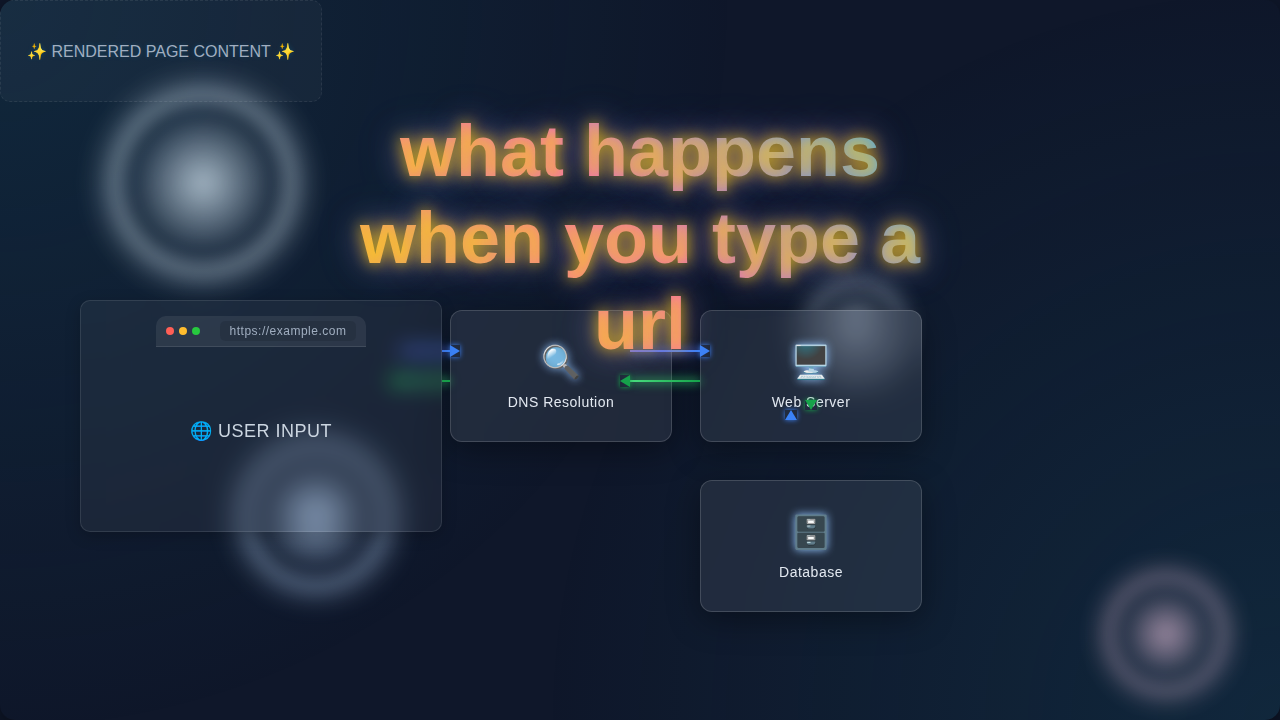
Okay, buckle up! Let’s trace this journey. You start by typing something like https://www.procoder09.com/ into your browser’s address bar. Then you hit Enter. That’s where the real fun begins.
1. URL Parsing: Breaking Down Your Request
First, your browser is smart. It takes your URL and breaks it into pieces. A URL, or Uniform Resource Locator, is just a web address. It tells your browser exactly where to go and what to ask for.
It identifies the “scheme” (like https://, meaning secure web communication). It finds the “host” (www.procoder09.com, the name of the website). It also sees the “path” (/, meaning the homepage in this case). This breakdown helps it figure out its next move.
2. DNS Lookup: Finding the IP Address
Now, your browser has the website’s name. But computers don’t speak in names. They speak in numbers! Specifically, they use IP addresses. An IP address is like a unique phone number for every device on the internet. It’s a string of numbers, like 192.168.1.1.
So, your browser asks a special server for help. This is called a DNS server, or Domain Name System server. It’s like the internet’s phone book. Your browser asks, “Hey, what’s the IP address for www.procoder09.com?”
The DNS server looks it up. It sends back the correct IP address. Think of it as finding someone’s street address from their name. This step is crucial for connecting to the right server.
3. TCP/IP Handshake: Saying Hello
With the IP address in hand, your browser knows where to go. It now wants to talk to the server. But first, they need to establish a reliable connection. This is done with a “TCP/IP handshake.”
It’s a three-step greeting process. Your browser sends a “SYN” message (short for synchronize). The server replies with “SYN-ACK” (synchronize-acknowledge). Finally, your browser sends an “ACK” (acknowledge) back. It’s like, “Hello?” “Hello, I hear you!” “Great, let’s talk!” This ensures data can flow smoothly and reliably.
Making the Request: HTTP, HTTPS, and Security
The connection is open! Time to ask for the actual web page. Your browser constructs an HTTP request. HTTP stands for Hypertext Transfer Protocol. It’s the language browsers and servers use to communicate on the web.
1. The HTTP Request: What Do You Want?
This request contains several important pieces. It includes the “method” (usually GET, meaning “please give me this page”). It also has “headers.” These headers provide extra information. They might tell the server what language you prefer or what type of browser you’re using. It’s like placing an order at a restaurant, specifying what you want and any special instructions.
2. HTTPS: The Secure “S”
Notice the “S” in HTTPS? That’s a big deal! HTTPS means your connection is secure. It uses encryption to scramble the data you send and receive. This protects your information from prying eyes. If you’re building websites, understanding how to secure them is vital, especially when dealing with things like creating dynamic styling with Tailwind or managing user data.
Pro Tip: Always develop your websites to use HTTPS. It builds trust with your users and is crucial for SEO rankings. Secure your web traffic from day one!
This encryption means that even if someone intercepts your data, they can’t easily read it. It’s like sending your message in a secret code that only your browser and the server know how to decipher.
The Server’s Response and Your Browser’s Magic
The server receives your request. It processes it. This might involve looking for an HTML file. It might also mean running some server-side code. Maybe it fetches data from a database. This is where a lot of server logic happens.
1. The HTTP Response: Here You Go!
Once the server has done its work, it sends back an HTTP response. This response also has several parts. It starts with a “status code.” A “200 OK” means everything went perfectly! A “404 Not Found” means the page you asked for doesn’t exist. There are many different HTTP status codes, each telling you something important.
The response also includes “headers.” These headers tell your browser how to handle the content. Crucially, the “body” of the response contains the actual web page data. This is typically HTML, CSS, and JavaScript files.
2. Browser Rendering: Making Sense of It All
Your browser now has all these files. But it’s not just a jumble of text. It’s a blueprint! The browser takes the HTML. It starts building the structure of the page. Then it applies the CSS. CSS dictates how everything looks. For example, it might tell your browser to apply a specific font or background color. If you’re using something like React for a dynamic user interface, the JavaScript comes into play to make the page interactive and alive.
The browser constructs a “DOM” (Document Object Model). This is a tree-like representation of your page. Finally, it paints the pixels on your screen. And just like that, the website appears before your eyes! It all happens incredibly fast.
What Happens When You Type a URL: Clearing Up Common Questions
Even with this deep dive, some parts of the web can feel a bit murky. Let’s clear up a few common points of confusion.
1. The Magic of Caching
Ever notice how some websites load instantly on a second visit? That’s thanks to caching! Your browser stores copies of certain files. These might be images, CSS, or JavaScript. The next time you visit, it can load them from your local storage. This saves time and reduces server load. It makes your browsing experience much snappier. Not everything is re-downloaded every single time.
2. Speed Demons: CDNs
What if the server is really far away? Like, across the globe? That would be slow, right? Enter CDNs, or Content Delivery Networks. These are networks of servers spread worldwide. They store copies of your website’s static content. When you request a file, the CDN sends it from the closest server to you. This drastically speeds up load times. It makes the internet feel much smaller. You can learn more about how CDNs optimize delivery on MDN.
Pro Tip: Leverage browser caching and consider a CDN for your production websites. These two strategies can significantly boost your site’s performance and user experience!
3. The Role of Proxies
Sometimes, your request doesn’t go straight to the server. It might pass through a proxy server. A proxy acts as an intermediary. It can perform various functions. It might cache content. It could filter requests. Sometimes it even provides extra security. Think of it as a helpful middleman between your browser and the final destination server.
Key Takeaways from the Web’s Journey
We covered a lot today! Here are the core ideas to remember:
- When you type a URL, your browser initiates a complex, multi-step process.
- DNS translates human-readable domain names into computer-friendly IP addresses.
- TCP/IP establishes a reliable connection, and HTTP/HTTPS handles the actual communication.
- Servers process requests and send back HTML, CSS, and JavaScript.
- Your browser then renders these files, painting the website onto your screen.
- Caching and CDNs significantly improve speed by storing content closer to you.
Keep Building, Keep Learning!
Pretty cool, huh? This seemingly simple act of typing a URL is a testament to incredible engineering. Now, when you navigate the web, you’ll have a deeper appreciation for the journey. You’re not just a passive user anymore. You understand the foundational plumbing!
This knowledge empowers you. It makes you a smarter, more capable web developer. Keep digging into these concepts. Experiment with your own projects. You’re well on your way to mastering the web. I know you’ve got this!