Hey! If you have wanted to build a Python File Organizer but had no idea where to start, you are in the right place. Today, we’re going to create something super useful. We will build a simple Python script. This script will magically sort your messy desktop. Say goodbye to clutter, and hello to an organized digital workspace!
What We Are Building: Your Python File Organizer for Desktop Cleanup
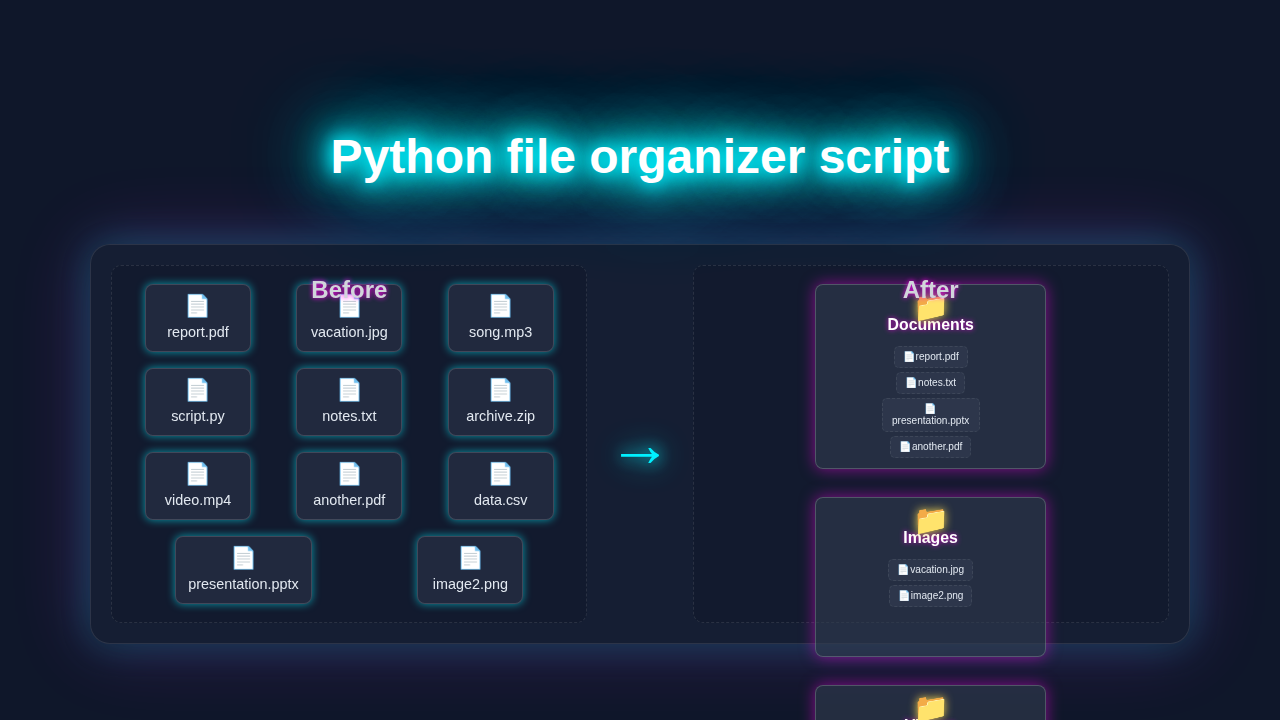
Imagine a script that watches your downloads. It sees a new image file. Boom! It moves it to your ‘Images’ folder. This is exactly what we will create. Our Python File Organizer will take files from one folder. Then, it will move them into organized subfolders. This means no more endless searching for that one PDF. Your digital life will become much smoother. It’s truly exciting and makes managing files a breeze!
Pro Tip: Automation like this saves so much time. Once set up, your script works quietly in the background. You can focus on more important coding tasks!
Our Script’s Core Setup (Conceptual ‘HTML Structure’)
While we aren’t building a website today, every good project needs a solid foundation. Think of this section as our ‘HTML structure’. It’s where we lay out the basic imports and define the main folder we want to organize. This sets the stage for our Python File Organizer. We will get our essential tools ready. Then, we can start our coding journey. This initial setup is crucial. It prepares our script to interact with your computer’s file system.
Here’s how we prepare our script:
Keeping Our Logic Tidy (Conceptual ‘CSS Styling’)
Just like CSS makes our websites look great and well-organized, clean code makes our scripts readable. In Python, we achieve this with functions. Functions help us break down complex tasks into smaller, manageable pieces. They make our code cleaner and much easier to understand. For our Python File Organizer, we will define a function. This function will handle the actual file movement. It keeps our main script concise and focused. This separation of concerns is a fundamental programming principle. It leads to more maintainable code!
Let me explain what’s happening here. We are setting up a function for moving files. This function will decide where each file belongs based on its type. It’s a key part of our organization strategy. Remember, good code styling is always important!
The Main Automation Flow: The Python File Organizer’s Core Logic
This is the cool part! This section holds the main logic for our Python File Organizer. Think of it as the ‘JavaScript’ of our operation. It will loop through all the files in your chosen directory. Then, it will call our organizing function for each one. This is where the magic really happens. We will set up categories for our files. Then, we will tell Python how to put each file into its correct place. It’s a simple yet powerful automation script that brings order to chaos.
We’ll use a dictionary to map file extensions to folder names. For example, all ‘.png’ files will go into an ‘Images’ folder. This makes our script super flexible. You can add more categories easily later. It’s all about making your digital life simpler and more automated!
file_organizer.py
import os
import shutil
from collections import defaultdict
import argparse

def organize_files(target_directory=".", dry_run=False):
    """
    Organizes files in the specified directory into category-based subfolders.

    Args:
        target_directory (str): The path to the directory to organize.
                                Defaults to the current directory.
        dry_run (bool): If True, only prints what would happen without
                        making any changes. Defaults to False.
    """
    # Define file categories and their corresponding extensions.
    # You can customize or add more categories and extensions as needed.
    categories = {
        "Images": [".jpg", ".jpeg", ".png", ".gif", ".bmp", ".tiff", ".webp", ".heif", ".heic"],
        "Documents": [".pdf", ".doc", ".docx", ".txt", ".rtf", ".odt", ".ppt", ".pptx", ".xls", ".xlsx", ".csv", ".md", ".tex"],
        "Videos": [".mp4", ".mov", ".avi", ".mkv", ".flv", ".wmv", ".webm"],
        "Audio": [".mp3", ".wav", ".aac", ".flac", ".ogg", ".m4a"],
        "Archives": [".zip", ".rar", ".7z", ".tar", ".gz", ".bz2", ".xz", ".iso"],
        "Executables": [".exe", ".msi", ".dmg", ".appimage", ".deb", ".rpm"],
        "Scripts": [".py", ".sh", ".bat", ".js", ".html", ".css", ".json", ".xml", ".yml", ".yaml"],
        "eBooks": [".epub", ".mobi", ".azw3", ".fb2"],
        "Fonts": [".ttf", ".otf", ".woff", ".woff2"],
        "Programming": [".c", ".cpp", ".java", ".go", ".rb", ".php", ".swift", ".kt"],
        "Torrents": [".torrent"],
    }

    # Create a reverse mapping for quick lookup: file extension -> category name
    # Using defaultdict to assign "Others" category to any unknown extension
    ext_to_category = defaultdict(lambda: "Others")
    for category, extensions in categories.items():
        for ext in extensions:
            ext_to_category[ext.lower()] = category

    # Validate that the target directory exists
    if not os.path.isdir(target_directory):
        print(f"Error: Directory '{target_directory}' not found.")
        return

    # Get the absolute path for clarity in messages
    abs_target_directory = os.path.abspath(target_directory)
    print(f"\n{'[DRY RUN]' if dry_run else ''} Starting file organization in '{abs_target_directory}'...")
    print("-" * 50)

    files_processed = 0
    folders_created = 0
    files_moved = 0
    skipped_items = 0

    # Iterate over all items (files and directories) in the target directory
    for item in os.listdir(target_directory):
        item_path = os.path.join(target_directory, item)

        # Skip directories and hidden files/folders (items starting with '.')
        # Also skip the script itself if it's in the target directory
        if os.path.isdir(item_path) or item.startswith('.') or item == os.path.basename(__file__):
            skipped_items += 1
            continue

        # Get file extension and determine its category
        file_name, file_extension = os.path.splitext(item)
        file_extension = file_extension.lower()

        # Get the name of the destination folder (e.g., 'Documents', 'Images', 'Others')
        destination_folder_name = ext_to_category[file_extension]
        destination_folder_path = os.path.join(target_directory, destination_folder_name)
        destination_file_path = os.path.join(destination_folder_path, item)

        # Create the destination folder if it doesn't exist
        if not os.path.exists(destination_folder_path):
            if not dry_run:
                try:
                    os.makedirs(destination_folder_path)
                    folders_created += 1
                    print(f"[ACTION] Created folder: '{destination_folder_name}'")
                except OSError as e:
                    print(f"[ERROR] Could not create folder '{destination_folder_name}': {e}")
                    continue # Skip moving the file if folder creation failed
            else:
                print(f"[DRY RUN] Would create folder: '{destination_folder_name}'")

        # Move the file to its categorized folder
        if os.path.exists(destination_file_path):
            # If a file with the same name already exists in the destination, skip or rename.
            # For simplicity, we'll skip for this script. Consider renaming for production.
            print(f"[SKIP] File '{item}' already exists in '{destination_folder_name}'.")
            files_processed += 1 # Still considered processed even if skipped
        else:
            if not dry_run:
                try:
                    shutil.move(item_path, destination_file_path)
                    files_moved += 1
                    print(f"[MOVED] '{item}' -> '{destination_folder_name}'")
                except Exception as e:
                    print(f"[ERROR] Could not move '{item}': {e}")
            else:
                print(f"[DRY RUN] Would move '{item}' -> '{destination_folder_name}'")
            files_processed += 1

    print("-" * 50)
    print(f"Organization complete in '{abs_target_directory}'.")
    print(f"Summary: {files_processed} files considered, {files_moved} files moved, {folders_created} new folders created, {skipped_items} items skipped (directories, hidden files, or script itself).")
    if dry_run:
        print("\nNote: This was a DRY RUN. No actual changes were made to your file system.")
    else:
        print("\nFiles have been organized successfully!")

if __name__ == "__main__":
    # Set up command-line argument parsing
    parser = argparse.ArgumentParser(
        description="Organize files in a specified directory into category-based subfolders.",
        formatter_class=argparse.RawTextHelpFormatter # Preserves newlines in description
    )
    parser.add_argument(
        "directory",
        nargs='?', # Makes the argument optional
        default=".", # Default to the current directory if no path is provided
        help="The path to the directory to organize.\n" \
             "Defaults to the current working directory ('.') if not provided.\n" \
             "Example: python file_organizer.py ~/Downloads"
    )
    parser.add_argument(
        "--dry-run",
        action="store_true", # Stores True when the flag is present
        help="Perform a dry run: show what would happen without making any actual changes.\n" \
             "This is useful for previewing the organization before committing changes.\n" \
             "Example: python file_organizer.py --dry-run"
    )

    # Parse the arguments from the command line
    args = parser.parse_args()

    # Call the organization function with the provided arguments
    organize_files(target_directory=args.directory, dry_run=args.dry_run)

    print("\n--- Usage Examples ---")
    print("To organize files in the current directory (default):")
    print("  python file_organizer.py")
    print("\nTo organize files in a specific directory:")
    print("  python file_organizer.py /path/to/your/folder")
    print("\nTo see what changes would be made without moving files:")
    print("  python file_organizer.py /path/to/your/folder --dry-run")
    print("  python file_organizer.py --dry-run" )
How It All Works Together: Step-by-Step Magic
You have just written a powerful Python script! Let’s break down how this Python File Organizer performs its tasks. Each piece plays a vital role in its operation. Understanding this flow helps you customize it later and troubleshoot any issues.
1. Setting Up Our Workspace
First, we import the os module. This module lets Python talk to your operating system. We need it to list files, check paths, and create folders. We also define our source_dir. This is the folder our script will organize. Make sure to change this to your actual desktop or downloads folder! We also set up our file_types dictionary. This dictionary maps file extensions (like ‘.txt’ or ‘.jpg’) to specific folder names. For example, ‘.pdf’ maps to ‘PDFs’. It’s our sorting rulebook, guiding every file to its proper destination.
2. The Smart File Mover
Our organize_file function is the brains of the operation. It takes a file’s full path as input. Then, it figures out its extension using string manipulation. It looks up that extension in our file_types dictionary. If it finds a match, it constructs a new target directory path. Don’t worry if the directory already exists. The os.makedirs(target_dir, exist_ok=True) function handles that gracefully! Finally, it moves the file. It uses os.rename to move the file to its new home. This function handles each file individually and safely, ensuring every item finds its place.
Remember: Good error handling is key! We didn’t add it to keep things simple here. But in real-world scripts, always consider what happens if a file is missing or permissions are denied. This makes your script more robust.
3. The Grand Tour Through Files
The main part of our script does the heavy lifting. It uses os.listdir(source_dir) to get every item in the folder. This includes both files and subdirectories. We loop through each one using a for loop. Then, we check if it’s actually a file using os.path.isfile(). We don’t want to move entire folders by mistake! If it’s a file, we construct its full path. Then, we pass it to our organize_file function. This process ensures every relevant file gets sorted. It’s a systematic approach to decluttering, transforming your messy folder into an organized hub. To learn more about navigating file systems in Python, check out the official Python os module documentation.
4. Running Your Script
To run your new Python File Organizer, save the code as a .py file (e.g., organizer.py). Open your terminal or command prompt. Navigate to where you saved the file using the cd command. Then, simply type python organizer.py and hit Enter. Watch your files move instantly! For bigger projects or when dealing with many external libraries, learning about Python Virtual Environments is a great next step. They help keep your project dependencies clean and isolated.
Tips to Customise It: Make It Your Own!
This is just the start! Here are a few ideas to make your Python File Organizer even better and tailor it to your specific needs:
- Add More Categories: Expand the
file_typesdictionary. Include more file extensions and create new target folders for videos, code files, or compressed archives. Think about your specific digital habits! - Schedule Automation: Learn how to schedule your script to run automatically. Use tools like Task Scheduler (Windows) or Cron (Linux/macOS). Your desktop will stay clean automatically without you lifting a finger.
- Interactive Mode: Add input prompts. Ask the user for the source directory or confirm file moves before they happen. This makes your script more flexible for others to use and adds a layer of safety.
- Handle Duplicates: What if a file with the same name already exists in the destination folder? Add logic to rename the new file (e.g., ‘document (1).pdf’ or ‘image-copy.jpg’). The Real Python guide on file operations has more ideas for advanced file handling.
- Log Actions: Implement logging. Record every file move, creation of a folder, and any errors encountered. This helps you track what your script did and is invaluable for debugging too! If you ever need to interact with external web services or APIs from your Python scripts, the Python Requests library is fantastic for making HTTP calls. For advanced API interactions, you might want to dive deeper into Python Requests Library: Master API Calls Easily.
Conclusion: You Did It!
Wow, you just built a powerful Python File Organizer! This script is a fantastic tool for desktop cleanup. You harnessed Python’s file system capabilities and created a practical automation solution. We are so proud of what you’ve accomplished with this project. Share your organized desktop with the world and show off your new Python skills! Keep experimenting and building. You’re becoming a true ProCoder. Happy coding!
file_organizer.py
import os
import shutil
from collections import defaultdict
import argparse

def organize_files(target_directory=".", dry_run=False):
    """
    Organizes files in the specified directory into category-based subfolders.

    Args:
        target_directory (str): The path to the directory to organize.
                                Defaults to the current directory.
        dry_run (bool): If True, only prints what would happen without
                        making any changes. Defaults to False.
    """
    # Define file categories and their corresponding extensions.
    # You can customize or add more categories and extensions as needed.
    categories = {
        "Images": [".jpg", ".jpeg", ".png", ".gif", ".bmp", ".tiff", ".webp", ".heif", ".heic"],
        "Documents": [".pdf", ".doc", ".docx", ".txt", ".rtf", ".odt", ".ppt", ".pptx", ".xls", ".xlsx", ".csv", ".md", ".tex"],
        "Videos": [".mp4", ".mov", ".avi", ".mkv", ".flv", ".wmv", ".webm"],
        "Audio": [".mp3", ".wav", ".aac", ".flac", ".ogg", ".m4a"],
        "Archives": [".zip", ".rar", ".7z", ".tar", ".gz", ".bz2", ".xz", ".iso"],
        "Executables": [".exe", ".msi", ".dmg", ".appimage", ".deb", ".rpm"],
        "Scripts": [".py", ".sh", ".bat", ".js", ".html", ".css", ".json", ".xml", ".yml", ".yaml"],
        "eBooks": [".epub", ".mobi", ".azw3", ".fb2"],
        "Fonts": [".ttf", ".otf", ".woff", ".woff2"],
        "Programming": [".c", ".cpp", ".java", ".go", ".rb", ".php", ".swift", ".kt"],
        "Torrents": [".torrent"],
    }

    # Create a reverse mapping for quick lookup: file extension -> category name
    # Using defaultdict to assign "Others" category to any unknown extension
    ext_to_category = defaultdict(lambda: "Others")
    for category, extensions in categories.items():
        for ext in extensions:
            ext_to_category[ext.lower()] = category

    # Validate that the target directory exists
    if not os.path.isdir(target_directory):
        print(f"Error: Directory '{target_directory}' not found.")
        return

    # Get the absolute path for clarity in messages
    abs_target_directory = os.path.abspath(target_directory)
    print(f"\n{'[DRY RUN]' if dry_run else ''} Starting file organization in '{abs_target_directory}'...")
    print("-" * 50)

    files_processed = 0
    folders_created = 0
    files_moved = 0
    skipped_items = 0

    # Iterate over all items (files and directories) in the target directory
    for item in os.listdir(target_directory):
        item_path = os.path.join(target_directory, item)

        # Skip directories and hidden files/folders (items starting with '.')
        # Also skip the script itself if it's in the target directory
        if os.path.isdir(item_path) or item.startswith('.') or item == os.path.basename(__file__):
            skipped_items += 1
            continue

        # Get file extension and determine its category
        file_name, file_extension = os.path.splitext(item)
        file_extension = file_extension.lower()

        # Get the name of the destination folder (e.g., 'Documents', 'Images', 'Others')
        destination_folder_name = ext_to_category[file_extension]
        destination_folder_path = os.path.join(target_directory, destination_folder_name)
        destination_file_path = os.path.join(destination_folder_path, item)

        # Create the destination folder if it doesn't exist
        if not os.path.exists(destination_folder_path):
            if not dry_run:
                try:
                    os.makedirs(destination_folder_path)
                    folders_created += 1
                    print(f"[ACTION] Created folder: '{destination_folder_name}'")
                except OSError as e:
                    print(f"[ERROR] Could not create folder '{destination_folder_name}': {e}")
                    continue # Skip moving the file if folder creation failed
            else:
                print(f"[DRY RUN] Would create folder: '{destination_folder_name}'")

        # Move the file to its categorized folder
        if os.path.exists(destination_file_path):
            # If a file with the same name already exists in the destination, skip or rename.
            # For simplicity, we'll skip for this script. Consider renaming for production.
            print(f"[SKIP] File '{item}' already exists in '{destination_folder_name}'.")
            files_processed += 1 # Still considered processed even if skipped
        else:
            if not dry_run:
                try:
                    shutil.move(item_path, destination_file_path)
                    files_moved += 1
                    print(f"[MOVED] '{item}' -> '{destination_folder_name}'")
                except Exception as e:
                    print(f"[ERROR] Could not move '{item}': {e}")
            else:
                print(f"[DRY RUN] Would move '{item}' -> '{destination_folder_name}'")
            files_processed += 1

    print("-" * 50)
    print(f"Organization complete in '{abs_target_directory}'.")
    print(f"Summary: {files_processed} files considered, {files_moved} files moved, {folders_created} new folders created, {skipped_items} items skipped (directories, hidden files, or script itself).")
    if dry_run:
        print("\nNote: This was a DRY RUN. No actual changes were made to your file system.")
    else:
        print("\nFiles have been organized successfully!")

if __name__ == "__main__":
    # Set up command-line argument parsing
    parser = argparse.ArgumentParser(
        description="Organize files in a specified directory into category-based subfolders.",
        formatter_class=argparse.RawTextHelpFormatter # Preserves newlines in description
    )
    parser.add_argument(
        "directory",
        nargs='?', # Makes the argument optional
        default=".", # Default to the current directory if no path is provided
        help="The path to the directory to organize.\n" \
             "Defaults to the current working directory ('.') if not provided.\n" \
             "Example: python file_organizer.py ~/Downloads"
    )
    parser.add_argument(
        "--dry-run",
        action="store_true", # Stores True when the flag is present
        help="Perform a dry run: show what would happen without making any actual changes.\n" \
             "This is useful for previewing the organization before committing changes.\n" \
             "Example: python file_organizer.py --dry-run"
    )

    # Parse the arguments from the command line
    args = parser.parse_args()

    # Call the organization function with the provided arguments
    organize_files(target_directory=args.directory, dry_run=args.dry_run)

    print("\n--- Usage Examples ---")
    print("To organize files in the current directory (default):")
    print("  python file_organizer.py")
    print("\nTo organize files in a specific directory:")
    print("  python file_organizer.py /path/to/your/folder")
    print("\nTo see what changes would be made without moving files:")
    print("  python file_organizer.py /path/to/your/folder --dry-run")
    print("  python file_organizer.py --dry-run" )