Ah, the magic of decoupled code! In web development, mastering patterns that promote modularity and maintainability is crucial. Today, we’re diving deep into the Observer Pattern JS, a fundamental behavioral design pattern that will transform how you handle events and state changes in your applications. This pattern allows objects to notify other objects about changes in their state, without making assumptions about who those observers are.
What We Are Building: An Interactive Notification System
Imagine you’re building a sophisticated dashboard. Various components need to react when a specific event occurs – a new user registers, a data update arrives, or a critical error happens. Instead of manually linking every single component to every possible event source, which quickly becomes a tangled mess, we can use the Observer Pattern.
We’re going to construct a simple, yet powerful, notification system. Think of a scenario where different types of users (e.g., admin, regular user, analytics team) need to receive specific notifications when a core application event fires. Our system will allow these different ‘subscribers’ to register interest in certain events, and then automatically get notified when those events ‘publish’ updates. This approach keeps our event publishers completely unaware of who is listening, resulting in highly flexible and extensible code.
This pattern is trending because it’s the backbone of many modern reactive frameworks and libraries, promoting a clear separation of concerns. You can use it anywhere you need one-to-many dependency, like state management in a complex survey form, real-time data updates, or even custom event handling for user interface interactions.
HTML Structure
Our HTML will be straightforward, providing the basic layout for our notification system. We’ll have a section to display various types of notifications and buttons to trigger different events that our observers will listen for.
index.html
<!DOCTYPE html>
<html lang="en">
<head>
    <meta charset="UTF-8">
    <meta name="viewport" content="width=device-width, initial-scale=1.0">
    <title>Observer Pattern JS Implementation</title>
    <link rel="stylesheet" href="styles.css">
</head>
<body>
    <div class="container">
        <h1>Observer Pattern in JavaScript</h1>
        <p>The Observer pattern is a behavioral design pattern where an object (the subject) maintains a list of its dependents (observers) and notifies them of any state changes, usually by calling one of their methods. This promotes loose coupling between the subject and its observers.</p>

        <section class="demo-section">
            <h2>Live Demo: Subject-Observer Interaction</h2>
            <div class="pattern-demo">
                <div class="subject-panel">
                    <h3>Subject (Publisher)</h3>
                    <input type="text" id="messageInput" placeholder="Enter message to broadcast">
                    <button id="broadcastButton">Broadcast Message</button>
                    <div id="subjectFeedback" class="feedback-message"></div>
                </div>
                <div class="observers-panel">
                    <h3>Observers (Subscribers)</h3>
                    <div id="observerContainer" class="observer-list">
                        <!-- Observers will be dynamically added here by JavaScript -->
                    </div>
                    <button id="addObserverButton">Add New Observer</button>
                </div>
            </div>
        </section>

        <section class="code-explanation">
            <h2>Code Implementation</h2>
            <p>Below are the JavaScript classes for the Subject and Observer, along with the event handling logic:</p>
            <pre class="code-block"><code>
// --- script.js content ---
// Copy and paste the content from script.js into your script.js file.
// It includes the Subject and Observer classes, and DOM manipulation logic.
            </code></pre>
        </section>
    </div>

    <script src="script.js" defer></script>
</body>
</html>
script.js
// script.js

// --- Subject Class (Publisher) ---
// The Subject maintains a list of its observers and notifies them of state changes.
class Subject {
    constructor() {
        this.observers = [];
        this.idCounter = 0; // To assign unique IDs to observers
    }

    /**
     * Subscribes an observer to the subject.
     * @param {Observer} observer - The observer instance to add.
     */
    subscribe(observer) {
        this.observers.push(observer);
        console.log(`Observer ${observer.id} subscribed.`);
    }

    /**
     * Unsubscribes an observer from the subject by its ID.
     * @param {string} observerId - The ID of the observer to remove.
     */
    unsubscribe(observerId) {
        this.observers = this.observers.filter(observer => observer.id !== observerId);
        console.log(`Observer ${observerId} unsubscribed.`);
    }

    /**
     * Notifies all subscribed observers with the given data.
     * @param {*} data - The data to pass to the observers' update method.
     */
    notify(data) {
        console.log(`Subject notifying all observers with: "${data}"`);
        this.observers.forEach(observer => observer.update(data));
    }

    /**
     * Generates a unique ID for new observers.
     * @returns {string} A unique observer ID.
     */
    generateObserverId() {
        this.idCounter++;
        return `observer-${this.idCounter}`;
    }
}

// --- Observer Class (Subscriber) ---
// The Observer defines an update method that the Subject calls when its state changes.
class Observer {
    /**
     * @param {string} id - A unique identifier for the observer.
     * @param {HTMLElement} displayElement - The DOM element to display updates in.
     */
    constructor(id, displayElement) {
        this.id = id;
        this.displayElement = displayElement;
    }

    /**
     * Method called by the Subject to update the observer's state.
     * @param {*} data - The data received from the Subject.
     */
    update(data) {
        const time = new Date().toLocaleTimeString();
        this.displayElement.innerHTML = `<strong>${this.id}:</strong> Received "${data}" at ${time}`;
        console.log(`${this.id} received update: "${data}"`);
    }
}

// --- DOM Elements and Event Listeners ---
const subject = new Subject();
const messageInput = document.getElementById('messageInput');
const broadcastButton = document.getElementById('broadcastButton');
const subjectFeedback = document.getElementById('subjectFeedback');
const observerContainer = document.getElementById('observerContainer');
const addObserverButton = document.getElementById('addObserverButton');

let observerInstances = []; // To keep track of observer objects for removal

/**
 * Adds a new observer to the UI and subscribes it to the subject.
 */
function addObserverToUI() {
    const newObserverId = subject.generateObserverId();

    const observerItem = document.createElement('div');
    observerItem.className = 'observer-item';
    observerItem.id = `item-${newObserverId}`;

    const observerStatusSpan = document.createElement('span');
    observerStatusSpan.id = `status-${newObserverId}`;
    observerStatusSpan.textContent = `${newObserverId}: Waiting for updates...`;

    const removeButton = document.createElement('button');
    removeButton.className = 'remove-btn';
    removeButton.textContent = 'Remove';
    removeButton.onclick = () => removeObserverFromUI(newObserverId);

    observerItem.appendChild(observerStatusSpan);
    observerItem.appendChild(removeButton);
    observerContainer.appendChild(observerItem);

    const newObserver = new Observer(newObserverId, observerStatusSpan);
    subject.subscribe(newObserver);
    observerInstances.push(newObserver);

    subjectFeedback.textContent = `${newObserverId} added!`;
    setTimeout(() => subjectFeedback.textContent = '', 2000);
}

/**
 * Removes an observer from the UI and unsubscribes it from the subject.
 * @param {string} observerId - The ID of the observer to remove.
 */
function removeObserverFromUI(observerId) {
    subject.unsubscribe(observerId);

    // Remove from local instances array
    observerInstances = observerInstances.filter(obs => obs.id !== observerId);

    // Remove from DOM
    const observerElement = document.getElementById(`item-${observerId}`);
    if (observerElement) {
        observerElement.remove();
    }

    subjectFeedback.textContent = `${observerId} removed.`;
    setTimeout(() => subjectFeedback.textContent = '', 2000);
}

// Event listener for broadcasting messages from the subject
broadcastButton.addEventListener('click', () => {
    const message = messageInput.value.trim();
    if (message) {
        subject.notify(message);
        subjectFeedback.textContent = `Broadcasted: "${message}" to ${subject.observers.length} observers.`;
        messageInput.value = ''; // Clear input after broadcast
        setTimeout(() => subjectFeedback.textContent = '', 2000);
    } else {
        subjectFeedback.textContent = 'Please enter a message to broadcast.';
        setTimeout(() => subjectFeedback.textContent = '', 2000);
    }
});

// Event listener for adding new observers
addObserverButton.addEventListener('click', addObserverToUI);

// Initialize with a couple of observers when the DOM is fully loaded
document.addEventListener('DOMContentLoaded', () => {
    addObserverToUI();
    addObserverToUI();
});
CSS Styling
To make our application visually appealing and user-friendly, we’ll apply some modern CSS. The styling will ensure our notifications are distinct and that the overall layout is clean and intuitive.
styles.css
/* Global Reset and Box Sizing */
* {
    margin: 0;
    padding: 0;
    box-sizing: border-box; /* Ensures consistent box model */
}

/* Body and Base Typography */
body {
    font-family: Arial, Helvetica, sans-serif; /* Safe system fonts */
    background-color: #1a1a2e; /* Deep purple-blue dark mode background */
    color: #e0e0e0; /* Light gray text for readability */
    line-height: 1.6;
    padding: 20px;
    min-height: 100vh;
    overflow-x: hidden; /* Prevent horizontal scroll */
}

/* Main Content Container */
.container {
    max-width: 960px; /* Constrain content width */
    margin: 0 auto; /* Center the container */
    background-color: #2e2e4a; /* Slightly lighter container background */
    padding: 30px;
    border-radius: 8px;
    box-shadow: 0 5px 15px rgba(0, 0, 0, 0.4); /* Subtle shadow for depth */
}

/* Headings */
h1, h2, h3 {
    color: #8be9fd; /* Accent color (cyan) */
    margin-bottom: 15px;
}

h1 {
    text-align: center;
    margin-bottom: 30px;
}

p {
    margin-bottom: 15px;
}

/* Demo Section Styling */
.demo-section {
    background-color: #3a3a5e; /* Section background */
    padding: 20px;
    border-radius: 6px;
    margin-bottom: 30px;
}

.pattern-demo {
    display: flex;
    flex-wrap: wrap; /* Allow panels to wrap on smaller screens */
    gap: 20px;
}

.subject-panel, .observers-panel {
    flex: 1; /* Distribute available space */
    min-width: 300px; /* Minimum width before wrapping */
    background-color: #4a4a70; /* Panel background */
    padding: 20px;
    border-radius: 6px;
    box-shadow: 0 2px 8px rgba(0, 0, 0, 0.3);
}

/* Input and Button Styling */
input[type="text"], button {
    width: 100%;
    padding: 10px;
    margin-bottom: 10px;
    border-radius: 4px;
    border: 1px solid #6a6a90;
    font-size: 16px;
    font-family: Arial, Helvetica, sans-serif;
}

input[type="text"] {
    background-color: #3a3a5e;
    color: #e0e0e0;
}

button {
    background-color: #6272a4; /* Dracula theme accent */
    color: #f8f8f2; /* Light text for buttons */
    cursor: pointer;
    transition: background-color 0.3s ease;
}

button:hover {
    background-color: #4f5b93;
}

.feedback-message {
    margin-top: 10px;
    font-style: italic;
    color: #ffb86c; /* Warning/info color */
    min-height: 20px; /* Prevent layout shift when message appears */
}

/* Observer List Styling */
.observer-list {
    max-height: 300px; /* Fixed height with scrollbar */
    overflow-y: auto;
    border: 1px solid #6a6a90;
    padding: 10px;
    border-radius: 4px;
    margin-bottom: 10px;
    background-color: #3a3a5e;
}

.observer-item {
    background-color: #5a5a80; /* Observer item background */
    padding: 8px 12px;
    margin-bottom: 8px;
    border-radius: 4px;
    display: flex;
    justify-content: space-between;
    align-items: center;
    font-size: 0.9em;
}

.observer-item:last-child {
    margin-bottom: 0;
}

.observer-item span {
    flex-grow: 1;
    margin-right: 10px;
}

.observer-item .remove-btn {
    background-color: #ff5555; /* Red for remove button */
    color: #f8f8f2;
    border: none;
    padding: 5px 10px;
    border-radius: 3px;
    cursor: pointer;
    font-size: 0.8em;
    width: auto; /* Override general button width */
    margin-bottom: 0;
}

.observer-item .remove-btn:hover {
    background-color: #cc4444;
}

/* Code Explanation Section */
.code-explanation pre.code-block {
    background-color: #282a36; /* Dracula code background */
    color: #f8f8f2; /* Light text for code */
    padding: 15px;
    border-radius: 6px;
    font-family: 'Consolas', 'Monaco', 'Lucida Console', monospace; /* Monospace font for code */
    overflow-x: auto; /* Allow horizontal scrolling for long lines */
    white-space: pre-wrap; /* Wrap long lines */
    word-break: break-all; /* Break words if necessary */
}

/* Responsive Adjustments */
@media (max-width: 768px) {
    .pattern-demo {
        flex-direction: column; /* Stack panels vertically on small screens */
    }
    .subject-panel, .observers-panel {
        min-width: unset; /* Remove min-width to allow full width */
        width: 100%;
    }
}
Step-by-Step Breakdown: Implementing the Observer Pattern JS
Now, let’s get to the heart of it – building the Observer Pattern JS in JavaScript. We’ll define a `Subject` (or Publisher) that maintains a list of its dependents (Observers) and notifies them of any state changes. Concurrently, we’ll define an `Observer` interface that all concrete observers must implement.
The Subject (Publisher)
The `Subject` is the central piece. It’s the object that holds the state and notifies all its registered observers when that state changes. Think of it as a newspaper publisher who sends out copies to all its subscribers without knowing their individual names or addresses, only that they are subscribed.
Our `Subject` class will have three core methods: `subscribe` (to add an observer), `unsubscribe` (to remove an observer), and `notify` (to inform all registered observers about an event). This structure provides a robust mechanism for managing dependencies.
class Subject {
    constructor() {
        this.observers = []; // List of observers
    }

    subscribe(observer) {
        // Add an observer to the list
        const isExist = this.observers.includes(observer);
        if (isExist) {
            console.log('Subject: Observer has been attached already.');
            return;
        }
        this.observers.push(observer);
        console.log('Subject: Attached an observer.');
    }

    unsubscribe(observer) {
        // Remove an observer from the list
        const observerIndex = this.observers.indexOf(observer);
        if (observerIndex === -1) {
            console.log('Subject: Nonexistent observer.');
            return;
        }

        this.observers.splice(observerIndex, 1);
        console.log('Subject: Detached an observer.');
    }

    notify(data) {
        // Trigger an update on all observers
        console.log('Subject: Notifying observers...');
        for (const observer of this.observers) {
            observer.update(data);
        }
    }
}
As you can see, the `Subject` doesn’t care what the observers *do* with the `data` it sends; it merely ensures they receive it. This truly exemplifies decoupling.
“The Observer Pattern truly shines in scenarios where an object’s state needs to be synchronized across multiple, independent components without direct coupling.”
The Observer (Subscriber)
Observers are the components that want to be informed about changes in the Subject. Each observer must implement an `update` method, which the Subject will call when its state changes. This is where the observer reacts to the incoming notification.
We’ll create different types of concrete observers for our notification system. For instance, an `AdminObserver` might display critical alerts, while a `UserObserver` might show general messages. Each observer reacts differently based on the data it receives.
class AdminObserver {
    constructor(name, outputElement) {
        this.name = name;
        this.outputElement = outputElement;
    }

    update(data) {
        if (data.type === 'critical' || data.type === 'admin') {
            this.displayNotification(`Admin ${this.name} received: ${data.message} (${data.type})`);
        }
    }

    displayNotification(message) {
        const p = document.createElement('p');
        p.classList.add('notification', 'admin-note');
        p.textContent = message;
        this.outputElement.appendChild(p);
    }
}

class UserObserver {
    constructor(name, outputElement) {
        this.name = name;
        this.outputElement = outputElement;
    }

    update(data) {
        if (data.type === 'general' || data.type === 'user') {
            this.displayNotification(`User ${this.name} received: ${data.message} (${data.type})`);
        }
    }

    displayNotification(message) {
        const p = document.createElement('p');
        p.classList.add('notification', 'user-note');
        p.textContent = message;
        this.outputElement.appendChild(p);
    }
}

class AnalyticsObserver {
    constructor(name, outputElement) {
        this.name = name;
        this.outputElement = outputElement;
    }

    update(data) {
        if (data.type === 'analytics' || data.type === 'critical') {
            this.displayNotification(`Analytics ${this.name} received: ${data.message} (${data.type})`);
            // In a real app, this would send data to an analytics service
        }
    }

    displayNotification(message) {
        const p = document.createElement('p');
        p.classList.add('notification', 'analytics-note');
        p.textContent = message;
        this.outputElement.appendChild(p);
    }
}
Each observer checks the `data.type` before deciding to display a notification, showcasing how observers can filter events relevant to them. You might recognize a similar pattern with the Intersection Observer API, a built-in browser API that lets elements react when they enter or exit the viewport.
Putting It All Together: A Notification System
Finally, let’s tie our `Subject` and `Observer` classes together with our HTML elements. We’ll instantiate our Subject and various observers, then hook up our buttons to trigger notifications through the Subject.
First, we create a new `Subject` instance, which will be our event dispatcher. Then, we instantiate our different observer types, associating them with specific display areas in our HTML. We subscribe these observers to our `Subject`, making them ready to receive updates.
// Get output elements
const adminOutput = document.getElementById('admin-notifications');
const userOutput = document.getElementById('user-notifications');
const analyticsOutput = document.getElementById('analytics-notifications');
const allOutput = document.getElementById('all-notifications');

// Create subject
const appSubject = new Subject();

// Create observers
const admin1 = new AdminObserver('Manager', adminOutput);
const user1 = new UserObserver('Standard', userOutput);
const user2 = new UserObserver('Premium', userOutput);
const analytics1 = new AnalyticsObserver('Dashboard', analyticsOutput);

// Subscribe observers
appSubject.subscribe(admin1);
appSubject.subscribe(user1);
appSubject.subscribe(user2);
appSubject.subscribe(analytics1);

// Event listeners for buttons
document.getElementById('notify-critical').addEventListener('click', () => {
    appSubject.notify({ type: 'critical', message: 'System alert! Server overloaded.' });
});

document.getElementById('notify-general').addEventListener('click', () => {
    appSubject.notify({ type: 'general', message: 'New blog post published!' });
});

document.getElementById('notify-admin').addEventListener('click', () => {
    appSubject.notify({ type: 'admin', message: 'New admin settings update available.' });
});

document.getElementById('notify-user').addEventListener('click', () => {
    appSubject.notify({ type: 'user', message: 'Your account has been updated.' });
});

document.getElementById('notify-analytics').addEventListener('click', () => {
    appSubject.notify({ type: 'analytics', message: 'Visitor count increased by 10%.' });
});

document.getElementById('unsubscribe-user1').addEventListener('click', () => {
    appSubject.unsubscribe(user1);
});
Each button click now triggers the `notify` method of `appSubject`, which in turn calls the `update` method on all its subscribed observers. This setup allows for dynamic event handling and a clean separation between the event source and its numerous listeners. To learn more about advanced JavaScript concepts, you might be interested in WebGPU JavaScript fundamentals.
Making It Responsive
Ensuring our notification system looks good on all devices is essential. We’ll use media queries to adjust the layout for smaller screens. Specifically, we’ll stack elements vertically on mobile devices for better readability and usability.
@media (max-width: 768px) {
    .container {
        flex-direction: column;
        align-items: center;
    }

    .notifications-section, .controls {
        width: 90%;
        margin-bottom: 20px;
    }

    .controls button {
        width: 100%;
        margin-bottom: 10px;
    }
}
The `flex-direction: column` property within the media query is key here. It transforms our horizontal layout into a vertical stack when the screen width drops below 768 pixels. This makes elements much easier to interact with on touch devices. Furthermore, adjusting the width of sections and buttons ensures they take up appropriate space, avoiding horizontal scrolling and cramped interfaces.
Final Output: Visualizing Your Observer Pattern JS Application
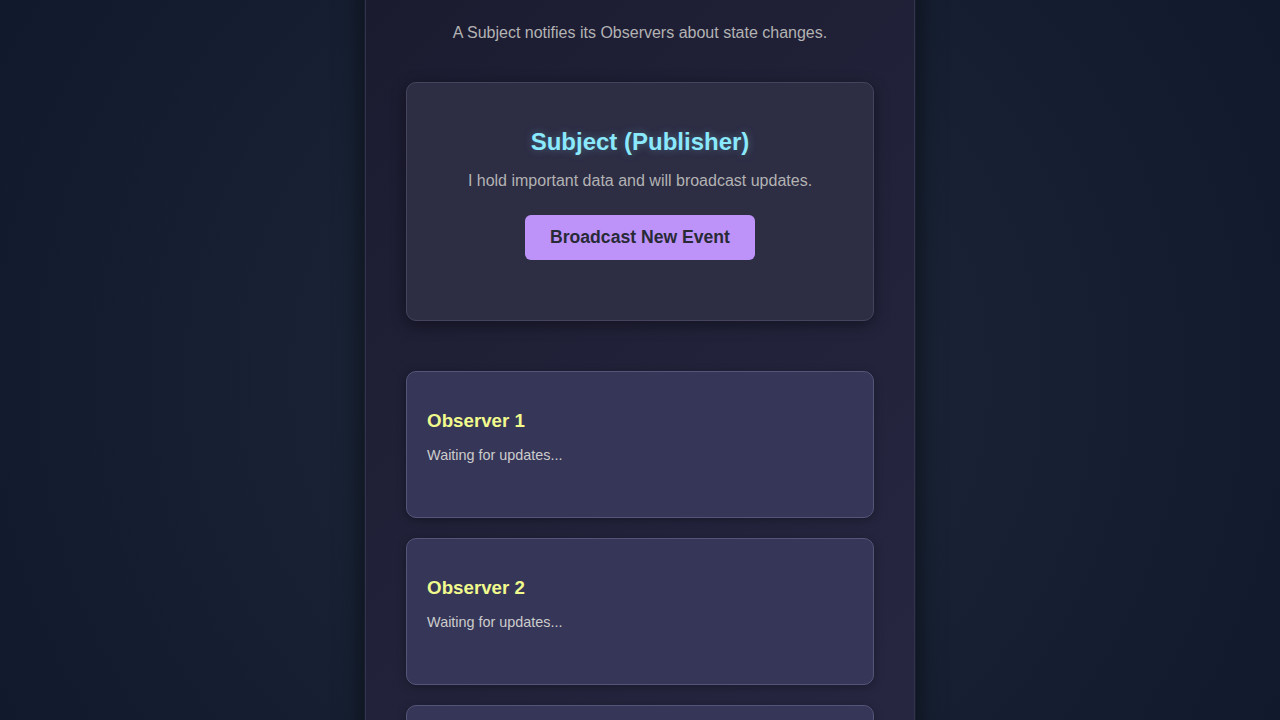
With all our code in place, you’ll see a clean interface. There are dedicated sections for Admin, User, and Analytics notifications. Clicking any of the ‘Notify’ buttons will trigger events, and based on the notification type, the respective observers will display messages in their designated areas. For instance, a ‘Critical’ notification will appear in both Admin and Analytics sections, while a ‘General’ notification only goes to User observers. This demonstrates the power and flexibility of the Observer Pattern JS in action.
“Effective design patterns like Observer simplify complex event management, making applications more robust and easier to maintain.”
Conclusion: Embracing the Observer Pattern JS for Scalable Apps
You’ve now successfully implemented the Observer Pattern JS, a fundamental tool in any web developer’s arsenal. This pattern empowers you to build highly decoupled, flexible, and scalable applications by cleanly separating the concerns of event publishers and subscribers. You can easily add new types of observers without modifying the subject, promoting an open/closed principle.
Where else can you apply this? Think beyond notifications! Use it for state management in large-scale applications, real-time data synchronization across different UI components, or even creating custom event systems for complex user interactions. The possibilities are truly endless once you grasp this powerful concept. Keep experimenting and building amazing things!