Alright, fellow developers! Let’s dive deep into something incredibly vital for modern web applications: LLM JSON Parsing. As large language models (LLMs) like GPT-4 become integral to our workflows, understanding how to effectively consume and process their structured outputs in JavaScript is no longer a luxury – it’s a necessity. Imagine building an application that leverages AI for content generation, data extraction, or complex conversational interfaces. The LLM delivers its insights, but often wrapped in a JSON string that requires careful handling. This guide will equip you with the knowledge and practical skills to parse these responses robustly, ensuring your applications remain stable and user-friendly.
What We Are Building: Crafting a Robust LLM JSON Parsing Solution
In today’s AI-driven landscape, the ability to interpret structured data from language models is a game-changer. We’re not just talking about raw text anymore; LLMs are capable of generating perfectly formatted JSON objects. These objects might contain everything from user profiles and task lists to product recommendations or even complex configuration settings. This trend is exploding because it allows developers to integrate AI’s intelligence directly into application logic, rather than just displaying text.
Think about a content management system that uses an LLM to generate blog post metadata – title, tags, description – all neatly packaged in JSON. Or consider an e-commerce platform where an AI recommends products based on user queries, providing product IDs, names, and prices. Our project today will tackle a common challenge: safely extracting this valuable information. We’ll build a simple web interface where users can input a raw LLM-generated JSON string, and our JavaScript will validate, parse, and display it beautifully, complete with error handling. This hands-on approach will solidify your understanding of how to make your applications smarter and more resilient when interacting with AI outputs.
HTML Structure
Our HTML will be straightforward. It sets up the basic layout for our input area, a button to trigger parsing, and a display section for both the raw and parsed JSON. We’ll include a dedicated spot for error messages too.
<div class="container">
    <header class="header">
        <h1>LLM JSON Parser</h1>
        <p class="description">Input your LLM-generated JSON, and let JavaScript parse and display it!</p>
    </header>

    <main class="parser-section">
        <div class="input-area">
            <label for="jsonInput">Paste LLM JSON Response here:</label>
            <textarea id="jsonInput" placeholder='{"status": "success", "data": {"message": "Hello from LLM"}}'></textarea>
            <button id="parseButton">Parse JSON</button>
        </div>

        <div class="output-area">
            <div class="output-section">
                <h3>Raw JSON Input:</h3>
                <pre id="rawOutput" class="output"></pre>
            </div>
            <div class="output-section">
                <h3>Parsed JavaScript Object:</h3>
                <pre id="parsedOutput" class="output"></pre>
            </div>
            <div class="output-section error-section">
                <h3>Errors:</h3>
                <pre id="errorOutput" class="output error"></pre>
            </div>
        </div>
    </main>
</div>
CSS Styling
To make our application presentable and user-friendly, we’ll apply some modern CSS. This styling ensures clear separation between input and output sections. It visually highlights valid data and makes error messages stand out effectively.
body {
    font-family: 'Segoe UI', Tahoma, Geneva, Verdana, sans-serif;
    background-color: #f4f7f6;
    color: #333;
    line-height: 1.6;
    margin: 0;
    padding: 20px;
    display: flex;
    justify-content: center;
    min-height: 100vh;
}

.container {
    background-color: #fff;
    border-radius: 10px;
    box-shadow: 0 4px 20px rgba(0, 0, 0, 0.08);
    padding: 30px;
    max-width: 900px;
    width: 100%;
}

.header h1 {
    color: #2c3e50;
    text-align: center;
    margin-bottom: 10px;
}

.description {
    text-align: center;
    color: #7f8c8d;
    margin-bottom: 30px;
}

.input-area label {
    display: block;
    margin-bottom: 8px;
    font-weight: bold;
    color: #34495e;
}

textarea {
    width: 100%;
    padding: 12px;
    margin-bottom: 20px;
    border: 1px solid #ddd;
    border-radius: 5px;
    font-size: 1em;
    min-height: 150px;
    box-sizing: border-box; /* Include padding and border in the element's total width and height */
    resize: vertical;
}

button {
    display: block;
    width: 200px;
    margin: 0 auto 30px auto;
    padding: 15px;
    background-color: #27ae60;
    color: white;
    border: none;
    border-radius: 5px;
    font-size: 1.1em;
    cursor: pointer;
    transition: background-color 0.3s ease;
}

button:hover {
    background-color: #2ecc71;
}

.output-area {
    margin-top: 30px;
    border-top: 1px solid #eee;
    padding-top: 20px;
}

.output-section {
    margin-bottom: 20px;
}

.output-section h3 {
    color: #2c3e50;
    margin-bottom: 10px;
    border-bottom: 2px solid #ecf0f1;
    padding-bottom: 5px;
}

.output {
    background-color: #f8f9fa;
    border: 1px solid #eee;
    padding: 15px;
    border-radius: 5px;
    white-space: pre-wrap; /* Preserve whitespace, wrap text */
    word-wrap: break-word; /* Break long words */
    max-height: 200px; /* Limit height */
    overflow-y: auto; /* Scroll if content overflows */
    font-family: 'SFMono-Regular', Consolas, 'Liberation Mono', Menlo, Courier, monospace;
    font-size: 0.9em;
    color: #444;
    display: none; /* Hide by default, show when active */
}

.output.active {
    display: block;
}

.output.error {
    background-color: #fceae9;
    border-color: #e74c3c;
    color: #e74c3c;
}

/* Basic responsive adjustments */
@media (max-width: 768px) {
    .container {
        padding: 15px;
    }
    textarea, .output {
        font-size: 0.9em;
    }
    button {
        width: 100%;
        padding: 12px;
        font-size: 1.1em;
    }
    .output-section h3 {
        font-size: 1.2em;
    }
}

@media (max-width: 480px) {
    .header h1 {
        font-size: 1.8em;
    }
    .description p {
        font-size: 0.9em;
    }
}
Step-by-Step Breakdown: Mastering LLM JSON Parsing with JavaScript
Now for the exciting part – the JavaScript! This is where the magic happens, transforming raw LLM responses into actionable data. We’ll walk through each piece of functionality, from fetching (or simulating fetching) to validation, parsing, and dynamic display.
Setting Up Our Environment and Elements
First, we need to grab references to our HTML elements. This includes the textarea for input, the button, and the various display areas for results and errors. Connecting these elements is a fundamental step in any interactive web application. It bridges your HTML and CSS with your powerful JavaScript logic.
// Get references to DOM elements
const jsonInput = document.getElementById('jsonInput');
const parseButton = document.getElementById('parseButton');
const rawOutput = document.getElementById('rawOutput');
const parsedOutput = document.getElementById('parsedOutput');
const errorOutput = document.getElementById('errorOutput');
Simulating an LLM Response
For this tutorial, we won’t be calling an actual LLM API. That’s a topic for another day, perhaps leveraging a robust API Explorer. Instead, we’ll simulate an LLM’s JSON output directly in our textarea. This allows us to focus purely on the parsing logic. Our example LLM response might look something like this:
{
  "title": "Parsing LLM JSON Responses with JavaScript",
  "author": "DevGuru",
  "keywords": ["LLM", "JSON", "JavaScript", "Parsing", "Web Development", "AI"],
  "sections": [
    {"name": "Introduction", "word_count": 150},
    {"name": "Core Logic", "word_count": 500},
    {"name": "Error Handling", "word_count": 200}
  ],
  "is_published": true
}
This structured data demonstrates the kind of complex information an LLM can provide, which we’ll need to handle. Remember, AI systems are increasingly generating data that demands precise processing.
The Core JavaScript: Fetching and Validating
The parseButton will be our entry point. When clicked, it reads the input, attempts to parse it, and then displays the results or any errors. The key is using JSON.parse() within a try...catch block. This robust approach is crucial. Without the try...catch, malformed JSON would simply crash our script.
parseButton.addEventListener('click', () => {
    const rawJsonString = jsonInput.value;
    clearOutputs(); // Clear previous results

    if (!rawJsonString.trim()) {
        displayError('Input is empty. Please provide a JSON string.');
        return;
    }

    displayRawOutput(rawJsonString);

    try {
        const parsedData = JSON.parse(rawJsonString);
        displayParsedOutput(parsedData);
    } catch (error) {
        displayError(`JSON Parsing Error: ${error.message}. Please check your JSON syntax.`);
    }
});
Using JSON.parse() is a standard and efficient way to convert a JSON string into a JavaScript object. However, it’s vital to handle potential errors that might arise from invalid JSON. This ensures your application remains stable and provides useful feedback to the user.
“Robust error handling is not a feature; it’s a foundation for reliable applications, especially when dealing with external data sources like LLMs.”
Graceful Error Handling and User Feedback
User experience often hinges on clear feedback. If the JSON is malformed, we need to tell the user *what* went wrong and *where*. Our displayError and clearOutputs functions help manage the UI state. These functions dynamically update the display based on the parsing outcome.
function displayRawOutput(data) {
    rawOutput.textContent = data;
    rawOutput.classList.add('active');
}

function displayParsedOutput(data) {
    // Using JSON.stringify with null, 2 for pretty printing
    parsedOutput.textContent = JSON.stringify(data, null, 2);
    parsedOutput.classList.add('active');
}

function displayError(message) {
    errorOutput.textContent = message;
    errorOutput.classList.add('active');
    rawOutput.classList.remove('active'); // Hide raw if error
    parsedOutput.classList.remove('active'); // Hide parsed if error
}

function clearOutputs() {
    rawOutput.textContent = '';
    parsedOutput.textContent = '';
    errorOutput.textContent = '';
    rawOutput.classList.remove('active');
    parsedOutput.classList.remove('active');
    errorOutput.classList.remove('active');
}
Notice how JSON.stringify(data, null, 2) is used. This isn’t for parsing, but for pretty-printing our parsed JavaScript object back into a readable JSON string for display. The null argument is for a replacer function (we don’t need one here), and 2 specifies 2 spaces for indentation. This makes the output much more readable. This subtle detail significantly improves developer experience when debugging or inspecting data. You can learn more about JSON.stringify on MDN Web Docs.
Displaying the Parsed Data
Once successfully parsed, we can access the data as a regular JavaScript object. This opens up endless possibilities for manipulating and using the LLM’s output. For instance, we could grab the title property or iterate through the keywords array. This is where you’d integrate the parsed data into your application’s UI or backend logic.
// Example of using parsedData after successful parsing
// const parsedData = JSON.parse(rawJsonString); // This happens in the try block

// if (parsedData.title) {
//     console.log("Blog Title:", parsedData.title);
// }
// if (parsedData.keywords && Array.isArray(parsedData.keywords)) {
//     console.log("Keywords:", parsedData.keywords.join(', '));
// }
Whether you’re displaying AI-generated prompts or populating form fields, understanding this data structure is key. The flexibility of JavaScript objects allows you to interact with complex LLM outputs effortlessly. To see how to manage and display various interactive data, you might find inspiration from projects like a Prompt History viewer.
Making It Responsive
Modern web applications must look great and function flawlessly across all devices. For our parser, responsiveness means ensuring the input and output areas scale appropriately. Also, buttons must remain accessible whether on a large desktop monitor or a small smartphone screen. We achieve this essential adaptability with media queries.
/* Basic responsive adjustments */
@media (max-width: 768px) {
    .container {
        padding: 15px;
    }
    textarea, pre {
        font-size: 0.9em;
    }
    button {
        width: 100%;
        padding: 12px;
        font-size: 1.1em;
    }
    .output-section h3 {
        font-size: 1.2em;
    }
}

@media (max-width: 480px) {
    .header h1 {
        font-size: 1.8em;
    }
    .description p {
        font-size: 0.9em;
    }
}
We’ll adopt a mobile-first approach. This means designing the core layout for smaller screens and then using min-width media queries to layer on styles for larger displays. This ensures a solid baseline experience for everyone, regardless of their device. Always remember, accessibility is paramount. You can explore tools for checking contrast and readability, like a Color Contrast Tool, to ensure your responsive design doesn’t compromise usability. For more advanced responsive techniques, CSS-Tricks is an excellent resource.
Final Output
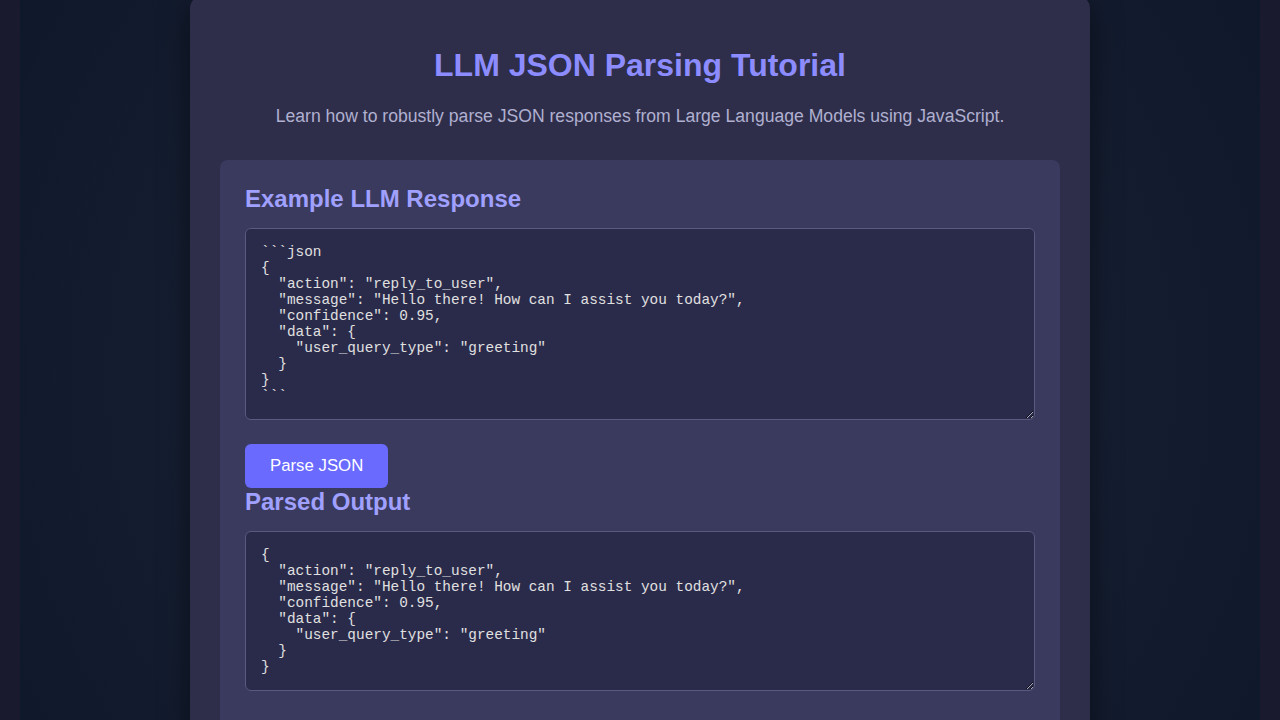
After implementing all the HTML, CSS, and JavaScript, our LLM JSON parser will provide a clean, functional interface. Users will clearly see their raw input, the beautifully formatted parsed JSON, or concise error messages if something goes wrong. The design will be intuitive, making it simple to test and validate various LLM responses. You’ll have a robust tool that not only parses data but also presents it in an easily digestible format, highlighting the power of modern web development in handling AI outputs. The clarity and reliability of the output will be immediately apparent.
Conclusion: Elevating Your Applications with Smart LLM JSON Parsing
We’ve journeyed through the essentials of LLM JSON Parsing in JavaScript, building a practical tool that showcases its importance. From setting up the HTML skeleton and applying elegant CSS to writing robust JavaScript with try...catch for error handling and pretty-printing for readability, you now possess the core skills to integrate AI-generated structured data into your projects confidently. The ability to reliably parse JSON responses from large language models is more than just a technical skill; it’s a gateway to building highly dynamic, intelligent, and user-centric web applications.
“The beauty of parsing structured LLM responses is that it transforms raw AI insights into programmable assets, empowering developers to build truly intelligent applications.”
Start experimenting with different JSON structures from your favorite LLMs. Watch how smoothly your applications can now interact with the power of artificial intelligence. Your newfound parsing prowess will open up a world of possibilities. Happy coding!