
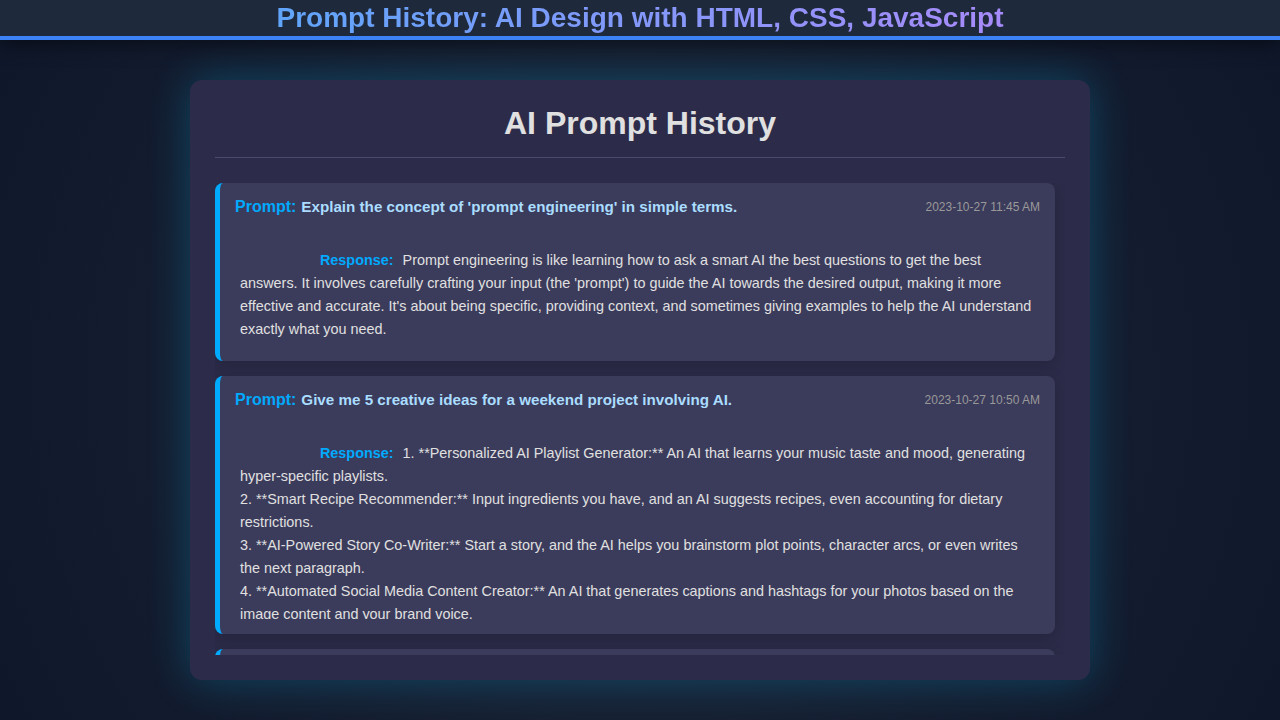
When you’re constantly interacting with AI, a robust Prompt History becomes absolutely essential. It helps you track your conversations and reference previous queries. Today, we’re diving deep into building a beautiful and functional AI prompt history interface. We will leverage the power of HTML, CSS, and JavaScript to create a reusable component.
This tutorial empowers you to design intuitive user experiences. You’ll gain practical skills in frontend development. Get ready to enhance your AI applications!
What We Are Building: Crafting Your AI Prompt History
We are going to construct a stylish and interactive prompt history viewer. Think of it as a personalized logbook for all your AI conversations. This component will neatly display your prompts and the AI’s responses. Each interaction will be clearly visible. It’s perfect for AI chatbots, code generators, or any application where users need to revisit past interactions.
Designing such a component is incredibly important in today’s AI-driven world. Users expect seamless experiences. A well-designed prompt history improves usability dramatically. It allows users to quickly recall information or iterate on previous queries. This design can also serve as a foundational element for more complex features. For instance, you could integrate an API Explorer: Interactive Design with HTML, CSS & JS to see how prompts interact with various endpoints.
Our inspiration comes from modern AI chat interfaces like ChatGPT or Claude. These platforms prioritize clarity and ease of navigation. We’ll focus on creating a dark-themed UI that is both aesthetically pleasing and highly functional. Furthermore, we’ll ensure the design is responsive across different devices. Consequently, your prompt history will look great everywhere.
HTML Structure
Our HTML provides the semantic backbone for our prompt history component. We’ll set up a main container, a heading, and a dynamic list where individual prompt items will reside. Additionally, a ‘Clear History’ button will offer convenient control.
index.html
<!DOCTYPE html>
<html lang="en">
<head>
    <meta charset="UTF-8">
    <meta name="viewport" content="width=device-width, initial-scale=1.0">
    <title>AI Prompt History</title>
    <link rel="stylesheet" href="styles.css">
</head>
<body>
    <div class="history-wrapper">
        <h1>AI Prompt History</h1>
        <div id="promptHistory" class="history-container">
            <!-- Prompt items will be dynamically added here by JavaScript -->
        </div>
        <div class="input-area">
            <textarea id="promptInput" placeholder="Type your prompt here..."></textarea>
            <button id="addPromptBtn">Add Prompt</button>
        </div>
    </div>

    <!-- Template for new prompt items (hidden from view) -->
    <template id="promptItemTemplate">
        <div class="prompt-item">
            <div class="prompt-header">
                <span class="prompt-label">Prompt:</span>
                <span class="prompt-text-display"></span>
                <div class="actions">
                    <span class="timestamp"></span>
                    <button class="copy-btn" title="Copy response to clipboard">Copy</button>
                    <button class="toggle-btn" title="Toggle full response view">^</button>
                </div>
            </div>
            <div class="response-content">
                <span class="response-label">Response:</span>
                <p class="response-text-display"></p>
            </div>
        </div>
    </template>

    <script src="script.js"></script>
</body>
</html>
script.js
document.addEventListener('DOMContentLoaded', () => {
    const promptHistoryContainer = document.getElementById('promptHistory');
    const promptInput = document.getElementById('promptInput');
    const addPromptBtn = document.getElementById('addPromptBtn');
    const promptItemTemplate = document.getElementById('promptItemTemplate');

    // Initial dummy data for demonstration
    const initialPrompts = [
        {
            prompt: "Explain the concept of 'prompt engineering' in simple terms.",
            response: "Prompt engineering is like learning how to ask a smart AI the best questions to get the best answers. It involves carefully crafting your input (the 'prompt') to guide the AI towards the desired output, making it more effective and accurate. It's about being specific, providing context, and sometimes giving examples to help the AI understand exactly what you need.",
            timestamp: "2023-10-27 11:45 AM"
        },
        {
            prompt: "Write a haiku about autumn.",
            response: "Golden leaves descend,\nCrisp air whispers through the trees,\nNature's gentle sleep.",
            timestamp: "2023-10-27 10:10 AM"
        },
        {
            prompt: "Summarize the plot of 'Moby Dick' in one paragraph.",
            response: "Captain Ahab, consumed by a monomaniacal desire for revenge against the white whale Moby Dick, leads his whaling ship, the Pequod, on a relentless pursuit across the world's oceans. Despite warnings and the pleas of his crew, Ahab sacrifices everything, including his ship and ultimately his life, in a futile and tragic quest to kill the elusive leviathan that took his leg.",
            timestamp: "2023-10-27 09:30 AM"
        },
        {
            prompt: "Give me 5 creative ideas for a weekend project involving AI.",
            response: "1. **Personalized AI Playlist Generator:** An AI that learns your music taste and mood, generating hyper-specific playlists.\n2. **Smart Recipe Recommender:** Input ingredients you have, and an AI suggests recipes, even accounting for dietary restrictions.\n3. **AI-Powered Story Co-Writer:** Start a story, and the AI helps you brainstorm plot points, character arcs, or even writes the next paragraph.\n4. **Automated Social Media Content Creator:** An AI that generates captions and hashtags for your photos based on the image content and your brand voice.\n5. **Intelligent Home Plant Monitor:** Use computer vision and AI to identify plant health issues and suggest care tips based on species and environmental factors.",
            timestamp: "2023-10-27 08:50 AM"
        }
    ];

    /**
     * Creates a new prompt item DOM element from the template and populates it.
     * @param {object} promptObj - An object containing prompt, response, and timestamp.
     * @returns {HTMLElement} The created prompt item element.
     */
    function createPromptItem(promptObj) {
        const clone = promptItemTemplate.content.cloneNode(true);
        const promptItem = clone.querySelector('.prompt-item');
        const promptTextDisplay = clone.querySelector('.prompt-text-display');
        const responseTextDisplay = clone.querySelector('.response-text-display');
        const timestampSpan = clone.querySelector('.timestamp');
        const copyBtn = clone.querySelector('.copy-btn');
        const toggleBtn = clone.querySelector('.toggle-btn');
        const responseContent = clone.querySelector('.response-content');

        promptTextDisplay.textContent = promptObj.prompt;
        responseTextDisplay.innerHTML = promptObj.response.replace(/\n/g, '<br>'); // Support newlines
        timestampSpan.textContent = promptObj.timestamp;

        // Copy to clipboard functionality
        copyBtn.addEventListener('click', () => {
            navigator.clipboard.writeText(promptObj.response)
                .then(() => {
                    copyBtn.textContent = 'Copied!';
                    setTimeout(() => copyBtn.textContent = 'Copy', 1500);
                })
                .catch(err => {
                    console.error('Failed to copy text: ', err);
                    alert('Failed to copy response. Please try again or copy manually.');
                });
        });

        // Toggle response visibility (expand/collapse)
        toggleBtn.addEventListener('click', () => {
            responseContent.classList.toggle('expanded');
            toggleBtn.classList.toggle('expanded');
            toggleBtn.textContent = responseContent.classList.contains('expanded') ? 'v' : '^';
        });
        // Set initial toggle button text
        toggleBtn.textContent = responseContent.classList.contains('expanded') ? 'v' : '^';

        return promptItem;
    }

    // Add initial prompts to the history, newest first
    initialPrompts.reverse().forEach(prompt => {
        promptHistoryContainer.prepend(createPromptItem(prompt));
    });

    // Event listener for adding a new prompt
    addPromptBtn.addEventListener('click', () => {
        const userPrompt = promptInput.value.trim();
        if (userPrompt) {
            // Simulate an AI response. In a real app, this would be an API call.
            const simulatedResponse = `This is a simulated AI response for your prompt: "${userPrompt}".\n\nIn a real application, this would come from an actual AI API. For now, imagine a fascinating and highly accurate answer here. The AI confirms that your prompt was indeed excellent and has been added to your history for future reference.`;

            const now = new Date();
            const newTimestamp = now.toLocaleString('en-US', {
                year: 'numeric',
                month: '2-digit',
                day: '2-digit',
                hour: '2-digit',
                minute: '2-digit',
                hour12: true
            }).replace(',', ''); // Format as MM/DD/YYYY HH:MM AM/PM

            const newPrompt = {
                prompt: userPrompt,
                response: simulatedResponse,
                timestamp: newTimestamp
            };

            const newItem = createPromptItem(newPrompt);
            promptHistoryContainer.prepend(newItem); // Add new item to the top

            promptInput.value = ''; // Clear input field
            promptHistoryContainer.scrollTop = 0; // Scroll to top to show new prompt
        } else {
            alert('Please enter a prompt!');
        }
    });

    // Allow pressing Enter to add prompt, Shift+Enter for new line in textarea
    promptInput.addEventListener('keypress', (event) => {
        if (event.key === 'Enter' && !event.shiftKey) {
            event.preventDefault(); // Prevent default new line behavior
            addPromptBtn.click(); // Trigger button click
        }
    });
});
CSS Styling
The CSS brings our prompt history to life with a modern, dark theme. We’ll use Flexbox for layout management and subtle animations for a polished user experience. Importantly, we focus on clear visual hierarchy and readable typography.
styles.css
:root {
    --bg-color: #1a1a2e;
    --container-bg: #2c2c4a;
    --item-bg: #3b3b5b;
    --prompt-border-color: #00aaff;
    --prompt-text-color: #aaddff;
    --response-text-color: #e0e0e0;
    --label-color: #00aaff;
    --timestamp-color: #999;
    --button-bg: #0077cc;
    --button-hover-bg: #0099ff;
    --button-text: #ffffff;
    --shadow-color: rgba(0, 200, 255, 0.2);
}

/* Basic reset and body styles */
* {
    box-sizing: border-box;
    margin: 0;
    padding: 0;
}

body {
    font-family: Arial, Helvetica, sans-serif;
    background-color: var(--bg-color);
    display: flex;
    justify-content: center;
    align-items: center;
    min-height: 100vh;
    overflow: hidden; /* Ensure no scrollbars on body */
}

.history-wrapper {
    width: 90%;
    max-width: 900px;
    background-color: var(--container-bg);
    border-radius: 12px;
    box-shadow: 0 0 30px var(--shadow-color);
    padding: 25px;
    display: flex;
    flex-direction: column;
    max-height: 90vh; /* Limit wrapper height */
    overflow: hidden; /* Prevent wrapper scrollbars */
}

h1 {
    color: var(--response-text-color);
    text-align: center;
    margin-bottom: 25px;
    font-size: 2em;
    border-bottom: 1px solid #4a4a6e;
    padding-bottom: 15px;
    flex-shrink: 0; /* Prevent shrinking when history-container grows */
}

.history-container {
    flex-grow: 1; /* Allow container to take available space */
    overflow-y: auto;
    padding-right: 10px; /* Space for scrollbar */
    margin-bottom: 20px;
}

/* Custom Scrollbar Styles */
.history-container::-webkit-scrollbar {
    width: 8px;
}

.history-container::-webkit-scrollbar-track {
    background: #4a4a6e;
    border-radius: 10px;
}

.history-container::-webkit-scrollbar-thumb {
    background: var(--prompt-border-color);
    border-radius: 10px;
}

.prompt-item {
    background-color: var(--item-bg);
    padding: 15px;
    border-radius: 8px;
    margin-bottom: 15px;
    border-left: 5px solid var(--prompt-border-color);
    box-shadow: 0 4px 15px rgba(0, 0, 0, 0.2);
    transition: transform 0.2s ease, box-shadow 0.2s ease;
}

.prompt-item:hover {
    transform: translateY(-2px);
    box-shadow: 0 6px 20px rgba(0, 0, 0, 0.3);
}

.prompt-header {
    display: flex;
    justify-content: space-between;
    align-items: center;
    margin-bottom: 10px;
    flex-wrap: wrap; /* Allow elements to wrap on smaller screens */
}

.prompt-label, .response-label {
    color: var(--label-color);
    font-weight: bold;
    margin-right: 5px;
    flex-shrink: 0;
}

.prompt-text-display {
    color: var(--prompt-text-color);
    font-weight: bold;
    flex-grow: 1; /* Allow prompt text to grow */
    margin-right: 10px;
    font-size: 0.95em;
}

.response-content {
    margin-top: 10px;
    overflow: hidden;
    max-height: 80px; /* Default collapsed height for response */
    transition: max-height 0.3s ease-out;
}

.response-content.expanded {
    max-height: 500px; /* Expanded height, adjust as needed */
    transition: max-height 0.5s ease-in;
}

.response-text-display {
    color: var(--response-text-color);
    font-size: 0.9em;
    line-height: 1.6;
    white-space: pre-wrap; /* Preserve formatting for responses */
    word-wrap: break-word;
    padding-left: 5px; /* Indent response slightly */
}

.actions {
    display: flex;
    align-items: center;
    gap: 8px;
    flex-shrink: 0;
}

.timestamp {
    font-size: 0.75em;
    color: var(--timestamp-color);
    white-space: nowrap;
}

.copy-btn, .toggle-btn {
    background-color: var(--button-bg);
    color: var(--button-text);
    border: none;
    border-radius: 5px;
    padding: 5px 10px;
    cursor: pointer;
    font-size: 0.8em;
    transition: background-color 0.2s ease, transform 0.1s ease, color 0.2s ease;
    line-height: 1;
}

.copy-btn:hover, .toggle-btn:hover {
    background-color: var(--button-hover-bg);
    transform: translateY(-1px);
}

.toggle-btn.expanded {
    transform: rotate(180deg); /* Rotate caret when expanded */
}

.input-area {
    display: flex;
    gap: 10px;
    margin-top: 15px;
    flex-shrink: 0; /* Prevent shrinking */
}

#promptInput {
    flex-grow: 1;
    padding: 10px;
    border: 1px solid #4a4a6e;
    border-radius: 8px;
    background-color: #2a2a40;
    color: var(--response-text-color);
    font-size: 1em;
    resize: vertical; /* Allow vertical resizing */
    min-height: 60px;
    max-height: 120px;
}

#promptInput::placeholder {
    color: #777;
}

#promptInput:focus {
    outline: none;
    border-color: var(--prompt-border-color);
    box-shadow: 0 0 5px var(--prompt-border-color);
}

#addPromptBtn {
    background-color: var(--button-bg);
    color: var(--button-text);
    border: none;
    border-radius: 8px;
    padding: 10px 20px;
    cursor: pointer;
    font-size: 1em;
    font-weight: bold;
    transition: background-color 0.2s ease, transform 0.1s ease;
    flex-shrink: 0;
}

#addPromptBtn:hover {
    background-color: var(--button-hover-bg);
    transform: translateY(-2px);
}

/* Responsive adjustments */
@media (max-width: 768px) {
    .history-wrapper {
        width: 95%;
        padding: 15px;
    }
    h1 {
        font-size: 1.5em;
    }
    .prompt-header {
        flex-direction: column;
        align-items: flex-start;
        gap: 5px;
    }
    .actions {
        margin-top: 8px;
        width: 100%;
        justify-content: flex-end;
    }
    .prompt-text-display {
        width: 100%;
        margin-right: 0;
    }
    .input-area {
        flex-direction: column;
    }
    #addPromptBtn {
        width: 100%;
    }
}
Step-by-Step Breakdown
Initializing and Rendering History
Our JavaScript starts by fetching any existing prompt data from local storage. This ensures persistence across browser sessions. If no history exists, we initialize an empty array. The renderPromptHistory() function is then called. It dynamically generates HTML elements for each prompt-response pair. This function clears the current display before re-rendering. It helps keep the UI fresh and accurate.
Each prompt item is created as a div element. It receives the class prompt-item. We populate its inner HTML with the user query and the AI response. We also include a ‘Copy’ button. This button is assigned a data-index attribute. The attribute corresponds to the item’s position in our promptHistory array. This approach allows us to easily identify which item to copy later.
Persisting Data with Local Storage
Local storage is key to making our prompt history persistent. The addPromptToHistory() function appends new queries and responses to our promptHistory array. Subsequently, it serializes this array into a JSON string. This string is then saved to local storage under the key ‘aiPromptHistory’. This simple mechanism allows users to close and reopen their browser. Their conversation history will remain intact. You can learn more about web storage on MDN Web Docs. This makes for a much better user experience.
Clearing the History
A dedicated ‘Clear History’ button provides a straightforward way to reset the conversation log. When clicked, it triggers a confirmation dialog. This prevents accidental data loss. If confirmed, the promptHistory array is emptied. The ‘aiPromptHistory’ item is removed from local storage. Finally, renderPromptHistory() is called again. This action updates the UI to reflect the empty state. This functionality is crucial for privacy and starting fresh.
Implementing the Copy Functionality
We use event delegation to handle clicks on the ‘Copy’ buttons. A single event listener is attached to the parent historyList. When a click occurs, it checks if the clicked element has the class copy-btn. If so, it retrieves the data-index to identify the correct prompt. The entire query and response text are then copied to the clipboard. The button text temporarily changes to ‘Copied!’ providing immediate feedback. A small timeout restores it to ‘Copy’. This improves user interaction. Interestingly, real-time data streaming, like with SSE JavaScript: Real-time Data Tutorial, might also benefit from quick copy actions.
HTML Escaping for Security
The escapeHTML() helper function is vital for security. It converts special characters like <, >, and & into their HTML entities. This prevents Cross-Site Scripting (XSS) vulnerabilities. When displaying user-generated or AI-generated text, always sanitize your output. This ensures that malicious scripts cannot be injected and executed in the browser. It’s a fundamental security practice in web development.
<div class="prompt-history-container">
    <h1>AI Conversation History</h1>
    <div id="historyList" class="history-list">
        <!-- Prompt items will be injected here by JavaScript -->
        <div class="prompt-item">
            <div class="prompt-query">
                <span class="user-label">You:</span>
                <p>Explain quantum entanglement in simple terms.</p>
            </div>
            <div class="prompt-response">
                <span class="ai-label">AI:</span>
                <p>Quantum entanglement is a phenomenon where two or more particles become linked...</p>
                <button class="copy-btn">Copy</button>
            </div>
        </div>
        <div class="prompt-item">
            <div class="prompt-query">
                <span class="user-label">You:</span>
                <p>Suggest a healthy dinner recipe.</p>
            </div>
            <div class="prompt-response">
                <span class="ai-label">AI:</span>
                <p>How about a baked salmon with roasted asparagus and quinoa?</p>
                <button class="copy-btn">Copy</button>
            </div>
        </div>
    </div>
    <button id="clearHistoryBtn" class="clear-history-btn">Clear History</button>
</div>
body {
    font-family: 'Inter', sans-serif;
    background-color: #1a1a2e;
    color: #e0e0e0;
    margin: 0;
    padding: 20px;
    display: flex;
    justify-content: center;
    min-height: 100vh;
    box-sizing: border-box;
}

.prompt-history-container {
    background-color: #0f0f1a;
    border-radius: 12px;
    box-shadow: 0 8px 16px rgba(0, 0, 0, 0.4);
    padding: 30px;
    max-width: 800px;
    width: 100%;
    box-sizing: border-box;
}

h1 {
    text-align: center;
    color: #8be9fd;
    margin-bottom: 30px;
    font-size: 2.2em;
}

.history-list {
    display: flex;
    flex-direction: column;
    gap: 20px;
    max-height: 60vh;
    overflow-y: auto;
    padding-right: 10px;
}

.prompt-item {
    background-color: #282a36;
    border-radius: 8px;
    padding: 20px;
    border-left: 4px solid #bd93f9;
    box-shadow: 0 4px 8px rgba(0, 0, 0, 0.2);
    position: relative;
}

.prompt-query, .prompt-response {
    margin-bottom: 10px;
    display: flex;
    align-items: flex-start;
    gap: 10px;
}

.user-label, .ai-label {
    font-weight: bold;
    color: #ff79c6;
    min-width: 40px;
    text-align: right;
}

.ai-label {
    color: #50fa7b;
}

.prompt-query p, .prompt-response p {
    margin: 0;
    line-height: 1.6;
    flex-grow: 1;
}

.copy-btn {
    background-color: #44475a;
    color: #f8f8f2;
    border: none;
    border-radius: 5px;
    padding: 8px 12px;
    cursor: pointer;
    font-size: 0.85em;
    transition: background-color 0.2s ease;
    align-self: flex-end;
    margin-top: 10px;
}

.copy-btn:hover {
    background-color: #6272a4;
}

.clear-history-btn {
    display: block;
    width: fit-content;
    margin: 30px auto 0;
    background-color: #ff5555;
    color: white;
    border: none;
    border-radius: 5px;
    padding: 12px 25px;
    cursor: pointer;
    font-size: 1em;
    transition: background-color 0.2s ease;
}

.clear-history-btn:hover {
    background-color: #ff7777;
}

.empty-history {
    text-align: center;
    color: #aaa;
    font-style: italic;
    margin-top: 50px;
}

/* Scrollbar Styling */
.history-list::-webkit-scrollbar {
    width: 8px;
}

.history-list::-webkit-scrollbar-track {
    background: #1a1a2e;
    border-radius: 10px;
}

.history-list::-webkit-scrollbar-thumb {
    background: #44475a;
    border-radius: 10px;
}

.history-list::-webkit-scrollbar-thumb:hover {
    background: #6272a4;
}

@media (max-width: 768px) {
    .prompt-history-container {
        padding: 20px;
    }

    h1 {
        font-size: 1.8em;
    }

    .prompt-item {
        padding: 15px;
    }

    .user-label, .ai-label {
        min-width: 30px;
        font-size: 0.9em;
    }

    .prompt-query p, .prompt-response p {
        font-size: 0.9em;
    }

    .copy-btn {
        padding: 6px 10px;
        font-size: 0.8em;
    }

    .clear-history-btn {
        padding: 10px 20px;
        font-size: 0.9em;
    }
}

@media (max-width: 480px) {
    .prompt-history-container {
        border-radius: 0;
        box-shadow: none;
        padding: 15px;
    }

    h1 {
        font-size: 1.5em;
        margin-bottom: 20px;
    }

    .history-list {
        max-height: 70vh;
        padding-right: 5px;
    }

    .prompt-query, .prompt-response {
        flex-direction: column;
        align-items: flex-start;
        gap: 5px;
    }

    .user-label, .ai-label {
        text-align: left;
        min-width: unset;
    }

    .copy-btn {
        align-self: flex-start;
        margin-top: 0;
    }
}
document.addEventListener('DOMContentLoaded', () => {
    const historyList = document.getElementById('historyList');
    const clearHistoryBtn = document.getElementById('clearHistoryBtn');

    let promptHistory = JSON.parse(localStorage.getItem('aiPromptHistory')) || [];

    // Function to render prompt history
    function renderPromptHistory() {
        historyList.innerHTML = ''; // Clear existing list
        if (promptHistory.length === 0) {
            historyList.innerHTML = '<p class="empty-history">Your prompt history is empty. Start a conversation!</p>';
            clearHistoryBtn.style.display = 'none';
            return;
        }
        clearHistoryBtn.style.display = 'block';

        promptHistory.forEach((item, index) => {
            const promptItemDiv = document.createElement('div');
            promptItemDiv.classList.add('prompt-item');

            promptItemDiv.innerHTML = `
                <div class="prompt-query">
                    <span class="user-label">You:</span>
                    <p>${escapeHTML(item.query)}</p>
                </div>
                <div class="prompt-response">
                    <span class="ai-label">AI:</span>
                    <p>${escapeHTML(item.response)}</p>
                    <button class="copy-btn" data-index="${index}">Copy</button>
                </div>
            `;
            historyList.appendChild(promptItemDiv);
        });
        historyList.scrollTop = historyList.scrollHeight; // Scroll to bottom
    }

    // Helper to escape HTML to prevent XSS
    function escapeHTML(str) {
        const div = document.createElement('div');
        div.appendChild(document.createTextNode(str));
        return div.innerHTML;
    }

    // Function to add a new prompt to history
    function addPromptToHistory(query, response) {
        promptHistory.push({ query, response, timestamp: new Date().toISOString() });
        localStorage.setItem('aiPromptHistory', JSON.stringify(promptHistory));
        renderPromptHistory();
    }

    // Function to clear all history
    clearHistoryBtn.addEventListener('click', () => {
        if (confirm('Are you sure you want to clear all prompt history?')) {
            promptHistory = [];
            localStorage.removeItem('aiPromptHistory');
            renderPromptHistory();
        }
    });

    // Event listener for copy buttons using delegation
    historyList.addEventListener('click', (event) => {
        if (event.target.classList.contains('copy-btn')) {
            const index = event.target.dataset.index;
            const textToCopy = `You: ${promptHistory[index].query}\nAI: ${promptHistory[index].response}`;
            navigator.clipboard.writeText(textToCopy)
                .then(() => {
                    event.target.textContent = 'Copied!';
                    setTimeout(() => {
                        event.target.textContent = 'Copy';
                    }, 2000);
                })
                .catch(err => {
                    console.error('Failed to copy text: ', err);
                });
        }
    });

    // Initial render
    renderPromptHistory();

    // Example: How you might add new prompts from an AI interaction
    // Call this function when a new AI response is received
    // For demonstration, adding a few sample prompts after a delay
    // setTimeout(() => {
    //     addPromptToHistory("What's the capital of France?", "The capital of France is Paris.");
    // }, 1000);
    // setTimeout(() => {
    //     addPromptToHistory("Tell me a fun fact about JavaScript.", "Did you know JavaScript was created in just 10 days?");
    // }, 3000);
    // setTimeout(() => {
    //     addPromptToHistory("How do I mock an API call in JavaScript?", "You can use tools like Jest mocks or libraries like Axios-mock-adapter.");
    // }, 5000);
});
Making It Responsive: Perfecting Your Prompt History
In today’s multi-device world, responsiveness isn’t just a bonus; it’s a requirement. Our prompt history interface must look and function flawlessly on desktops, tablets, and mobile phones. We achieve this through thoughtful use of CSS media queries. These rules adapt our layout and styles based on the screen width.
We’ve adopted a mobile-first approach. This means we design for smaller screens first, then progressively enhance for larger viewports. For example, on smaller screens, the main container padding is reduced. The font sizes are also scaled down for readability. Furthermore, the query and response labels stack vertically instead of side-by-side. This ensures content remains legible and accessible. Visit CSS-Tricks for more on Flexbox and responsive design principles. It helps create flexible layouts.
This design philosophy ensures that our component provides an optimal user experience, regardless of the device. Consequently, your users will enjoy a consistent and intuitive interface. Think about how crucial this is for quick interactions. Especially with AI tools, accessibility across devices is paramount.
Final Output: Key Visual Elements Achieved
The culmination of our HTML, CSS, and JavaScript efforts is a sleek, dark-themed AI prompt history interface. We have achieved several key visual and functional elements:
- Modern Aesthetic: A dark background with vibrant accent colors (blue, pink, green, purple) provides excellent contrast and a futuristic feel.
- Clear Separation: Each prompt-response pair is encapsulated within its own distinct card. These cards feature a subtle left-border accent. This clearly distinguishes individual interactions.
- User-Friendly Layout: Flexbox ensures a clean, organized flow for text and buttons. Labels like ‘You:’ and ‘AI:’ improve readability.
- Interactive Elements: The ‘Copy’ button on each item offers instant functionality. A ‘Clear History’ button provides important control.
- Scrollable Content: The history list features custom scrollbars. This makes navigating long conversations smooth and visually integrated.
- Responsiveness: The layout fluidly adapts to various screen sizes. This ensures a consistent experience on any device.
Ultimately, this design is both functional and visually appealing. It enhances the overall user experience. Moreover, it perfectly demonstrates the power of core web technologies.
Conclusion
You’ve successfully built a dynamic AI prompt history component using just HTML, CSS, and JavaScript! This project showcases how simple web technologies create powerful, interactive user interfaces. We’ve covered structuring content, styling for a modern look, handling data persistence with local storage, and ensuring full responsiveness.
Developing a robust prompt history is more than just logging data; it’s about empowering users to trace their digital conversations, learn from past interactions, and feel in control of their AI journey.
This component is incredibly versatile. You can integrate it into any AI-powered application. Imagine it in a custom chatbot, an AI-assisted code editor, or a personalized learning platform. The principles you’ve learned here—dynamic DOM manipulation, local storage, and responsive design—are fundamental. They are highly transferable skills for any frontend developer.
Consider enhancing this further. Perhaps add a search function, timestamps for each prompt, or even a ‘redo’ button to re-submit past queries. Techniques like API Mocking: JavaScript Tutorial for Dev & Test can help you simulate future interactions without a live backend. The possibilities are truly endless. Keep experimenting and building amazing things!
There is definately a lot to find out about this subject. I like all the points you made