Hey, Fellow Coder! Let’s Build a Responsive Navbar with Tailwind CSS!
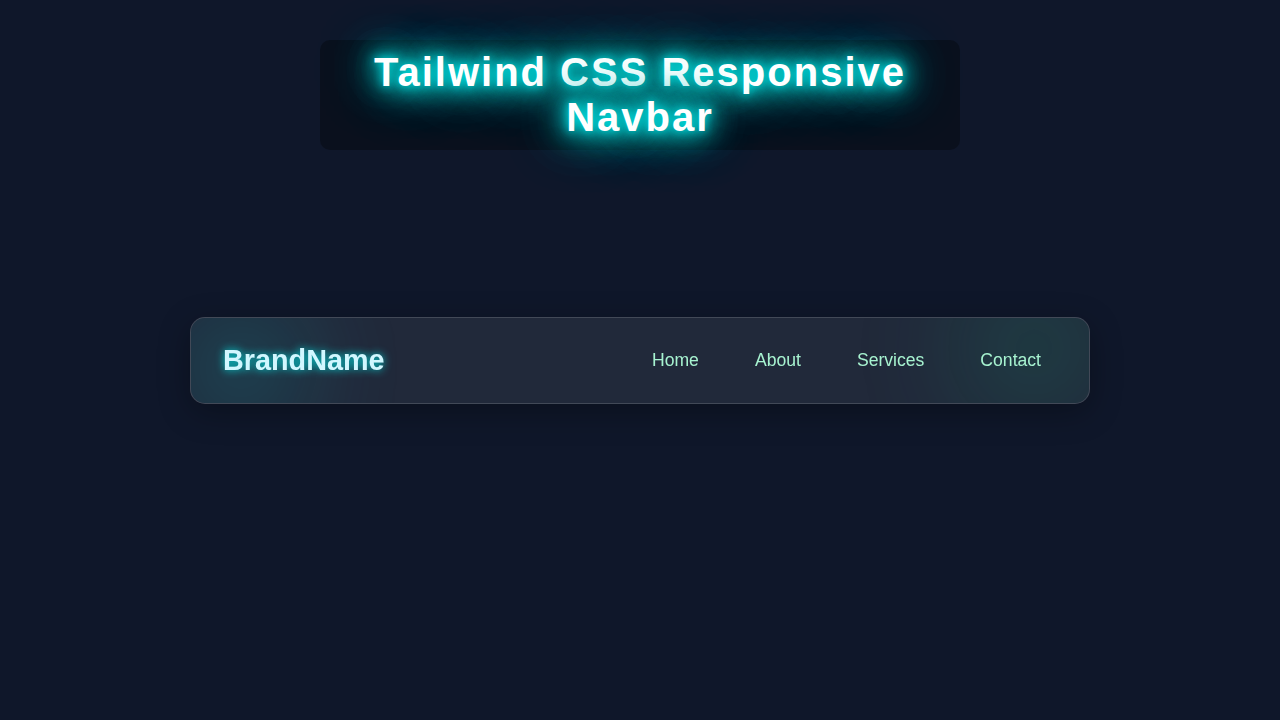
Hey! If you have wanted to build a Responsive Navbar Tailwind CSS component, but felt a bit lost, you are in the perfect spot. We are going to craft a sleek, dynamic navigation bar. This cool component adapts beautifully to any screen size. Get ready to impress your users with a modern UI!
What We Are Building: A Dynamic Navigation Masterpiece
Today, we are diving deep into creating a fully responsive navigation bar. Imagine a smooth, elegant header that works everywhere. On large screens, your menu items shine brightly. But when a user visits on a phone, a neat hamburger icon appears. This icon toggles your menu open and closed. It is intuitive and super user-friendly. We will make it look great and function perfectly. This project will boost your front-end skills significantly.
HTML Structure: The Foundation of Our Responsive Navbar Tailwind
First, we lay down the HTML structure. This defines all the visible elements of our navigation bar. We will include a prominent brand logo or site title. Also, we will add a clear set of navigation links. Crucially, we need the hamburger icon itself for mobile views. Don’t worry, each part has a specific, clear purpose. We are making sure it’s semantic and accessible too. Therefore, users with assistive technologies can navigate easily. Here’s the clean, foundational blueprint:
index.html
<!DOCTYPE html>
<html lang="en">
<head>
    <meta charset="UTF-8">
    <meta name="viewport" content="width=device-width, initial-scale=1.0">
    <title>Responsive Navbar Tailwind CSS</title>
    <!--
        Tailwind CSS CDN for quick setup.
        For production, consider installing Tailwind via npm and using a build process.
    -->
    <script src="https://cdn.tailwindcss.com"></script>
    <style>
        /*
            Custom base styles for safe fonts and consistent box-sizing.
            Tailwind CSS typically sets box-sizing to border-box by default,
            but it's included here for explicit adherence to the rules.
        */
        body {
            font-family: Arial, Helvetica, sans-serif; /* Safe sans-serif font stack */
            box-sizing: border-box; /* Include padding and border in the element's total width and height */
            margin: 0;
            padding: 0;
            overflow-x: hidden; /* Prevent horizontal scroll on small screens */
        }
        /* Apply box-sizing to all elements, including pseudo-elements */
        *, *::before, *::after {
            box-sizing: inherit;
        }
    </style>
</head>
<body class="bg-gray-100 min-h-screen">

    <!--
        Navbar Container:
        - `bg-white`: White background.
        - `p-4`: Padding on all sides.
        - `shadow-md`: Medium shadow for depth.
    -->
    <nav class="bg-white p-4 shadow-md">
        <!--
            Inner Container for Navbar Content:
            - `container`: Sets a max-width and centers the content (requires Tailwind's default container plugin).
            - `mx-auto`: Centers the block horizontally.
            - `flex justify-between items-center`: Arranges children (brand, mobile button, desktop links) in a row,
                                                  spaces them out, and vertically aligns them in the middle.
        -->
        <div class="container mx-auto flex justify-between items-center">
            <!-- Brand/Logo -->
            <a href="#" class="text-2xl font-bold text-gray-800">Brand</a>

            <!--
                Mobile menu button (Hamburger icon):
                - `md:hidden`: Hides this button on medium screens and larger.
                               It will only be visible on small screens.
            -->
            <div class="md:hidden">
                <button id="mobile-menu-button" class="text-gray-500 focus:outline-none focus:text-gray-900">
                    <!-- Hamburger icon SVG -->
                    <svg class="h-6 w-6" fill="none" viewBox="0 0 24 24" stroke="currentColor">
                        <path stroke-linecap="round" stroke-linejoin="round" stroke-width="2" d="M4 6h16M4 12h16m-4 6h4"/>
                    </svg>
                </button>
            </div>

            <!--
                Desktop Navigation Links:
                - `hidden`: Hidden by default (on small screens).
                - `md:flex`: Becomes a flex container on medium screens and larger, making links visible.
                - `space-x-4`: Adds horizontal space between direct child elements.
            -->
            <div class="hidden md:flex space-x-4">
                <a href="#" class="text-gray-600 hover:text-gray-900 px-3 py-2 rounded-md transition duration-300 ease-in-out">Home</a>
                <a href="#" class="text-gray-600 hover:text-gray-900 px-3 py-2 rounded-md transition duration-300 ease-in-out">About</a>
                <a href="#" class="text-gray-600 hover:text-gray-900 px-3 py-2 rounded-md transition duration-300 ease-in-out">Services</a>
                <a href="#" class="text-gray-600 hover:text-gray-900 px-3 py-2 rounded-md transition duration-300 ease-in-out">Contact</a>
            </div>
        </div>

        <!--
            Mobile Navigation Links (Dropdown Menu):
            - `hidden`: Hidden by default (will be toggled by JavaScript).
            - `md:hidden`: Ensures it remains hidden on medium screens and larger, even if JS tries to toggle it.
            - `mt-2`: Margin top.
            - `space-y-2`: Adds vertical space between child links.
            - `px-4 py-2`: Padding.
            - `bg-gray-50 rounded-md shadow-inner`: Styling for the dropdown background.
        -->
        <div id="mobile-menu" class="hidden md:hidden mt-2 space-y-2 px-4 py-2 bg-gray-50 rounded-md shadow-inner">
            <a href="#" class="block text-gray-600 hover:bg-gray-200 px-3 py-2 rounded-md transition duration-300 ease-in-out">Home</a>
            <a href="#" class="block text-gray-600 hover:bg-gray-200 px-3 py-2 rounded-md transition duration-300 ease-in-out">About</a>
            <a href="#" class="block text-gray-600 hover:bg-gray-200 px-3 py-2 rounded-md transition duration-300 ease-in-out">Services</a>
            <a href="#" class="block text-gray-600 hover:bg-gray-200 px-3 py-2 rounded-md transition duration-300 ease-in-out">Contact</a>
        </div>
    </nav>

    <!--
        Main Content Area:
        - `container mx-auto`: Centers content.
        - `mt-8 p-4`: Margin top and padding.
    -->
    <main class="container mx-auto mt-8 p-4">
        <h1 class="text-4xl font-bold text-gray-800 mb-4">Welcome to our Website</h1>
        <p class="text-gray-700 leading-relaxed">
            This is a demonstration of a responsive navbar built with Tailwind CSS.
            Resize your browser window to see how the navigation adapts to different screen sizes.
            On smaller screens, the desktop links will hide and a mobile menu icon (hamburger) will appear,
            allowing users to toggle the mobile navigation dropdown.
        </p>
        <p class="text-gray-700 leading-relaxed mt-4">
            Lorem ipsum dolor sit amet consectetur adipisicing elit. Nostrum, omnis voluptatibus maiores animi dicta eaque.
            Minus rem temporibus, assumenda vitae voluptatum cumque incidunt, quas dolore, facere corporis aliquid illo suscipit.
        </p>
    </main>

    <!-- Link to your JavaScript file for mobile menu functionality -->
    <script src="script.js"></script>
</body>
</html>
CSS Styling: Bringing It to Life with Tailwind CSS
Now for the truly fun part: styling with Tailwind CSS! We will use its powerful utility classes to make our navbar look fantastic. Tailwind helps us design user interfaces incredibly quickly and efficiently. You can control colors, spacing, typography, and responsiveness with remarkable ease. This means no more custom CSS files for every tiny detail. Instead, we simply apply pre-defined classes directly in our HTML. This approach saves a lot of development time. Furthermore, it ensures our styles remain consistent across the entire project. This keeps everything cohesive. So, let’s add some vibrant visual flair to our structure:
JavaScript: Adding Interactivity to Our Hamburger Menu
Our navbar needs some smarts to open and close fluidly. That’s where a touch of JavaScript comes in! We will write a few simple lines to handle the hamburger menu’s click event. When a user taps the icon on their mobile device, the menu will elegantly appear or disappear. It’s a straightforward toggle function. Yet, it makes a huge difference in user experience. Don’t worry if JS feels unfamiliar; we’ll keep the logic incredibly straightforward. This small, efficient script brings our mobile menu to vibrant life. Therefore, let’s implement this dynamic behavior. Here’s exactly how we do it:
script.js
// script.js

// Wait for the DOM to be fully loaded before running the script
document.addEventListener('DOMContentLoaded', () => {
    // Get references to the mobile menu button and the mobile menu element
    const mobileMenuButton = document.getElementById('mobile-menu-button');
    const mobileMenu = document.getElementById('mobile-menu');

    // Check if both elements exist to prevent errors if they are not found
    if (mobileMenuButton && mobileMenu) {
        // Add an event listener to the mobile menu button for click events
        mobileMenuButton.addEventListener('click', () => {
            // Toggle the 'hidden' class on the mobile menu.
            // If 'hidden' is present, it removes it (making the menu visible).
            // If 'hidden' is absent, it adds it (making the menu hidden).
            mobileMenu.classList.toggle('hidden');
        });
    }
});
How It All Works Together: Unpacking Our Responsive Navbar Tailwind
Alright, let’s deeply break down how these individual pieces create our awesome Responsive Navbar Tailwind. Each programming language and tool plays a very specific and crucial role. Understanding this synergy is truly key to building robust and complex UIs. We connect HTML for structure, Tailwind CSS for aesthetics, and JavaScript for seamless interaction. This integrated approach creates a smooth and intuitive user experience. Therefore, let’s carefully explore the full operational flow. You will see the magic unfold.
The HTML Backbone
Our HTML file sets up the fundamental layout and content. We begin with a <nav> element. This acts as the primary container for our entire navigation. Inside, a <div> usually holds our logo or distinct brand name. Next, another <div> carefully organizes all our desktop navigation links. These are typically visible on larger screens. Crucially, we incorporate a <button> element. This button serves as the visible hamburger icon. It is specifically designed to be visible only on smaller screens. We also include a separate <div> element for the mobile menu itself. Importantly, this mobile menu starts hidden by default. It then elegantly appears when the hamburger icon is clicked. That’s a highly efficient and clever way to structure things. It ensures a clean default view.
Tailwind CSS for Visual Magic
Tailwind CSS classes handle all the visual styling. We apply flex and justify-between to our main navbar. This intelligently places the logo on one side and the desktop links on the other. For incredible responsiveness, we use specific prefixes. These include md: (medium devices) or lg: (large devices). For example, a class like hidden md:flex means: ‘this element is hidden by default, but it will display as a flex container on medium screens and larger’. This powerful technique hides the full desktop menu on mobile devices. It dynamically shows the hamburger icon instead. The mobile menu itself uses fixed positioning and w-full to span the entire screen width. We give it bg-gray-800 for a sleek, dark background. We also add py-4 for vertical padding. So, it truly looks distinct and user-friendly.
JavaScript for Interaction
JavaScript then orchestrates the dynamic interaction. It makes the hamburger menu fully interactive. We first grab clear references to our hamburger button and the mobile menu container. We typically use document.getElementById() for this precise selection. Then, we add an event listener to the hamburger button. This listens for a ‘click’ event. When it’s clicked, a specific function runs. This function elegantly toggles a CSS class on the mobile menu. For instance, it might switch between hidden and block classes. Consequently, the menu becomes instantly visible or invisible. It’s a very common and effective pattern for managing UI element visibility. This small, well-placed script brings our menu to vibrant and dynamic life. You will see it in action!
Pro Tip: When working with JavaScript and DOM manipulation, always ensure your script runs after the HTML elements are fully loaded. You can achieve this by placing your
<script>tag just before the closing</body>tag or by using theDOMContentLoadedevent listener for robust practice. Learn more about DOMContentLoaded on MDN for best practices in web development.
Tips to Customise It: Make It Truly Yours
You’ve successfully built a solid responsive navbar! Now, let’s make it truly unique and perfectly fit your brand. Here are a few creative ideas to extend and personalize your excellent creation:
- Add More Navigation Links: Easily expand your navigation capabilities. Just add more
<a>tags within both the mobile menu structure and the desktop menu section. Remember to update anyspace-xorspace-yTailwind classes if needed. This simple step keeps your site’s content growing and accessible. It ensures future scalability. - Change Colors & Fonts: Tailwind CSS makes this customization incredibly simple. For example, modify
bg-gray-800tobg-indigo-600for a strikingly different look. Experiment withtext-whiteorfont-boldfor impact. You can also explore differentfont-familyclasses. Check out the Tailwind CSS documentation for colors for an extensive palette and endless design options. This allows true branding. - Smooth Transitions: Enhance the user experience by adding elegant CSS transitions. Use Tailwind’s
transition-all duration-300 ease-in-outclasses. Apply these to the mobile menu element. This creates a very professional feel for the menu’s appearance and disappearance. It makes opening and closing feel wonderfully fluid and modern. Try different durations for varied effects. - Dynamic Active States: Implement clever logic to visually highlight the currently active page link. You could use JavaScript to dynamically add an
activeclass to the current page’s link. This provides crucial visual feedback to your users. It clearly shows them where they are within your website. This is a small detail that greatly improves usability.
Educator’s Note: This project is a fantastic stepping stone for your web development journey! If you want to explore more advanced techniques or debug common issues in your projects, definitely check out our post on Tailwind CSS Production Issues: Common Fixes & Debugging Tips. And for a deeper dive into why Tailwind CSS has become so incredibly popular among developers, read our comprehensive comparison: Tailwind CSS vs Plain CSS: Modern UI Design Comparison.
Conclusion: You Did It!
Congratulations! You just built a fully functional and beautiful Responsive Navbar Tailwind CSS component. This is a core part of modern web development. You learned about HTML structure, Tailwind CSS utility classes, and basic JavaScript interactivity. Feel proud of what you created! Share your creation with us on social media. Tag procoder09.com. We love seeing your progress! Keep coding and building amazing things.