Python Requests Library: Master API Calls Easily
Hey there, future web wizard! Ever felt like your Python scripts are stuck in their own little world? You build amazing things, but they can’t talk to the internet. They can’t fetch live data. They can’t interact with those cool online services. Well, get ready to unlock a whole new level of power. We are talking about the incredible Python Requests Library.
So, what exactly is this magical library? Think of it like a super-friendly messenger. When you want to get something from a website, or send information to one, this messenger handles all the complex conversations for you. It simplifies talking to the web. It is a tool for making HTTP requests. HTTP is the language websites use to communicate. You just tell it what you want. The Python Requests Library does the heavy lifting. It brings the internet closer to your Python code.
Why the Python Requests Library Matters to YOU
Why should you care about this? Simple. The modern web is all about interaction. You might want to build an app that checks weather updates. Maybe you want to pull stock prices. Perhaps you need to post data to your own server. You could even automate social media tasks. The Python Requests Library makes these tasks super easy. It turns complex web communication into just a few lines of code. It saves you tons of headaches. You won’t need to learn every detail of web protocols. Instead, you focus on what you want to achieve. That is empowering for a self-taught beginner, right?
How the Python Requests Library Actually Works (Under the Hood)
Okay, so it is easy to use. But what really happens when you tell it to grab a webpage? Let’s pull back the curtain a little. Imagine you are at a restaurant. You want to order some food. This is like making an HTTP request. You don’t go into the kitchen yourself. Instead, you tell the waiter what you want.
When you use the Python Requests library, you are essentially telling your Python program to be that customer. You specify the ‘menu item’ – which is the URL, the web address. Then, you choose how you want to ‘order’ it. Do you want to GET information? That is like asking for the menu. Or do you want to POST information? That is like submitting your order. These are called HTTP methods. There are other methods too, like PUT or DELETE, but GET and POST are the big ones.
Your program then packs up your request. It includes ‘headers.’ Headers are like little notes on your order slip. They tell the kitchen things like ‘I prefer English’ (your language preference). They might say ‘I accept JSON’ (the type of data you want back). Sometimes you also send ‘parameters.’ These are like specific customizations. For a weather app, a parameter might be your city name. You can learn more about specific HTTP Headers on MDN Web Docs, including the User-Agent.
Remember this: The Python Requests Library turns the complicated dance of web communication into simple, understandable steps for your code. You tell it what to do, and it translates that into the web’s language.
Once your request is ready, it travels across the internet. It goes all the way to a web server. The web server is like the kitchen. It processes your request. It looks at the URL. It checks your method (GET or POST). It reads your headers and parameters. Then, the server cooks up a ‘response.’ This response comes back to your Python program.
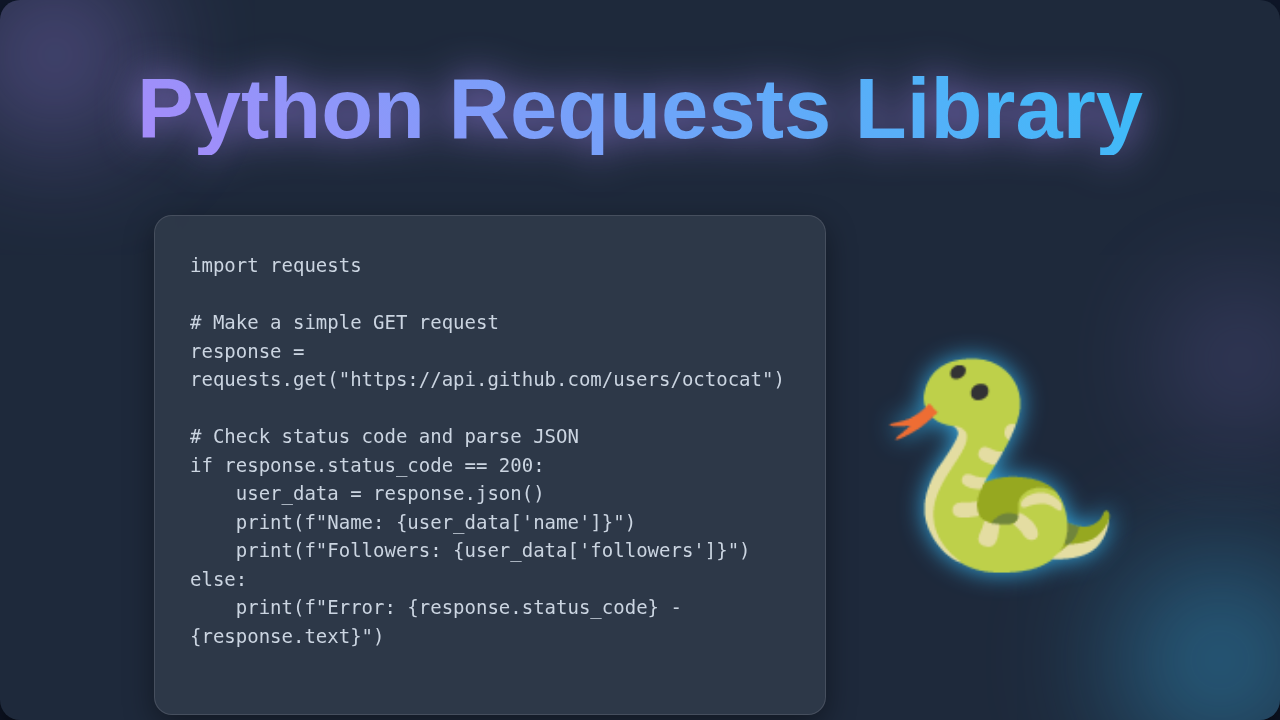
What does this response contain? First, it has a ‘status code.’ This is like the waiter telling you, ‘Your order is cooking!’ (200 OK) or ‘Oops, we are out of that!’ (404 Not Found). You can learn more about HTTP status codes on MDN Web Docs. It also contains the actual data you asked for. This might be HTML (a webpage), JSON (structured data for APIs), or even an image. Your Python Requests Library then neatly unwraps this response. It gives you easy access to the status code, the content, and even response headers. You don’t need to deal with the raw bytes. It handles encoding and decoding. So, you just get the good stuff. Pretty neat, huh? You are essentially having a conversation with a remote computer, all orchestrated by this helpful library.
Common Confusions Cleared Up with Python Requests Library:
Many beginners hit a few snags when they first start. Let’s clear those up for you.
My request worked, but I can’t find the data!
You send a request. The server says ‘200 OK.’ This is great! It means the server received your request. It also successfully processed it. But it doesn’t always mean the data you want is exactly where you expect. Often, the response contains raw text. You might need to parse it. If you are dealing with APIs, the data is usually in JSON format. The Requests library has a .json() method. This method automatically converts JSON text into a Python dictionary. It makes working with the data much easier for you. Similarly, if you are getting HTML, you might use another library (like BeautifulSoup) to extract specific parts. It’s like getting a packed lunch. You need to open the box to get to the sandwich!
Why am I getting a 403 Forbidden error?
This one can be frustrating. A 403 error means the server understood your request. However, it refuses to fulfill it. Think of it as a bouncer at a club. They know you want to get in. But you don’t have the right credentials. This often happens because websites expect certain headers. They might need a User-Agent header. This header tells the server what browser you are using. Some sites block requests that look like automated scripts. You can add these headers easily with the Requests library. It is like putting on a disguise for your Python script. Another reason could be rate limiting. You are making too many requests too quickly. The server temporarily blocks you to prevent abuse. Give it a breather, then try again.
Pro Tip: When troubleshooting, always print the
response.status_codeandresponse.text(orresponse.json()) first. This gives you invaluable clues about what the server is actually sending back to you!
What’s the difference between parameters and data?
This is a super common question. ‘Parameters’ (or params) are usually added to the URL itself. They are visible in the address bar for GET requests. Think of them as filters or specific queries. For example, www.example.com/search?query=python. Here, query=python is a parameter. ‘Data’ (or data/json) is usually sent in the body of a POST request. This information is not visible in the URL. It is used when you are submitting larger amounts of information. This could be form submissions, or creating new resources on a server. If you are sending a secret message, you would put it in the ‘data’ envelope, not on the ‘params’ postcard!
Key Takeaways for Your Web Journey
You have come a long way! Let’s quickly recap what you’ve learned today.
- The Python Requests Library is your best friend for web interactions. It makes talking to websites super simple.
- It uses HTTP methods like GET and POST. These are like different ways to communicate with a server.
- Requests involve URLs, headers, parameters, and data. These all tell the server what you want.
- Responses give you a status code and the actual content back. This is how the server talks to you.
- Common issues, like missing data or forbidden errors, often stem from not parsing the response correctly or missing necessary headers. You now know how to look for these clues.
- This library dramatically cuts down on the boilerplate code you would otherwise need. It lets you focus on building awesome things. You can handle more complex scenarios with libraries like Python Virtual Environments for project isolation or even pair it with Python List Comps for efficient data processing after you get your response.
Your Next Steps in Mastering Web Interactions
You now have a solid foundation. You understand how the Python Requests Library works. You know why it is so powerful. And you can start to debug common problems. Don’t stop here! The best way to learn is by doing. Pick a public API. Many websites offer them. Try to fetch some data. Experiment with different HTTP methods. See what responses you get. You will inevitably run into more questions. That’s perfectly normal! Every developer goes through it. Keep pushing, keep experimenting, and keep building. You have the tools now. Go out there and make your Python scripts chatty! The web is waiting for your amazing creations. You’ve got this!