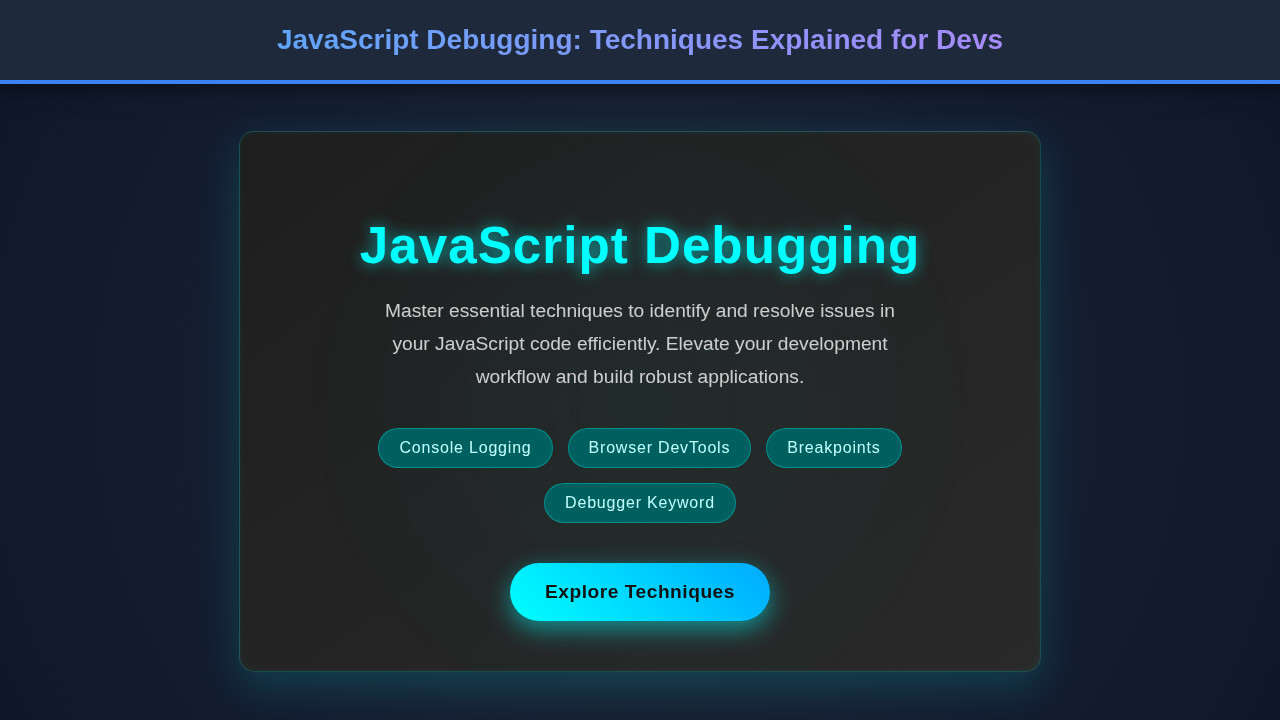
Ah, the thrill of writing code, building something from scratch, seeing your ideas come to life! But let’s be real, that euphoria often comes crashing down when you encounter an unexpected error. This is where JavaScript Debugging becomes your superpower. It’s not just about fixing bugs; it’s about understanding your code better, improving your problem-solving skills, and ultimately, becoming a more confident developer. So, let’s dive deep into the world of debugging, turning those frustrating moments into satisfying ‘aha!’ experiences!
What We Are Debugging: A Simple Task Manager
To truly grasp debugging, we need a practical scenario. We’ll simulate building a straightforward Task Manager application. Imagine a user can add tasks, and then mark them as complete or delete them. This seemingly simple app often hides various small bugs related to DOM manipulation, event handling, or data flow – perfect fodder for our debugging journey.
Why a task manager? Because managing dynamic lists is a fundamental web development task. It involves user input, state management (even if minimal), and interaction with the DOM. Mastering these interactions, and debugging their pitfalls, will significantly boost your frontend prowess. Plus, who doesn’t love the satisfaction of a well-functioning task list?
HTML Structure
Our HTML provides the basic layout for our task manager. It includes an input field for new tasks, an ‘Add’ button, and an unordered list to display our tasks. We’ll also add a small paragraph for error messages.
<div class="container">
    <h1>My Daily Tasks</h1>
    <div class="input-section">
        <input type="text" id="taskInput" placeholder="What needs to be done?">
        <button id="addTaskBtn">Add Task</button>
    </div>
    <ul id="taskList">
        <!-- Tasks will be added here dynamically -->
    </ul>
    <p id="errorMsg" class="error-message"></p>
</div>
CSS Styling
The CSS gives our task manager a clean, modern look. We’ll keep it simple, focusing on readability and usability. This styling also ensures our debugging environment is pleasant to work with.
body {
    font-family: 'Arial', sans-serif;
    background-color: #f4f7f6;
    display: flex;
    justify-content: center;
    align-items: flex-start;
    min-height: 100vh;
    margin: 0;
    padding-top: 50px;
}

.container {
    background-color: #ffffff;
    padding: 30px;
    border-radius: 10px;
    box-shadow: 0 4px 15px rgba(0, 0, 0, 0.1);
    width: 90%;
    max-width: 500px;
    box-sizing: border-box;
}

h1 {
    color: #333;
    text-align: center;
    margin-bottom: 25px;
}

.input-section {
    display: flex;
    margin-bottom: 20px;
}

#taskInput {
    flex-grow: 1;
    padding: 12px 15px;
    border: 1px solid #ddd;
    border-radius: 5px;
    font-size: 1rem;
    outline: none;
}

#taskInput:focus {
    border-color: #007bff;
    box-shadow: 0 0 0 0.1rem rgba(0, 123, 255, 0.25);
}

#addTaskBtn {
    background-color: #007bff;
    color: white;
    border: none;
    padding: 12px 20px;
    border-radius: 5px;
    margin-left: 10px;
    cursor: pointer;
    font-size: 1rem;
    transition: background-color 0.2s ease;
}

#addTaskBtn:hover {
    background-color: #0056b3;
}

#taskList {
    list-style: none;
    padding: 0;
}

#taskList li {
    background-color: #f8f9fa;
    border: 1px solid #eee;
    padding: 12px 15px;
    margin-bottom: 10px;
    border-radius: 5px;
    display: flex;
    justify-content: space-between;
    align-items: center;
    word-break: break-word;
}

#taskList li.completed span {
    text-decoration: line-through;
    color: #6c757d;
}

.task-actions button {
    background: none;
    border: none;
    cursor: pointer;
    font-size: 1.1rem;
    margin-left: 8px;
    color: #6c757d;
    transition: color 0.2s ease;
}

.task-actions button:hover {
    color: #333;
}

.task-actions .complete-btn {
    color: #28a745;
}

.task-actions .complete-btn:hover {
    color: #218838;
}

.task-actions .delete-btn {
    color: #dc3545;
}

.task-actions .delete-btn:hover {
    color: #c82333;
}

.error-message {
    color: #dc3545;
    text-align: center;
    margin-top: 15px;
    font-size: 0.9rem;
    display: none; /* Hidden by default */
}
Mastering JavaScript Debugging Techniques
Now for the main event! We’ll explore various methods to uncover and resolve issues in our JavaScript code. Let’s imagine our task manager has some subtle bugs. Here’s our initial, slightly flawed, JavaScript:
document.addEventListener('DOMContentLoaded', () => {
    const taskInput = document.getElementById('taskInput');
    const addTaskBtn = document.getElementById('addTaskBtn');
    const taskList = document.getElementById('taskList');
    const errorMsg = document.getElementById('errorMsg');

    let tasks = []; // Array to hold our tasks

    // Function to render tasks
    function renderTasks() {
        taskList.innerHTML = ''; // Clear existing tasks
        if (tasks.length === 0) {
            errorMsg.textContent = 'No tasks yet. Add one!';
            errorMsg.style.display = 'block';
            return;
        }
        errorMsg.style.display = 'none';

        tasks.forEach(task => {
            const listItem = document.createElement('li');
            listItem.className = task.completed ? 'completed' : '';
            listItem.innerHTML = `
                <span>${task.text}</span>
                <div class="task-actions">
                    <button class="complete-btn" data-id="${task.id}">✓</button>
                    <button class="delete-btn" data-id="${task.id}">×</button>
                </div>
            `;
            taskList.appendChild(listItem);
        });
    }

    // Function to add a new task
    addTaskBtn.addEventListener('click', () => {
        const taskText = taskInput.value.trim();
        if (taskText === '') {
            errorMsg.textContent = 'Task cannot be empty!';
            errorMsg.style.display = 'block';
            return;
        }

        const newTask = {
            id: Date.now().toString(),
            text: taskText,
            completed: false
        };
        tasks.push(newTask);
        renderTasks();
        taskInput.value = '';
    });

    // Event delegation for complete and delete buttons
    taskList.addEventListener('click', (e) => {
        const targetId = e.target.dataset.id;
        if (!targetId) return; // Not a button with data-id

        if (e.target.classList.contains('complete-btn')) {
            // BUG: This 'completed' property is not being toggled correctly!
            const task = tasks.find(t => t.id === targetId);
            if (task) {
                task.completed = !task.completed;
                renderTasks();
            }
        } else if (e.target.classList.contains('delete-btn')) {
            tasks = tasks.filter(t => t.id !== targetId);
            renderTasks();
        }
    });

    renderTasks(); // Initial render
});
The Power of console.log()
Perhaps the most common, yet effective, debugging tool is console.log(). It allows you to output messages, variable values, or even entire objects to the browser’s console. When our task completion isn’t working, our first thought might be, “Is the right ID being picked up? Is the task object even found?”
Let’s add console.log(e.target); and console.log('Target ID:', targetId); inside our taskList.addEventListener. You might see that when clicking the ✓ button, the targetId is undefined initially if the event listener is on the `li` and not specifically targeting the button’s click event. By logging `e.target`, you quickly realize you’re clicking a `span` or `li` element sometimes, not the button itself! That’s a classic event delegation mishap. Remember to use console.table() for arrays of objects like our `tasks` array, or console.dir() for inspecting DOM elements deeply.
“Effective debugging isn’t just about fixing the symptom; it’s about understanding the root cause. Console logs are your eyes and ears in the runtime environment.”
Breakpoints and the Debugger Tab
While console.log() is great for quick checks, breakpoints offer a far more powerful and interactive way to inspect your code. Open your browser’s Developer Tools (usually F12 or Cmd+Option+I), navigate to the ‘Sources’ tab, and find your JavaScript file. You can click on any line number to set a breakpoint. When your code executes that line, it will pause.
With the code paused, you can inspect local variables, the call stack, and global objects. Our bug with `task.completed` not toggling correctly is an ideal candidate for a breakpoint. Place a breakpoint inside the `if (e.target.classList.contains(‘complete-btn’))` block. Click a complete button. When execution pauses, check the ‘Scope’ panel. Is `task.completed` changing? Is `task` itself the correct object? Stepping through your code line by line (using the control buttons: ‘step over’, ‘step into’, ‘step out’) lets you observe the exact flow of logic and variable mutations. It’s like a slow-motion replay of your program!
Furthermore, use the ‘Watch’ panel to monitor specific variables or expressions. Adding `task.completed` to the Watch list gives you live feedback on its value as you step. This direct inspection is crucial for understanding state changes, especially within loops or complex functions. For further advanced JavaScript concepts, exploring patterns like the Singleton Pattern Explained in JavaScript can deepen your understanding of object lifecycle and state management, which are common sources of subtle bugs.
Inspecting the DOM and Styles
Sometimes, the bug isn’t in your JavaScript logic, but in how it interacts with the DOM or how elements are styled. The ‘Elements’ tab in DevTools is your best friend here. If a task isn’t appearing, check if the `li` element is actually being created and appended to `taskList`. If it’s there but invisible, inspect its styles. Perhaps `display: none;` is accidentally applied, or `opacity: 0;`.
When you click on an element in the ‘Elements’ tab, the ‘Styles’ panel shows all applied CSS rules, including inherited ones. You can toggle rules on and off, or even add new ones, to test changes live. This is incredibly helpful for UI-related bugs. For instance, if your task completion doesn’t show a strikethrough, you might find that the `completed` class isn’t being applied to the `li`, or that the CSS rule targeting `li.completed span` has a typo or is being overridden. Understanding component structure, similar to how one might design an Ephemeral Story: HTML, CSS & JS Design, can clarify where visual bugs might originate.
Network and Performance Audits
While our current task manager is frontend-only, real-world applications often communicate with servers. The ‘Network’ tab is invaluable for debugging API calls. You can see every request, its status code (200 OK, 404 Not Found, 500 Server Error), timing, and the actual response payload. If your task manager fetched initial tasks from a server, and they weren’t appearing, you’d check here first. Is the request even sent? Is it successful? Is the data format what you expect?
The ‘Performance’ tab helps identify bottlenecks. If adding many tasks makes your app slow, you can record a performance profile. It shows you where JavaScript execution time is spent, identifies repaint issues, and helps optimize animations or complex calculations. Furthermore, understanding data operations, such as those discussed in SQL JavaScript: INSERT & JOIN Operations Explained, can inform how you design your data fetching and processing, thereby preventing performance issues from the outset. For a deeper dive into frontend performance, check out CSS-Tricks for excellent articles on optimization.
Practical JavaScript Debugging Scenarios
When dealing with a dynamic web application, the need for robust JavaScript Debugging becomes apparent. Let’s tackle a common problem: debugging an unresponsive layout. Your task manager might look great on a desktop, but break on smaller screens. This isn’t strictly a JS bug, but JavaScript often manipulates styles or DOM structure that can impact responsiveness.
Debugging Responsive Layout Issues
The ‘Device Mode’ in Chrome DevTools (the small phone icon in the top left of the DevTools window) allows you to simulate different screen sizes and devices. This is incredibly useful for testing responsiveness without needing actual hardware. With Device Mode active, you can still use the ‘Elements’ tab to inspect how elements are rendered and styled at various breakpoints.
For instance, if your `input-section` isn’t stacking vertically on mobile, you might find a `display: flex` without a `flex-direction: column` in a media query. Use the ‘Elements’ tab to select the `input-section` div, then review its computed styles. Toggle media queries on and off in the ‘Styles’ panel to see how rules change. You can also temporarily add or modify CSS rules to test fixes directly in the browser. This active experimentation, combined with the device emulator, makes responsive design debugging highly efficient.
The Clean Code: Our Debugged Task Manager
After applying our debugging techniques, we can refine our JavaScript to correctly handle task completion. The primary bug was not setting a `data-id` attribute on the `span` holding the task text, and making sure our event listener specifically targets the buttons, not their parent `li` or child `span`. Additionally, ensuring a smooth user experience across devices is paramount. Our task manager now correctly adds, completes, and deletes tasks, providing clear feedback to the user.
By leveraging `console.log`, strategically placed breakpoints, and careful DOM inspection, we’ve transformed a buggy application into a robust one. This entire process demonstrates the iterative nature of development and the indispensable role of developer tools.
Conclusion
Learning JavaScript Debugging is not merely a skill; it’s a mindset. It equips you with the confidence to tackle any bug, no matter how elusive. From the simplicity of console.log() to the powerful capabilities of breakpoints and the network tab, your browser’s developer tools are a treasure trove of insights.
Embrace debugging as an integral part of your development workflow. It will deepen your understanding of how your code behaves, enhance your problem-solving abilities, and ultimately, make you a more proficient and efficient developer. Keep practicing, keep exploring, and soon, you’ll be debugging like a pro!